
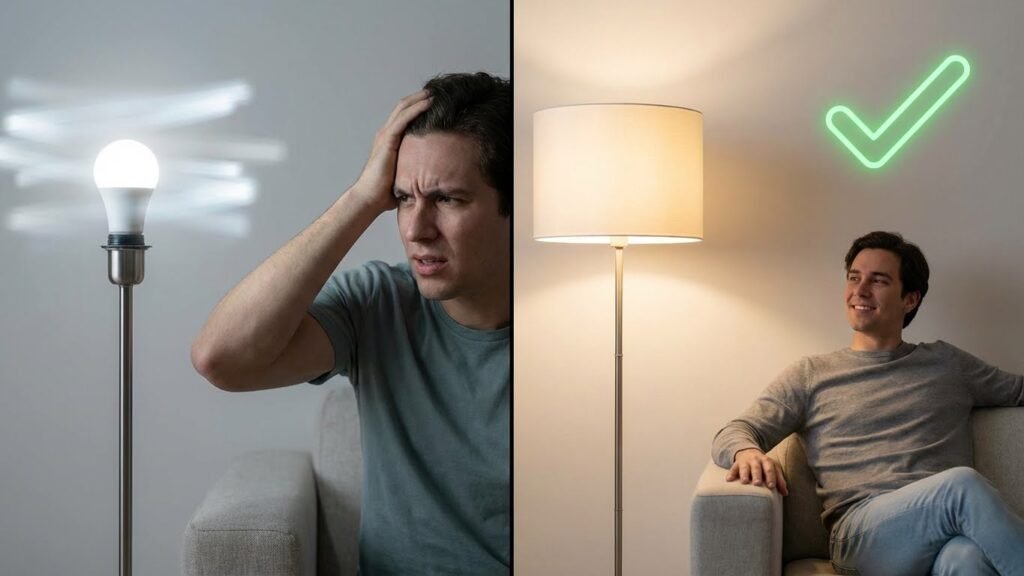
Smart bulbs flash for a few clear reasons: a bad bulb, loose wiring, incompatible dimmers or switches, unstable power, or network and app glitches. Check the bulb and socket first, then rule out the switch, dimmer, power supply, or your app and Wi‑Fi to stop most flashing.
You can often fix the problem yourself by testing the bulb in a different fixture, resetting it, updating the firmware or app, and checking for loose connections or incompatible dimmers. If you still see random flashing after those steps, it may be a deeper electrical or compatibility issue that needs a pro.
Key Takeaways
- Test the bulb and socket before assuming a full replacement.
- Check switches, dimmers, firmware, and the app for common fixes.
- Call an electrician if flashing persists after basic troubleshooting.
Common Causes of Smart Bulb Flashing
You can usually trace flashing to three main areas: the bulb’s power source, the network it uses, or the bulb’s internal software. Fixes start with the socket and power, then check your router and app, and finally update or reset the bulb.
Power Supply Issues
A poor electrical connection often makes bulbs flash. Check the bulb is screwed in snugly and the socket shows no corrosion or loose wires. If the lamp uses a dimmer, confirm the bulb supports dimmers; many LED smart bulbs need non-dimming circuits or compatible dimmer models.
Voltage swings in your home cause flicker too. Test the bulb in a different fixture or room to see if the problem follows the bulb or stays with the fixture. A faulty switch, loose wiring, or a weak lamp holder can cut power intermittently and trigger flashing.
If multiple bulbs in one circuit flash together, inspect your breaker panel for tripped or failing breakers. Consider calling an electrician if you see burned terminals, buzzing, or repeated breaker trips.
Wi-Fi Connectivity Problems
Weak or unstable Wi‑Fi often makes smart bulbs blink when they lose and regain connection. Check signal strength where the bulb sits — two to three bars is best. Move the router closer, add a Wi‑Fi extender, or place a mesh node near the affected room.
Interference matters: microwaves, baby monitors, and crowded 2.4 GHz channels can interrupt the bulb’s link. Switch the bulb to a less crowded channel or use a 2.4 GHz network if the bulb requires it. Also verify the bulb’s MAC or IP isn’t blocked by your router’s firewall or device limits.
If the bulb repeatedly reconnects, open the manufacturer app and watch status messages. Re-pairing the bulb to your hub or resetting its network settings often stops the blinking.
Firmware or Software Errors

Outdated or buggy firmware can make a smart bulb flash during normal operation. Check the bulb’s app for available firmware updates and install them when prompted. Manufacturers release fixes that stop random flashing and improve stability.
App conflicts and hub issues also cause blinking. If you control bulbs with a smart home hub, update the hub firmware and the controlling app. Disable duplicate automations that might send conflicting on/off or color commands.
If updates don’t help, perform a factory reset on the bulb and set it up again. Keep notes of your scene or group settings so you can restore them after the reset.
Troubleshooting Smart Bulb Flashing
You can often fix flashing by restarting the bulb, resetting it to factory settings, or updating its firmware. Each step targets a different cause: temporary glitches, configuration errors, or software bugs.
Restarting the Smart Bulb
Turn the bulb off using the wall switch or app for at least 10 seconds, then turn it back on. This clears temporary glitches in the bulb’s electronics and in many cases stops intermittent flashing.
If your bulb uses an app, also close and reopen the app or restart the hub or bridge it connects to. If the bulb is on a smart switch, power-cycling the switch may be needed instead of the fixture.
Try this on one bulb at a time so you can tell if a single bulb or the whole circuit has the issue. If flashing stops after a restart, monitor it for 24–48 hours to confirm the fix. If it returns, move to a reset or firmware update.
Resetting the Bulb to Factory Settings

Find the bulb’s reset method in the manual; common steps are toggling power 3–10 times or using the app’s factory reset option. Follow the exact timing given by the manufacturer—too-fast or too-slow toggles often won’t trigger the reset.
Resetting removes your settings and any pairing with hubs or apps, so be ready to re-add the bulb afterward. Use this when restarting doesn’t work or when the bulb behaves oddly after firmware updates or network changes.
After reset, set up the bulb again and test for flashing before reapplying custom scenes or schedules. If flashing persists, the bulb may be failing or incompatible with your dimmer or switch.
Updating Firmware
Open the bulb’s app or your smart home hub app and check for firmware updates. Manufacturers release firmware to fix bugs that can cause flashing, connection drops, and other odd behavior.
Install updates only while the bulb has stable power and a reliable internet connection. Don’t interrupt the update; loss of power during firmware installation can render the bulb unusable.
If no update appears but the bulb still flashes, check the manufacturer website for instructions or contact support. Some hubs require you to update their firmware first before device updates appear.
Compatibility and Installation Concerns
Check the bulb base, fixture type, and any in-line controls. Mismatches in power delivery or control methods often cause flashing, as do wiring or mounting problems that interrupt the bulb’s signal or current.
Incompatible Light Fixtures
If your smart bulb doesn’t match the fixture, it can flicker or fail. Fixtures meant for halogen or incandescent bulbs may lack the small vents or spacing LEDs need, causing overheating or poor contact. Bulbs with larger heat sinks might not seat fully in shallow recessed cans, leading to loose connections and intermittent power.
Check the socket type (E26, E27, GU10, etc.) and physical clearance before installing. Metal track fixtures or enclosed luminaires can trap heat; use bulbs rated for enclosed fixtures when required. Also inspect wiring and any inline transformers. Low-voltage fixtures that use magnetic or electronic transformers need LED-compatible drivers. If the fixture uses a transformer not rated for LEDs, swap it for an LED driver or use a bulb designed for that transformer type.
Dimmer Switch Conflicts

Standard dimmer switches often cause smart bulbs to flash because they chop the AC waveform. Many older dimmers were built for incandescent loads and require a minimum wattage that smart LEDs don’t meet, creating unstable voltage and flicker.
If your dimmer is mechanical or triac-based, replace it with a dimmer labeled “LED-compatible” or use a manufacturer-recommended smart dimmer. Alternatively, remove the dimmer and use the bulb’s app or hub to control brightness. When using a compatible dimmer, check the bulb manufacturer’s compatibility list and set the dimmer’s minimum level if available to prevent flicker at low brightness.
Network and App-Related Factors
Network issues and app settings often cause smart bulbs to flash. Weak Wi‑Fi, signal interference, wrong app modes, or cloud-sync problems are the most common culprits and are usually fixable from your router or the bulb’s app.
Router Distance and Obstructions
If your bulb sits far from the router or behind thick walls, the Wi‑Fi signal can drop enough to make the bulb flash or reconnect repeatedly. Move the bulb closer to the router as a test. If that stops the flashing, add a Wi‑Fi extender or a mesh node near the problem light.
Also check for interference from other devices. Microwaves, baby monitors, and some cordless phones use the same 2.4 GHz band many bulbs use. Change the bulb’s connection to a less crowded channel in the router settings or switch compatible bulbs to 5 GHz if supported. Keep the router elevated and away from metal objects for steadier signal strength.
App Configuration Errors
Incorrect app settings can trigger flashing by repeatedly sending connect or update commands. Open the bulb’s app and look for firmware update prompts, active scenes, or automation loops that might be toggling the bulb rapidly. Pause or delete any scene or schedule you don’t recognize.
Also verify account and cloud sync status. If the app shows “offline” or “reconnecting,” sign out and back in, then remove and re-add the bulb. Check permissions and ensure the app firmware and the bulb firmware match recommended versions. If the app shows an error during a firmware update, stop the update, power cycle the bulb, and retry when the network is stable.
Electrical and Environmental Influences
Power quality and room conditions can make a smart bulb flash. Check the supply voltage and the bulb’s temperature limits, because both often cause visible flicker or flashing.
Voltage Fluctuations
Voltage drops, surges, and unstable supply lines can interrupt the bulb’s internal driver and cause flashing. If other lights dim when appliances start, your circuit may be overloaded. Measure voltage with a multimeter at the fixture; readings below about 110–115 VAC or sudden swings bigger than ±5% from nominal can trigger LED driver instability.
Loose or corroded socket contacts and poor wiring connections also create intermittent voltage. Tighten the bulb, inspect the socket for blackening, and check the switch and fixture wiring for firm connections. If the problem follows the circuit rather than the bulb, consult an electrician to test circuit load, replace faulty wiring, or add dedicated circuits for heavy appliances.
Temperature Extremes
Smart LED drivers are sensitive to heat and cold, and operating outside the bulb’s rated range can cause thermal shutdowns or unstable output. High temperatures inside enclosed fixtures or near heat sources shorten driver life and may produce repeated flashing as the device attempts to cool.
Cold environments can reduce driver performance at startup, causing flicker until the bulb warms. Use bulbs rated for enclosed fixtures if you install them in recessed cans, and choose cold-rated models for unheated spaces. If you see heat damage or the bulb feels very hot, move it to a better-ventilated fixture or replace it with one that lists higher ambient-temperature tolerance.
When to Seek Professional Help
If the bulb keeps flashing after you try simple fixes like tightening the bulb, resetting it, or checking the app, call an electrician. Persistent flicker can mean loose wiring, a bad switch, or a problem in the fixture that you should not handle if you lack electrical training.
If you notice other signs with the flashing — like burning smells, scorch marks, frequent breaker trips, or warm switches — stop using the circuit and get help immediately. Those symptoms can point to overheating or faulty wiring that creates a fire risk.
When flashing only happens on one circuit or one room, a professional can test the wiring and the breaker. They will measure voltage and inspect connections to find issues you can’t see or fix safely.
If you have an older home, unusual wiring, or multiple smart devices acting up at once, an electrician or certified smart-home technician can identify compatibility or grounding problems. They can also advise whether a fixture or whole circuit needs replacement.
You may also want a pro if the bulb behaves oddly after a recent electrical work or renovation. Mistakes during upgrades can leave loose neutral or shared circuits that need proper diagnosis and repair.
Preventive Tips for Stable Smart Bulb Operation
Keep bulbs and sockets clean. Dust and grime can cause poor contact and intermittent power. Wipe contacts with a dry cloth and make sure bulbs seat fully in the socket.
Use the correct switch type. Avoid standard dimmer switches unless the bulb says it supports dimming. If you want dim control, pick a smart-compatible dimmer or control brightness through the app.
Secure your Wi‑Fi and reduce interference. Place your router near clusters of smart lights when possible. Use a separate 2.4 GHz network or a mesh system for broader, more stable coverage.
Check for firmware updates regularly. Updates fix bugs and improve connection stability. Update bulbs and hubs through the manufacturer’s app when prompted.
Avoid overloading circuits. Too many devices on one circuit can cause voltage drops and flicker. Spread high-power devices across different outlets or circuits when needed.
Match bulbs to fixtures and hubs. Use bulbs rated for enclosed fixtures if required. Confirm your hub or bridge supports the bulb brand and protocol (Zigbee, Z‑Wave, or Wi‑Fi) to prevent compatibility problems.
Keep a reliable power source. Use surge protectors for key hubs and routers. Consider a small UPS for your network gear if outages or brownouts are frequent.
Document your setup. Note bulb models, firmware versions, and which switches are on dimmers. This record makes troubleshooting faster and helps you spot patterns.
FAQs
Why does my smart bulb flash when I first turn it on?
This often happens because the bulb is resetting, updating firmware, or warming up. Check the bulb app for updates and try power-cycling the socket.
Can a loose switch or dimmer cause flashing?
Yes. Mechanical switches or incompatible dimmers can cut power briefly and make the bulb flash. Use a compatible dimmer or replace the switch with a standard one to test.
Is flashing a sign the bulb is failing?
Sometimes. Repeated flashing after basic fixes can mean the bulb is defective. Try the bulb in a different socket or replace it to confirm.
Could Wi‑Fi or hub issues make lights blink?
Yes. Poor Wi‑Fi, network congestion, or a misbehaving hub can trigger random flashes. Move the hub closer, reduce interference, or reset your router.
What about scheduled flashes at night?
Check your app and any linked automation services. You may have a rule, sunrise/sunset setting, or scene that runs at that time.
Should I worry about electrical safety?
If you see sparks, burning smells, or heat, stop using the fixture and call an electrician. For flicker without heat or odor, troubleshooting is usually safe to do yourself.
Quick checklist to stop flashing:
- Power-cycle bulb and socket.
- Update firmware and app.
- Test different socket and switch.
- Check Wi‑Fi and hub.
- Replace bulb if problem persists.
Conclusion
You can usually stop a flashing smart bulb by checking the basics first: power, socket, and app settings. Start with the simple fixes before replacing hardware.
If the bulb still flashes, test it in another fixture and check your dimmer or switch. Some dimmers and old wiring cause flicker; the U.S. Department of Energy and manufacturers offer guidance on compatible controls and safe wiring practices (see ENERGY.gov for wiring basics).
Firmware and app updates often fix glitches. Keep your hub, router, and bulbs up to date. If interference or network issues look likely, consult your router’s settings or a support page from the bulb maker to learn about channel and range tips.
Defective bulbs or poor power quality require replacement or an electrician’s help. If you suspect a faulty unit or unsafe wiring, stop using the fixture and contact a licensed electrician or the bulb manufacturer for warranty options and safety advice.
Use these steps in order and document what you try. That makes it easier to spot patterns and explain the problem if you need professional help.