
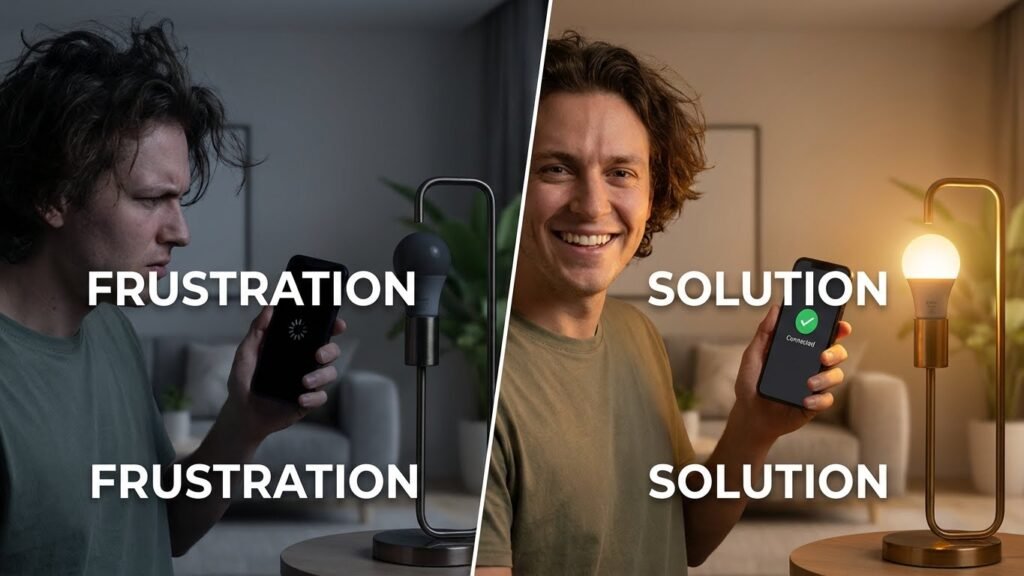
Smart bulbs stop responding for a few common reasons, and you can usually fix them quickly. Most of the time an unresponsive smart bulb means a power, connection, or firmware problem — check the bulb’s power, network link, and app or hub settings first.
If the bulb still does not respond, the issue might be a bad socket, a weak Wi‑Fi or Zigbee signal, a misconfigured app, or a device conflict in your smart home system. This article walks you through simple checks and quick fixes so you can get light back where you need it.
Key Takeaways
- Check power, network, and app settings to fix most unresponsive bulbs.
- Inspect hardware and placement if basic fixes fail.
- Update firmware or contact support before replacing the bulb.
Common Reasons Smart Bulbs Become Unresponsive
Most unresponsive smart bulbs trace back to three things: network problems, power problems, or hub communication failures. Each one has clear signs and targeted fixes you can try.
Wi-Fi Connection Problems

Weak or unstable Wi‑Fi is the top cause of unresponsive bulbs. If your bulb uses 2.4 GHz Wi‑Fi, confirm your router is broadcasting that band and that the bulb sits within range—walls and floors can cut the signal. Look for slow app responses, bulbs that appear offline, or frequent drops; these point to signal or channel interference from other devices.
Check your router settings: disable client isolation, ensure DHCP has free addresses, and avoid hidden SSIDs. Reboot the router and move the bulb or add a Wi‑Fi range extender if the signal improves. If the bulb supports only 2.4 GHz while your network is 5 GHz, either enable a mixed mode or create a dedicated 2.4 GHz network.
Power Supply Issues
Power interruptions and loose fittings often make bulbs act dead or flicker. Confirm the bulb base screws in tightly and the lamp or fixture switch stays fully on. If the bulb flickers after a power outage or during brownouts, test the fixture with a standard bulb to rule out wiring issues.
Avoid smart-compatible switches that physically cut power or use dimmers not rated for smart bulbs. Those can break the bulb’s electronics. If your home has frequent power surges, use a surge protector for the fixture or replace the bulb if internal components failed after repeated outages.
Smart Hub Communication Errors

If you use a hub (Hue Bridge, SmartThings, etc.), problems can come from the hub rather than the bulb. Check that the hub has power, a solid Ethernet or Wi‑Fi link to your router, and shows the bulb as connected in its app. A hub firmware mismatch or outdated app can stop commands from reaching bulbs.
Try restarting the hub, updating its firmware, and re-pairing the bulb. Place the hub closer to bulbs that use Zigbee or Z‑Wave, or add repeaters for better mesh coverage. If only one bulb fails while others work, remove and reset that bulb in the hub, then add it back.
Troubleshooting Connectivity Issues
Check your bulb’s Wi‑Fi or hub link, the router’s settings, and nearby wireless devices that might block signals. Small fixes often restore control: confirm the right network band, enable required router features, and move devices that cause interference.
Verifying Network Settings
Confirm your bulb uses the correct network name (SSID) and the password you enter matches exactly. Many smart bulbs only work on 2.4 GHz Wi‑Fi. Open your phone’s Wi‑Fi settings and check whether you are connecting to 2.4 GHz or 5 GHz. If your router uses a single SSID for both bands, temporarily separate them (give each band a different name) so the bulb can join 2.4 GHz.
Also check for MAC filtering or a guest network that isolates devices. If MAC filtering is on, add the bulb’s MAC address from the bulb’s app or reset the bulb and reconnect it to a normal home network. Ensure DHCP is enabled so the bulb receives an IP address automatically.
Checking Router Compatibility
Make sure your router supports the protocols your bulb needs: most bulbs use standard WPA/WPA2 security and IPv4 addressing. Very old routers, enterprise setups, or custom firmware can block smart devices. Log into the router admin page and confirm firmware is current and that wireless isolation or AP/client mode isn’t enabled.
If your network uses advanced features like VLANs or captive portals, the bulb may not register. Try connecting the bulb to a simple router or mobile hotspot temporarily to test. If that works, adjust your main router settings or place a basic guest network without isolation for smart devices.
Resolving Interference From Other Devices
Wireless interference can cause delayed or dropped commands. Place the bulb at least a few feet from microwaves, cordless phones, baby monitors, and Bluetooth speakers. Metal cages, dimmer switches, and thick walls also weaken signals; try moving the bulb to a different socket to test.
Reduce Wi‑Fi channel congestion by using your router’s auto channel selection or manually switching to a less crowded channel (use a Wi‑Fi analyzer app to scan). If multiple smart devices struggle, consider adding a Wi‑Fi extender or a Zigbee/Z‑wave hub to offload traffic from the main Wi‑Fi.
Assessing Hardware and Installation Problems
Check the bulb and its mounting before digging into apps or network settings. Look for loose connections, damage, and correct wiring that can stop a smart bulb from responding.
Inspecting The Bulb Socket
Turn off power at the switch or breaker before you touch the fixture. Remove the bulb and inspect the socket for corrosion, bent contacts, or dark burn marks.
If the socket contact (center tab) is pushed down, carefully lift it with an insulated tool so it makes firm contact with the bulb base.
Examine the bulb base for corrosion or a damaged thread. Replace the bulb with a known-working incandescent or smart bulb to confirm the socket supplies power.
If the replacement works, the original bulb likely failed. If no bulb lights, test the fixture with a voltage tester or call an electrician.
Reviewing Installation Procedures
Confirm the bulb type matches the fixture: some enclosed fixtures and dimmer circuits are incompatible with certain smart bulbs. Check the bulb’s packaging or app for compatibility notes.
Ensure the fixture’s switch is left on when using app-controlled bulbs—turning the wall switch off cuts power and prevents the smart features from working.
Verify you followed the manufacturer’s pairing steps exactly: some bulbs need a strict power-cycle pattern to enter pairing mode.
Also check the router distance and any smart-hub requirements; a bulb outside the hub’s range or on a different wireless band may appear unresponsive even if hardware is fine.
Software and Firmware Factors
Software and firmware control how your bulb talks to apps, hubs, and Wi‑Fi. Keep both the bulb firmware and the controlling app up to date, and know how to reset the bulb safely if updates fail.
Outdated App or Bulb Firmware
Outdated firmware or an old app often breaks commands or removes compatibility with your phone or hub. Check the bulb maker’s app for firmware releases and install updates when they appear. If a firmware update is listed but won’t apply, move the bulb closer to the Wi‑Fi router or hub, and try again.
Also update the companion app on your phone. App updates fix bugs, update device drivers, and refresh cloud connections. On Android or iOS, force‑close the app, reopen it after the update, and test basic on/off and dim commands.
If updating doesn’t help, note the firmware version and the app version, then contact support. Provide device model, firmware number, and a brief log of steps you tried.
Resetting The Smart Bulb

Resetting clears firmware glitches and restores factory settings. Follow the manufacturer’s reset steps exactly—common methods include toggling the bulb power in a specific on/off pattern or using a reset option inside the app.
After reset, re-pair the bulb to your app or hub. Put the bulb in pairing mode, ensure your phone is on the same Wi‑Fi band (2.4 GHz if required), and follow in‑app prompts. Re-adding the bulb re-applies default firmware settings and can resolve network-binding issues.
Keep in mind a reset will erase schedules, scenes, and links to third‑party services. Back up any important automations first or note them so you can rebuild them after the reset.
Smart Home Integrations and Device Conflicts
Device overlap, account settings, and voice assistant links often cause smart bulbs to stop responding. Check which devices share your network, which apps control the bulb, and which accounts have access.
Multiple Device Interference
If several hubs, bridges, or smart apps try to control the same bulb, commands can clash. For example, a Zigbee hub and a Wi‑Fi bulb app might both send settings that confuse the bulb. Disable duplicate control paths and keep one primary controller per bulb.
Other wireless devices can also interfere. Microwaves, baby monitors, and nearby routers can weaken the signal. Move the router closer or use a mesh system, and relocate high‑interference electronics away from the bulb’s hub.
Also check automatic schedules and scenes across apps. Two scheduled scenes firing at the same time can make the bulb seem unresponsive. Audit schedules and remove duplicates.
Compatibility With Voice Assistants
Voice assistants require a supported integration to control bulbs. If Alexa, Google Assistant, or Siri can’t find the bulb, confirm the bulb’s skill or HomeKit support is enabled and linked to the correct account.
Sometimes the assistant shows the bulb but won’t change state. Remove and re-link the assistant’s skill or service, then rediscover devices. Keep firmware and the assistant app updated to fix protocol mismatches.
If you use multiple assistants, pick one as primary for that bulb. Cross-platform links can cause command conflicts and delayed responses.
Account and Permissions Issues
Shared home accounts can block control. If someone else added the bulb under their account, your app may show it but lack control rights. Ask the owner to grant access or transfer the device to your account.
Third‑party integrations often need explicit permissions. Check app settings for device sharing, location access, and network permissions. Revoke and reauthorize permissions if the bulb still won’t respond.
Finally, factory resets sometimes become necessary. Reset only after confirming account and permission settings, since a reset may remove the bulb from all linked accounts and require re-setup.
When to Contact Support or Replace the Bulb
If basic troubleshooting (power cycle, app reconnection, firmware update) does not fix the bulb, contact the manufacturer or seller. You should reach out when the bulb still fails after a factory reset or when multiple bulbs of the same model show the same fault.
Contact support if the bulb is under warranty or if you see unusual behavior like sparks, burning smell, or frequent power surges. Those signs could indicate a safety issue or a defective unit that the manufacturer should handle.
Replace the bulb when it is physically damaged, consistently fails to reconnect, or shows degraded light quality that updates and resets do not fix. If the bulb is out of warranty and repair costs are similar to replacement, swapping it is usually cheaper and faster.
When you contact support, have this information ready:
- Model number and purchase date
- App screenshots or error messages
- Steps you already tried (reset, firmware update, power cycle)
If support confirms a manufacturing defect, ask about a replacement or refund. If they suggest advanced fixes you don’t want to try, replacing the bulb provides a safe and quick solution.
FAQs
Why won’t my smart bulb connect to Wi‑Fi?
You may be on a 5 GHz network while the bulb needs 2.4 GHz. Check your router settings and move the bulb closer to the router to test signal strength.
How do I update my bulb’s firmware?
Open the bulb’s app and look for a firmware or device update option. Keep the bulb powered and your phone on the same network during the update.
What if the bulb is powered but won’t respond to voice or app commands?
Restart the bulb by switching power off for 10 seconds, then on again. If that fails, restart your phone, router, or smart home hub to rule out network or controller issues.
When should I reset the bulb?
Reset when reconnecting to a new network, transferring to a different account, or after repeated failures. Follow the manufacturer’s reset steps — they vary by brand.
Can a wall switch cause problems?
Yes. If a switch cuts power, the bulb can’t stay connected. Use switches that remain on or install smart switches designed for smart bulbs.
How do I know if the bulb is dead?
Try the bulb in a different socket with known working power. If it still fails after resets and updates, it may be failed and need replacement.
Is compatibility a common cause?
Yes. Some bulbs require a specific hub or protocol (Zigbee, Z‑Wave, Bluetooth). Verify compatibility before buying or pairing.
What basic info should you gather before contacting support?
Note the bulb model, app version, router band (2.4/5 GHz), and what troubleshooting you tried. This speeds up help and leads to a quicker fix.
Conclusion
You can fix most unresponsive smart bulbs by checking power, network, and firmware first. Start with simple steps: confirm the bulb has power, restart your hub or router, and update the bulb’s firmware if an update is available.
If the bulb still fails, inspect the app settings and any hub or bridge connections. Try resetting the bulb to factory settings and re-pairing it. If it uses Zigbee or Z-Wave, make sure the hub firmware matches the device requirements.
Keep interference and placement in mind. Metal fixtures, thick walls, and other electronics can block wireless signals. Moving the bulb or adding a mesh device can improve reliability.
When problems persist, consult the manufacturer’s support pages for model-specific guidance or warranty help. For safe electrical work, refer to guidance from the U.S. Consumer Product Safety Commission and seek a licensed electrician if needed.
Regular maintenance prevents many issues. Keep firmware updated, avoid frequent power cycling, and plan a stable network for your smart devices. These steps help keep your lights responsive and reduce future interruptions.