
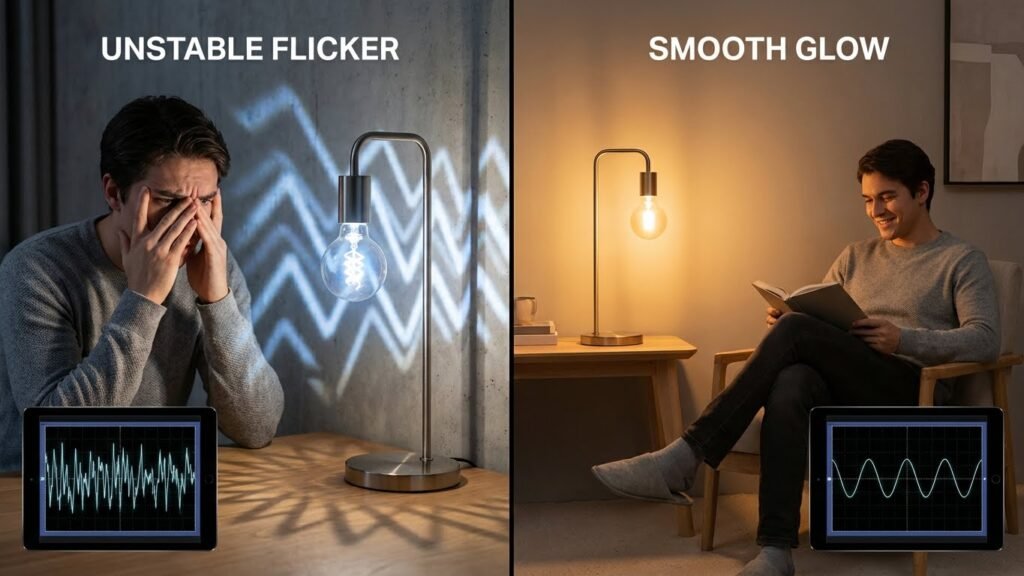
Smart bulbs can flicker for many reasons, but most often the problem comes from a loose connection, incompatible dimmer or switch, faulty wiring, or a software/firmware glitch. Check the bulb, the socket and the switch first — those quick checks fix the majority of flicker problems.
If the basics look fine, the issue might be a dimmer that doesn’t support LEDs, a weak Wi‑Fi or mesh signal, or the bulb’s firmware needing an update. You can troubleshoot step by step to find the cause and decide whether to change settings, replace the bulb, or call an electrician.
Key Takeaways
- Start by inspecting the bulb, socket, and switch for simple faults.
- Check compatibility and wireless or firmware issues before replacing hardware.
- Call a professional if wiring problems or persistent flicker remain.
Common Causes of Smart Bulb Flickering
You’ll see flicker when the bulb can’t get steady power, when wireless signals drop, when a dimmer doesn’t match the bulb, or when the bulb itself is faulty. Each cause has clear signs and simple checks you can do.
Power Supply Issues

Most flicker comes from unstable power. Loose wiring in the socket or lamp causes intermittent contact. Check the bulb by tightening it, trying another socket, and wiggling the fitting gently while the light is on (do this safely).
Voltage fluctuations in your home also create flicker. Large appliances cycling on — like air conditioners or refrigerators — can dip voltage briefly and make LEDs blink. If many lights dim when an appliance starts, call an electrician to check the circuit and service panel.
Bad or old fixtures and poor connections at the switch or fixture can add resistance and heat. Replace any corroded sockets, and don’t use a bulb in a fixture rated lower than the bulb’s specifications.
Wi-Fi or Connectivity Problems
Smart bulbs rely on a stable network for some functions. If the bulb flickers only when you use an app or a voice command, the issue may be a weak Wi‑Fi signal or intermittent connection. Move your router closer or place the bulb within range, or add a Wi‑Fi extender or a smart hub that uses a mesh or Zigbee network.
Network congestion can cause delayed commands that look like flicker. Limit heavy streaming or large downloads on the same band as the bulb. Also check for firmware updates for both the bulb and the hub; outdated firmware can create timing glitches that appear as flicker.
If the bulb works fine manually (switch on/off) but not from the app, focus on the network and hub rather than the bulb itself.
Incompatible Dimmers
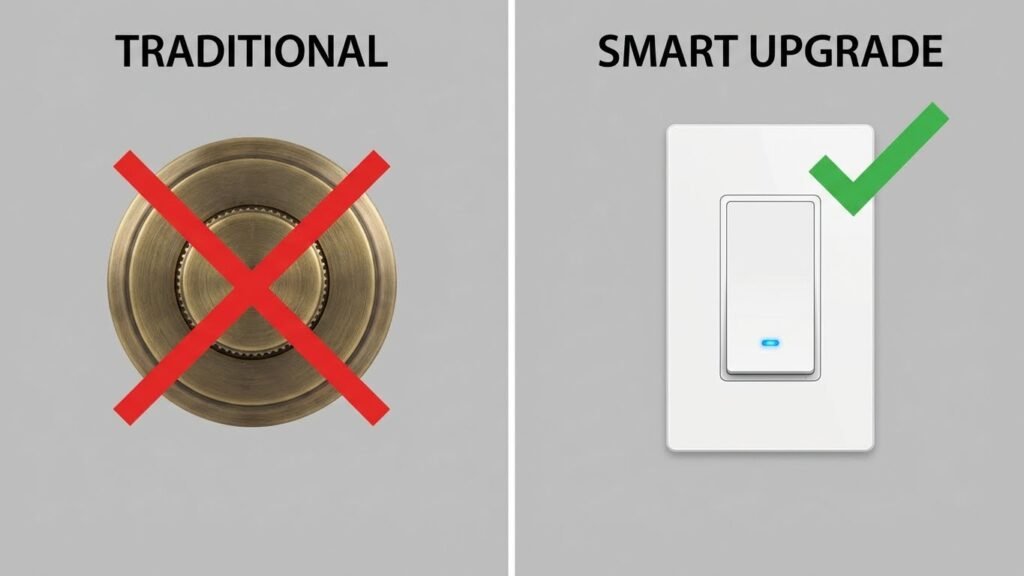
Most LED smart bulbs do not work with traditional leading- or trailing-edge dimmer switches. If you install a smart bulb on a dimmer that wasn’t made for LEDs, the dimmer’s waveform can cause strobing, buzzing, or uneven light. Test by switching the dimmer to full on or replacing it with a standard on/off switch.
If you need dimming, use bulbs labeled “dimmable” and match them to an LED-compatible dimmer or use the bulb’s built-in dimming through the app. Some smart bulbs require specific dimmer models or neutral wires; check the bulb specs before installation. Improper pairing often causes flicker at low brightness levels.
Bulb Defects or Manufacturing Faults
Defective bulbs can flicker from day one or after some weeks of use. Internal driver electronics may fail, causing unstable current to the LEDs. Test by swapping the bulb with a known-good unit of the same model. If the replacement works, the original is likely faulty.
Heat damage shortens bulb life and can cause intermittent flicker. Ensure recessed fixtures provide enough ventilation and don’t exceed the bulb’s temperature rating. Keep receipts and register the bulb for warranty service if you suspect a manufacturing defect.
Electrical and Wiring Issues
Loose connections, unstable voltage, and the wrong type of switch can all make a smart bulb flicker. Each problem needs a different fix, from tightening a terminal to calling an electrician for a circuit check.
Loose or Faulty Wiring
A loose wire at the fixture or in the switch box can create intermittent contact and cause flicker. Turn off power at the breaker before you inspect. Check the bulb base, socket contacts, and any visible wire nuts for warm discoloration, rust, or a loose screw.
If the fixture uses push-in connections, consider moving wires to screw terminals or replacing the socket if contacts look worn. In ceiling fixtures, wiggle the bulb gently—if flicker changes, the socket or bulb contact is likely the issue. For connections inside walls or at the breaker, hire a licensed electrician to tighten or replace the wiring.
Voltage Fluctuations
Voltage that rises or falls rapidly will make LEDs blink or dim. Measure the voltage at the fixture with a multimeter while the bulb flickers. Steady household voltage should stay within about ±5% of your nominal supply (for example, ~120V in the U.S.). Large swings or frequent drops point to a problem.
Common causes include heavy appliances cycling (AC, fridge), a failing breaker, or utility-side issues. If appliance cycling causes dips, try moving the smart bulb circuit to a different breaker or using a dedicated circuit. Contact your utility or an electrician if you see frequent large swings at the breaker panel.
Incorrect Switches
Dimmer switches and certain motion sensors often don’t work with smart LED bulbs. If your bulb is on a legacy dimmer, the dimmer’s minimum load and output waveform can cause buzzing and flickering. Standard toggles and many smart bulbs pair fine, but older triac dimmers or incompatible electronic dimmers often do not.
Replace the dimmer with an LED-compatible model, install a bypass load device if recommended by the bulb maker, or move the bulb to a non-dimmed circuit. For motion sensors, verify the sensor’s required load or swap it for a model rated for LEDs.
Smart Bulb Settings and Configuration
Check updates, app settings, and brightness rules. Small changes in firmware, hub maps, or dimming ranges often stop flicker.
Firmware Updates
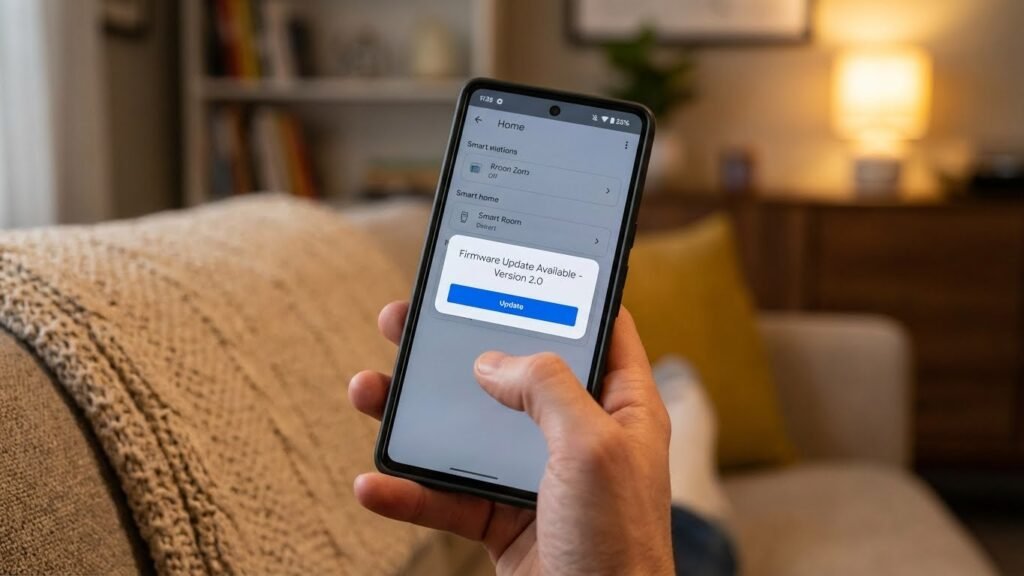
Firmware controls the bulb’s internal software. If the firmware is outdated, the bulb can mismanage power, wireless pairing, or color commands and that causes flicker.
Check the bulb’s app or hub for an update option. Install any vendor-supplied firmware and reboot the bulb after updating. If the app shows a failed update, remove power to the fixture for 10 seconds, then try again.
Keep your hub or bridge firmware current too. Some bulbs need a matching hub firmware level to communicate cleanly. If updates repeatedly fail, factory-reset the bulb and re-add it to the network.
App or Hub Misconfiguration
Incorrect settings in your app or hub can make bulbs blink when they receive conflicting commands.
Look for duplicate entries, scenes, or automations that send rapid on/off or color changes. Disable or delete any duplicate device entries and pause automations to test the bulb alone.
Check group assignments. If the bulb is in multiple groups or scenes, commands from different controllers can clash. Make sure only one app or hub manages a given bulb. Also confirm the bulb uses the right protocol (Zigbee, Z-Wave, Wi‑Fi) in your hub settings.
Incorrect Brightness Settings
Setting brightness outside the bulb’s supported range can cause instability and flicker.
Avoid using legacy wall dimmers with smart bulbs; those send analog dimming and can conflict. Use the app’s built-in brightness slider or a compatible smart dimmer rated for LEDs and your bulb model.
If flicker happens at low levels, raise minimum brightness to around 10–20% in the app or automation. Test several brightness levels and note where the flicker stops. If flicker persists only at high brightness, try lowering max output or test another bulb to rule out a defective unit.
External Interference and Environmental Factors
Electrical disturbances, radio interference, and blocked signals can each make a smart bulb flicker. These problems often come from nearby appliances, building wiring, or crowded Wi‑Fi channels and are usually fixable with targeted steps.
Electrical Noise
Electrical noise comes from devices that rapidly switch currents, like refrigerators, HVAC units, or motor-driven garage doors. These devices inject voltage spikes or rapid fluctuations into your home wiring. That can cause LED drivers in smart bulbs to misread power and flicker.
Check for correlation: note if flicker matches appliance cycles. Try switching the bulb to a different circuit or outlet to see if flicker stops. Install a surge protector or a line filter at the circuit breaker or outlet to reduce spikes. If multiple fixtures on the same circuit flicker, call a licensed electrician to inspect loose neutrals or shared neutrals, which are common sources of sustained noise.
Physical Obstructions
Walls, metal studs, and large appliances can block or weaken the wireless signal that controls your smart bulb. Bluetooth and Zigbee signals attenuate through dense materials; Wi‑Fi performs worse across thick concrete or near large metal objects. A weak control signal can cause missed commands and visible flicker as the bulb reconnects.
Move the bulb or the hub a few feet to check for improvements. Keep hubs at chest height, away from metal cabinets and microwaves. Use a Wi‑Fi extender or an additional Zigbee repeater in rooms with lots of blocking materials. Label problem spots in your home so you place hubs and repeaters where signals travel with minimal obstruction.
Network Congestion
Too many devices on the same Wi‑Fi channel or excessive traffic can delay commands and interrupt the bulb’s control messages. If your router handles streaming, games, and smart devices simultaneously, packet loss or high latency can make bulbs flicker when they fail to receive steady control signals.
Check your router’s client list for device counts and bandwidth use. Move smart bulbs or hubs to a less congested 2.4 GHz or 5 GHz band depending on device support. Change the Wi‑Fi channel to one with fewer neighbors, or enable Quality of Service (QoS) to prioritize smart-home traffic. If congestion persists, add a dedicated access point or a mesh node closer to the affected room.
Troubleshooting Steps for Flickering Smart Bulbs
Start by narrowing the problem to power, the bulb itself, or a compatibility issue. Then follow clear steps to test wiring, reset the bulb, and verify the bulb and dimmer or hub work together.
Identifying the Cause
Check if flicker happens only on one bulb or across several fixtures. If one bulb flickers, try it in a different lamp or socket to see if the issue moves with the bulb. If multiple bulbs flicker together, suspect wiring, the switch, or a dimmer.
Look for quick tests you can run: swap bulbs between sockets, turn power fully off and on at the wall switch, and test the circuit breaker. Note whether flicker changes with other appliances running; that points to voltage fluctuation. Record when flicker occurs (on startup, when dimmed, or during Wi‑Fi commands). This helps isolate electrical versus software causes.
Resetting the Bulb
Resetting often clears firmware or network glitches. Find the reset method in your bulb’s manual—common steps include cycling power on/off several times or using the app’s factory reset command.
After reset, power the bulb and set it up as a new device in the app. Reinstall firmware updates if prompted. If the bulb still flickers after a full reset and update, try the bulb in another fixture to confirm if the reset helped. Keep notes of steps you tried so you don’t repeat unsuccessful actions.
Checking Compatibility
Confirm the bulb matches your fixture and control hardware. Check whether the bulb is rated for dimmers, three‑way switches, or enclosed fixtures as needed. Using a non‑dimmable LED on a dimmer commonly causes flicker.
If you use a smart hub or bridge, verify the bulb brand supports that hub. Also check the bulb’s voltage rating and your home’s supply. Replace incompatible dimmer switches with LED‑compatible ones or use bulbs that explicitly list compatibility with your dimmer or hub.
When to Replace or Upgrade Smart Bulbs
If a bulb still flickers after you try resets, firmware updates, and checking wiring, replace it. Persistent flicker that returns quickly signals failing electronics inside the bulb. You won’t fix that with software or a new app.
Consider age and run hours. Bulbs that have been in use for several years can lose components and dimming control. If you notice color shifts or reduced brightness, upgrade to a newer model.
Check compatibility with dimmer switches and fixtures. If your switch is a legacy dimmer, swap it for a standard on/off switch or buy a bulb listed as dimmer-compatible. Incompatible hardware keeps causing flicker even when the bulb is fine.
Upgrade if you want better features or reliability. Newer bulbs often have improved power regulation, stronger Wi‑Fi or Zigbee radios, and better app support. That reduces the chance of software, voltage, or interference issues causing flicker.
Use this quick checklist before replacing:
- Tried resets and firmware updates
- Tested bulb in another socket
- Confirmed switch and dimmer compatibility
- Observed age, color shift, or reduced brightness
If most checks fail, replace the bulb. Choose a reputable brand with clear compatibility info and a return policy to avoid repeating the problem.
Preventive Measures for Consistent Performance
Keep your bulbs and app updated. Manufacturers release firmware and app updates that fix bugs and improve connectivity. Check for updates monthly or enable automatic updates when possible.
Use the right fixture and avoid dimmer switches that are not LED-compatible. Mismatched dimmers often cause flicker. If you need dimming, buy a dimmer rated for LED and smart bulbs.
Protect bulbs from extreme temperatures and moisture. Place bulbs away from direct heat sources, enclosed fixtures that trap heat, or unheated outdoor areas in winter. Stable temperatures help the internal driver work correctly.
Secure your network and reduce interference. Put your hub or Wi‑Fi router near clusters of smart bulbs and avoid heavy wireless traffic on the same channel. Use a dedicated 2.4 GHz network if your bulbs require it.
Check your home wiring and circuits periodically. Loose sockets, poor connections, or voltage fluctuations can make any bulb flicker. If you suspect wiring issues, hire a licensed electrician to inspect and correct the problem.
Keep spare bulbs and test replacements before judging a whole setup. Swap a known-good bulb into a flickering socket to isolate the issue. This simple step saves time and prevents unnecessary returns.
Label bulbs and maintain a log of firmware versions and installation dates. That record helps you track recurring failures and identify patterns across rooms or fixtures.
FAQs
Why does my smart bulb flicker sometimes?
Flicker often comes from loose wiring, a bad socket, or a poor connection at the switch. It can also come from network or firmware issues if your bulb relies on Wi‑Fi or Zigbee.
Can a dimmer cause flickering?
Yes. Many dimmer switches are made for incandescent bulbs and do not work well with LED smart bulbs. Use a dimmer rated for LEDs or install a smart dimmer that matches your bulb type.
Will firmware updates stop flicker?
Sometimes. Updates can fix software bugs that cause instability or communication errors. Check the bulb’s app and install updates if available.
Is a flickering bulb a fire risk?
A single LED flicker usually is not a fire risk, but persistent flicker from wiring or a loose socket can be hazardous. Turn off power and inspect wiring or call an electrician if you suspect an electrical fault.
How can I test if the bulb or the fixture is the problem?
Swap the smart bulb into a different lamp or socket that you know works. If the flicker stops, the original fixture likely caused it. If flicker stays, try a different bulb in the same socket.
Should you replace a flickering smart bulb?
Replace it if troubleshooting (firmware, reset, different sockets) fails and the bulb is old or underperforming. Check warranty first; many smart bulbs include support or replacement.
Conclusion
You can usually fix a flickering smart bulb with a few quick checks. Start with the bulb, socket, and switch. Replace the bulb if it still flickers after testing in another lamp.
Check your dimmer and use compatible bulbs or a compatible dimmer. If your bulb needs Wi‑Fi or Zigbee, make sure the network and hub are stable. Firmware updates can stop firmware-related flicker; check the manufacturer’s app or website like Philips Hue or the bulb maker for updates.
Loose wiring or a faulty circuit can cause flicker that a bulb swap won’t fix. If you suspect wiring, turn off power and call a licensed electrician. For safety guidance on household wiring, see the U.S. Consumer Product Safety Commission or an electrician’s official site.
If flicker is intermittent, try resetting the bulb and moving it closer to the hub or router. That often resolves intermittent signal or compatibility problems. Keep a spare bulb on hand so you can isolate issues quickly.
Following these steps will help you find the cause and stop most types of flicker. If problems persist after troubleshooting, contact the bulb maker for support or consider replacing older smart bulbs with newer, compatible models.