You can use almost any major smart bulb with Home Assistant, but the easiest bets are bulbs that support Matter, Zigbee, Z-Wave, or have a native Home Assistant integration. Choose bulbs with Matter or native Home Assistant support for the smoothest setup and best features.
If you want cheap Wi‑Fi bulbs, know they often work but may need extra setup or community integrations. Zigbee and Z‑Wave bulbs run on a separate mesh and usually give more reliable performance without clogging your Wi‑Fi.
If you care about automations, voice assistants, or local control, pick bulbs with clear protocol support and good manufacturer integrations so your automations run fast and securely.
Key Takeaways
- Pick Matter or native-integrated bulbs for easiest setup.
- Zigbee or Z‑Wave bulbs reduce Wi‑Fi load and improve reliability.
- Cheap Wi‑Fi bulbs can work but may need extra setup or hacks.
Overview of Smart Bulb Compatibility With Home Assistant

You can connect bulbs using Wi‑Fi, Zigbee, or Thread, and Home Assistant supports direct integrations, hubs, and bridges. Choosing bulbs that match your hub or stick makes setup and automation simpler.
Supported Protocols and Technologies
Home Assistant works with three main protocols: Wi‑Fi, Zigbee, and Thread.
Wi‑Fi bulbs talk directly to your router. They need less hardware but can flood your Wi‑Fi network if you have many devices. Examples include many Tuya-based and some LIFX bulbs.
Zigbee uses a low‑power mesh network. You’ll usually add a USB Zigbee stick (ConBee, Zigbee2MQTT, or ZHA) or a hub (Philips Hue bridge). Zigbee is best when you want many bulbs and reliable mesh range.
Thread is newer and builds mesh networks like Zigbee but uses IP natively. Thread bulbs and Border Routers (Nest, HomePod, some hubs) integrate well with Matter. Thread works best for low-latency local control.
Also note: some bulbs require vendor bridges (Hue Bridge) or cloud accounts for full features. Check if a bulb supports local control or exposes an API before buying.
Home Assistant Integrations for Smart Bulbs
Home Assistant offers multiple integrations: ZHA, Zigbee2MQTT, Philips Hue, Tuya, LIFX, and Matter among others.
ZHA and Zigbee2MQTT let you link many Zigbee bulbs directly using a USB stick. Zigbee2MQTT gives broader device support and advanced options, while ZHA is simpler to set up.
Philips Hue and other branded bridges appear as integrations that expose scenes and advanced color controls. LIFX integrates over LAN without a bridge. Tuya and Smart Life often use cloud integrations or a local API; they can work but sometimes need extra setup in the vendor app.
Matter is growing. Matter‑compatible bulbs support cross‑platform control and tend to work well with Home Assistant when paired through a Matter controller or Thread border router.
Advantages of Using Compatible Smart Bulbs
Using bulbs that match Home Assistant integrations gives you local control, faster automations, and fewer cloud dependencies. Local control avoids internet outages and reduces latency for instant on/off and complex automations.
Compatible bulbs also let you use Home Assistant features like scripts, scenes, and presence‑based triggers. Zigbee and Thread support mesh routing, so bulbs extend your network and improve reliability across rooms.
Choosing widely supported brands and checking for local API or Matter support reduces future migration pain. You’ll spend less time troubleshooting and more time building automations that work predictably.
Top Smart Bulbs That Work With Home Assistant
You can use bulbs that connect via Zigbee or Wi‑Fi, and some offer cloud-free local control when paired correctly. Pick bulbs that match your existing hub (Hue Bridge or a Zigbee stick) or choose Wi‑Fi models that integrate directly with Home Assistant.
Philips Hue
Philips Hue bulbs work well with Home Assistant through the Hue Bridge or a Zigbee coordinator. If you use the Hue Bridge, Home Assistant connects via the native Hue integration for reliable, local control and full color/scene support. Using a Zigbee USB stick (like Conbee II or Zigbee2MQTT) lets you add Hue bulbs without the Bridge, but some advanced features (like firmware updates) may require the Bridge.
Hue offers A19, GU10, and lightstrip formats with consistent white and color rendering. They tend to be slightly more expensive, but they give stable performance and wide accessory support (dimmers, sensors). Use the Bridge for the smoothest setup if you want minimal tinkering.
LIFX
LIFX bulbs connect over Wi‑Fi and integrate directly into Home Assistant without a separate hub. You get high brightness and rich colors from models like A60 and BR30, plus effects on certain LIFX+ and LIFX Z products. Home Assistant’s LIFX integration supports on/off, brightness, color, color temperature, and effects for many models.
Be aware that some early LIFX features rely on cloud APIs, which can affect local-only setups. For most users, LIFX gives easy installation (just add to your Wi‑Fi and then to Home Assistant) and strong color output, making them a good choice when you don’t want Zigbee hardware.
TP-Link Kasa
TP‑Link Kasa smart bulbs (KL series) use Wi‑Fi and pair directly with Home Assistant via the Kasa integration. You control power, brightness, and white/color on compatible models. These bulbs are generally affordable and work well for rooms where you want simple, local control through your home network.
Kasa bulbs update through the Kasa app, and Home Assistant can run most controls locally once discovery is enabled. They don’t need a hub, which keeps costs down. If you rely on automations that must remain cloud-free, check that your specific Kasa model supports local control in Home Assistant before buying.
Nanoleaf
Nanoleaf produces panels and bulbs that support both Wi‑Fi and Thread (in newer products). Home Assistant supports Nanoleaf devices via native integrations for panels, bulbs, and lightstrips. Nanoleaf stands out for customizable scenes, rhythm effects, and nonstandard shapes for panels if you want ambient or accent lighting.
Use the Nanoleaf integration to access effects, brightness, and color zones (on supported models). For Thread-enabled Nanoleaf products, pairing with a Thread border router can improve latency and mesh reliability. Nanoleaf works best when you want creative lighting effects and precise scene control.
Additional Compatible Smart Bulb Brands
These brands offer reliable Home Assistant integration, local control options, and a mix of affordable and high-end bulbs. Each brand differs in pairing method, protocol support, and how much work you must do to keep devices local and responsive.
Sengled
Sengled bulbs often use Zigbee and sometimes Wi‑Fi. If you use Zigbee, you can pair Sengled bulbs directly to a Zigbee coordinator (like a ConBee II, Sonoff Zigbee 3.0, or the Home Assistant SkyConnect) and avoid cloud reliance. That gives faster response and keeps automations running if the internet drops.
Sengled models vary: basic white, tunable white, and RGB color bulbs exist. Check the model number before buying; some earlier Sengled bulbs need the company hub and do not expose all features to Home Assistant. For best results, pick bulbs marked as Zigbee and verify in Home Assistant’s device list that you can control brightness, color temperature, and RGB color if supported.
If you prefer Wi‑Fi, Sengled makes a few Wi‑Fi options that work through cloud integrations. Expect slower updates and possible outages if the manufacturer service goes down. Use Zigbee models when you want more reliable local control.
IKEA TRÅDFRI
IKEA TRÅDFRI bulbs use Zigbee and are one of the most budget‑friendly options for Home Assistant users. You can pair TRÅDFRI bulbs directly to a Zigbee coordinator or through the IKEA gateway; both approaches work, but direct pairing avoids IKEA cloud services and gives simpler local automations.
TRÅDFRI bulbs come as dimmable white, tunable white, and several color models. They generally expose brightness and color temperature cleanly in Home Assistant. Newer IKEA firmware improved stability, but older bulbs sometimes need a firmware update to unlock full features. Use a coordinator that supports firmware updates if you want the smoothest experience.
If you use the IKEA gateway, expect the gateway to act as a local bridge with a reliable Home Assistant integration. The gateway can be helpful if you already have other TRÅDFRI devices and want an easy plug‑and‑play setup.
Yeelight
Yeelight offers Wi‑Fi bulbs that often integrate via Home Assistant using the Yeelight local control integration. Many Yeelight models support a local control mode you must enable in the Yeelight app before pairing. Once enabled, bulbs appear in Home Assistant without a cloud account, giving low latency and reliable automations.
Yeelight’s lineup includes white, tunable white, and full‑color bulbs. Color accuracy is good for the price, and brightness ratings are clearly listed in lumens. Note that some Yeelight models only support cloud control unless you toggle the local mode, and a few regional firmware variants behave differently. Verify local control works in your region and test a single bulb first.
If you want robust voice control, Yeelight integrates with Alexa and Google Assistant as well. For Home Assistant you’ll get the best performance when local mode is active and your bulbs stay on the same LAN as your Home Assistant server.
Connecting Smart Bulbs to Home Assistant

You can connect bulbs directly through Home Assistant, via cloud or third-party services, or by using a Zigbee/Z‑Wave hub. Pick the method that matches your bulb type and your privacy or reliability needs.
Using Native Integrations
Native integrations let Home Assistant talk directly to many popular bulbs. Examples include Philips Hue (Bridge), LIFX (cloud or local API), and IKEA TRÅDFRI (with a gateway). Check Settings > Devices & Services in Home Assistant to add an integration by name.
Follow the integration wizard: discover the device, enter any needed credentials, and assign the bulb to a room. Native integrations often expose brightness, color, and effect controls as entities you can use in automations and dashboards. They usually provide local control when supported, which reduces lag and keeps data on your network.
If a bulb needs a bridge, install that bridge on your network first and pair bulbs to it. Home Assistant will then discover the bridge and import all paired bulbs at once.
Third-Party Integrations
Third-party integrations include cloud bridges (Alexa, Google), community integrations, or MQTT bridges. Use them when the bulb has no official local integration or you want cross-vendor control.
For cloud integrations, enable the vendor skill or cloud service and link accounts in Home Assistant Cloud or via OAuth. Expect some latency and reliance on vendor servers. For MQTT, flash or configure a bulb or a gateway to publish state and accept commands over MQTT topics. Home Assistant can subscribe to those topics and create entities.
Community integrations (HACS) often add support for niche bulbs or custom firmwares. Install HACS, add the integration, and follow its documentation. Always review community code and back up your configuration first.
Zigbee and Z-Wave Hub Setup
Zigbee and Z‑Wave use radios, not Wi‑Fi. You need a coordinator (USB stick or hub) like a ConBee II, Zigbee2MQTT, or a Z‑Wave USB stick. Plug the coordinator into your Home Assistant host or run it on an add-on.
Put the coordinator in pairing mode in Home Assistant, then put the bulb into its join mode (follow the bulb’s manual). Once paired, the bulb appears as a device with on/off, brightness, color, and device health info. Zigbee2MQTT and ZHA expose more advanced options like grouping and OTA updates.
Keep devices close during pairing, then move them to their final location. Mesh routing improves range; include mains-powered devices to strengthen the network.
Automations and Features With Home Assistant
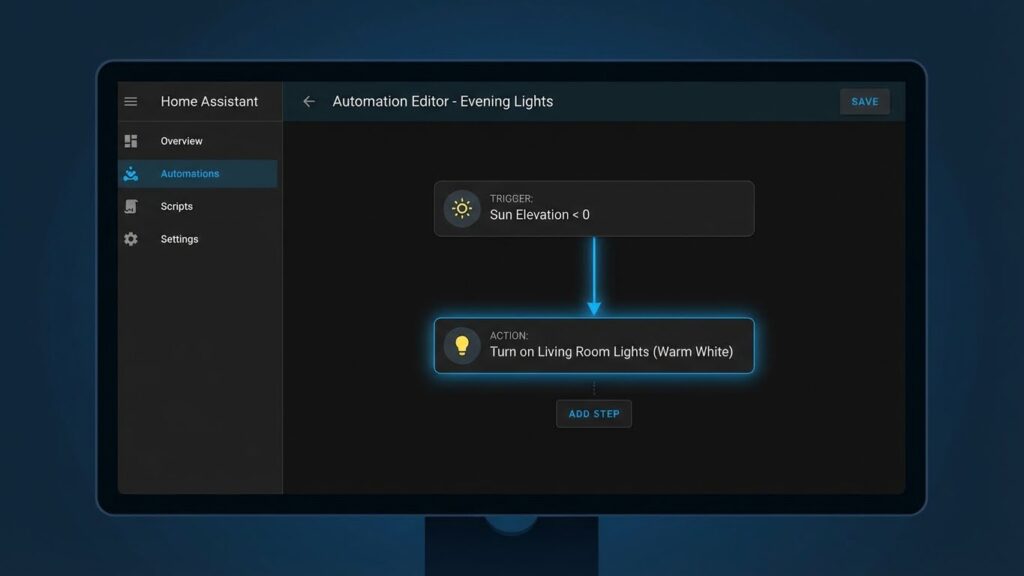
Home Assistant lets you control brightness, color, timing, voice, and remote access for smart bulbs. You can build auto rules that match motion, time of day, or voice commands and run them locally for fast response.
Lighting Scenes and Schedules
You can create named scenes that set bulbs’ brightness, color temperature, and RGB values together. Save a “Relax” scene with warm 2200K at 30% and a “Focus” scene with 4000K at 100%. Apply scenes manually, from a dashboard, or trigger them automatically.
Use schedules to change lights by time or sunrise/sunset. For example, ramp bedroom lights to 10% at 06:00 for a gentle wake-up or switch off living room lights at midnight. Combine schedules with conditions so scenes only run when someone is home.
Set transitions to fade lights smoothly over seconds or minutes. Use groups to control multiple bulbs as one unit. You can layer automations so a motion sensor triggers a short temporary scene, then a schedule returns lights to the default scene.
Voice Assistant Integration
Home Assistant supports popular voice assistants like Google Assistant and Amazon Alexa through integrations or cloud services. Link your Home Assistant entities to the assistant to say commands like “Hey Google, set living room to movie” and have the correct scene and brightness apply.
You can choose local integrations (faster, more private) or cloud bridges (easier setup, remote voice access). Map friendly names and groups so voice commands control multiple bulbs at once. Test commands for exact phrasing to ensure reliability.
Use intent scripts and custom phrases within Home Assistant to add shortcuts that the assistant can call. That lets you keep complex logic in Home Assistant while using simple voice triggers to run them.
Remote Access and Control
Remote control lets you manage bulbs when you’re away. Use Home Assistant Cloud or configure secure remote access with DuckDNS and an SSL certificate to reach your instance from anywhere.
Set up mobile push notifications to alert you if a light is left on, and include action buttons to turn lights off or enable a scene from your phone. Use presence detection so automations behave differently when no one is home — for example, simulate occupancy by turning lights on and off on a schedule.
Keep security in mind: enable strong passwords, two-factor auth, and limit exposed services. Local control still works on your LAN when remote access is disabled, so critical automations keep running even without internet.
Troubleshooting Common Issues
Most problems with smart bulbs come from network links, outdated firmware, or integration setup. You’ll want to check signal strength, update device software, and verify Home Assistant settings first.
Connectivity Problems
Weak Wi‑Fi or Zigbee links cause the most failures. Move your bulb closer to the hub or router for a quick test. If performance improves, add a Zigbee repeater or a Wi‑Fi access point to cover dead spots.
Check channel and interference issues next. For Wi‑Fi bulbs, avoid crowded 2.4 GHz channels and keep Bluetooth devices away from the bulb during pairing. For Zigbee, pick a channel away from your Wi‑Fi channel and reduce wall or appliance interference.
Use tools to confirm reachability. In Home Assistant, watch the entity state and logs for timeouts or “unavailable” messages. If a bulb drops repeatedly, try a factory reset, then re-pair it to your coordinator or app.
Firmware Updates
Bulb firmware often fixes stability and feature problems. Check the bulb maker’s app for updates before you troubleshoot other issues. Apply updates while the bulb is stable and within strong signal range.
If Home Assistant supports OTA updates for your device, prefer in-app updates to keep the integration intact. Some vendors require updates through their hub or cloud service; follow the official steps to avoid bricking the bulb.
Record the current firmware version before updating. If an update fails, power-cycle the bulb and try again. Keep backups of your automation settings in case you need to remove and re-add the device.
Integration Errors
Integration errors happen when Home Assistant and a bulb don’t speak the same protocol. Confirm which integration you use: native vendor, Zigbee (ZHA, Zigbee2MQTT), Matter, or cloud-based. Use the integration that best matches your device type.
Read Home Assistant logs for precise error messages. Common issues include authentication failures, wrong IP addresses, or duplicate device IDs. Remove stale entries in the integrations page and restart Home Assistant after reconfiguring.
If a bulb becomes unresponsive after pairing, delete and re-pair it. Keep notes of custom entity names and automations so you can restore them. When unsure, check the Home Assistant community for device-specific steps and recommended integrations.
Security and Privacy Considerations
Smart bulbs often connect via Wi‑Fi, Zigbee, or Bluetooth. You should check how each bulb communicates with Home Assistant and limit cloud-only devices when possible.
Keep firmware up to date. Firmware updates fix security bugs. Enable automatic updates or check regularly in the vendor app.
Use strong, unique passwords and enable two-factor authentication for accounts tied to your smart home. Protect your Home Assistant instance with a strong password and secure remote access methods like VPN or Home Assistant Cloud.
Segment devices on your network. Put smart bulbs and other IoT devices on a guest or VLAN network to limit access to phones and computers you care about. This reduces risk if a device is compromised.
Be cautious with cloud integrations. Cloud bridges can be convenient but may share more data and increase attack surface. Prefer local integrations (Zigbee, Z‑Wave, ESPHome, or direct LAN APIs) for greater privacy and reliability.
Review permissions and data policies. Check what data the bulb manufacturer collects and whether they share it. Disable unnecessary features that send telemetry or voice data.
Monitor device behavior and logs. Watch for unexpected connections or frequent reboots. Use Home Assistant’s logs and network tools to spot issues early.
If you use third‑party bridges or custom firmware (ESPHome, Tasmota), validate the source and follow secure flashing steps. Untrusted code can introduce new vulnerabilities.
Future Developments in Smart Bulb Compatibility
You will see Matter and other open standards shape smart bulb support across Home Assistant. Matter aims to make devices work the same way on different hubs, so bulbs that adopt it are likelier to pair directly with Home Assistant without extra bridges.
Expect more bulbs to offer native Thread and Bluetooth Low Energy (BLE) support. Thread gives low-latency, mesh networking that can improve reliability for many bulbs, while BLE simplifies local setup and control from mobile devices.
Home Assistant will keep adding integrations and driver-level support. That means even non‑Matter bulbs can gain better compatibility through software updates or community integrations you can enable.
Look for improved energy reporting and richer device attributes. New bulbs will report power use, color temperature ranges, and diagnostics, letting you build smarter automations and track energy in Home Assistant dashboards.
Security and privacy will become more consistent. Vendors will move toward stronger encryption and clearer data practices, and Home Assistant will continue to favor local control options to limit cloud dependence.
Compatibility will still vary by model and firmware. Always check the bulb’s specs and Home Assistant’s integration documentation before buying, and plan for occasional firmware updates to maintain full feature support.
FAQs
What types of smart bulbs work with Home Assistant?
You can use Wi‑Fi, Zigbee, Z‑Wave, and Bluetooth bulbs. Wi‑Fi and Zigbee are the most common for direct control and broad integration. Check the bulb’s supported protocols before you buy.
Do I need a hub or bridge?
Some bulbs need a hub (Zigbee or Z‑Wave) while many Wi‑Fi bulbs work without one. Using a hub can improve reliability and allow local control with Home Assistant.
Will my bulbs work without the vendor cloud?
Many integrations support local control, but some brand apps rely on cloud services. Prefer bulbs with native Home Assistant integrations or those compatible with local protocols like Zigbee or MQTT.
Can I use cheap, no‑name bulbs?
You can, but compatibility varies. Those tied only to proprietary cloud apps may be harder to integrate. Look for community reports or official integration support first.
How do I add a bulb to Home Assistant?
Use the Integrations page or the ZHA/Zigbee2MQTT/Matter integrations for Zigbee devices. For Wi‑Fi bulbs, follow the specific integration or use MQTT if the bulb supports it.
Can I automate bulbs with motion sensors and voice assistants?
Yes. Home Assistant supports automations and can link bulbs to motion sensors. You can also connect Home Assistant to Alexa or Google for voice control.
What about color and dimming features?
Most smart bulbs support dimming and many offer full color. Verify the feature set in the product specs and that the Home Assistant integration exposes those controls.
Conclusion
You can pick smart bulbs that match your setup, budget, and comfort with tech. Choose Matter or Zigbee bulbs for easier local control and smoother Home Assistant support, or Wi‑Fi bulbs if you prefer direct cloud features.
Look for compatibility, brightness (lumens), and color range when shopping. Brands like Philips Hue, LIFX, and many Zigbee bulbs work well, and Matter devices are becoming a safe choice for future-proofing.
If you want the simplest, most reliable route, use a hub or a proven integration. Home Assistant’s documentation and community pages show which integrations work best and how to set them up: see the official Home Assistant site for guides and examples.
Test one bulb in your most used room before a full swap. That helps you confirm range, color quality, and automation behavior with your existing sensors and switches.
Keep firmware updated and use local integrations when possible to reduce cloud dependency. For device security and long-term compatibility, consult manufacturer support and the Home Assistant integration page for the latest guidance.
