
You can use many popular smart bulbs with Apple HomeKit, including Philips Hue, Nanoleaf Essentials, LIFX, VOCOlinc, and Meross, plus newer Matter- and Thread-enabled bulbs for wider compatibility. These bulbs let you control lights with the Home app, Siri, automations, and scenes for easy, voice‑driven lighting.
If you want simple setup and strong HomeKit support, pick bulbs that list HomeKit compatibility or Matter support and follow the maker’s setup steps or add them through the Home app. You’ll find options for white, tunable white, and full color bulbs, so choose what fits your room and automation needs.
Key Takeaways
- Choose bulbs labeled HomeKit or Matter for direct Apple integration.
- Look for color, dimming, and Thread support to match your needs.
- Use the Home app and Siri for automations, scenes, and remote control.
What Is Apple HomeKit?
Apple HomeKit is a smart home platform that lets you control compatible devices from your iPhone, iPad, Apple Watch, or Mac. It focuses on security, easy setup, and voice control through Siri.
How Apple HomeKit Works
HomeKit uses the Home app and Siri as the main control points. You add devices by scanning a HomeKit setup code or using the manufacturer’s app. Once added, devices appear in the Home app where you can turn them on or off, set brightness, change color, or include them in scenes and automations.
HomeKit can run automations locally when you have a Home hub (Apple TV, HomePod, or iPad) on your home network. That hub lets automations run when you’re away and enables secure remote access. HomeKit also uses end‑to‑end encryption to protect device data and communication.
Benefits of HomeKit-Enabled Smart Bulbs
HomeKit bulbs give you voice control with Siri and quick access in the Home app. You can group bulbs by room, set scenes (like “Relax” or “Movie”), and schedule routines based on time or your location.
Many HomeKit bulbs support color temperature and RGB adjustments, so you can match lighting to tasks or mood. If you use a Home hub, bulbs respond faster and you can control them away from home. HomeKit also supports Matter for cross-platform compatibility with some bulbs, letting them work with non‑Apple systems when supported.
Compatibility Requirements
To use HomeKit bulbs, you need an Apple device running a compatible OS (iOS, iPadOS, macOS, or watchOS). Check the bulb packaging or product page for the HomeKit logo or “Works with Apple HomeKit” label.
Some bulbs require a bridge or hub from the manufacturer (for example, Philips Hue Bridge) while others connect directly via Wi‑Fi or Thread. You also need a Home hub (Apple TV 4K, HomePod, HomePod mini, or an iPad set up as a hub) for remote access and advanced automations. Make sure your home Wi‑Fi network supports the bulb’s connection type (2.4 GHz vs. 5 GHz) if it uses Wi‑Fi.
Top Smart Bulbs Compatible With Apple HomeKit
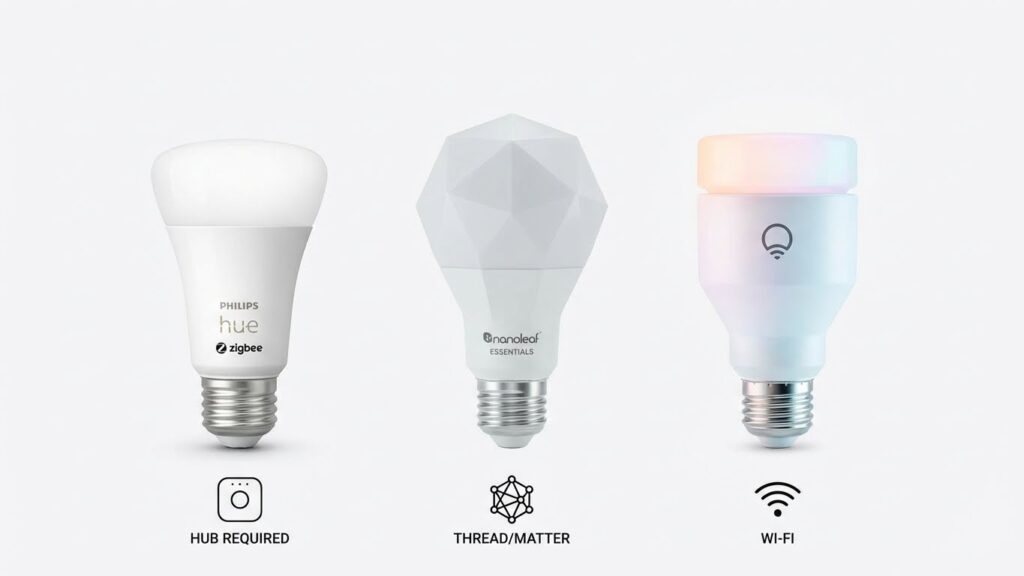
These bulbs offer reliable HomeKit control, voice commands with Siri, and options for white, tunable white, or full color. Compare bridge requirements, Matter or Thread support, and whether bulbs need a hub for the features you want.
Philips Hue
Philips Hue works with HomeKit through the Hue Bridge or newer bulbs that support Bluetooth and Matter. If you want full scene control, schedules, and accessory integrations, the Hue Bridge unlocks them. Without a bridge, Bluetooth Hue bulbs still let you control lights from a nearby iPhone, but hub features like remote access and complex automations require the bridge.
Hue bulbs cover many form factors: A19, GU10, and light strips. They support rich colors, adjustable whites, and high brightness levels. Look for Matter-compatible Hue products if you want easier multi-vendor setup and Thread mesh support for faster, more reliable local control.
Nanoleaf Essentials
Nanoleaf Essentials bulbs and light strips are slim, fast to set up, and built with Matter and Thread in many models. You can add them directly to HomeKit without a separate hub if your HomePod Mini or other Thread border router is present. They are good for reliable local control and quick response to Siri commands.
Essentials bulbs deliver vibrant colors and precise tunable whites at a lower price than some competitors. Expect easy group control, scene sync with other HomeKit devices, and firmware updates through the Nanoleaf app. Check for the latest firmware to ensure Matter interoperability across ecosystems.
LIFX
LIFX bulbs connect directly to HomeKit over Wi‑Fi so you don’t need a bridge. They offer some of the brightest and most saturated color options available in smart bulbs, and they support wide color temperatures for detailed white light scenes. You get quick setup by scanning a HomeKit code and can use LIFX’s app for advanced effects.
Because LIFX uses Wi‑Fi, plan for higher network use if you have many bulbs. They usually respond fast and maintain strong color accuracy. Verify the specific LIFX model supports HomeKit, as product lines change and some older models lack current HomeKit or Matter features.
Meross
Meross HomeKit bulbs give good value with native HomeKit support on many models. They often work with Siri, the Home app, and automations without needing a proprietary hub. Meross offers both white and color options that handle common tasks like schedules, scenes, and night lights at lower cost points.
Meross models may also support Alexa and Google Home for cross-platform use. Check power ratings and brightness (lumens) when replacing bulbs so you match the light output you expect. For best local control, choose Meross bulbs that advertise HomeKit or Matter compatibility explicitly.
Setting Up Smart Bulbs With Apple HomeKit

You will add bulbs to the Home app, assign them to rooms, and enable Siri control. Follow clear pairing steps and use the troubleshooting tips if a bulb won’t connect or respond.
Using the Home App
Open the Home app on your iPhone or iPad running the latest iOS or iPadOS. Tap the + button, choose “Add Accessory,” and scan the HomeKit setup code on the bulb, box, or manual. If the bulb offers an on-device QR code, scan that; some bulbs also support NFC tap.
After the app recognizes the bulb, assign it to a room and give it a simple name like “Kitchen Ceiling” or “Bedside Lamp.” That name shows up in Siri and automations. You can also add the bulb to scenes and automations from the same interface.
If the bulb needs a hub (for example, some Philips Hue setups), add the hub to the Home app first or use the bulb’s own app to link it to HomeKit before adding it.
Pairing and Configuration Steps
Make sure the bulb is powered on and close to your iPhone during pairing. Reset the bulb if it was previously paired with another system—check the bulb manual for the reset sequence (usually toggling power or pressing a physical reset button).
Follow these steps:
- Open Home app > + > Add Accessory.
- Scan the HomeKit code or tap with NFC.
- Wait for the bulb to appear, then tap Add.
- Choose room, assign name, and set initial brightness or color.
If the bulb supports firmware updates, install them via the bulb’s app or the Home app prompt. Firmware fixes can improve stability and add HomeKit features.
Troubleshooting Common Issues
If the Home app can’t find the bulb, confirm Wi‑Fi or Bluetooth is on. HomeKit bulbs use either your 2.4 GHz Wi‑Fi or Bluetooth; check the bulb specs. Move the bulb closer to the router or iPhone to rule out range problems.
If pairing fails repeatedly, reset the bulb and restart your iPhone. Remove any existing pairing from the bulb’s native app first. For hub-based systems, reboot the hub and ensure the hub is connected to the same network as your HomeKit hub (Apple TV, HomePod, or iPad).
If the bulb responds slowly or drops offline, check for Wi‑Fi interference and update router firmware. For persistent problems, contact the bulb maker—have the model number, firmware version, and screenshots of error messages ready.
Key Features to Consider in HomeKit-Enabled Smart Bulbs
You should look for bulbs that give precise color control, smooth dimming, and clear energy use numbers. Those three areas most affect how the bulbs perform day to day and how well they fit into your HomeKit setup.
Color and White Temperature Control
Choose bulbs that list both RGB color range and correlated color temperature (CCT) in kelvin. RGB lets you pick saturated colors; CCT matters for whites—from warm (2700K) to cool (6500K). If you want natural-looking daylight for work, look for bulbs that reach 5000–6500K. For cozy living spaces, aim for 2200–3000K.
Check the bulb’s color rendering index (CRI). A CRI of 90+ keeps skin tones and object colors accurate. Lower CRI can make colors look flat. Also note feature names such as “tunable white” or “full spectrum,” which indicate both color and temperature control.
Confirm HomeKit exposes both color and CCT controls. Some bulbs support color locally through a hub; others use cloud services. Make sure the bulb’s app and Home app both let you set exact kelvin values and save scenes.
Dimming and Brightness Options
Look for bulbs that list lumen output and a smooth dimming range. Lumens tell you brightness—800 lm roughly equals a 60W incandescent. For living rooms, choose 600–1100 lm per fixture; for bedrooms, 400–800 lm may be enough.
Smooth dimming means no flicker or stepping at low levels. Bulbs that advertise 1% dimming or “flicker-free” tend to perform better with scenes and night modes. Also check response time: HomeKit commands should change brightness within a second or two.
If you plan to use wall dimmer switches, confirm the bulb is rated for switch-dimming or use smart switches instead. Some smart bulbs need constant power and will flicker or reset behind a physical dimmer.
Energy Efficiency
Compare bulbs by watts and lumens per watt (lm/W). Higher lm/W means more light for less energy. A typical LED smart bulb will use 8–12 watts to produce 800–1100 lumens; that’s about 80–110 lm/W.
Look for energy labels like ENERGY STAR or detailed wattage specs. Also check estimated yearly energy use; manufacturers often list it based on standard hours. If you use bulbs many hours daily, small differences in wattage add up over a year.
Consider standby power and hub requirements. Some systems need a bridge that draws extra power. If minimizing total home energy is important, factor in hub energy plus bulb wattage when comparing options.
Comparing Smart Bulbs by HomeKit Integration
You’ll want bulbs that work reliably with Siri, join your automations, and fit your network setup. Focus on protocol support, how the bulb connects, and whether the maker’s app gives the controls you need.
Matter and Thread Support
Matter makes cross-platform control simpler. If a bulb supports Matter, you can control it from the Apple Home app and other ecosystems without extra bridges. Look for Matter-certified bulbs from brands like Philips Hue or Nanoleaf if you want future-proofing.
Thread adds a low-latency mesh network for more reliable local control. Bulbs with Thread use a Border Router (HomePod mini or Apple TV 4K) to route commands. That means faster response times and better range than single-point Wi‑Fi connections.
Check the product specs for both “Matter” and “Thread” labels. If you rely on local automations or want fewer hubs, prefer bulbs that list both. If a bulb only supports Matter over Wi‑Fi, expect slightly higher latency than Thread-enabled models.
Wi-Fi vs. Bluetooth vs. Zigbee
Wi‑Fi bulbs connect directly to your router and don’t need hubs, but they use more bandwidth and can slow if many devices share the network. They work well if you want simple setup and remote access without extra hardware.
Bluetooth bulbs pair directly with an iPhone or HomePod for basic control, but range is limited and automation options can be constrained. Use Bluetooth for single-room setups or small apartments.
Zigbee bulbs usually need a hub like the Philips Hue Bridge. That hub handles many bulbs, keeps the local mesh stable, and reduces Wi‑Fi congestion. Choose Zigbee if you plan many bulbs and want reliable local scenes without overloading your Wi‑Fi.
App Ecosystem
The app that ships with a bulb matters for daily use. Some apps offer deep scene creation, color temperature presets, and energy reports. Check reviews for responsiveness and update frequency.
Home app compatibility varies. Even if a bulb is HomeKit-compatible, you may lose advanced features (like advanced color effects) unless you use the maker’s app or a Hue Bridge. Decide which controls matter most: basic on/off and schedules, or fine-grained color and effects.
Look for apps with clear instructions for HomeKit setup. Also check whether the maker provides firmware updates through their app — that keeps Matter, Thread, and HomeKit support current.
HomeKit Automation and Scene Options
You can schedule lights, trigger them from other devices, and build multi-device scenes that match routines like waking up or movie night. Focus on triggers, conditions, and exact bulb settings to make automations reliable and useful.
Setting Automations
Use the Home app to create automations that run at a time, when someone arrives/leaves, when a sensor detects motion, or when another accessory changes state. Pick a trigger first (Time of Day, People, Sensor, or Accessory), then choose which bulbs and what they do: power on/off, brightness level, and color temperature or color.
Add conditions to limit when an automation runs, such as only when someone is home or only at night. For example, set bedroom bulbs to 30% warm white after 10:00 PM only if your phone is home. Test automations after you save them and tweak timing or brightness if lights flash or don’t match expectations.
Customizing Scenes
Scenes let you set multiple bulbs and other devices to specific states with one tap or Siri command. Create a scene by selecting each bulb and choosing exact brightness and color values so the result is consistent every time.
Name scenes clearly (e.g., “Dinner Warm” or “Movie Dim”) and add related devices like blinds or a speaker group. You can assign scenes to the Control Center, a HomePod, or an automation. Use the “Test” button to confirm color and brightness look right in the room before you rely on the scene.
Security and Privacy Considerations
HomeKit gives you a privacy-first way to control smart bulbs. Apple limits what data leaves your home and uses strong encryption for Home app traffic and HomeKit accessories.
You should check device manufacturers’ privacy policies before buying. Some bulbs send usage data or require cloud accounts; prefer brands that store settings locally or offer clear opt-out choices.
Keep your Home Hub updated and use strong, unique passwords for your Apple ID. Two-factor authentication (2FA) adds an important layer of protection for remote access and automations.
Be cautious with third-party bridges or hubs that claim HomeKit support. Bridges can expand compatibility but may introduce extra points where data flows outside Apple’s secure model.
Review app permissions on your iPhone and iPad. Limit location and network access for lighting apps unless those permissions are necessary for features you want.
If you share Home access, control who can edit automations and scenes. Grant only the minimum permissions needed for guests or family members.
For extra safety, isolate smart home devices on a guest or separate Wi‑Fi network. This reduces risk if any device has a security flaw and prevents lateral access to your main devices.
Future Trends in HomeKit Smart Lighting
You will see more bulbs that support Matter, which makes devices work across Apple Home and other platforms. Matter simplifies setup and lets you mix brands without extra hubs.
Expect better color accuracy and brighter tunable whites in many bulbs. These improvements help you match light to tasks, mood, or the time of day.
Battery-free or low-power fixtures will grow, lowering energy use and cost. Smart scheduling and adaptive lighting will learn your habits and adjust lights automatically.
Look for deeper Siri and Home app features, such as richer automation triggers and more granular scenes. You’ll get smoother control between rooms and tighter privacy protections from on-device processing.
Integration with sensors and cameras will expand. Motion, ambient light, and presence sensors will let bulbs react faster and reduce wasted power.
You may find more modular bulbs and fixtures that let you swap parts, upgrade firmware, or add sensors. This trend extends device life and cuts electronic waste.
Table of likely near-term changes:
- Matter compatibility increases
- Improved color fidelity and brightness
- Smarter, learning-based schedules
- Stronger privacy and on-device processing
- Sensor-driven, context-aware lighting
These trends will make HomeKit lighting easier to set up, more energy efficient, and more responsive to how you live.
FAQs
What bulbs work with Apple HomeKit?
Many major brands support HomeKit, including Philips Hue, LIFX, Nanoleaf, VOCOlinc, and some Sylvania and Yeelight models. Check the product box or listing for “Works with Apple HomeKit” or Matter support before buying.
Do you need a hub to use HomeKit bulbs?
Some bulbs, like Philips Hue, often need a hub for full features and reliability. Others, such as many LIFX and Nanoleaf bulbs, connect directly to your Wi‑Fi and do not need a hub.
Can you control HomeKit bulbs with Siri?
Yes. Once a bulb is added to the Home app, you can use Siri on your iPhone, iPad, HomePod, or Apple Watch to turn lights on/off, dim, change color, or trigger scenes.
Will HomeKit bulbs work with other smart platforms?
Many HomeKit bulbs also support Matter, Alexa, or Google Home. Matter compatibility lets you link devices across platforms more easily. Still, check each bulb’s specs to be sure.
How do I set up a HomeKit bulb?
Open the Home app, tap “+” to add accessory, and scan the HomeKit code on the bulb or box. Follow the on‑screen steps to assign the bulb to a room and add it to scenes or automations.
What about security and privacy?
Apple requires encryption for HomeKit devices and limits data sharing. Use strong Wi‑Fi passwords and keep firmware updated to reduce risks.
Conclusion
You can pick a HomeKit-compatible bulb that fits your needs and budget. Brands like Philips Hue, LIFX, Nanoleaf, and VOCOlinc offer strong HomeKit support, reliable performance, and good app features.
Check compatibility before you buy. Look for the HomeKit badge or review the product page on the manufacturer site, and confirm whether a hub is required for full features.
Think about how you will use the bulbs. Color bulbs work well for mood lighting and scenes, while tunable white bulbs are better for everyday tasks and sleep-friendly lighting. Consider brightness (lumens), color range, and energy use.
Set up is usually simple with the Home app and Siri control. If you run into issues, Apple’s HomeKit troubleshooting guide and manufacturer support pages can help resolve network or pairing problems. (See Apple Support for HomeKit and Philips Hue support for detailed steps.)
Plan your system for future growth. Choose bulbs and hubs that fit your current rooms and let you add devices later. That keeps your smart lighting flexible and easier to manage as your needs change.
