
You can use many popular smart bulbs with Apple Home, including Philips Hue, Nanoleaf, LIFX, VOCOlinc, and Matter- or HomeKit-enabled models from brands like Nanoleaf Essentials and Meross. If a bulb says it supports Apple HomeKit or Matter, you can add it to the Home app and control it with Siri and your Home automations.
You’ll learn which brands give the best color, brightness, and reliability, plus which bulbs need a hub and which work over Thread, Wi‑Fi, or Bluetooth. That makes it easier to pick bulbs that match your budget, setup, and smart home plans.
Key Takeaways
- Choose bulbs labeled HomeKit or Matter for easy Home app and Siri control.
- Check whether the bulb needs a hub or supports Thread for faster, more reliable control.
- Look for color, dimming, and automation features that match how you use your lights.
Top Smart Bulbs Compatible With Apple Home
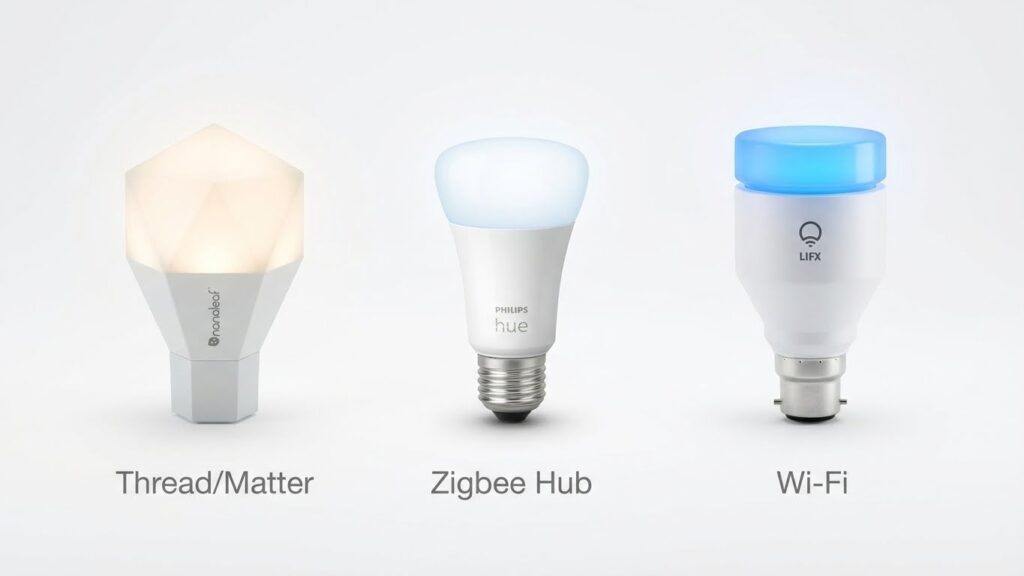
These bulbs give you reliable HomeKit control, good color and white tuning, and solid app or Siri support. Pick based on whether you want a hub, the widest color range, or plug-free Wi‑Fi setup.
Philips Hue Bulbs
Philips Hue bulbs work with HomeKit through the Hue Bridge or via Matter-compatible Hue devices. If you use the Hue Bridge, you get the fastest response, support for large setups, and advanced features like routines, scenes, and firmware updates across many bulbs. The Bridge also enables local control so Siri commands run even if the internet is down.
Hue bulbs come in white, tunable white, and full color (Hue White and Color). They have wide color accuracy and strong dimming performance. You can mix standard A19 bulbs, BR30 floods, and lightstrip or downlight options and manage them all in the Hue app or Apple Home.
If you prefer no hub, some newer Hue products add Matter support so they can join HomeKit directly after a Matter update. Expect better ecosystem tools with Hue if you want a large, multi-room system.
LIFX Bulbs
LIFX bulbs connect directly to your Wi‑Fi without a hub, so setup with Apple Home is simpler on models that support HomeKit or Matter. You get bright output and saturated colors, which makes LIFX a strong choice for accent lighting and rooms where color intensity matters.
LIFX offers A19, BR30, downlight, and candle shapes with both tunable white and wide RGB color. Their app provides effects like color cycles and scheduling, and many bulbs support adaptive lighting for automatic color temperature shifts. For HomeKit, check the specific LIFX model for native HomeKit or Matter support to ensure Siri control.
Because they use Wi‑Fi, expect slightly higher network traffic than Zigbee-based systems. Still, if you want hub-free installation and vivid colors, LIFX is a solid pick.
Nanoleaf Essentials Bulbs
Nanoleaf Essentials bulbs are compact and budget-friendly while offering HomeKit and Matter compatibility on many models. They use Thread when paired with a Thread border router (like an Apple HomePod mini) for fast, reliable mesh networking and low latency. Without Thread, they connect over Bluetooth or Wi‑Fi depending on the model.
Essentials bulbs focus on smooth tunable whites and good color performance for the price. You’ll get features like adaptive lighting, quick scenes, and simple groups in the Apple Home app. These bulbs are a good choice if you want a mix of affordability and modern smart features, especially if you already own a HomePod mini or other Thread device.
Understanding Apple HomeKit Compatibility
You can control bulbs with Siri, the Home app, and automations when they meet Apple’s rules. Compatibility depends on a bulb’s certification, its connection method, and whether you use a hub or Matter bridge.
HomeKit Certification Explained
HomeKit certification means Apple has tested the bulb for secure pairing and reliable control. Certified bulbs include the “Works with Apple Home” label and must support Apple’s encryption for device setup and communication.
Look for these specifics:
- Pairing method: HomeKit uses QR codes or NFC for quick, secure setup.
- Privacy rules: Certified devices follow Apple’s data rules and limit what info leaves your home.
- Updates: Manufacturers must supply firmware updates that keep HomeKit features working.
Because certification is strict, not every smart bulb supports HomeKit natively. Some bulbs gain HomeKit access via a hub (like Philips Hue Bridge) or through the Matter standard once both the bulb and your ecosystem support it.
How HomeKit Integration Works
HomeKit connects bulbs to your Apple devices through local network protocols or a certified hub. If a bulb uses Wi‑Fi or Thread and is HomeKit certified, it can join your Home app directly.
Key integration points you will use:
- Control: Turn lights on/off, dim, change color, or set color temperature with Siri or the Home app.
- Automations: Create scenes and schedules; bulbs can trigger with motion sensors or other HomeKit devices.
- Hubs and bridges: Some bulbs require a bridge (Hue Bridge) to translate commands; others work via Matter or Thread for lower latency and mesh networking.
Check whether a bulb needs 2.4 GHz Wi‑Fi, a physical bridge, or a Thread border router. That determines setup steps and whether features like instant on/off or local automations will work without the cloud.
Features To Look For In HomeKit Smart Bulbs
Choose bulbs with the precise mix of brightness, control, and savings that fit your rooms and routine. Focus on color range, reliable automation, and real power use so your setup is simple and useful.
Dimming and Color Options
You want bulbs that dim smoothly and hit the color temperatures you need. Look for bulbs that list both lumens (brightness) and color temperature in kelvin (2700K for warm, 4000K for neutral, 5000K+ for daylight). If you need mood or accent lighting, pick bulbs that advertise full RGB or wide color gamut and show color accuracy specs like CRI (aim for 90+).
Check whether the bulb supports both HomeKit scenes and direct Siri control. Some bulbs dim in steps or flicker at low levels; user reviews that mention “smooth dimming” matter. Also confirm the bulb can store color and brightness states after power loss if that matters to you.
Scheduling and Automation
Automation should fit your daily habits without manual input. Choose bulbs that appear in the Home app and let you create time-based schedules, location triggers, and scene-based automations. For example, set a “Wake” scene that ramps brightness from 20% to 80% over 30 minutes on weekdays.
Look for support of adaptive features like sunrise/sunset scheduling and presence-based triggers that use your phone’s location. Also check whether the bulb requires a bridge or hub to enable advanced automations; a hub can add reliability but also extra setup and cost.
Energy Efficiency
Energy use affects both your bills and replacement cycle. Compare wattage and lumen output to get lumens per watt (higher is better). A 9–12W LED that produces 800–1100 lumens is a good starting point for general room lighting.
Also note rated lifespan in hours; many quality LED smart bulbs list 15,000–25,000 hours. Some models include built-in power monitoring in the Home app so you can track usage. Finally, check for firmware updates — efficient bulbs often gain improvements over time that reduce bugs and save energy.
Setup and Installation Tips

Get bulbs near the Wi‑Fi router during setup, have your iPhone or iPad updated, and keep HomeKit setup codes ready. Power cycles, factory resets, and correct hub selection solve most issues quickly.
Pairing With The Apple Home App
Turn the bulb on and off as the manufacturer instructs until it shows a pairing pattern or white flashing light. Open the Home app on your iPhone or iPad, tap the plus (+), and choose “Add Accessory.” Use your device camera to scan the HomeKit setup code on the bulb, box, or quick‑start card.
If the bulb uses a bridge or hub (for example, Philips Hue), first add the bridge to the Home app, then discover bulbs through that bridge. If the app won’t find the bulb, move your device closer, restart the Home app, or power cycle the bulb. For Matter bulbs, follow the in‑app prompts — Matter may let you add devices without a separate hub.
Keep each bulb’s setup code and account login ready. Create room names that match physical locations to make Siri commands simpler.
Network and Connectivity Requirements
Use a 2.4 GHz Wi‑Fi network for many bulbs; some newer models also support 5 GHz or Thread. Check the bulb specs: cheap models often require only 2.4 GHz, while premium bulbs may support both or use a Thread border router (HomePod mini, Apple TV 4K).
If a hub is required, connect it to the same network as your Apple device. Ensure your router’s firewall or AP isolation settings don’t block device discovery. For homes with many bulbs, assign a stable DHCP address or reserve IPs for hubs to avoid drops.
Place bulbs within range of the router or the nearest mesh node. If you use Zigbee or Thread with a bridge or border router, spread powered devices (smart plugs, bulbs) to extend the mesh and reduce dead zones.
Advanced Usage and Automation

You can make bulbs do more than turn on and off. Use the Home app to group bulbs, set times, and tie lighting to other devices for smarter, hands-free control.
Creating Scenes and Routines
Scenes let you save exact states for multiple bulbs—brightness, color temperature, and color. Create a “Movie” scene that dims living room bulbs to 10% and sets warm color. Tap Add > Add Scene in the Home app, select bulbs, then set each bulb’s level and color. Use the same process to make a “Reading” scene with 3000K and 75% brightness.
Automations run scenes automatically. Open Automations in Home, choose a trigger (time of day, people arriving, or a sensor), then pick the scene to run. For example, set a sunrise automation to raise bedroom bulbs from 1% to 50% over 30 minutes. Test automations after creating them and give each scene a clear name so you can call them with Siri or add them to schedules.
Controlling Bulbs With Siri
Siri accepts direct commands and scene names. Say things like, “Hey Siri, set Living Room to 50%,” or “Hey Siri, turn on Movie.” Use precise names in the Home app to avoid confusion between rooms or bulbs.
You can also chain commands across devices. Ask Siri to “turn off downstairs lights” to control a whole room. For color-capable bulbs, use exact color names or hex values: “Hey Siri, set Desk Lamp to soft white” or “set Desk Lamp to #FFAA33.” If a bulb is offline, Siri will tell you which device needs attention so you can troubleshoot the bridge, Wi‑Fi, or power.
Comparing Smart Bulb Brands For Apple Home
You need bulbs that pair reliably with the Home app, respond to Siri, and fit your budget. Below I compare brands by how well they perform in Apple Home and what value they offer.
Performance and Reliability
Philips Hue and LIFX rank high for stable connections and accurate color rendering. Hue bulbs work best when you add a Hue Bridge; that bridge gives you remote access, faster responses in the Home app, and reliable group control. LIFX connects directly to Wi‑Fi and delivers bright, true colors without a hub, but can strain weaker routers.
Nanoleaf and VOCOlinc offer good HomeKit integration with prompt Siri control. Nanoleaf stands out for scene syncing and consistent firmware updates. Cheaper brands like generic LED or some budget models may show delays, drop off the network, or have limited color accuracy.
If you value uptime, prefer bulbs that support a local bridge or Ethernet hub. Check for firmware update history and user reports about disconnects before you buy.
Price And Value
Expect to pay more for Hue and LIFX, but you gain better color quality and long-term reliability. Philips Hue often justifies its price when you need a multi-room setup because the Hue Bridge unlocks advanced automations and Matter support. LIFX gives hub-free convenience but costs more per bulb.
Meross, VOCOlinc, and Yeelight offer lower-cost HomeKit options that cover basics—dimming, white tuning, and simple color scenes. They work well for single-room installs or when you need many bulbs on a tight budget. Budget bulbs can save money up front but may lack firmware support and bright whites.
Consider total cost: include hubs, bridges, or repeaters, and factor in expected bulb lifespan. If you plan many automations, investing in a proven ecosystem usually saves time and frustration.
Troubleshooting Common Issues
If your smart bulbs don’t respond, first check power and switches. Make sure the wall switch is on and the bulb is seated properly. Replace the bulb with a known working one to isolate the problem.
Check your network next. Wi‑Fi drops and weak signals often cause disconnects. Move your router closer or add a mesh node, and ensure the bulb and Home Hub are on the same network band (2.4 GHz for many bulbs).
Restart devices when things act up. Power cycle the bulb by turning it off for 10 seconds, then back on. Restart your iPhone, Home Hub (Apple TV/HomePod), and router if the issue persists.
Confirm compatibility and firmware status. Some bulbs need a hub (like Hue) or must support HomeKit or Matter to work with the Home app. Update the bulb’s firmware and the HomeHub device to the latest versions.
Use the Home app for troubleshooting steps. Remove and re-add the accessory if it won’t respond. When re-adding, put the bulb in pairing mode and scan the HomeKit code if required.
If Bluetooth or range is a problem, move closer during setup. For battery-powered accessories, remove and reinsert batteries. Check for interference from other electronics and avoid crowded Wi‑Fi channels.
If automations or voice commands fail, make sure your Home Hub is online and signed in with your Apple ID. Recreate the automation or Siri shortcut after confirming the accessory responds manually.
Security And Privacy Considerations
When you add smart bulbs to Apple Home, check the bulb maker’s privacy and security practices. Look for companies that publish security updates and clear privacy policies. That shows they care about protecting your data.
Use HomeKit‑compatible bulbs or Matter-certified devices when possible. These standards include built‑in encryption and stricter device authentication. That reduces the risk of unauthorized access.
Secure your network and Home hub. Put devices on a separate guest or IoT Wi‑Fi network, and keep your router firmware updated. A strong, unique password and WPA3 (or WPA2) help prevent easy intrusions.
Enable two‑factor authentication (2FA) for your Apple ID. Your Home data, automations, and remote access rely on that account. 2FA adds a second step before someone can control your lights.
Limit third‑party app permissions. Grant only the access that apps need to work. Revoke permissions for apps you no longer use to reduce data exposure.
Keep firmware current for bulbs and hubs. Updates fix security holes and improve stability. Check for automatic updates or set a reminder to update manually.
If you share Home access, review user roles. Give full control only to people you trust. You can restrict guests to avoid accidental or unwanted changes.
FAQs
Which smart bulbs work with Apple Home?
Many bulbs from Philips Hue, Nanoleaf, LIFX, VOCOlinc, and certain WiZ models work with Apple Home. Look for HomeKit support or Matter and Thread compatibility on the box or product page.
Do I need a hub to use HomeKit bulbs?
Some bulbs, like many Philips Hue setups, need a bridge or hub for full features. Other bulbs use HomeKit, Thread, or Matter and can connect directly to your Home app without a separate hub.
Can I control HomeKit bulbs with Siri?
Yes. Once added to the Home app, you can use Siri on your iPhone, iPad, or HomePod to turn lights on/off, change brightness, set scenes, or pick colors if the bulb supports them.
Will non-HomeKit bulbs work with Apple Home?
Not directly. You may be able to link non-HomeKit bulbs through a brand’s bridge that supports HomeKit, or by using a HomeKit-compatible hub that integrates the ecosystem.
What is Matter and why does it matter?
Matter is a cross-platform smart home standard. If a bulb supports Matter, it is more likely to work with Apple Home and other smart home platforms in the future.
How do I add a bulb to the Home app?
Open the Home app, tap Add Accessory, and scan the HomeKit code on the bulb or its packaging. Follow the on-screen steps to assign rooms and create automations.
Conclusion
You can pick from several reliable smart bulbs that work with Apple Home, from Philips Hue and LIFX to Nanoleaf and newer Matter-enabled options. Choose based on how you want to control lights: via HomeKit directly, through a hub, or using Matter for broader cross-platform support.
If you want voice control with Siri and easy automations, prioritize HomeKit-certified or Matter-certified bulbs. Philips Hue needs a Hue Bridge for full features, while some bulbs like Nanoleaf Essentials use Thread and Matter for simpler setup. Check Apple’s official accessories list for compatibility details at Apple Support.
Think about brightness, color range, and scheduling for daily use, and factor in whether you prefer a hub-based system or direct Wi‑Fi/Thread connection. For security and firmware updates, buy from brands with a strong track record and clear support pages like Philips Hue and LIFX.
Match bulbs to rooms: use bright, cool light for work areas and dimmable, warm tones for living spaces. You can mix brands if they support HomeKit or Matter, but confirm each device’s compatibility first.
