
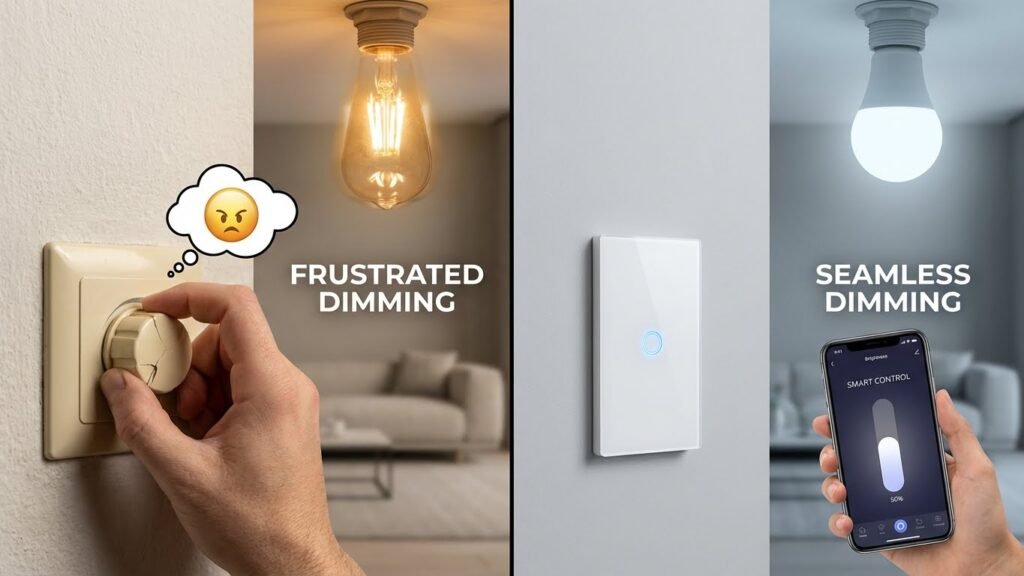
You can use smart bulbs with dimmer switches, but most smart bulbs work best when you control dimming through their app or a compatible smart dimmer. If you cut power with a standard dimmer, the bulb may flicker, behave oddly, or stop responding to smart controls.
Think about what you want: simple app control, voice dimming, or a wall control that keeps the smart features. Choose bulbs and switches that the manufacturer lists as compatible, or swap your mechanical dimmer for a smart switch designed to work with smart bulbs to avoid problems and get smooth dimming.
Key Takeaways
- Check compatibility before pairing a smart bulb with a dimmer switch.
- Cutting power with a regular dimmer can cause flicker or loss of smart features.
- Use app control or a compatible smart switch for reliable dimming and full features.
Compatibility of Smart Bulbs With Dimmer Switches
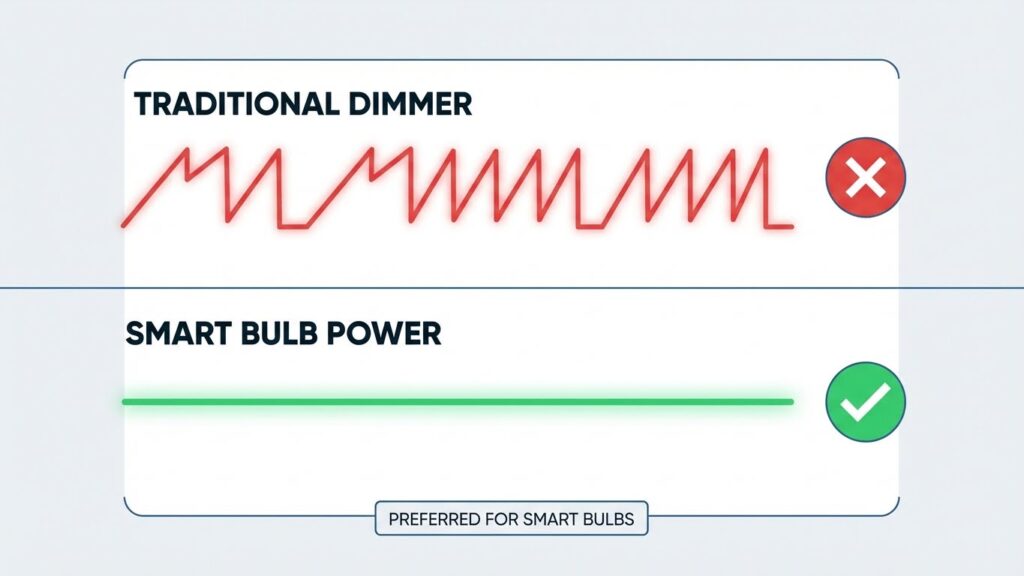
Smart bulbs often do not behave like old incandescent bulbs when you use a dimmer. You need the right dimmer type or a smart-compatible setup to avoid flicker, buzzing, or degraded bulb life.
How Smart Bulbs Respond to Traditional Dimmers
Traditional dimmers cut voltage or chop the AC waveform to lower brightness. Most LED-based smart bulbs expect a stable voltage and internal electronic drivers. When a traditional leading-edge or trailing-edge dimmer alters the waveform, the bulb firmware can misread the signal and produce flicker, buzzing, or an inability to reach full brightness.
If you leave the wall dimmer on full, smart bulbs will usually work fine. Problems arise when you try to dim from the switch: some bulbs will flicker at low settings, some will turn off entirely, and a few may be damaged over time. Always check the bulb packaging for “dimmer compatible” and test one bulb before swapping a whole room.
Recommended Switch Types for Smart Lighting
Use a standard on/off switch left in the ON position, then dim with the bulb app or voice assistant. This keeps the bulb’s electronics in a stable state.
If you prefer a wall control, pick a smart dimmer made for LEDs and compatible with your bulb brand or protocol (Wi‑Fi, Zigbee, Z‑Wave). Alternatively, use a smart switch designed to work with smart bulbs or a simple smart scene pad that sends wireless commands while keeping the line power constant. Look for product specs stating compatibility with LED/smart bulbs and a list of tested models.
Common Compatibility Issues
Flickering and buzzing rank as the most common problems when mixing smart bulbs with legacy dimmers. These symptoms often point to waveform mismatch or minimum load issues on the dimmer.
Other issues include limited dimming range, where bulbs won’t dim smoothly below a certain percentage, and loss of remote control when the switch cuts power. In some cases, neutral-less dimmers or older two-wire dimmers cause unstable current. Fixes include replacing the dimmer with an LED-compatible model, using a bypass device or dummy load if required, or switching to a smart switch that preserves full line power to the bulb.
Potential Problems When Using Dimmers With Smart Bulbs
You can run into flicker, loss of app or voice controls, and faster wear when pairing smart bulbs with legacy dimmer switches. These issues come from mismatched hardware and can usually be fixed with the right parts or settings.
Flickering and Unreliable Performance
When a standard dimmer tries to control an LED-based smart bulb, the bulb may flicker, flash, or fail to reach stable brightness. Traditional dimmers alter voltage in a way that LEDs and smart drivers do not expect. That mismatch causes the bulb’s internal electronics to reset or modulate output unevenly.
Flicker often appears at low brightness or with multiple bulbs on one circuit. You may also see random on/off cycles or slow responses to app commands. To diagnose, test the smart bulb in a regular switch socket or replace the dimmer with a smart dimmer designed for LEDs. If flicker persists, check firmware updates and try bulbs one at a time to isolate a bad unit.
Loss of Smart Features
Using a dimmer switch can block or interfere with features you expect from smart bulbs, such as scheduled routines, color changes, and remote control. If someone turns the physical dimmer to off or cuts power partially, the bulb may lose network connection and cannot receive app updates or automation commands.
This problem is most common with dimmers that do not fully cut power or that keep the circuit in an unstable state. You might find the bulb works with voice control sometimes, but not reliably. The safest option is to use a regular on/off switch or install a compatible smart dimmer that maintains full power while letting the bulb handle dimming and features.
Shortened Bulb Lifespan
Smart bulbs contain drivers and small electronics that expect steady power. Repeated voltage chopping from an incompatible dimmer stresses those components and can cause early failure. You may notice color shift, reduced brightness over months, or complete burnout sooner than the manufacturer’s rated life.
Heat from frequent power cycling also harms internal parts. To protect your bulbs, avoid using legacy dimmers or add a bypass/capacitor device when the dimmer requires a minimum load. Choosing bulbs labeled as dimmer-compatible and matching them to dimmers made for LED loads will help preserve bulb life.
Best Practices for Installing Smart Bulbs
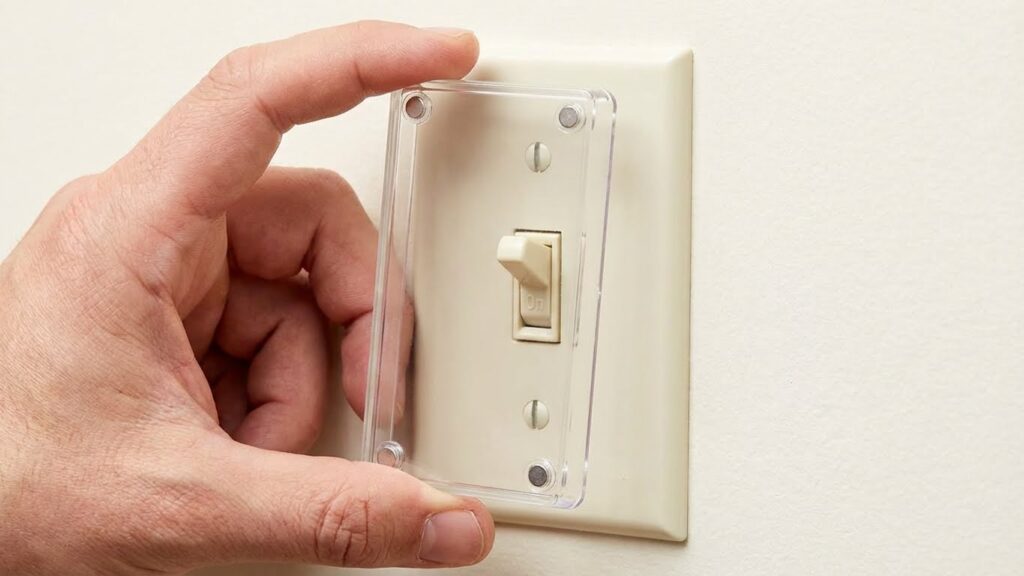
Follow a few simple steps to avoid flicker, loss of control, or accidental power cuts. Focus on matching bulb specs, using the right wall control, and keeping power stable.
Disabling Built-In Dimmer Switches
If your wall switch is a mechanical or electronic dimmer, turn it to a full-on position and keep it there. Smart bulbs expect a steady supply of power; the dimmer’s varying voltage can cause flicker, buzzing, or prevent bulbs from connecting to Wi‑Fi or a hub.
If you can’t lock the dimmer at full brightness, replace the dimmer with a standard on/off switch or a smart switch compatible with your bulbs. Label the switch so others don’t change it by accident.
Before you change wiring, turn off power at the breaker and test with a voltage tester. If unsure, hire a licensed electrician to avoid code violations or safety hazards.
Using Compatible Wall Switches
Choose a wall switch that matches the control method of your bulb: smart dimmer switches for bulbs that support in-line dimming, or simple on/off switches for bulbs with internal smart dimming. Check the bulb and switch manufacturer for compatibility lists.
For Zigbee, Z‑Wave, or proprietary hub systems, use switches designed to pass control signals rather than cutting power. Look for these features:
- Neutral wire requirement (ensures stable power)
- Low minimum load rating (works with LEDs)
- Certification for your smart ecosystem (Alexa, HomeKit, etc.)
Install smart switches with the correct wiring and follow the manufacturer’s pairing steps. Test one bulb and one room before swapping many fixtures.
Optimal Power Settings
Set the wall control to supply a constant, full-voltage feed when using smart bulbs. Avoid trim-pot adjustments or trailing-edge dimmers unless the bulb specifically lists support for those types. Constant power prevents flicker and keeps wireless radios active.
For dimming using the bulb’s app or voice, leave brightness control to the bulb. Use the app to set scenes, schedules, and maximum brightness limits to protect bulb life. Keep firmware updated on both bulbs and hubs to fix power-handling bugs.
If you experience heat or reduced lifetime, check bulb wattage and fixture ventilation. Replace incompatible switches or add a bypass device only if the bulb supplier recommends it.
Alternatives to Dimmer Switches for Smart Lighting

You can dim smart bulbs without using a traditional dimmer switch. Use phone apps, voice assistants, or install smart switches designed to work with smart bulbs to get smooth dimming, schedules, and multi-room control.
App and Voice-Based Dimming
Use the bulb maker’s app or a hub app to set brightness precisely. Most apps let you dim by sliding a control, set scenes, and save presets for tasks like reading or watching TV. You can also schedule changes so lights dim automatically at sunset or when you go to bed.
Voice control works with Alexa, Google Assistant, or Siri. Say commands like “Set living room to 40%” for quick changes. Voice works best when your bulbs are on and connected to Wi‑Fi or a bridge; if the wall switch is off, voice can’t reach the bulbs.
Benefits:
- Fine-grain control (1% steps on many apps)
- Remote control from anywhere
- Automation with schedules and geofencing
Limitations:
- Requires internet or hub for some systems
- Wall switch must stay ON to keep bulbs reachable
Smart Switches and Smart Dimmers
Smart switches replace your existing wall switch and keep power to smart bulbs while giving physical control. Choose a smart switch that explicitly supports LED and smart bulbs to avoid flicker and compatibility issues. Some smart switches are battery-powered add-ons (like clamp-on modules) that keep the wall toggle physically fixed to ON and provide dimming via a knob or app.
Hardwired smart dimmers give local control and often support load types and minimum wattage ratings for LEDs. Look for models that work with your protocol (Zigbee, Z‑Wave, or Wi‑Fi) and that list compatibility with smart bulbs. Installation may require a neutral wire; hire an electrician if you’re unsure.
Key features to compare:
- Compatibility list (bulb brands/models)
- Protocol (hub needed or standalone)
- Physical controls (dimmer wheel, paddle, or remote)
How to Transition From Traditional Dimmers to Smart Controls
You will remove the old dimmer and either install smart bulbs that stay powered or fit a smart switch that controls the circuit. Pick devices that match your wiring (neutral vs no-neutral) and the control method you want: app, voice, or physical switch.
Removing Existing Dimmer Switches
Turn off the circuit breaker before you touch the switch. Test the switch with a non-contact voltage tester to confirm power is off. Remove the cover plate and unscrew the dimmer from the wall box. Note each wire’s position and color, and take a photo for reference.
Disconnect the dimmer wires. If the dimmer used a ground, keep that wire available. Cap any exposed wires with wire nuts. If your new smart switch requires a neutral and your box lacks one, you may need to run a neutral or choose a no-neutral smart switch. Reinstall the wall plate loosely if you’ll finish wiring later.
Setting Up Smart Lighting Ecosystems
Decide whether you want smart bulbs, smart switches, or both. Smart bulbs are easy: install them, keep the wall switch ON, and pair them with the manufacturer’s app or a hub. Smart switches control power at the fixture and work with standard bulbs, but you must wire them correctly.
Choose a platform (Google Home, Alexa, HomeKit) and ensure device compatibility. Connect devices to your Wi‑Fi or hub following the app prompts. Test voice commands and scenes, and set up automations like schedules or group controls for multiple lights. Label switches in the app so you can control rooms quickly.
Tips for Maximizing Smart Bulb Performance
Check compatibility before you buy. Look at the bulb and dimmer manuals to confirm they work together. If the bulb maker lists dimmer support, you reduce the chance of flicker and buzzing.
Keep the bulb powered continuously for full smart control. Use a standard on/off switch or replace a dimmer with a smart-compatible switch so the bulb never loses power. This lets you dim with the app, voice, or schedules.
Use the bulb’s app or a compatible smart dimmer to adjust brightness. Built-in dimming avoids electrical conflicts that can harm the bulb. Test one bulb first to make sure settings work in your fixture.
Update firmware and apps when prompted. Manufacturers release fixes that improve stability and add features. Regular updates can cut down on connectivity and performance issues.
If you see flicker or noise, try a different dimmer type or add a bypass device if the manufacturer recommends it. Some older leading-edge dimmers cause problems; switching to a trailing-edge dimmer often helps.
Manage groups and scenes for smoother operation. Group bulbs by room and set scenes so multiple bulbs respond together. This reduces lag and makes dimming feel more natural.
Keep wiring and wattage limits in mind. Don’t overload fixtures and follow the fixture’s maximum wattage. Safe wiring and correct loads protect bulbs and prevent damage.
Top Smart Bulb Brands and Dimmer Compatibility
Many major smart bulb brands work well with dimmers, but compatibility varies by model. You should check the bulb’s specs and the dimmer type before buying.
Philips Hue bulbs often perform best when paired with smart dimmers or left on always and dimmed via app or voice. If you use a physical dimmer, pick Hue’s compatible dimmer switches to avoid flicker.
LIFX bulbs offer strong color and brightness control built into the bulb, so you can usually avoid wall dimmers. Use LIFX with the switch left on, or replace the switch with a smart one for reliable dimming.
Sengled and TP-Link (Kasa) make budget-friendly bulbs that often recommend leaving the wall switch always on. They work with compatible smart dimmers, but you may see buzzing or limited range with older leading-edge dimmers.
GE Cync and other brands sell smart in-wall dimmer switches designed to work with both smart bulbs and standard LEDs. If you want a physical control that works with your smart bulbs, consider buying a matching smart switch from the same ecosystem.
Quick checklist:
- Read the bulb spec for “dimmable” and compatible dimmer types.
- Prefer smart dimmers or smart switches from the bulb maker.
- Test one bulb before changing multiple fixtures.
Conclusion
You can use smart bulbs with dimmer switches, but compatibility matters. Many smart bulbs expect constant power and can flicker or fail if a traditional dimmer cuts voltage.
Check the bulb and dimmer labels before you change anything. Use bulbs labeled “dimmable” and match them with dimmers rated for LED or smart bulbs.
If you want reliable control, switch to smart dimmers or keep the wall switch on and dim through the bulb’s app or voice assistant. Smart dimmers communicate properly and reduce flicker and longevity issues.
When problems persist, try simple fixes first: update firmware, test bulbs one at a time, or replace the switch. For older wiring or stubborn flicker, consult a licensed electrician.
Quick checklist:
- Buy dimmable smart bulbs.
- Use LED-compatible or smart dimmers.
- Keep wall switches on for app control if unsure.
- Update firmware and test bulbs individually.
- Call an electrician for wiring or safety concerns.
These steps help you get the dimming you want without harming the bulbs or your wiring.
FAQs
Can I use smart bulbs with my existing dimmer switch?
You can sometimes, but most traditional dimmers were made for incandescent bulbs and may cause flicker or damage. Check your bulb and dimmer compatibility before you try.
What problems might I see?
Flickering, buzzing, reduced brightness range, or shortened bulb life are common. In some cases the bulb may not dim at all.
How do I avoid issues?
Use bulbs labeled “dimmable” and pair them with a compatible smart dimmer or the bulb’s app controls. Test one bulb first and update the bulb firmware if available.
Should I replace my dimmer switch?
If you want reliable dimming and full features, replace an old triac-style dimmer with a smart dimmer or a model rated for LEDs. A proper switch prevents flicker and improves performance.
Can I still use the wall switch?
Yes, but turning the wall switch fully off cuts power and disables smart functions. Consider using the wall switch as a power control only, or cover it and use app/voice control.
What about wiring or safety?
If your switch lacks a neutral wire or you’re unsure about wiring, call a licensed electrician. Proper wiring keeps your system safe and ensures compatibility.
Are there other fixes?
Some setups use a bypass or load resistor to stop flicker. These work only in specific cases; follow manufacturer guidance.
Conclusion
You can use smart bulbs with dimmer switches, but compatibility matters. Many smart bulbs are not designed for traditional dimmer wiring and can flicker or behave oddly if the wall dimmer cuts power. Check the bulb maker’s specs first.
If you want smooth dimming and full features, consider using the bulb’s app or a compatible smart dimmer. A smart dimmer made for LED and smart bulbs often prevents flicker and preserves the bulb’s electronics. Visit the manufacturer’s support pages or resources like the U.S. Department of Energy for guidance on LED dimming standards and safety.
For tricky setups, test one bulb before changing the whole room. You can also swap in an approved dimmer or use a bypass device when needed. If you replace switches, turn off power and follow wiring instructions or hire an electrician.
Keep firmware updated and follow the bulb’s recommended settings for best results. That reduces issues and keeps features working as intended.