
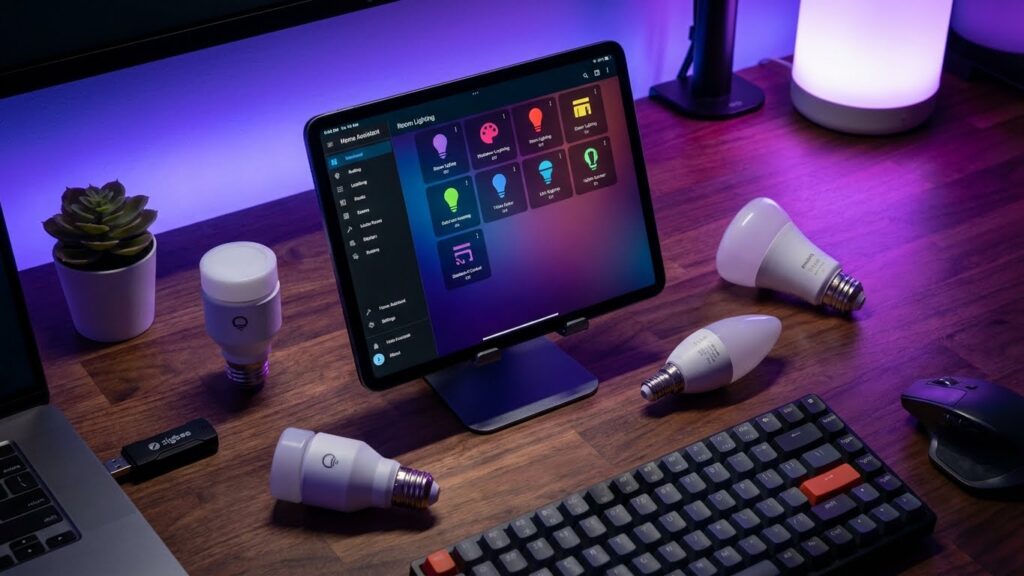
You can use many smart bulbs with Home Assistant, but the easiest choices are bulbs that use Zigbee, Matter, or direct Wi‑Fi integrations because they plug into Home Assistant with little fuss. Pick Zigbee bulbs if you want local control and low Wi‑Fi load; choose Matter or Thread bulbs for upcoming interoperability; and use Wi‑Fi bulbs when you want simple setup without a hub.
If you already have a hub like a Zigbee coordinator or a Matter/Thread border router, you’ll get the best performance and reliability. If you prefer no hub, many Wi‑Fi bulbs still work well but may rely on cloud services or have limited local features.
Key Takeaways
- Choose Zigbee for local, reliable multi‑bulb setups.
- Matter/Thread gives broad compatibility and future‑proofing.
- Wi‑Fi bulbs work without a hub but may limit local control.
Compatibility Fundamentals

Know which protocols the bulb uses, how Home Assistant connects to it, and what hardware or software you need. This helps you pick bulbs that work reliably, offer local control when you want it, and fit your existing setup.
Supported Communication Protocols
Most smart bulbs use Wi‑Fi, Zigbee, or Bluetooth. Wi‑Fi bulbs connect directly to your router and often work with cloud services and local APIs. They give remote access without extra hubs but can add network traffic.
Zigbee bulbs need a Zigbee coordinator like a Hue Bridge, a USB dongle (ConBee, Zigbee2MQTT), or a hub that integrates with Home Assistant. Zigbee is low‑power and supports many bulbs on one network.
Bluetooth bulbs are simple and cheap but usually limited to in‑room control. Some Bluetooth bulbs can pair with a gateway or a phone that relays commands into Home Assistant for broader access.
Matter is emerging as a unifying protocol. Matter‑compatible bulbs can work over Thread or Wi‑Fi and often integrate with Home Assistant with less setup. Check manufacturer support and firmware status before assuming Matter will work in your setup.
Home Assistant Integration Methods
You can integrate bulbs into Home Assistant in three main ways: native integrations, cloud integrations, and via a hub or bridge.
Native integrations use local network APIs or protocols supported by Home Assistant. Examples include direct Wi‑Fi bulbs with an open local API, or Zigbee devices connected through Zigbee2MQTT or ZHA (Zigbee Home Automation). Native integrations usually give the best speed and reliability.
Cloud integrations rely on the manufacturer’s cloud and Home Assistant’s cloud connectors. These are easy to set up but may be slower, depend on internet access, and risk outages when the vendor’s cloud is down.
Hubs and bridges act as translators. A Philips Hue Bridge, for example, exposes many bulbs to Home Assistant with a stable interface. USB coordinators let you avoid vendor hubs and keep control local. Choose based on how much local control and privacy you want.
Platform Requirements
Check Home Assistant version first; newer integrations and Matter support often require recent releases. Your router and Wi‑Fi network should support the band the bulb uses (2.4 GHz for most smart bulbs).
For Zigbee, you need a coordinator: a vendor hub or a compatible USB stick. For Thread/Matter over Thread you need a Thread border router (some Nest and Apple devices can serve this role). Ensure the coordinator firmware is up to date.
Allocate enough IP addresses and network bandwidth if you use many Wi‑Fi bulbs. Consider using VLANs or a guest SSID for IoT devices to isolate them. Finally, verify that third‑party libraries or add‑ons (Zigbee2MQTT, deCONZ) you plan to use are supported on your Home Assistant hardware (Raspberry Pi, NUC, or supervised install).
Top Smart Bulbs Compatible With Home Assistant
These bulbs connect well to Home Assistant, offer local control when possible, and cover a range of budgets and features like color, tunable white, and scenes. Pick based on whether you want local integration, a hub, or wide third-party support.
Philips Hue Bulbs
Philips Hue bulbs work with Home Assistant through the Hue Bridge or via direct Zigbee adapters.
If you use the Hue Bridge, Home Assistant discovers bulbs automatically and supports scenes, zones, and firmware updates. That setup gives stable local control and full color/tunable-white features.
You can also connect Hue bulbs with a Zigbee USB stick (ZHA or Zigbee2MQTT) to avoid the bridge. That often gives faster response and keeps traffic local, but you’ll need to pair bulbs to your stick and handle firmware updates separately.
Hue offers many form factors (A19/E26, GU10, light strips) and strong third-party ecosystem support. Expect reliable color accuracy and good brightness across models.
LIFX Smart Bulbs
LIFX bulbs connect over Wi‑Fi and integrate with Home Assistant using the native LIFX integration.
You get direct control without a hub, instant onboarding, and access to color effects, power state, and color temperature. Local control works well for most models, though some advanced effects may route through LIFX cloud depending on firmware.
LIFX bulbs tend to deliver bright, saturated colors and high CRI white options. They come in standard bulbs, BR30, light strips, and panels for flexible use. Watch for occasional firmware quirks; keeping bulbs updated improves stability.
If you run many LIFX bulbs on one network, monitor Wi‑Fi congestion. Use a strong router or separate SSID for IoT devices to keep responsiveness good.
TP-Link Kasa Bulbs
TP‑Link Kasa (Kasa Smart) bulbs use Wi‑Fi and pair easily with Home Assistant via the Kasa integration.
You control on/off, brightness, and tunable white on most models; many Kasa bulbs also offer color. Local integration works for these devices, though older models may rely on cloud features for some functions.
Kasa bulbs are budget-friendly and reliable for basic smart lighting. They fit typical sockets and are good for rooms where you want simple scheduling, energy monitoring, or scenes without a hub.
For the best performance, use the latest Kasa firmware and keep your Home Assistant instance updated. If you need advanced color effects, compare the specific Kasa model against LIFX and Hue before buying.
Zigbee Smart Bulb Options
These Zigbee bulbs work well with Home Assistant when you use a compatible Zigbee coordinator. They offer reliable mesh networking, good color and white tuning, and wide hub compatibility so you can pick based on price, features, and ecosystem needs.
IKEA TRÅDFRI Bulbs
IKEA TRÅDFRI bulbs are a budget-friendly choice that pair easily with Home Assistant using a Zigbee USB stick or a supported gateway. You get tunable white and color options in A19/GU10 shapes, plus straightforward on/off and dimming control in Home Assistant.
TRÅDFRI bulbs often appear under different firmware versions. That can affect features like color temperature range or support for OTA updates. If you plan many bulbs, their lower cost helps build a strong Zigbee mesh that improves reliability across rooms.
You can flash some TRÅDFRI devices to get better integration, but many users start with default firmware and get stable control for automations, scenes, and voice assistants linked through Home Assistant.
Sengled Zigbee Bulbs
Sengled offers both color and white-only Zigbee bulbs that work with Home Assistant through a Zigbee coordinator. Their A19 color bulbs deliver vivid colors and good brightness for living spaces, while white-only models focus on high lumen output and cooler color temps.
Sengled bulbs often require no proprietary hub and pair directly to Home Assistant via ZHA or Zigbee2MQTT. They are known for quick pairing and stable connections, though some models limit advanced color effects or scene recall compared with premium brands.
Choose Sengled when you want a balance of price and performance. Check the exact model number for feature support like white tuning, color range, and firmware update options before buying.
Innr Zigbee Bulbs
Innr bulbs are built for compatibility and work well with Home Assistant and many Zigbee hubs like Philips Hue bridges. They offer reliable dimming, accurate whites, and vivid colors in a compact A19 package.
Innr devices usually join the Zigbee mesh smoothly and maintain stable connections over time. They support color temperature adjustment and RGB control, making them a good mid-range alternative if you want better color fidelity than budget bulbs.
If you already use Philips Hue or SmartThings, Innr fits into that setup and also pairs directly with Home Assistant using ZHA or Zigbee2MQTT. Verify the exact model for advanced features like firmware updates or maximum lumen output.
Wi-Fi Smart Bulb Alternatives
These options give reliable Wi‑Fi control, good dimming, and solid Home Assistant support without needing a Zigbee hub. You’ll find differences in local control, firmware options, and color quality that matter for smart-home setups.
Yeelight Smart Bulbs
Yeelight bulbs often support local LAN control and the Yeelight integration in Home Assistant. You can avoid cloud dependence by enabling LAN mode in the Yeelight app, then add the bulb using the official Yeelight integration for fast, reliable response.
Yeelight offers tunable white and RGB models with good color accuracy for the price. Brightness is usually around 800–1000 lumens for A19 models, suitable for most rooms. They also support effects like color flow and scenes that Home Assistant can trigger.
If you want advanced control, Yeelight bulbs can accept custom firmware (in some models) or be controlled via MQTT through a bridge, but that requires extra steps. Check model numbers for LAN support; not all global SKUs expose local control.
Gosund Wi-Fi Bulbs
Gosund bulbs are budget-friendly and work with Home Assistant using the Tuya or local Tuya integrations after you configure the Tuya IoT platform or use cloud credentials. Many Gosund models use the Tuya/Smart Life ecosystem, so you can choose cloud control or enable local mode with the right firmware and integration.
Expect standard A19 outputs (around 800 lumens) with RGB and tunable white options. Color accuracy is moderate; they’re best for accent lighting or casual rooms rather than color-critical tasks.
If you prefer to avoid cloud ties, look for Gosund bulbs that others have flashed to Tasmota or that the local Tuya integration supports. That adds local control and better privacy but needs technical steps.
Bluetooth-Based Smart Bulbs
Bluetooth bulbs let you control lights directly from your phone or Home Assistant without a hub. They work well for single rooms and are usually cheaper, but range and multi-user control can be limited.
Cree Connected Max Bulbs
Cree Connected Max bulbs use Bluetooth for direct control and can join Home Assistant when your system supports Bluetooth discovery. You get full dimming and white-color temperature control right from your phone. These bulbs often offer stable on/off responses and good color consistency for white light.
To set up, put the bulb in pairing mode and add it via Home Assistant’s Bluetooth integration or the Cree app first, then integrate. Note the range: Bluetooth works best within the same room or adjacent rooms. If you need whole-house control, plan repeaters or use bulbs that also support a bridge for mesh networking.
Bulb specs to check: base type (A19, E26), lumen output (brightness), and whether color temperature or full RGB is supported. Firmware updates may require the vendor app, so keep that app available for occasional maintenance.
GE CYNC Bluetooth Bulbs
GE CYNC Bluetooth bulbs (formerly C by GE) focus on easy setup and strong compatibility with voice assistants when paired through a hub. For Home Assistant, the Bluetooth models can appear automatically if your controller supports Bluetooth Low Energy. You’ll get options for white tuning and presets for scenes.
CYNC bulbs often include features like scheduled routines and energy reporting via the vendor app. If you want local control without cloud dependence, enable Bluetooth pairing in the CYNC app then connect Home Assistant to the device. Expect modest color accuracy for RGB bulbs and reliable white light performance.
Pay attention to model numbers: some CYNC bulbs are Bluetooth-only while others require the CYNC Bridge for full remote access. Check whether the model supports firmware updates locally or needs the cloud, as that affects privacy and reliability.
Matter and Thread Enabled Bulbs
Matter and Thread bulbs give you wider compatibility and more reliable local control. You can add them to Home Assistant either over Wi‑Fi (Matter) or through a Thread Border Router for lower latency and better mesh performance.
Nanoleaf Essentials Bulbs
Nanoleaf Essentials bulbs support Matter and Thread, so you can control them from Home Assistant with minimal fuss. If your bulb is Matter over Wi‑Fi, add it using the Home Assistant app’s Matter device pairing flow. That lets Home Assistant discover and control the bulb like any other Matter device.
If your bulb uses Thread, you need a Thread Border Router (TBR) on your network first. Many newer routers and some smart speakers act as TBRs. Once the TBR is active, Home Assistant will see the bulb through the Thread network for fast, local responses and better reliability.
Nanoleaf bulbs offer tunable white and color options. They report state and brightness reliably, and they work well in automations, scenes, and integrations with Home Assistant entities.
Configuration And Setup Best Practices
Get your bulbs on the correct network, give each one a clear name, and set up automations that run reliably. Keep firmware updated and document any changes you make.
Pairing Procedures
Start by deciding whether to use Wi‑Fi, Zigbee, or Bluetooth. For Wi‑Fi bulbs, join the same 2.4 GHz network as your Home Assistant instance. For Zigbee, plug in a compatible coordinator (like a USB stick) and add the device through Integrations > +Add > Zigbee Home Automation. For Bluetooth, ensure your Home Assistant host has a supported Bluetooth adapter and that the bulb is in pairing mode.
Put the bulb in its manufacturer pairing state before adding. If a bulb doesn’t appear, power‑cycle it three times quickly to reset most models. Use clear names such as living_room_ceiling or kitchen_counter to avoid confusion in automations. After pairing, verify entity IDs in Settings > Devices & Services and change friendly names or entity IDs if needed.
Automations and Scenes

Start simple: create a time‑based automation to turn lights on at sunset or when motion triggers. Use Helpers (input_booleans, input_numbers) to store modes like “movie_mode” or “night_light” so multiple automations can reference the same state. Test each automation manually using the Execute button before enabling triggers.
Group bulbs into scenes for consistent color and brightness settings. Use transitions to avoid sudden jumps: set brightness_transition to 5 for a five‑second fade. Limit automation complexity; keep conditional logic readable by splitting very different behaviors into separate automations. Log failures by enabling debug logging for the involved integrations when troubleshooting.
Firmware Updates
Check for updates in the vendor app first, then in Home Assistant integrations that expose OTA updates (for Zigbee or vendor hubs). Schedule updates during low use hours to avoid interrupting automations. Back up your Home Assistant configuration before applying mass updates.
Apply updates one device at a time when possible so you can spot problems quickly. If an update fails and leaves a bulb unresponsive, power‑cycle and retry, or roll back via vendor tools when available. Record firmware versions and update dates in a simple note so you can trace regressions if an update causes issues.
Troubleshooting and Common Issues
You will face two main problem areas: connection problems with the bulb network, and failures when Home Assistant does not recognize or control a device. Fixes differ by protocol (Wi‑Fi, Zigbee, Bluetooth, Matter), power setup, and integrations.
Connectivity Problems
Check the bulb’s protocol first. Wi‑Fi bulbs need the same router band as your Home Assistant (usually 2.4 GHz). If a bulb drops offline, reboot the bulb and your router, then confirm the bulb’s firmware is current.
For Zigbee, ensure you have enough mesh repeaters (plug‑in bulbs or dedicated routers). Move the Zigbee coordinator closer for testing and avoid long stretches of single‑hop devices. If bulbs reset or lose pairing, power‑cycle them and rejoin through the ZHA or Zigbee2MQTT integration.
Bluetooth bulbs often only work within range. Place a temporary bridge (a phone or a Matter/Bluetooth gateway) near the bulb to verify control. Check for interference from other wireless devices and reduce separated walls or large metal objects between controller and bulb.
Integration Failures
Confirm the integration you chose supports your bulb model. Some manufacturers require cloud or local APIs; others need a specific custom component. Check the Home Assistant integrations page for exact model support.
If a bulb appears but shows wrong states (brightness not reaching 0% with transitions, or stuck color), test direct control through the vendor app. That isolates whether the issue is Home Assistant or the bulb firmware. For Zigbee, inspect device signatures in logs and match them to the integration’s supported list.
Use Home Assistant logs and developer tools to view entity states and errors. Remove and re-add the integration if configuration settings changed. When using Matter or cloud bridges, verify account tokens and network permissions are valid.
Considerations When Choosing Smart Bulbs
Pick bulbs that match your setup, power use, and price range. Focus on protocol support, real-world energy savings, and whether bulbs are sold where you live.
Ecosystem Compatibility
Check which protocols your Home Assistant instance already uses: Zigbee, Z-Wave, Wi‑Fi, Bluetooth, or Matter. If you have a Zigbee coordinator (like a Conbee or Zigbee stick), choose Zigbee bulbs from the same ecosystem to avoid extra bridges and reduce pairing issues. Wi‑Fi bulbs can connect directly to Home Assistant but may add more devices to your network and sometimes need cloud or custom integrations. Matter-compatible bulbs offer easier cross-platform control and faster native integration with Home Assistant once your controller supports Matter.
Also verify driver and firmware support. Brands with active Home Assistant integrations and regular firmware updates tend to be more reliable. Confirm voice-assistant compatibility only if you plan to use Alexa, Google, or Siri alongside Home Assistant.
Energy Efficiency
Compare lumen output and wattage, not just bulb type. Look for bulbs that state lumens (brightness) and color temperature (Kelvin). For most rooms, 800–1,100 lumens replaces a 60–75W incandescent, while using only 9–12W in LED form. Check the bulb’s stated annual energy use if available.
Consider dimming behavior and standby power. Some smart bulbs draw a small constant current for connectivity; over many bulbs this adds to your bill. If energy cost matters, pick bulbs with low standby watts and good efficacy (lumens per watt). Also note color bulbs often use slightly more power than white-only LEDs.
Budget and Availability
Decide if you want to buy single bulbs or a starter kit. Starter kits (bridge + bulbs) often save money per bulb and simplify setup with Zigbee or Hue ecosystems. Single Wi‑Fi bulbs usually cost less upfront but can multiply on a large deployment.
Check local availability and warranty. Some brands sell only in certain regions or via specific retailers. Read return policies and warranty lengths—a two-year warranty is common for reputable brands. Lastly, factor in extra hardware: a Zigbee coordinator, Hue Bridge, or a Matter-compatible controller can add $20–$60 or more to your total cost.
FAQs
Which smart bulbs work best with Home Assistant?
You can use Wi‑Fi bulbs that offer native integrations, Zigbee or Z‑Wave bulbs through a compatible hub, and bulbs that support Matter. Check Home Assistant’s integrations page to confirm specific models before buying.
Do Bluetooth bulbs work with Home Assistant?
Some Bluetooth bulbs work but often only for in‑room control and require a bridge or a Bluetooth gateway for full Home Assistant access. Wi‑Fi and Zigbee usually give more reliable, whole‑home control.
Will a smart bulb still work if Home Assistant goes offline?
Many bulbs keep basic manual and local control via their physical switch or native app. Your automations that rely on Home Assistant will pause until it’s back online, so plan automations to fail safely.
Can you mix bulbs from different brands?
Yes. You can mix brands, but expect variation in features and app behavior. Use Home Assistant to unify control and create consistent automations across different bulbs.
How do brightness and color features show up in Home Assistant?
Home Assistant exposes bulb features like brightness, color temperature, and RGB color when the bulb supports them. Some basic bulbs will only show on/off and brightness.
Do I need extra hardware to use Zigbee or Z‑Wave bulbs?
You need a coordinator (USB stick or hub) for Zigbee or Z‑Wave. Home Assistant supports common sticks and hubs; choose one that matches the protocol and the number of devices you plan to run.
Conclusion
Choosing smart bulbs for Home Assistant comes down to compatibility, local control, and your network setup. Pick bulbs that support Zigbee or Matter if you want reliable local automation and less Wi‑Fi traffic. Wi‑Fi bulbs can work, but they often rely on cloud services unless they have local APIs.
Think about the features you need: color, brightness (lumens), and dimming range. If you already use a hub like a Zigbee coordinator or a Home Assistant-supported bridge, many popular brands will integrate smoothly. Check Home Assistant’s Integration page for current support and setup steps: https://www.home-assistant.io/integrations/.
If privacy and reliability matter most, prefer devices with local control or open firmware options. For large installs, consider smart relays or switches instead of only smart bulbs to keep wiring tidy and reduce per-bulb cost. The Connectivity section from Zigbee Alliance and Matter resources can help you compare protocols: https://csa-iot.org/all-solutions/matter/.
Test one or two bulbs first to confirm colors and automation behave as you expect. Keep your Home Assistant and device firmware updated for best compatibility. With the right mix of protocol, brand, and placement, you’ll have lights that respond quickly and fit your automation goals.