
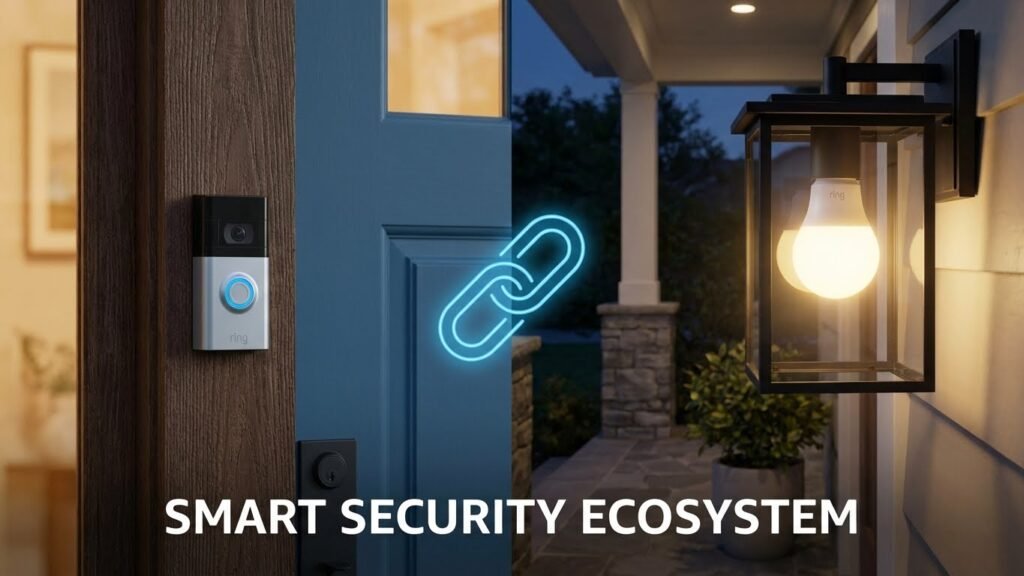
You can use several popular smart bulbs with Ring, including Ring’s own bulbs and other brands that work through a Ring Bridge, Ring-compatible Echo devices, or direct Wi‑Fi links. Philips Hue, Sengled, LIFX, and Ring’s A19/A21 bulbs rank among the reliable choices for syncing lights with Ring devices and motion events.
You’ll learn how each connection method works, which bulbs give the best brightness and color options, and what to check before buying so your lights trigger with doorbells and cameras. This guide helps you pick bulbs that boost convenience and security without adding tech headaches.
Key Takeaways
- Choose bulbs that connect via Ring Bridge, compatible Echo devices, or Wi‑Fi for best integration.
- Look for brightness, color options, and ecosystem fit before buying.
- Proper setup links lights to motion and doorbell events for added security.
Smart Bulbs Compatible With Ring

You can use both Ring-branded bulbs and several third-party smart bulbs with Ring if they follow the right connection method. Know which brands work directly, what hardware or apps you need, and what limits you may face.
Directly Supported Smart Bulb Brands
Ring makes its own A19 smart LED bulbs that connect through the Ring Bridge or compatible Echo devices. These Ring bulbs offer white light up to about 800 lumens and work with motion events from Ring cameras and doorbells.
Third-party brands that commonly integrate with Ring setups include Philips Hue, Sengled (Element line), and LIFX when you control them through a compatible hub or an Echo device that links both ecosystems. Philips Hue bulbs need a Hue Bridge for full features. Sengled Element bulbs often work via a Zigbee hub that Ring Bridge or an Alexa-compatible Echo can bridge. LIFX typically uses Wi‑Fi and may work through Alexa linking rather than direct Ring app control.
Requirements for Compatibility
You will often need additional hardware: a Ring Bridge, a Hue Bridge, or an Echo device that supports Zigbee. The Ring Bridge or a compatible Echo acts as the translator between Ring and Zigbee bulbs. For Wi‑Fi bulbs like LIFX, you must link the bulb’s cloud account to Alexa and then use Alexa to connect to Ring devices indirectly.
Make sure your home Wi‑Fi is stable and your bulbs are in range of the bridge or Echo. Also check bulb size and fixture type (A19, A21, BR30), and confirm the bulb supports the color, dimming, or white temperature features you want.
Limitations and Considerations
Not all features translate across ecosystems. Color scenes, advanced schedules, or some routines may work only in the bulb’s native app (Hue or LIFX) and not through the Ring app. Motion-triggered lighting works best when the bulb is on the same bridge or Echo that registers the motion event.
Firmware updates, cloud linking, and Alexa account permissions can cause intermittent loss of control. Some third-party bulbs require you to use multiple apps (Ring + Hue or LIFX) to access full functionality. Finally, avoid assuming every “smart” bulb labeled Ring-compatible will provide full integration; read the product specs for required hubs and supported features before you buy.
Integration Methods for Smart Bulbs and Ring
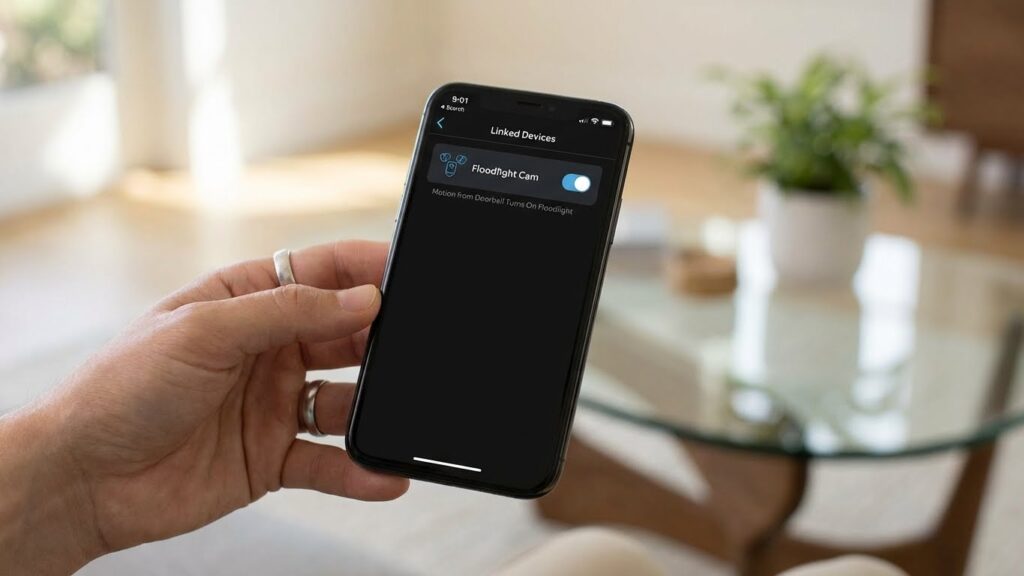
You can link smart bulbs to Ring in three main ways: using Ring’s own bridge, through Alexa voice and routines, or by connecting with third-party smart home platforms. Each method controls how bulbs trigger with doorbells, cameras, and motion events.
Using Ring Bridge
If you buy Ring-branded bulbs, you’ll likely use the Ring Bridge (or Ring Smart Lighting bridge) to connect them to your Ring app. The Bridge creates a local network so bulbs respond directly to Ring devices without relying on your main Wi‑Fi.
Set up by adding the Bridge in the Ring app, then pair bulbs by following the app prompts. Once paired, you can create light groups, set motion-trigger rules, and make lights flash or turn on when a doorbell rings.
Advantages:
- Direct integration with Ring motion and doorbell events.
- Low latency and reliable local triggers.
Limitations:
- Works best with Ring or Ring-compatible bulbs only.
- Adds one more device to your network and needs a nearby power outlet.
Connecting Through Amazon Alexa
You can control many smart bulbs via the Alexa app and link Alexa to Ring for cross-device routines. Enable the Ring skill and the bulb manufacturer’s skill in Alexa, then discover devices. Use Alexa routines to turn bulbs on, change colors, or set scenes when a Ring doorbell detects motion or a camera sees activity.
Steps:
- Enable Ring skill and sign in.
- Enable bulb maker’s skill and discover devices.
- Create a routine: trigger = Ring event, action = bulb command.
Alexa offers broader device support than the Ring Bridge. But routines can add a small delay, and you must manage permissions across two services.
Third-Party Smart Home Platforms
Platforms like SmartThings, Home Assistant, or Lutron integrate Ring with many non-Ring bulbs. You typically add Ring and your bulb system to the platform, then create automations that link Ring events to light actions. Home Assistant gives the most customization; SmartThings is simpler for most users.
Considerations:
- Check compatibility lists for your hub and bulbs.
- You may need local network tokens or cloud account links.
- Third-party platforms can enable advanced rules (time-of-day, presence, or combined triggers).
This route gives flexibility if you use mixed-brand devices, but setup can be more technical and may rely on cloud services depending on the platform.
Top Recommended Smart Bulbs for Ring Ecosystem
These picks focus on bulbs that work smoothly with Ring through direct support, a bridge, or Alexa. Each option shows how to connect, what features you get, and the limits to expect.
Ring Smart Lighting
Ring’s own smart bulbs pair directly with the Ring Bridge and the Ring app. You connect the bulbs to the Bridge, add them in the Ring app, and then assign schedules, motion triggers, or sync with Ring cameras and doorbells.
You get color or white bulbs, dimming, and the ability to turn lights on when motion is detected by Ring devices. The system keeps everything inside the Ring app, which simplifies automation and scene linking.
Limitations: you must use the Ring Bridge for local control and advanced automations. Some third-party voice or hub features may be limited compared with other platforms.
Philips Hue Integration
Philips Hue works with Ring when you use a Hue Bridge and link Hue to Alexa or use IFTTT-like integrations. Install bulbs in standard sockets, pair them to the Hue Bridge, then connect Hue’s skill to Alexa and enable Ring to control scenes or routines.
Hue bulbs give you wide color range, reliable mesh networking (Zigbee), and strong third-party support. Use Hue scenes to flash lights for Ring motion events or turn on specific zones when your Ring doorbell rings.
Limitations: direct pairing between Hue Bridge and Ring app is not native. You rely on Alexa or a third-party service for some automations, so expect an extra step in setup.
Sengled Smart Bulbs
Sengled bulbs offer affordable Zigbee models that work with Ring when paired through a compatible hub like Samsung SmartThings or an Echo with Zigbee. You install bulbs, pair them to the hub, then link the hub to Ring-compatible services to trigger lights from Ring events.
Sengled gives solid white and color options and good value per bulb. They support basic on/off, dimming, and color changes when integrated properly. Use Sengled for entryway lighting tied to Ring motion detection via your hub.
Limitations: Sengled does not connect directly to the Ring Bridge. You must use a hub or Alexa with Zigbee support, which adds setup steps and may limit some Ring-specific features.
LIFX Bulb Connectivity
LIFX bulbs connect directly to your Wi‑Fi network and can be used with Ring through Alexa or IFTTT-style links. You screw in bulbs, add them via the LIFX app, then enable the LIFX skill in Alexa to bridge actions with Ring devices.
LIFX gives bright, high-quality color and no hub requirement. You can create routines that turn LIFX lights on with Ring motion or doorbell events when using Alexa or supported automation services.
Limitations: LIFX does not talk directly to the Ring app or Ring Bridge. You’ll rely on Alexa or third-party services for tie-ins, and heavy Wi‑Fi use may impact network load.
Setting Up Smart Bulbs With Ring Devices
You will connect bulbs through the Ring Bridge or compatible Echo devices, link them in the Ring app, and set triggers like motion or schedules. Make sure your Ring Bridge and Wi‑Fi are working, and that bulbs are in the same room and powered on before pairing.
Step-by-Step Installation Process
Start by installing the bulb into a standard E26 socket and turn the light switch on. Open the Ring app, tap the menu, choose “Smart Lighting,” then “Set Up a Device.”
If you use Ring bulbs, power cycling usually puts them in pairing mode; with third‑party bulbs, follow the bulb maker’s pairing instructions.
Set up the Ring Bridge first if your bulbs require it. Plug the Bridge into power and the same router as your phone. In the Ring app, add the Bridge, then add bulbs under the Bridge device.
Confirm each bulb appears in the app and test on/off and brightness. Label bulbs by room to make automation easier.
If a bulb supports Alexa or a hub instead of the Ring Bridge, link that ecosystem in the Ring app. Always update firmware when prompted in the app.
Troubleshooting Common Issues
If a bulb won’t pair, check power, Wi‑Fi signal, and that the Bridge is online. Move the bulb closer to the Bridge for setup if the signal is weak.
Restart the Ring Bridge and your router if the app shows “offline” or “unable to connect.”
For bulbs that appear but won’t respond, confirm they are on the correct Ring device group. Remove and re-add the bulb in the app if commands lag or fail.
Check for firmware updates in both the Ring app and the bulb maker’s app. If a third‑party bulb is incompatible, it may not fully support motion triggers or dimming.
If motion triggers don’t work, verify motion sensing is enabled on the relevant Ring camera or doorbell and that the light is assigned to the same Motion Group. Replace the bulb if it flickers or loses brightness after pairing.
Optimizing Automation Features
Use Motion Groups to link specific cameras or doorbells to specific bulbs. In the Ring app, create a Motion Group and assign the camera and the bulbs you want to trigger together.
Set “Light Settings” per group to choose duration, brightness level, and which devices trigger the light.
Create schedules for regular on/off times to save energy. Combine schedules with motion rules so lights stay off most of the night but come on during detected motion.
Use labels and rooms to avoid accidental triggers and to make voice commands simple with Alexa. Test automations after setting them, then tweak sensitivity and duration for the best balance of security and convenience.
Enhancing Home Security With Smart Bulbs and Ring

Smart bulbs can make your Ring devices more effective by lighting entryways on motion, simulating presence when you’re away, and improving video clarity at night. You can link bulbs to specific Ring cameras or doorbells, set rules for when lights turn on, and choose colors or brightness that suit each event.
Automating Lights With Ring Events
You can link smart bulbs to a Ring doorbell or camera so lights react to motion or a doorbell press. For example, set porch bulbs to turn on at 100% white when your doorbell detects motion after dusk. That bright, steady light helps your doorbell capture clearer video and can deter intruders.
Use the Ring app to create a group that pairs a camera and bulb, then choose the trigger: motion zones, time of day, or a button press. If you have Ring-compatible bulbs from Philips Hue, Sengled, LIFX, or Ring’s own bulbs, check that they appear in the Ring app or a connected Alexa routine. Test each rule so lights respond fast enough — a 1–3 second delay can matter for video or deterrence.
Customizing Lighting Schedules
Set schedules to make your home look occupied and support Ring alerts. Create routines for dusk-to-dawn lighting, stagger lights in different rooms, or turn bulbs on during typical arrival times. Use color and brightness to signal different events: soft white for routine night lighting and bright white for motion-activated security.
Combine schedules with vacation or away modes. For example, have hallway bulbs come on at random intervals between 7–11 p.m. while you’re away. If your bulbs support groups, schedule them by zone (porch, entry, driveway) so you control exactly which areas light up. Keep schedules simple and test them for a week to ensure they match your daily patterns and Ring notifications.
Factors to Consider Before Purchasing Smart Bulbs for Ring
Check compatibility first. Not all smart bulbs pair directly with Ring. Look for bulbs labeled “Ring-compatible” or those that work through Alexa or Matter if you plan to link them in the Ring app.
Decide how you’ll connect them. Bulbs may use Wi‑Fi, Bluetooth, Zigbee, or a hub. Wi‑Fi and cloud bulbs often pair easily, while Zigbee or hub bulbs may need an extra bridge but can be more reliable for many lights.
Think about brightness and color. Choose lumen output that matches the fixture and purpose—brighter for outdoor security, softer for porches. If you want mood lighting or color alerts tied to Ring events, pick color‑changing bulbs.
Consider motion and automation needs. Some Ring integrations let lights react to motion or doorbell activity. Confirm the specific bulb and Ring device support those automations before buying.
Mind app control and voice assistants. If you use Alexa or Google Assistant with Ring, verify the bulb supports those platforms. That ensures quick voice commands and unified routines.
Check physical fit and durability. Match bulb base (A19, BR30, etc.) and weather ratings for outdoor use. Outdoor-rated bulbs resist moisture and temperature swings.
Review price and long‑term costs. Look at energy use, expected lifetime, and whether a hub subscription or bridge is required. Cheaper bulbs can work well, but reliable integrations often cost a bit more.
Keep firmware updates and security in mind. Choose brands that update firmware regularly to fix bugs and improve compatibility with Ring and other smart home gear.
Future Developments in Smart Bulb and Ring Integration
You will see tighter compatibility as Matter and other standards mature. Matter aims to make smart bulbs work across brands and hubs more reliably, so your Ring devices could control a wider range of bulbs without extra bridges.
Expect more automation between Ring sensors and lights. For example, your doorbell or camera could trigger complex lighting scenes based on time, presence, or motion. This will make entrances and pathways safer and more convenient.
Look for improved local control and lower latency. Moves toward local processing mean lights react faster to Ring-triggered events and keep working even if your internet drops. That will reduce delays when motion detection needs an immediate light response.
You may get deeper energy and privacy controls in the Ring app. New features could let you schedule bulbs by power use, set stricter sharing options, and view logs of when lights were triggered by Ring devices. These help you balance convenience with privacy and cost.
Brands will likely offer broader native integrations with Ring. Instead of using third-party bridges, more bulbs may appear as first-class devices in the Ring app. That will simplify setup and let you manage lighting and security from one place.
FAQs
Which smart bulbs work with Ring?
Ring works best with its own Ring A19 smart bulbs and other bulbs that can connect through a Ring Bridge or compatible Echo devices. Brands like Philips Hue, Sengled, and LIFX can integrate when you use the right bridge or hub.
Do I need a Ring Bridge or hub?
You may need a bridge or compatible Echo device for some bulbs to appear in the Ring app. Bulbs that use Zigbee or require their own hub often need that hub linked to Ring or Alexa first.
Can Ring doorbells trigger smart bulbs?
Yes. You can set Ring devices to trigger connected lights for motion or doorbell events. Configure the automation in the Ring app under Smart Lighting or linked device settings.
Will smart bulbs work without Wi‑Fi?
Most smart bulbs need Wi‑Fi, Zigbee, or Bluetooth. If a bulb needs a hub, the hub must have network access. Some simple bulbs offer local Bluetooth control but limited Ring integration.
Are color and dimming features supported?
Color and dimming work when the bulb and its connection method support those features. If the Ring app controls the bulb, you’ll see options for brightness and color where available.
How do I check compatibility before buying?
Look for “Ring compatible” on product pages or check that the bulb can pair with a Ring Bridge, Alexa, or the same hub you use. Read product specs for connectivity (Wi‑Fi, Zigbee, or hub required).
Conclusion
You can choose smart bulbs that work with Ring by checking compatibility with the Ring Bridge, Amazon Sidewalk, or Alexa-enabled devices. Popular options include Ring’s own A19 bulbs, Philips Hue, Sengled, and LIFX when you use the right hub or bridge.
Match bulb type to the room. Use A19 or BR30 for indoor lamps and recessed fixtures, and choose flood or porch-rated bulbs for outdoor lighting. Pay attention to brightness (lumens) and color features so your Ring cameras capture clear footage.
Set up is usually simple through the Ring app or the bulb maker’s app, and many bulbs let you create schedules and sync with motion events. For device specifics and firmware notes, check Ring’s support pages and Philips Hue’s compatibility guide for reliable steps and updates. (https://support.ring.com, https://www.philips-hue.com)
If you want the tightest integration, use Ring-branded bulbs or bulbs certified to work with the Ring Bridge. Otherwise, plan for an extra hub like Philips Hue Bridge or compatible Echo devices to connect third-party bulbs.
Choose bulbs that balance cost, features, and ease of use. That way, your lights will boost both convenience and security without adding unnecessary hassle.