
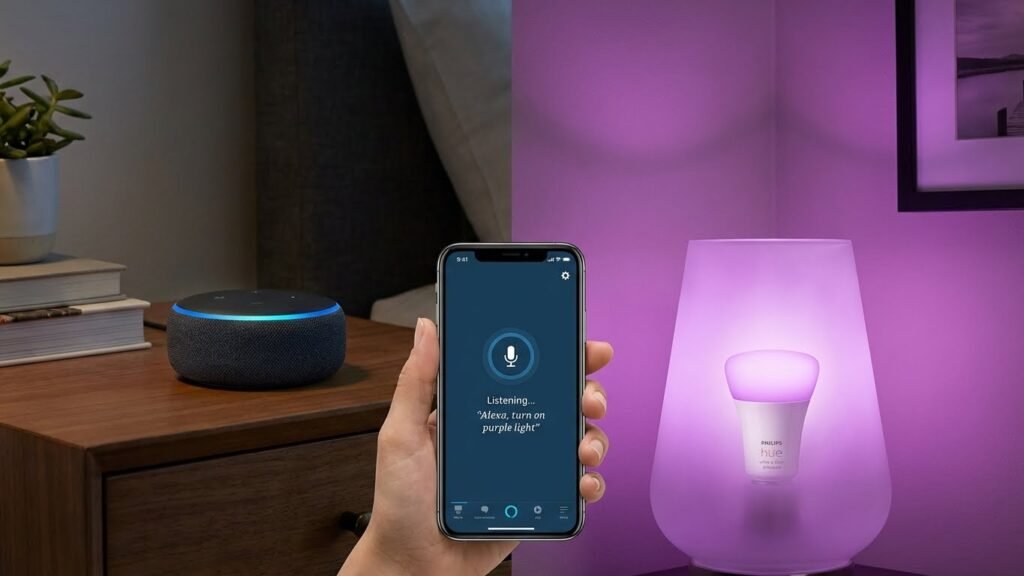
You want a smart bulb that works with Alexa and makes setup simple while giving reliable control. For most people, a color-changing Wi‑Fi bulb that specifically lists Alexa support and needs no hub gives the best balance of ease, features, and price. A top pick is a hub-free, Alexa-compatible color bulb (like Amazon Basics, Govee, or Philips Hue with its bridge) because it lets you use voice control, schedules, and color options with minimal fuss.
You’ll learn which bulbs match your budget, which need a hub, and which give the best color and brightness for living rooms, bedrooms, or outdoor lights. The rest of the article shows quick comparisons, what to check for compatibility and privacy, and simple setup tips so you can pick the right bulb fast.
Key Takeaways
- Pick a hub-free Alexa-compatible bulb for easiest setup and voice control.
- Check brightness, color range, and compatibility with your home network.
- Consider cost, long-term value, and privacy before you buy.
Top-Rated Smart Bulbs for Alexa
These picks focus on voice control reliability, color and brightness range, and how easy they are to set up with Alexa. You’ll see choices that balance price, features, and integration so you can match a bulb to each room and budget.
Best Overall Smart Bulbs
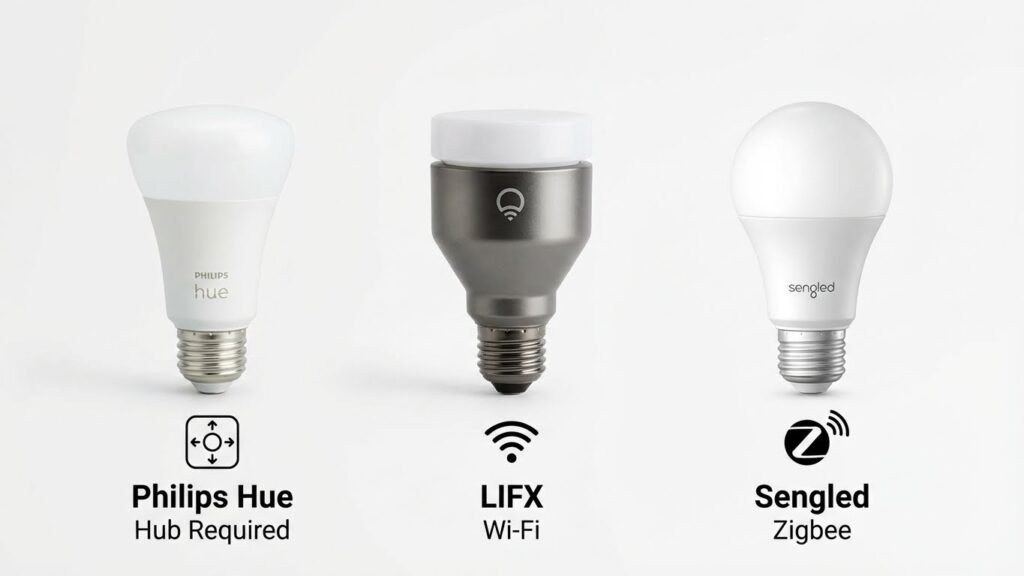
Philips Hue White and Color Ambiance stands out for strong Alexa support and wide color range. It uses a Hue Bridge for full feature access, including routines, scenes, and multi-room sync. You get smooth dimming, accurate colors, and reliable voice response through Echo devices.
If you prefer no hub, consider LIFX Color bulbs. They connect directly to Wi‑Fi and deliver bright whites and vivid colors. Setup is fast in the Alexa app, and LIFX offers fine color control and good third‑party app support.
Both brands work well for living rooms and accent lighting where color quality and automation matter. Choose Hue if you want the largest ecosystem and long-term expandability. Pick LIFX for simpler setup without extra hardware.
Best Value Options
TP-Link Kasa and Sengled offer strong value with core Alexa features at lower prices. Kasa color bulbs provide reliable Wi‑Fi control, decent color accuracy, and built‑in scheduling in the Kasa app. Alexa routines and voice commands work without extra hubs.
Sengled’s smart LED bulbs often cost less and include basic color and dimming. Some Sengled models require a hub, but many recent versions connect via Wi‑Fi or Zigbee through an Echo with Zigbee built in. These bulbs fit bedrooms, closets, and rental spaces where you want smart control without breaking the bank.
For budget buys, prioritize bulb brightness (lumens) and whether they need a hub. That helps you avoid extra costs and ensures Alexa will control them the way you expect.
Premium Picks
Nanoleaf and Philips Hue’s higher‑end kits target users who want advanced scenes, rich colors, and deep integrations. Nanoleaf offers modular panels and bulbs that create immersive lighting effects tied to music, games, and smart scenes. Alexa can trigger complex routines and group control.
Philips Hue’s top kits include stronger color rendering and faster firmware updates. The Hue Bridge unlocks advanced features like geofencing, third‑party integrations, and large multi‑room setups. These options suit media rooms, creative spaces, and smart home enthusiasts who use many automations.
Expect higher prices, but you gain superior color fidelity, advanced scheduling, and stronger ecosystem support for expanding devices.
Runner-Up Choices
Govee and Kasa’s midrange color bulbs make good runner‑up picks when you want a mix of features and price. Govee bulbs often include app-driven effects and music sync, and they pair with Alexa after enabling the Govee skill. Brightness and color range are competitive for the cost.
TP-Link’s lower‑cost Kasa models and newer Sengled Zigbee bulbs also perform reliably in typical rooms. They may lack the absolute color accuracy of premium bulbs, but they handle dimming, scenes, and voice control well. These are sensible choices for hallways, home offices, and multi‑lamp setups where you need consistent Alexa control without premium cost.
Compatibility Requirements
You need bulbs that match Alexa’s voice features, your smart home platform, and your home’s network. Check the bulb’s connectivity and any hub requirements before buying.
Alexa Integration Features
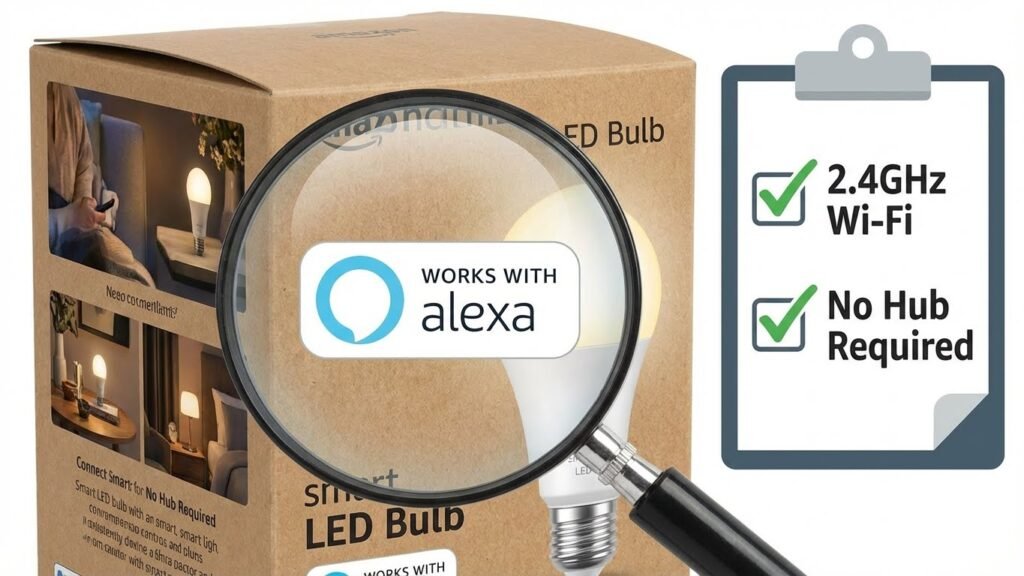
Make sure the bulb lists Alexa or “Works with Alexa” on its packaging or product page. That confirms the bulb supports voice commands for on/off, brightness, and—if offered—color or color temperature changes.
Look for support of Alexa routines and groups. Routines let you trigger the bulb with schedules or other devices. Group support lets you control multiple lights with one command, like “Alexa, turn off the living room.”
Check for direct skill support or native integration. Some bulbs work by enabling a vendor skill in the Alexa app; others connect directly via local network control for faster response. Confirm whether the bulb needs account linking; that step is common and required for many brands.
Supported Smart Home Ecosystems
Decide which ecosystems you want the bulb to join: Alexa, Google Home, Apple HomeKit, or SmartThings. Some brands support all three, but others only support Alexa plus Google or require a hub for HomeKit.
If you use multiple ecosystems, choose bulbs that advertise multi-platform support. If you only use Alexa devices, you can pick bulbs labeled specifically for Alexa without HomeKit support. For SmartThings or hub-based systems, check whether the bulb uses Zigbee or Z-Wave and if the hub you own lists the bulb model as compatible.
Look at third-party integrations like IFTTT. That can add extra automation if native features are missing. Confirm whether account linking or additional hardware is required for each ecosystem.
Connectivity Protocols
Identify the protocol the bulb uses: Wi‑Fi, Zigbee, Z‑Wave, or Bluetooth. Wi‑Fi bulbs connect directly to your router and usually need only the vendor app plus Alexa skill. Zigbee bulbs often require a hub like an Echo with built‑in Zigbee or a separate bridge.
Check frequency and band requirements. Most Wi‑Fi smart bulbs require 2.4 GHz networks and won’t connect to 5 GHz. If your home uses a mesh network or guest network, ensure the bulb can join that SSID and that devices are allowed to communicate.
Consider range and reliability. Zigbee tends to be more stable for many bulbs in larger setups because bulbs can act as repeaters. For a single-room setup, Wi‑Fi bulbs are simpler and avoid extra hubs.
Device Limitations
Read the fine print for limitations. Some bulbs only offer white dimming and not color changes. Others advertise color but have limited color accuracy or reduced brightness at certain temperatures.
Watch for maximum bulb counts and concurrent device limits in the vendor app or on your router. Some hubs and routers limit the number of devices you can reliably connect. Also check power ratings and dimmer compatibility if you plan to use physical dimmer switches.
Firmware and software matter. Bulbs require firmware updates for fixes and new features. Confirm the vendor provides updates and whether those updates require re-pairing or can change behavior.
Key Features to Consider
Focus on features that affect daily use: how you control the bulb, the light quality you get, the ways you can automate it, and how much power it uses. These factors determine comfort, convenience, and cost over time.
Voice Control Capabilities
You should check whether a bulb works natively with Alexa or needs a hub. Native Wi‑Fi bulbs like many Sengled or Daybetter models let you link the bulb directly to the Alexa app for voice commands without extra hardware. Bulbs that require a hub — for example, some Philips Hue kits — offer more reliable local control and multi‑room syncing, but add upfront cost and setup steps.
Look for support for common Alexa commands: on/off, dim, set color, and groups. Also confirm if the bulb supports routines and smart home skills so you can trigger scenes, alarms, or custom phrases. Response time matters: bulbs that use local Zigbee or a hub often react faster than cloud‑only Wi‑Fi bulbs.
Brightness and Color Options
Brightness is measured in lumens. For standard rooms, aim for 800–1100 lumens (roughly a 60–75W equivalent). Use higher lumens for kitchens or workspaces and lower for ambient lighting. Many smart bulbs specify both lumens and color temperature range (2700K warm to 6500K daylight).
Color bulbs list RGB or RGBW; RGBW adds a dedicated white LED for truer whites. If you want precise whites for reading or video calls, choose bulbs with tunable white (kelvin control). Check the color gamut or the number of colors advertised; broader gamuts give richer reds and blues. Also confirm dimming range — good bulbs dim smoothly to 1–2% without flicker.
Scheduling and Automation
You want bulbs that let you build schedules, routines, and triggers in Alexa or the bulb’s app. Basic scheduling covers on/off times and wake/sleep scenes. Advanced automation uses geofencing (turn off when you leave), sunrise/sunset triggers, or motion sensor integration.
Check integration with Alexa Routines so you can tie lights to alarms, security devices, or voice phrases. If you use multiple systems, ensure the bulb can appear in third‑party hubs like SmartThings or HomeKit (if you have that ecosystem) to extend automation options. Reliable offline behavior matters too: some systems execute local schedules even if the cloud is down; those avoid outages disrupting your lighting.
Energy Efficiency
Look for bulbs with a clear wattage and lumen output to calculate lumens per watt (lm/W). Higher lm/W means better efficiency. Most LED smart bulbs fall between 60–120 lm/W; pick the higher end to reduce electricity use.
Check the bulb’s estimated annual energy cost or consumption on the product page. Some smart bulbs also offer energy monitoring features in the app so you can track usage over time. Finally, consider lifespan (hours) and warranty; longer lifespans and solid warranties lower replacement frequency and total cost.
Setup and Installation
This section shows the steps to get a smart bulb working with an Alexa device, how to link accounts and apps, and how to fix the most common setup problems quickly.
Connecting to Alexa Devices
Screw the smart bulb into a working light socket and power it on. For bulbs that require a hub (like some Philips Hue kits), plug in the hub and connect it to your router with an Ethernet cable.
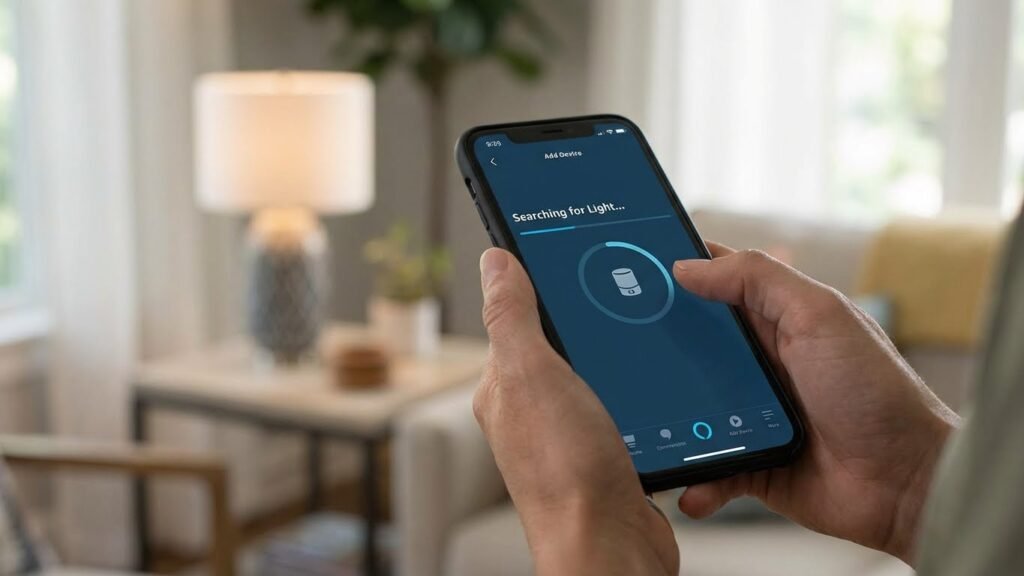
Open the Alexa app on your phone. Tap Devices → + → Add Device, choose “Light,” then pick the bulb brand or select “Other” if it’s not listed. Put the bulb into pairing mode—usually by toggling power or following manufacturer steps—and watch the app for discovery.
If the bulb supports direct Wi‑Fi or Bluetooth pairing (LIFX, Wyze, and many TP-Link models), follow the bulb app first, then enable the bulb’s Alexa skill. For hub-based systems, enable the hub skill in Alexa and discover devices again. Test voice control by saying, “Alexa, turn on [bulb name].”
App and Account Integration
Download the bulb maker’s app and create an account if required. This app handles firmware updates, color tuning, and advanced schedules that Alexa may not fully support.
Link the bulb app to Alexa by enabling the maker’s skill in the Alexa app (Menu → Skills & Games → Search). Sign in with the same account credentials you used in the bulb app. After linking, run “Discover Devices” in Alexa or say, “Alexa, discover my devices.”
Use clear, consistent names for bulbs in the maker app before linking. That name appears in Alexa and affects voice commands and routines. Keep Wi‑Fi credentials handy; most bulbs work only on 2.4 GHz networks, so confirm your phone and router settings match.
Troubleshooting Common Issues
If Alexa can’t find the bulb, first power‑cycle the bulb and router. Unplug the router for 30 seconds then plug it back in. Reset the bulb to factory settings per the manufacturer’s steps and try discovery again.
Check whether the bulb needs a hub or only works on 2.4 GHz Wi‑Fi. Many bulbs will not join 5 GHz networks. Also confirm the bulb’s firmware is current in the maker’s app. If voice commands fail, unlink and relink the skill in Alexa, then rediscover devices.
For intermittent control, move the Wi‑Fi router closer or add a Wi‑Fi extender. If the bulb shows in the bulb app but not Alexa, ensure both apps use the same account and that permissions were granted when enabling the skill. If problems persist, consult the bulb’s support page for brand‑specific reset codes and error lights.
Privacy and Security Considerations
Smart bulbs can send usage data and need updates to stay secure. You should know what data a bulb shares and how updates are handled before you add it to your Alexa setup.
Data Protection Practices
Check the bulb maker’s privacy policy to see what data they collect, like power usage, device ID, and voice command logs routed through Alexa. Prefer brands that store minimal data and offer local control options so commands stay inside your home network instead of going to cloud servers.
Use strong, unique passwords for the bulb account and your Wi‑Fi. Enable two‑factor authentication (2FA) if the manufacturer supports it. Turn off optional data-sharing features—such as usage analytics or personalization—inside the bulb’s app when possible.
Review who can access the bulb through shared accounts. Remove unused integrations and unlink third‑party services you don’t trust. Regularly audit connected devices in the Alexa app and revoke permissions for apps you no longer use.
Firmware Updates
Firmware updates fix security holes and add features, so make sure the bulb you buy has a reliable update path. Check that the manufacturer posts patch notes and update schedules, or at least confirms automatic updates through the app.
Enable automatic updates if available, but verify the update process first. Some bulbs require a hub or smartphone to apply updates; know whether updates work over local network or need cloud servers. If an update fails, follow the vendor’s recovery steps to avoid bricked devices.
Keep your router firmware and the Alexa device updated too. A secure network reduces the chance a compromised bulb allows attackers into your home system.
Cost and Long-Term Value
You will pay more up front for brand-name bulbs, but some save you money over years through lower energy use, longer life, and better trade-in or warranty options. Think about what you value: low price now, lowest electric bill, or fewer replacements.
Initial Purchase Price
Smart bulbs that work with Alexa range from budget to premium. Expect basic white Wi‑Fi A19 bulbs from off‑brand makers for $8–$12 each. Midrange options like TP‑Link Kasa or LIFX typically sell for $15–$30. Philips Hue color bulbs run $35–50 for single bulbs and often require a hub, which adds $60–80 for a starter bridge.
Buy in multipacks to lower per‑bulb cost when you need several. Check whether the bulb needs a hub; hubless bulbs cost more per unit but avoid the bridge expense. Also compare brightness (lumens) and color features—you pay more for true full‑color and higher lumen output.
Operational Costs
Energy use and lifetime matter most after purchase. Look for bulbs rated around 8–12 watts for 800–1100 lumens; those typically replace 60–75W incandescent bulbs and cost about $1–2 per year in electricity if used a few hours daily. Color and higher‑brightness bulbs use a bit more power; check the lumens per watt (efficiency).
Also factor in expected life. Many LED smart bulbs list 15,000–25,000 hours. At three hours daily, a 20,000‑hour bulb lasts ~18 years. Fewer replacements reduce long‑term spend. Firmware updates, app stability, and integration with Alexa affect maintenance time but not directly the bill. If you use scheduling, scenes, or occupancy sensors, you can cut runtime and save energy.
Warranty and Support
Warranty length and company support affect your total cost. Major brands like Philips Hue, LIFX, and TP‑Link typically offer 2–3 year limited warranties and clearer RMA processes. Budget brands may offer 1 year or less and slower customer service.
Confirm what the warranty covers: defects, early failure, and whether you must buy from an authorized seller. Check return windows and whether the manufacturer provides free replacements or requires shipping the failed bulb back. Good app support and regular firmware updates reduce the chance of needing a replacement, which saves time and money.
User Reviews and Feedback
You’ll find most users praise bulbs that pair easily with Alexa and start responding to voice commands right away. People often mention Philips Hue, Wyze, and Kasa for reliable connection and fast voice control.
Many reviewers value color accuracy and brightness. Bulbs with vivid colors and good whites get high marks for mood lighting and reading light alike.
Some users report setup problems with hub-based systems. You may need extra steps for bridge or hub setup, which frustrates those looking for plug-and-play simplicity.
Several buyers call out the app experience as a deciding factor. If the companion app is stable and intuitive, you’ll manage schedules, scenes, and groups more quickly.
Energy use and lifespan come up in feedback across brands. Customers like bulbs that save power and last longer, and they often compare estimated hours and real-world lifetimes.
Occasional complaints focus on occasional voice lag or dropped connections. These issues are usually fixed by firmware updates or better Wi‑Fi placement near your router.
If you value community input, star ratings and long-form reviews will help you spot consistent strengths and weaknesses. Look for patterns rather than single comments when judging a product.
Final Recommendations
Pick bulbs that match how you’ll use them. For whole-room color and reliable Alexa features, choose a Philips Hue kit with a bridge. It gives smooth voice control, wide color range, and strong third-party support.
If you want simple setup and no hub, go with Wi‑Fi bulbs like Amazon Basics or Sengled. They pair directly with Alexa and work well for single-room control. Expect slightly fewer advanced features than hub-based systems.
Balance price and features by room. Use color bulbs in living spaces and tunable white or dimmable white bulbs in bedrooms and kitchens. This keeps costs down while giving the right light where you need it.
Prioritize ecosystem if you already own smart devices. If you use Echo devices and other Amazon gear, Alexa-native bulbs and brands that advertise Alexa compatibility will give the smoothest experience. Check for routine and multi-room audio support if you plan group controls.
Consider these quick buying checks:
- Compatibility: Confirm “Works with Alexa” on the box.
- Connectivity: Choose bridge (Zigbee) for reliability or Wi‑Fi for simplicity.
- Features: Look for color, tunable white, or energy tracking as needed.
- Price: Compare per-bulb cost and any hub required.
Install one or two first to test voice response and range in your home. That low-risk tryout helps you pick the right setup before replacing many bulbs.
FAQs
What bulb works best with Alexa? The best choice depends on what you need. If you want wide color range and advanced routines, Philips Hue and LIFX are strong picks. For simple, budget-friendly voice control, Amazon Basics, Sengled, or Daybetter offer solid Alexa-ready options.
Do I need a hub to use smart bulbs with Alexa? Some bulbs need a hub and some do not. Philips Hue typically uses a hub for full features, while LIFX, Amazon Basics, and many Sengled models work over Wi‑Fi and need no hub. Check the bulb’s product details before you buy.
Will Alexa let me change colors and dim lights? Yes. Most color and dimmable smart bulbs that are Alexa-compatible will respond to voice commands for color, brightness, and on/off. Exact capabilities depend on the bulb model and whether you use the bulb’s app or the Alexa app.
How hard is setup? Setup is usually simple. Screw in the bulb, power it on, then follow the bulb maker’s app to connect to Wi‑Fi or a hub. Finally, enable the bulb’s Alexa skill and link accounts to control lights by voice.
Can I group bulbs and set schedules? Yes. You can group bulbs into rooms or zones in the Alexa app and create routines or schedules. This works with most hubs and hub‑free Wi‑Fi bulbs.
Are smart bulbs secure? They use encryption and app logins, but you should enable strong passwords and keep firmware updated. Limit guest network access for added safety.
Conclusion
Choosing the best smart bulb for Alexa comes down to what you need most: color range, brightness, price, or ecosystem. If you want wide color options and strong integration with other devices, look at full ecosystems like Philips Hue. If you prefer simpler setup and lower cost, many Wi‑Fi bulbs work well without a hub.
Think about where you will use the bulbs. For living rooms and mood lighting, color bulbs give you more control. For kitchens and workspaces, pick high-lumen bulbs with good whites. You can mix types in one home to match each room’s needs.
Check compatibility and voice features before you buy. Make sure the bulb lists Amazon Alexa support and that it works with your Echo device. You can find verified compatibility and setup guides on manufacturer sites and on Amazon’s Alexa developer pages for added confidence.
Set a budget and plan for expandability. Starter kits can save money and offer a reliable bridge between bulbs and Alexa. Also consider energy use and lifespan to reduce long‑term cost.
Try one or two bulbs first so you can test voice control and app features in your home. That hands‑on check will show you what fits your routines and what features you’ll actually use.