
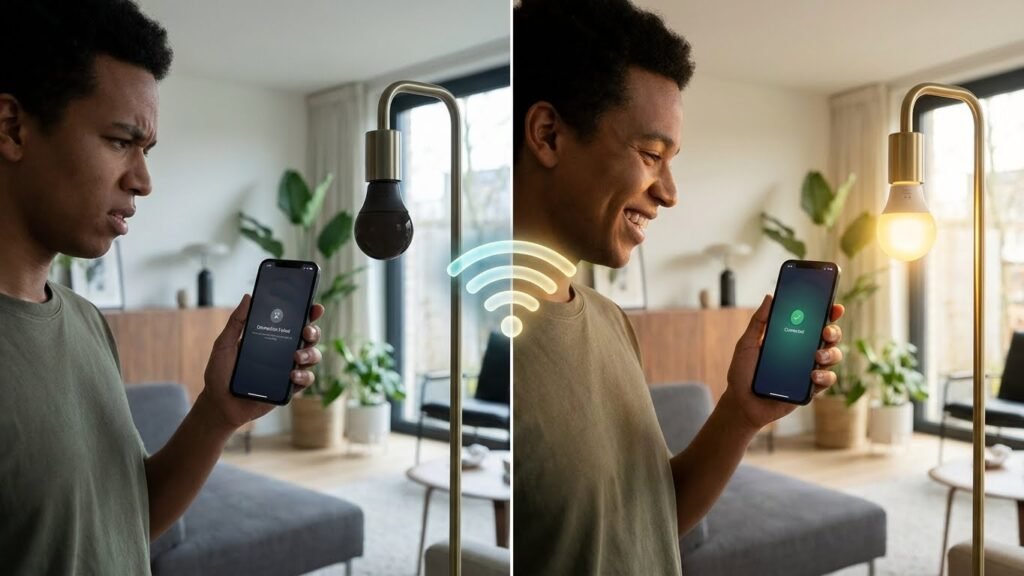
Your smart bulb likely stopped working because it lost a connection, hit a software snag, or had a power or installation issue. Check power and switches, confirm the bulb is in pairing mode, and verify your Wi‑Fi or hub connection — those steps fix most problems quickly.
If that doesn’t bring the light back, the bulb’s app, firmware, or voice assistant setup might need an update or a reset. You can also test the bulb in another socket and move your router or add an extender to rule out weak signal zones.
Key Takeaways
- Check power, pairing mode, and basic network links first.
- Update or reset the bulb’s app and firmware if connection issues persist.
- Test placement and network strength to prevent repeat failures.
Common Causes for Smart Bulb Malfunction
Most failures come from network dropouts, lost power at the fixture, or a bad bulb. Check your router, wall switch, and the bulb itself in that order.
Connectivity Issues
Your smart bulb may have lost its link to your Wi‑Fi or hub. If the bulb uses Wi‑Fi, confirm it’s on the same 2.4 GHz network your phone or hub uses; many bulbs don’t support 5 GHz. If it uses Zigbee or Z‑Wave, the bulb needs a working bridge or hub and a stable mesh of other devices.
Look for these signs: the bulb powers on but the app shows it offline, or it responds slowly and drops out when you move far from the router. Fixes include rebooting the router, moving the hub closer, or temporarily placing the bulb within range to rejoin the network.
Also check for IP conflicts, failed firmware updates, or strict router settings like AP isolation or MAC filtering. Allow the bulb to update firmware with a stable connection and re-pair the device if needed.
Power Supply Problems
A bulb that never lights or turns off randomly often has a power issue. Confirm the wall switch is fully on and not a dimmer or timer that’s incompatible with smart bulbs. Loose wiring at the fixture or a faulty lamp socket can cut power intermittently.
Test the bulb in a different socket or lamp that you know works. If the bulb works elsewhere, the original fixture likely has wiring or switch problems. Also check the circuit breaker and any motion or light sensors on the same circuit; they can interrupt power unexpectedly.
If you use smart switches, ensure they’re configured for smart-bulb load types or use a neutral wire when required.
Hardware Defects
Smart bulbs can fail like any electronic device. Internal LED driver faults, bad solder joints, or degraded components from heat will cause waning brightness, flicker, or total failure. Cheaper bulbs and units used in enclosed fixtures that trap heat tend to fail sooner.
Signs of hardware failure include visible flicker, irregular color shifts, or the bulb working briefly after being power-cycled and then dying again. If the bulb is under warranty, contact the manufacturer for a replacement. Avoid repeatedly power-cycling a likely-faulty bulb; that can make the failure worse.
Wi-Fi and Network Troubleshooting
Check your signal, router settings, and any recent network changes. Small fixes like moving the router, switching bands, or re-entering your Wi‑Fi password often get the bulb back online.
Wi-Fi Signal Strength

Weak Wi‑Fi is the most common cause of a bulb dropping offline. Measure signal strength near the bulb with a phone app or the Wi‑Fi icon; aim for at least -70 dBm (good) or better. Walls, metal appliances, and floors reduce signal quickly.
Move the bulb or router closer by a room or two. If you can’t move them, add a Wi‑Fi extender or a mesh node in the same room. Place extenders in open areas, not inside cabinets.
Avoid dual‑band confusion: many bulbs only support 2.4 GHz. Confirm your bulb is on the 2.4 GHz network and not a 5 GHz SSID with a similar name.
Router Compatibility
Some routers block or limit smart bulbs by default. Check your router’s firmware version and update it if an update is available; this fixes known bugs and improves device compatibility.
Look for settings that affect local devices: AP isolation, guest network restrictions, or access control lists can stop bulbs from seeing your phone or hub. Disable AP/client isolation for the SSID the bulb uses.
If your router has advanced features (MU‑MIMO, beamforming, QoS), try turning them off temporarily to see if the bulb reconnects. For older bulbs, a simple, modern router on 2.4 GHz often works best.
Network Configuration Changes
Recent password changes, SSID renames, or router replacements will break bulb connections. Re-enter your Wi‑Fi credentials in the bulb’s app after any change.
Check for IP conflicts: assign a static IP or a DHCP reservation for the bulb in your router’s device list to prevent the router from giving the bulb a new address. Record the MAC address before you set a reservation.
If you use a mesh system or multiple access points, ensure all nodes share the same SSID and password. During setup, temporarily place your phone next to the bulb and follow the app’s AP mode steps if standard setup fails.
Smart Bulb App and Software Solutions
You can often fix smart bulb problems by updating the phone app, installing bulb firmware updates, or re-pairing the bulb to the app or hub. These steps target communication and software glitches that stop the bulb from responding.
App Version and Updates
Check the app store for your bulb’s companion app and install any available updates. App updates fix bugs and change how the app talks to your bulb, so running the latest release reduces mismatches.
If the app is up to date but still misbehaves, force-close the app and reopen it. On iOS, swipe it closed from the app switcher. On Android, use Settings > Apps > [app name] > Force stop, then relaunch.
If problems persist, clear the app cache (Android) or reinstall the app (both platforms). Reinstalling removes corrupted files and resets app settings. After reinstalling, sign back in and check your device list; you may need to re-add any devices removed by the reset.
Firmware Updates

Firmware runs on the bulb itself. Open the companion app’s device page and look for a firmware or device update option. Apply updates only when the bulb is powered and within range of your Wi‑Fi or hub.
Do not interrupt power during a firmware update. If the update fails, power-cycle the bulb: turn it off for 10 seconds, then back on. Retry the update once the bulb reconnects. If repeated failures occur, contact the manufacturer or check their support site for a manual update method.
Keep a routine: check for firmware monthly if you notice odd behavior like color shifts, slow responses, or frequent disconnects. New firmware often improves stability and fixes known bugs.
Device Re-Pairing Steps

Start with a local reset. Most bulbs use a power-cycle pattern (e.g., five quick on/off cycles) to enter pairing mode. Check your bulb’s manual for the exact pattern and follow it precisely.
Open the companion app and choose Add Device or Pair New Device. If the app asks you to connect to a temporary hotspot or the bulb’s network, accept and follow the prompts. Return to the app to finish configuration and assign the bulb to the correct Wi‑Fi network or room.
If pairing fails, move closer to the router or hub and disable any VPNs on your phone. For bulbs on a hub (Zigbee/Z‑Wave), ensure the hub is in pairing mode and restart the hub before retrying. If the bulb still won’t pair, factory reset it and try again.
Voice Assistant Integration Errors
Voice assistants need correct links, the same Wi‑Fi, and matching account permissions to control a smart bulb. Small gaps in setup or updates often break communication and stop voice control from working.
Amazon Alexa Connection
Check that your bulb and Echo are on the same 2.4 GHz or supported network. Alexa can’t see bulbs on a different SSID or a guest network.
Open the Alexa app, go to Devices, and run “Discover” to force a device refresh. If discovery fails, disable and re-enable the bulb’s skill in Alexa > Skills & Games, then sign in again to relink the account.
Ensure the bulb firmware and the Alexa app are up to date. Outdated firmware can block commands even when the device appears online. Also confirm you gave Alexa permission to control smart home devices in the bulb’s companion app and under Alexa app device permissions.
If you use routines or groups, check that the bulb is assigned correctly. Remove and re-add the bulb to a group if commands affect the wrong device. For persistent issues, power-cycle the bulb and your Echo, then retry discovery.
Google Assistant Issues
Start in the Google Home app and verify the light appears under Devices. If the bulb responds to its own app but not Google Assistant, unlink and relink the bulb’s service in Google Home > Settings > Works with Google. Relinking resolves most sync problems.
Confirm the Google account you speak to matches the account linked to the bulb’s service. Google Home uses the active account on your phone or speaker, and mismatched accounts block control. Also check for network problems: Google Assistant often needs the same Wi‑Fi band as the bulb to communicate reliably.
If voice commands fail, test a simple phrase like “Hey Google, turn on [bulb name]” after renaming the bulb to a short, unique name. Complex names or duplicates can confuse Assistant. Update the bulb firmware and the Google Home app as a last step.
Apple HomeKit Complications
HomeKit requires the bulb to be added via the Home app using a HomeKit code or QR. If the bulb shows “Not Responding,” check the Home hub (Apple TV, HomePod, or iPad) status. Your hub must be online and logged into the same Apple ID to relay remote commands.
Verify that the bulb’s firmware supports HomeKit and that you entered the correct HomeKit setup code. Remove and re-add the accessory if pairing fails. Also check iCloud settings: you need iCloud Keychain and Home enabled for secure accessory syncing across devices.
Local network rules can block HomeKit traffic. Ensure your router doesn’t isolate wireless clients from each other. If you use smart home bridges, confirm they’re on the same network and updated, since bridges translate between the bulb and HomeKit and often cause the most integration failures.
Environmental and Installation Factors
Check nearby objects and the fixture environment. Small changes like a metal lamp shade or a crowded junction box can block signals or cause heat buildup that stops the bulb from working.
Physical Obstructions
Objects between the bulb and your Wi‑Fi router or smart hub can block the signal. Metal lamp shades, mirrored fixtures, or thick walls reduce range. Place the bulb in a fixture with open sides when possible, or move the router closer to the room.
Signal strength also drops when multiple dense objects stack up—think bookcases, filing cabinets, or aquarium tanks. Try a quick test: power the bulb in a different, open lamp near the router. If it works there, the original location likely has interference.
Consider wireless repeaters or a mesh Wi‑Fi node if you must keep the fixture in that spot. Also check that the bulb isn’t inside a fully enclosed ceiling can without a compatible trim, since that often blocks signals and traps heat.
Temperature Extremes
Smart bulbs contain electronics that fail outside their rated temperature range. Check the bulb box or product page for the operating range—common limits are about −10°C to 40°C (14°F to 104°F). If your fixture gets hotter or colder, expect dimming, random resets, or a complete shutdown.
Enclosed fixtures, recessed cans, and outdoor fixtures exposed to direct sun or cold winds create risky conditions. Swap the bulb into a normal lamp to see if temperature is the issue. For hot spots, use bulbs rated for enclosed fixtures or improve ventilation. For unheated outdoor fixtures, choose bulbs rated for outdoor or low‑temperature use.
Resolving Persistent Smart Bulb Issues
You can often fix persistent problems by forcing the bulb back to factory settings or by replacing the device when hardware fails. Both steps require careful checks so you don’t waste time on fixes that won’t help.
Resetting the Bulb
Start with the manufacturer’s reset procedure—many bulbs use a specific on/off cycle. For example, toggle power 5 times with one-second intervals, or follow the app’s “Factory Reset” option if available.
After the reset, reconnect the bulb to your Wi‑Fi or hub. Put the bulb in pairing mode and use the exact network name and password; for Zigbee or Z‑Wave bulbs, use your hub’s add-device function. If pairing still fails, move the bulb within 3–6 feet of the router or hub to rule out range issues.
Also update the bulb’s firmware once it reconnects. Open the bulb’s app or hub interface and install any pending firmware. If the reset works temporarily but problems return, log the pattern (time of day, app actions, other devices) to spot interference or automation conflicts.
Replacing the Device
If resets and firmware updates don’t fix the problem, test the bulb in another socket and on a different circuit. If it still misbehaves, the bulb likely has a hardware fault.
Check warranty and purchase date before replacing. Note brand, model, and firmware version for a smoother warranty claim. When buying a new bulb, match the communication protocol (Wi‑Fi, Zigbee, Z‑Wave) and color/brightness specs to your existing system to avoid compatibility issues.
Dispose of the old bulb per local electronic-waste rules. If you return it, include a brief description of the troubleshooting steps you tried to speed up support or a replacement.
Preventing Future Connectivity Problems
Keep your bulb firmware and app up to date. Manufacturers release fixes that stop bugs and improve Wi‑Fi or Zigbee performance. Check for updates at least once a month.
Place bulbs where they get a strong signal. Move Wi‑Fi routers closer or add a mesh node if coverage is weak. Metal fixtures and thick walls block wireless signals.
Use the right network settings. Put smart bulbs on a 2.4 GHz network if they don’t support 5 GHz. Disable client isolation and avoid hiding the SSID when possible.
Limit wireless interference. Keep Bluetooth devices, microwaves, and cordless phones away from bulbs and the router. Fewer interfering devices means fewer dropped connections.
Name and organize devices in your app. Clear names help you spot which bulb disconnects and when. Remove old or unused devices to reduce network clutter.
Set up routine checks and simple resets. Power‑cycle a misbehaving bulb or re-pair it every few months to clear temporary faults. Note the steps in the bulb’s manual so you can act fast.
Keep a small troubleshooting checklist handy:
- Verify power and physical connections.
- Confirm app and firmware versions.
- Check Wi‑Fi signal strength and band.
- Restart router or add mesh nodes if needed.
If problems persist, contact the manufacturer with logs or error messages. They can confirm defects or suggest device-specific fixes.
FAQs
What should you check first when a smart bulb stops working?
Start with power and the physical switch. Confirm the bulb is screwed in and the wall switch is on. Try the bulb in a different socket to rule out the fixture.
Why does my bulb respond slowly or drop offline?
Wi‑Fi interference, weak signal, or overloaded hubs often cause slow responses. Move your router or add a range extender, and keep many smart devices from sharing one weak channel.
How do I reset a smart bulb?
Most bulbs reset by toggling the power a set number of times (check the manual). After reset, put the bulb in pairing mode before reconnecting it to your app or hub.
Do firmware updates matter?
Yes. Firmware fixes bugs and improves compatibility. Check the bulb’s app for updates and install them when available.
Can a power outage damage smart bulbs?
Power surges can harm electronics, including smart bulbs. Use surge protectors and avoid frequent on/off cycling to reduce risk.
What if the app won’t find the bulb?
Ensure the bulb is in pairing mode and your phone is on the same network type the bulb uses (2.4 GHz vs 5 GHz). Restart the app, your router, or the bulb if discovery fails.
When should you replace the bulb?
Replace it if it shows physical damage, won’t reset, or still fails after troubleshooting and firmware updates. Most failures after those steps mean the bulb has reached end of life.
Conclusion
If your smart bulb stops working, start with simple checks. Verify the power, confirm the bulb is compatible with your hub or app, and make sure your Wi‑Fi signal reaches the fixture.
Resetting the bulb or the app often fixes connection glitches. Update firmware when available, and move the bulb closer to the router or add a Wi‑Fi extender if signal strength is weak.
Watch for hardware issues like a loose socket or a burned-out bulb. If the bulb still fails after troubleshooting, consider replacing it or contacting the manufacturer for warranty help.
Keep a list of what you tried and when. That record helps you or tech support spot patterns and speeds up fixes.
For reliable guidance on networking and device setup, consult your router maker’s support pages or the manufacturer’s smart bulb documentation. You can also check general networking tips at the FCC website for home Wi‑Fi help.