
Most smart bulbs use 2.4GHz Wi‑Fi, but some popular brands like LIFX, Philips Hue (with a bridge), TP‑Link Kasa, and a few GE and newer models support 5GHz or work via hubs that bridge to your 5GHz network. If you want direct 5GHz connections, check the bulb specs for dual‑band or 5GHz support; otherwise use a hub or the 2.4GHz band for reliable setup.
You’ll save time by knowing whether a bulb truly supports 5GHz or only works through a bridge or hub. This article shows which bulbs connect to 5GHz, how to identify them, and the tradeoffs so you can pick the simplest, most stable option for your home.
Key Takeaways
- Many bulbs still require 2.4GHz or a hub, so verify true 5GHz support in specs.
- Dual‑band or hub setups give better speed or easier integration with 5GHz networks.
- Check compatibility and setup steps before buying to avoid connection issues.
Understanding 5GHz WiFi and Smart Bulb Compatibility
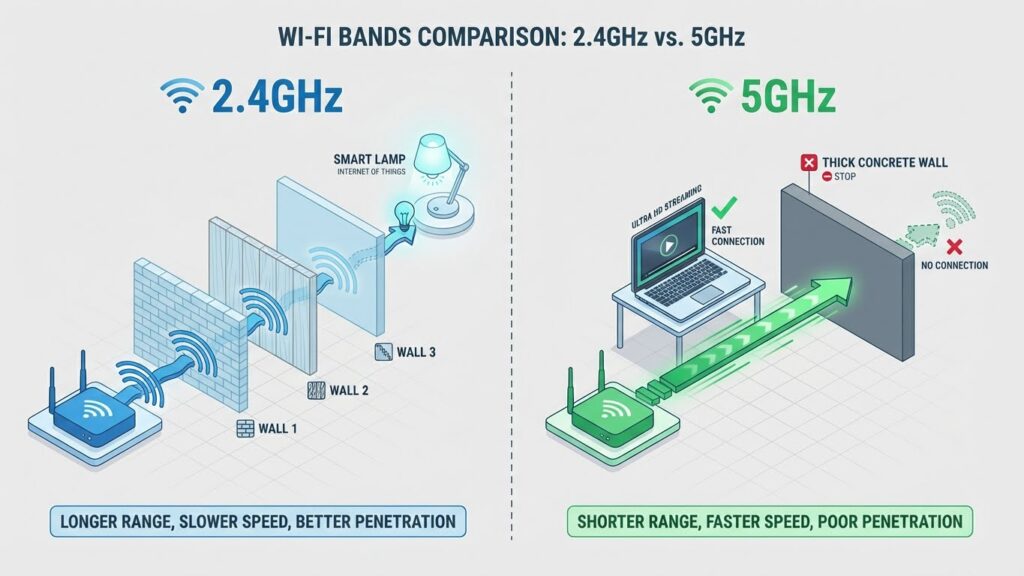
5GHz offers faster data and less interference, while 2.4GHz gives broader range and better wall penetration. You need to pick bulbs and a router setup that match your home’s layout and your control method (app, hub, or voice).
Differences Between 2.4GHz and 5GHz WiFi
2.4GHz stretches farther and passes through walls better than 5GHz. That makes it useful for bulbs in basements, rooms far from the router, or homes with many walls.
5GHz transmits more data and suffers less interference from other devices like microwaves or Bluetooth. It works best when the bulb and router are in the same room or close by.
Bandwidth and channel congestion differ too. 2.4GHz has fewer channels and more crowding in dense areas. 5GHz has many channels, so it usually gives steadier performance for direct connections.
Why Most Smart Bulbs Use 2.4GHz
Manufacturers favor 2.4GHz because bulbs often sit in varied positions across a house. The longer range and better penetration cut down on dropped connections.
Using 2.4GHz also keeps costs down. Chipsets that support only 2.4GHz are cheaper and use less power, which helps keep bulb prices and heat output low.
Many smart home hubs and ecosystems were built around 2.4GHz too. That creates a compatibility advantage: a 2.4GHz bulb will work with more routers and older smart-home bridges.
Advantages of 5GHz WiFi for Smart Home Devices
If your bulb supports 5GHz, you can expect faster command delivery and lower latency. That helps for quick color changes or synchronized scenes with other devices.
5GHz faces less interference in crowded WiFi environments. In apartments or neighborhoods with many routers, 5GHz can give a cleaner signal when the bulb is near the router.
Keep in mind range limits. Place 5GHz bulbs no more than one or two rooms from the router, or use a mesh system with 5GHz backhaul to keep strong connections.
Smart Bulbs That Work with 5GHz WiFi
You can use some smart bulbs on 5GHz networks, but not all models support it. Below you’ll find specific bulbs, brands, and recent updates so you can pick compatible options and avoid 2.4GHz-only models.
Current Smart Bulbs Supporting 5GHz
A small group of smart bulbs and lighting systems support 5GHz either natively or via a bridge. Examples include Philips Hue when used with the Hue Bridge (the bridge itself connects to your router and the bulbs use Zigbee), and LIFX bulbs that have models with dual-band Wi‑Fi radios. Bulbs that explicitly list dual-band Wi‑Fi or 802.11ac in their specs are the safest bet for direct 5GHz use.
Check product pages for terms like “dual-band,” “5GHz,” or “802.11ac.” If a bulb’s listing only mentions “Wi‑Fi 2.4GHz,” plan to use it on that band or through a separate hub.
Brands Offering 5GHz-Compatible Smart Bulbs
Philips Hue: Offers wide model support through the Hue Bridge. The bridge uses your network and lets bulbs communicate via Zigbee, which avoids Wi‑Fi band limits on the bulbs themselves.
LIFX: Offers bulbs with built-in dual-band Wi‑Fi on several newer models. These connect directly to 5GHz when the model specs include 5GHz or dual-band support.
Other brands: A few newer and higher-end brands list 5GHz support, but many budget bulbs (Kasa, DAYBETTER, etc.) remain 2.4GHz-only. Always check the spec sheet or packaging before buying.
Use a quick checklist when shopping: product spec (dual-band/5GHz), mentions of 802.11ac, and whether the product needs a hub.
Latest Product Releases and Updates
Manufacturers have started adding dual-band support to meet higher home network speeds. Recent LIFX releases focused on dual-band radios for better latency and less interference. Philips Hue continues to rely on Zigbee + bridge updates, improving stability rather than adding native 5GHz to bulbs.
Retail listings and manufacturer pages now often state Wi‑Fi band support plainly. Firmware updates rarely add 5GHz to an existing 2.4GHz-only bulb, so new hardware is usually required. When evaluating new releases, look for explicit “5GHz” or “dual-band” wording in the tech specs and check reviews for real-world connection notes.
How to Identify 5GHz-Compatible Smart Bulbs

You can check a bulb’s tech specs and product listings to confirm 5GHz support. Look for explicit mention of “5 GHz,” “dual-band,” or network standards like “802.11ac” and avoid assuming compatibility from brand alone.
Reading Product Specifications
Open the bulb’s spec sheet or technical details and scan the wireless section. Look for terms such as “5 GHz,” “dual-band (2.4/5 GHz),” or wireless standards “802.11ac” or “802.11ax”. Those standards usually indicate support for 5GHz. If the spec only lists “2.4 GHz” or omits frequency information, the bulb likely won’t work on 5GHz.
Check the minimum firmware or app version notes. Some bulbs add features via updates, though frequency support rarely changes after release. Note the chipset or module name if listed; a quick web search of that part number can confirm band support. Keep screenshots or links when buying, so you can verify specs later.
Checking Packaging and Online Listings
Examine product photos of the box and the retailer’s bullets. Packaging often lists “dual-band” or shows a small “2.4/5 GHz” icon. On retailer pages, read the full description and the technical details tab rather than just the title.
Use customer Q&A and reviews to confirm real-world behavior. Search reviews for phrases like “connected to 5GHz” or “won’t pair on 5 GHz.” If the listing is unclear, contact the manufacturer or seller and ask a direct question: “Does this model support 5 GHz Wi‑Fi (not only 2.4 GHz)?” Keep the model number handy when you ask.
Setting Up Smart Bulbs on 5GHz Networks

You will need the right router settings, the bulb’s app, and sometimes a firmware update. Pay attention to SSID names, band steering, and whether the bulb model actually lists 5GHz support.
Network Requirements
Check the bulb’s specs first. Many smart bulbs only support 2.4GHz, while a few models — for example, some LIFX and newer Philips Hue bridges or bulbs — list 5GHz compatibility. If the bulb supports 5GHz, make sure your router broadcasts a 5GHz SSID that is visible and not hidden.
Use a dual-band router with separate SSIDs for 2.4GHz and 5GHz or disable band steering temporarily. Give each band a distinct name like HomeWiFi_2G and HomeWiFi_5G so the bulb joins the correct network during setup. Ensure the router uses WPA2 or WPA3 encryption; WEP often fails.
Keep the bulb within good signal range. 5GHz has shorter range and worse wall penetration than 2.4GHz, so place bulbs closer to the router or add an access point if needed. Update the bulb’s firmware and the router’s firmware before pairing to reduce incompatibility.
Troubleshooting Setup Issues
If the app can’t find the bulb, first confirm the bulb actually supports 5GHz. If it doesn’t, connect it to your 2.4GHz network or add a 2.4GHz access point or guest network for smart devices. Many connection failures come from band-steering features that force devices onto 5GHz; disable that during setup.
Restart the bulb, your phone, and the router. Reset the bulb to factory settings if required and follow the exact pairing steps in the manufacturer’s app. Check the app’s permissions — location and local network access are often needed on phones.
If you still have trouble, try these quick fixes:
- Move closer to the router and retry pairing.
- Temporarily set the router’s channel width to 20/40 MHz if the bulb expects it.
- Create a dedicated 5GHz SSID with no special characters. Contact the bulb maker’s support with model and firmware details if issues persist.
