
Want voice control with Siri? Most smart bulbs that say they work with Apple HomeKit will work with Siri, including brands like Philips Hue, GE/ C by GE, Meross, and others that carry the HomeKit badge. If a bulb is HomeKit-certified or lists Apple Home support, you can control it with Siri for on/off, brightness, color, and scenes.
You’ll learn which popular bulbs match Siri, how HomeKit makes the connection secure, and what to check before you buy so setup goes smoothly. This will help you pick bulbs that fit your budget, tech comfort level, and desire for hands-free lighting.
Key Takeaways
- Choose HomeKit-certified bulbs to ensure smooth Siri control.
- Check power type (Wi‑Fi, Bluetooth, or hub) and feature set before buying.
- Setup uses the Home app and a HomeKit code for secure pairing.
Smart Bulbs That Are Compatible With Siri

You can control lights with Siri if the bulb works with Apple HomeKit or supports Siri Shortcuts. Look for HomeKit certification, clear setup steps, and whether a bridge or hub is required.
Apple HomeKit-Enabled Smart Bulbs
HomeKit-enabled bulbs connect directly to the Apple Home app and respond to Siri on iPhone, iPad, Apple Watch, and HomePod. These bulbs use HomeKit security and usually show a Home icon on the box.
You get native Siri voice commands like “Hey Siri, set living room lights to 50%” without extra apps. Setup often needs scanning a HomeKit code or following an in-app pairing flow.
Many HomeKit bulbs also support automations and secure remote access when you have a Home Hub (Apple TV, HomePod, or iPad). Note that some low-cost Wi‑Fi bulbs claim Siri support but need a bridge or a manufacturer app that links into HomeKit.
Best-Rated Siri-Compatible Smart Bulbs
Top-rated picks include Philips Hue, LIFX, and some Meross and GE models that list HomeKit compatibility. Philips Hue often needs a Hue Bridge for full features, but recent Hue bulbs can use Bluetooth or the bridge for HomeKit access.
LIFX bulbs are popular because they connect via Wi‑Fi and usually don’t need a hub for HomeKit control. They offer bright output, wide color range, and good app controls.
Check lumen output (e.g., 800 lm ≈ 60W), color range (white vs RGBW), and power draw (around 9W for 60W equivalent). Read user notes on setup quirks; some models require 2.4 GHz Wi‑Fi or firmware updates before HomeKit pairing works.
Popular Brands Supporting Siri Integration
Philips Hue: strong ecosystem, wide accessory support, works with HomeKit through the Hue Bridge or selected Bluetooth models.
LIFX: hubless Wi‑Fi bulbs with direct HomeKit support on many models; known for high brightness and color accuracy.
Meross and GE (C by GE) offer budget-friendly HomeKit bulbs. Meross often lists compatibility across Siri, Alexa, and Google, but confirm whether HomeKit needs a firmware update or a hub. Always check the product page for “Works with Apple Home” or HomeKit icons to ensure true Siri control.
How Siri Integration Works With Smart Bulbs

Siri connects to smart bulbs through HomeKit or compatible bridges, letting you control lights with voice, set routines, and access bulbs when away. You’ll need a HomeKit-capable bulb or a bridge that adds HomeKit support, and an Apple device acting as a Home hub for some features.
Voice Control Features
When a bulb supports HomeKit, you can use Siri on iPhone, iPad, Apple Watch, or HomePod to send commands. Say direct phrases like “Hey Siri, turn off the living room lamp” or “Hey Siri, set kitchen lights to 50%” and Siri sends the command over your local network. HomeKit maps each bulb to an accessory name and room, so you should name devices clearly (for example, “Hallway Lamp” vs “Lamp 1”) to avoid confusion.
Many compatible bulbs also support color and scenes. You can ask Siri to change color (e.g., “make the bedroom light warm white”) or activate a scene you set in the Home app. Siri’s responses depend on Home app settings and device names, so verify names and scenes are correct before relying on voice control.
Automation and Scheduling
HomeKit automations let you trigger bulb actions based on time, location, or other accessories. You can schedule lights to turn on at sunset, switch off at 11:00 PM, or come on when you arrive home. Use the Home app to create automations: pick the trigger, select specific bulbs, and set brightness or color values.
Automations can combine multiple devices. For example, create a “Movie Night” automation that dims living room lights to 20% and sets warm color in one step. Some automations require a Home hub (Apple TV, HomePod, or an always-on iPad) to run when you’re away from the home network. Test automations after you create them to confirm timing and device responses.
Remote Access Capabilities
Remote control works when you have a Home hub in your house. With an Apple TV, HomePod, or iPad set up as a hub, you can use the Home app or Siri from anywhere to control bulbs. This includes turning lights on for security, checking states, or running scenes while you’re away.
Remote access also lets you share control with family members using Family Sharing or by inviting people to your Home in the Home app. Each person uses their Apple ID and Siri to control the same bulbs. Keep your Home hub updated and on the same Wi‑Fi network to ensure reliable remote access.
Setup Process for Siri-Compatible Smart Bulbs
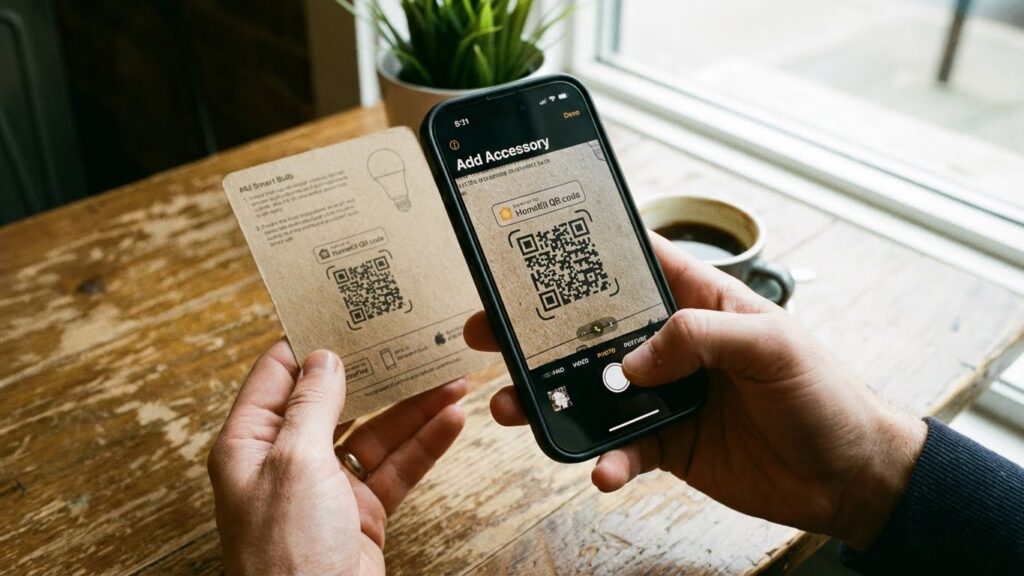
You will link bulbs to the Home app, place them in rooms, and build scenes or automations so Siri can control them by name. The key steps are adding devices, assigning them to rooms, and fixing common pairing problems.
Adding Smart Bulbs to Apple Home App
Make sure the bulb is HomeKit-compatible or supports Siri Shortcuts. If it uses HomeKit, power the bulb, open the Home app on your iPhone or iPad, tap +, then choose “Add Accessory.” Scan the HomeKit setup code on the bulb or its box. If the bulb uses Wi‑Fi and a vendor app (not HomeKit), follow the maker’s app to add the bulb, then look for an option to add it to HomeKit or create a Siri Shortcut.
Use a stable 2.4 GHz Wi‑Fi network if required. Keep your iOS device near the bulb during setup. If you have a Home hub (Apple TV, HomePod, or iPad set as a hub), ensure it’s updated and on the same Apple ID for remote control and automation.
Configuring Scenes and Rooms
Open the Home app to place bulbs into logical rooms (Living Room, Bedroom) so Siri understands commands like “Turn off the bedroom lights.” Long-press a bulb tile, tap Details, then assign the bulb to a room and give it a clear name (e.g., “Bed Lamp”). Use simple names and avoid duplicates.
Create a scene by tapping + → Add Scene. Choose devices, set brightness and color, and name the scene (e.g., “Movie Time”). Add the scene to favorites if you want it on the Home tab. You can also create automations (time-based or presence-based) that run scenes automatically. Test each scene and room command with Siri to confirm the voice response matches your expectations.
Troubleshooting Setup Issues
If the Home app can’t find the bulb, restart the bulb and your iPhone. Toggle Wi‑Fi and Bluetooth, then try scanning the HomeKit code again. For Wi‑Fi bulbs, confirm your router uses 2.4 GHz and that guest or client isolation is off.
If a bulb shows offline, check the vendor app for firmware updates and ensure your Home hub is powered and online. Reset the bulb if needed (follow the manufacturer’s reset steps) and re-add it. If Siri won’t run scenes, verify your Apple ID is signed in on the Home hub and that the hub shows as “Connected” in Home settings.
Apple HomeKit Certification and Security
HomeKit-certified bulbs meet Apple’s technical and security rules, and they use strong encryption and vetted setup methods. This affects how you add devices, control them with Siri, and share access with trusted people.
Benefits of HomeKit Certification
When a bulb is HomeKit-certified, it uses Apple’s Home app and Siri natively. That means you can add the bulb by scanning a HomeKit code or using automatic setup in the Home app, and you get stable voice control on iPhone, iPad, Apple Watch, and HomePod.
Certification also enforces compatibility rules. You can expect consistent behavior for scenes, automations, and timers across all HomeKit devices. Certified products often work with Matter, too, which lets you control the same bulb from non-Apple platforms if the maker supports it.
Finally, certified devices must follow Apple’s quality and update guidelines. You get firmware updates through trusted channels and reduced risk of unexpected feature loss or compatibility breaks.
Privacy and Data Protection
HomeKit requires end-to-end encryption for device communications tied to your Apple ID. That prevents most third parties from reading commands or device state as they travel between your iPhone, HomeKit hub (like a HomePod or Apple TV), and the bulb.
Apple limits what manufacturers can collect about your HomeKit devices. Many certified bulbs only send diagnostic or crash data with your explicit consent. Check the product’s privacy policy to see what is logged and shared.
Local control is another privacy advantage. When your HomePod or Apple TV acts as a hub, many commands and automations run inside your home network without cloud round trips. That reduces exposure of your usage patterns to external servers.
Comparing Siri-Compatible Smart Bulbs to Other Voice Assistants
Siri works best with bulbs that support Apple HomeKit. You get tight privacy controls and direct control from iPhone, iPad, or HomePod without extra hubs for many models.
Siri vs Alexa vs Google Assistant Integration
Siri uses HomeKit, so you link bulbs through the Home app and scan a HomeKit code. This gives you secure, encrypted control and easy automation tied to your Apple devices. Some bulbs work natively with HomeKit; others need a bridge or a manufacturer hub to appear in the Home app.
Alexa and Google Assistant often accept more brands natively and can control bulbs via a separate app or cloud account. They tend to offer broader third-party skill integrations and routines across smart-home brands.
If you rely on Apple devices and value privacy, HomeKit-compatible bulbs give smoother voice commands like “Hey Siri, set living room to 50%.” If you want wider device choice or cheaper bulbs, Alexa/Google may offer more options and cheaper native compatibility.
Exclusive Features of Siri-Enabled Smart Bulbs
HomeKit bulbs support encrypted device pairing and on-device automations tied to your Apple ID. You can use personal requests, HomePod intercom, and HomeKit scenes that include other HomeKit accessories, all managed in the Home app.
Siri also uses short, natural phrases and can run grouped commands across rooms and devices with a single scene. Some Siri-compatible bulbs offer adaptive lighting that changes color temperature with time of day, controlled through the Home app.
Note that some features—like advanced routines, third-party skills, or deep cloud integrations—may be more developed on Alexa or Google platforms. Choose HomeKit bulbs when native Siri control, privacy, and smooth iPhone/iPad integration matter most.
Considerations When Choosing Smart Bulbs That Work With Siri
Pick bulbs that match your home’s network, color needs, and budget. Focus on how the bulbs connect, the color and dimming features you need, and the long-term energy and cost trade-offs.
Connectivity Options (Wi-Fi, Bluetooth, Thread)
Decide how you want to control lights: directly from your iPhone or through HomeKit. Wi‑Fi bulbs connect to your router and work anywhere on your Wi‑Fi network. They often offer full feature sets but can add traffic to your network and may need a hub for broader automation.
Bluetooth bulbs pair directly with your iPhone or HomePod mini for simple setups. They use less power and don’t need a hub, but range is limited and you may lose remote control when you’re away from home.
Thread-enabled bulbs form a low-latency mesh with other Thread devices and work well with HomePod mini and Apple TV 4K acting as bridges. Thread gives faster response, better reliability, and longer range than Bluetooth, but not all bulbs support it yet. Choose Thread if you want a future-proof HomeKit setup and more responsive scenes.
Color and Dimming Capabilities
Decide if you need white-only, tunable white, or full color (RGBW). White-only bulbs are cheaper and suit closets, hallways, or basic lamps. Tunable white bulbs let you change color temperature from warm to cool light, which helps with tasks and sleep cycles.
Full color RGBW bulbs add millions of colors and scene presets. They cost more and use slightly more power, but give the most flexibility for mood lighting and parties. Check lumen output for brightness; color bulbs sometimes have lower lumens than white-only bulbs.
For dimming, confirm the bulb supports smooth, flicker-free dimming via HomeKit and Siri. Look for bulbs with reliable published dimming ranges (e.g., 1% minimum) if you need very low light levels for night use.
Cost and Energy Efficiency
Compare upfront price, expected lifespan, and watt-equivalent brightness. LED smart bulbs cost more than standard LEDs at purchase but last longer and use less electricity.
Check the bulb’s lumens per watt to judge efficiency. Higher lumens per watt mean more light for less energy. Look for ENERGY STAR or manufacturer lifetime ratings (e.g., 25,000 hours) to estimate replacement frequency.
Also factor in the ecosystem cost: some systems require a hub or bridge for full HomeKit/Thread features. Calculate total cost over several years, including electricity and any needed hubs, to pick the option that fits your budget and saves money long term.
Future Developments in Siri-Compatible Smart Lighting
You will see broader adoption of Matter, which makes devices easier to connect across platforms. That means more bulbs will work with Siri, Alexa, and Google Home without extra hubs. Setup will become simpler and more reliable.
Expect improved voice control accuracy and speed as on-device processing grows. Siri will handle multi-step commands better, like changing color, brightness, and creating scenes in one request. This reduces taps and makes hands-free control smoother.
Look for smarter automation using local intelligence. Bulbs and hubs will react faster to routines and sensors, even if your internet is down. This boosts reliability for things like schedules, presence-based lighting, and safety alerts.
Energy efficiency and health-focused features will increase. Manufacturers will add tunable white ranges and circadian lighting controls that Siri can schedule. You will get more precise control over color temperature to match your daily rhythm.
Security and privacy will get stronger. Apple and partners will push secure device onboarding and encrypted local communication. You can expect clearer privacy labels and safer remote access for your lights.
You will also find more integration with other smart home systems and accessories. Lights will link with locks, cameras, and thermostats so Siri can run multi-device scenes that feel seamless and consistent.
FAQs
Which smart bulbs work with Siri?
Buy bulbs labeled HomeKit compatible or that list Siri support. Brands like Philips Hue, LIFX, and some GE and Linkind models often work with Siri when paired through Apple Home or HomeKit.
Do I need a hub to use Siri?
Some bulbs require a hub (like Philips Hue) while others connect directly to Wi‑Fi or Bluetooth. Check the product box or specs for HomeKit and whether a bridge is needed.
How do I set up a smart bulb with Siri?
Add the bulb to the Home app on your iPhone or iPad using the HomeKit setup code. Then assign it to a room and name it so you can use voice commands like “Hey Siri, turn off the living room light.”
Can I control non‑HomeKit bulbs with Siri?
You can if those bulbs support Siri Shortcuts or are linked through a HomeKit bridge or a compatible smart home hub. Shortcuts may require extra steps and an app to map commands.
Will Siri control color and brightness?
Yes, Siri can change brightness and color for bulbs that support those features. Use clear names and room assignments to avoid confusion when you give commands.
What if Siri won’t find my bulb?
Restart the bulb and your iPhone, check Wi‑Fi/Bluetooth, and make sure the bulb has the latest firmware. Remove and re-add it in the Home app if issues persist.
Conclusion
You can make Siri control your lights by choosing bulbs that support Apple HomeKit or work through a HomeKit-compatible bridge. Popular options include Philips Hue and many newer bulbs labeled “Works with Apple HomeKit.” Check the product box or the manufacturer’s site before you buy.
Set up is usually simple: add the bulb to the Home app, assign it to a room, and then use Siri on your iPhone, iPad, or HomePod. For detailed steps, use Apple’s official Home app guide to avoid common setup issues.
Think about how you want to control lights — voice only, routines, or remote control — and pick bulbs that match those needs. Energy use, color range, and whether you need a hub are practical things to compare.
If you want reliable compatibility, prioritize HomeKit-certified bulbs. For more device options and reviews, consult trusted sources like the Philips Hue site and Apple’s HomeKit compatibility list to confirm current models.
