
Monitor standby mode is a vital power-saving feature that puts your display into a low-power state when not in use, waking up in seconds when you need it. This guide will show you how to enable and configure it on Windows, macOS, and the monitor itself, troubleshoot common issues, and calculate your potential energy savings. Mastering this simple setting can lower your electricity bill and reduce your environmental footprint.
Key Takeaways
- Standby Mode is Not Off: It’s a deep sleep state that uses minimal power (often under 0.5W) while keeping the monitor’s electronics ready for a near-instant wake-up signal from your computer.
- Dual Configuration is Key: You must correctly set the power-saving timers in both your computer’s operating system (Windows/macOS) and your monitor’s On-Screen Display (OSD) menu for it to work reliably.
- Significant Savings: Enabling monitor standby mode can save the average user $10-$30+ annually per monitor and prevent hundreds of pounds of CO2 emissions, making it a simple yet effective eco-friendly habit.
- Troubleshoot Common Glitches: If your monitor won’t sleep or wakes randomly, check for rogue applications, mouse/keyboard vibrations, outdated drivers, or conflicting settings between your OS and monitor OSD.
- Modern Monitors Excel at It: Newer monitors, especially those with LED backlights and efficient IPS/VA panels, wake from standby mode exceptionally fast, often in 1-2 seconds, with no perceived lag.
- It Preserves Monitor Lifespan: By reducing the total hours of backlight and component use, standby mode can help delay the aging of your display, potentially extending its useful life.
How Monitor Standby Mode Saves Energy And Wakes Fast: Your Complete Guide
Do you leave your computer monitor on all day? Maybe you step away for meetings, lunch, or just a break. That glowing screen is still using power. It’s adding to your electricity bill and your carbon footprint. But there’s a simple solution: monitor standby mode.
This guide is your friendly manual to this smart feature. We will demystify how it works. You will learn to set it up perfectly on any system. We will also bust myths and solve common problems. By the end, you’ll harness this tool to save money, help the planet, and enjoy a monitor that wakes up ready to go.
What Is Monitor Standby Mode?
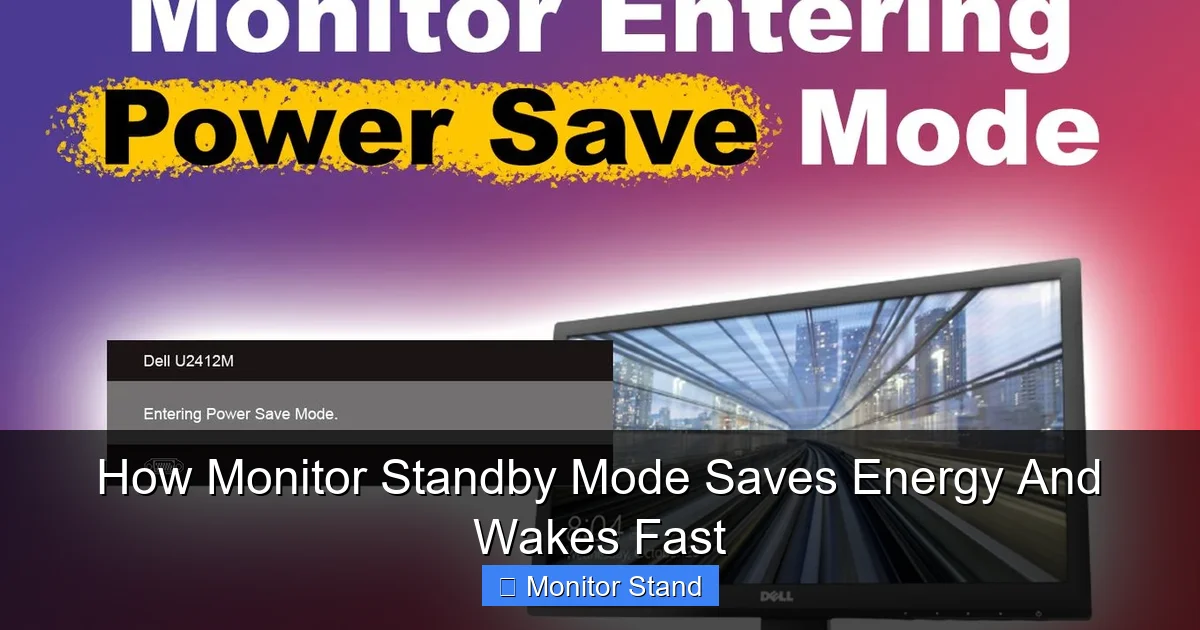
Think of monitor standby mode as a deep, light sleep for your display. It is not the same as turning the monitor off with its power button. When in standby, the monitor cuts power to its most energy-hungry parts. The LCD panel’s backlight turns off completely. The main image processing chips slow down or stop.
Visual guide about How Monitor Standby Mode Saves Energy And Wakes Fast
Image source: alvarotrigo.com
However, a small circuit stays alert. It listens for the “wake-up” signal from your computer. This signal comes through the video cable (like HDMI or DisplayPort). The moment it detects this signal, the monitor springs back to life. It powers up the backlight and processors. A modern monitor can do this in one to two seconds. It feels instantaneous.
Why is this better than just turning it off? Convenience and wear. Using the physical button every time is a hassle. Also, the power cycle from a full off state can be slightly more stressful on components over many years. Standby mode offers the best of both worlds: major energy savings without sacrificing quick access.
Why You Should Use Standby Mode: Save Money & The Planet
Let’s talk numbers. It makes a real difference.
Visual guide about How Monitor Standby Mode Saves Energy And Wakes Fast
Image source: i.ytimg.com
A typical 24-inch LED monitor uses about 30 watts when active. In standby mode, it uses less than 0.5 watts. That’s a reduction of over 98%. If you work an 8-hour day and are actively using your monitor for only 6 of those hours, that’s 2 hours of idle time. Without standby mode, it draws 30 watts for those 2 hours.
Do the math: 2 hours/day * 30 watts = 60 watt-hours. Over a 260-day work year, that’s 15.6 kilowatt-hours (kWh) wasted per monitor. At the U.S. average of ~16 cents/kWh, that’s $2.50 per year, per monitor, just in idle work hours. Add in evening and weekend idle time, and the savings can easily reach $10-$30 annually for a home with multiple monitors.
Scale this to millions of office monitors globally. The energy savings are colossal. We are talking about millions of tons of coal not burned. It’s a simple, automatic way to reduce your environmental impact. You save money. You also help reduce demand on power plants. It’s a true win-win.
How to Enable Monitor Standby Mode: A Step-by-Step Guide
For monitor standby mode to work, two systems must be in sync: your computer and your monitor itself. Follow these steps to configure both.
Visual guide about How Monitor Standby Mode Saves Energy And Wakes Fast
Image source: cgdirector.com
Step 1: Configure Your Computer’s Power Settings
Your computer tells the monitor when to sleep. If your PC never sleeps, it will never send the sleep signal.
On Windows 10 & 11:
- Open the Start Menu and type “Power & Sleep Settings.” Click on it.
- Under the “Screen” section, you will see two dropdowns: “On battery power, turn off after” and “When plugged in, turn off after.”
- For a desktop, adjust the “When plugged in” setting. A good balance is 10-15 minutes. This gives you time for short breaks without constantly putting the display to sleep.
- You can also click “Additional power settings” to choose a power plan (like “Balanced”) and fine-tune advanced settings.
On macOS:
- Go to Apple Menu > System Settings (or System Preferences).
- Click on “Lock Screen” (or “Battery” in older versions, then “Power Adapter”).
- You will find a slider for “Turn display off on power adapter when inactive.” Set this to your desired time, like 10 minutes.
Step 2: Configure Your Monitor’s Built-In Settings (OSD)
Your monitor has its own brain. It has an On-Screen Display (OSD) menu for its settings. You must ensure its auto-sleep feature is enabled and set correctly.
- Press the menu button on your monitor (usually on the bottom or back edge).
- Navigate using the physical buttons to find a menu often called “System,” “Power Saving,” or “ECO Mode.”
- Look for settings like “Auto Power Off,” “Sleep Mode,” or “ECO Timer.” Enable them.
- Set the timer to match or be slightly longer than your computer’s setting. For example, if Windows is set to 15 minutes, set the monitor to 15 or 20 minutes.
- Pro Tip: Some monitors have an “Power LED” setting in the OSD. You can often set it to blink or change color in standby mode. This is a great visual cue that the monitor is asleep, not off.
Step 3: Test Your Configuration
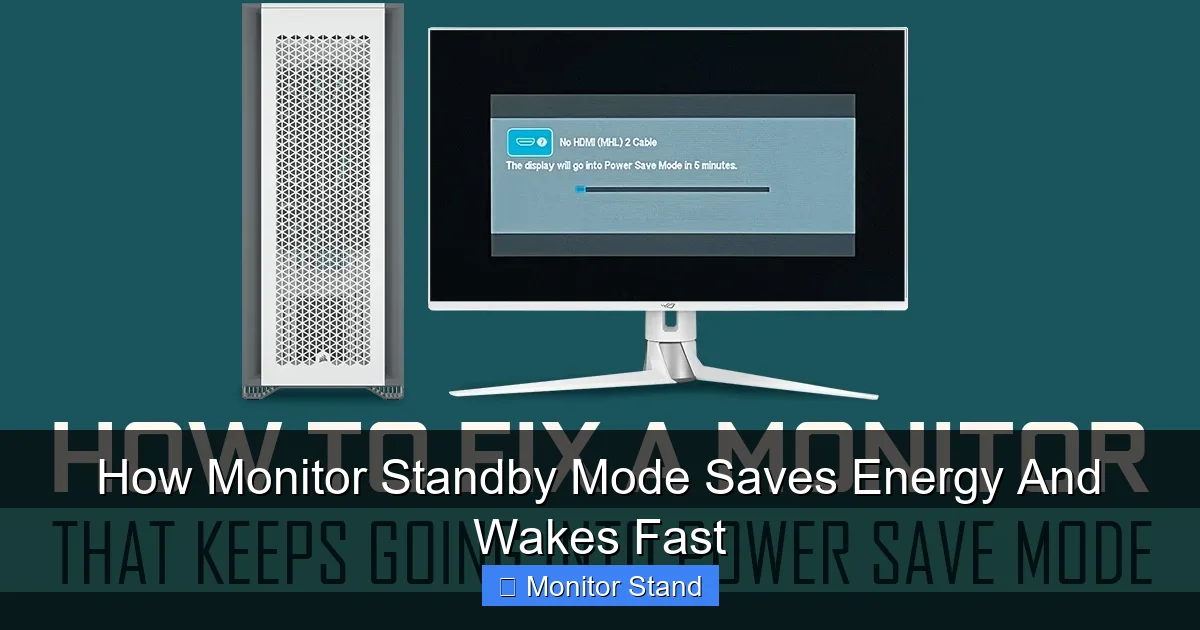
Do not skip this! Set all your timers to 1 minute for testing. Walk away from your computer. Do not touch the mouse or keyboard. After one minute, your screen should go black. The monitor’s power LED should change color or start blinking. Wiggle the mouse or press a key. Your monitor should wake up within a few seconds. If it works, set your timers back to your preferred longer duration (e.g., 10-15 minutes).
Expert Tips for Flawless Standby Operation
- Update Your Graphics Driver: An outdated GPU driver can break the sleep/wake signal. Visit AMD, Intel, or NVIDIA’s website for the latest driver.
- Beware of “Media Player” Mode: Some monitors have a setting that prevents sleep when they detect a video signal (for watching movies). Check your OSD for this and disable it if you’re not using it.
- Use a Simple Screensaver? Modern screensavers do not save your screen (LCDs don’t burn-in like old plasmas). They are just for fun. For saving energy, you still need the display to turn off. Set a screensaver if you like, but ensure the “turn off display” timer is also set.
- Laptop Users: Be mindful of closing your lid. This usually triggers sleep for both the laptop screen and any connected external monitor.
Troubleshooting Common Monitor Standby Mode Problems
Is your monitor refusing to sleep? Does it wake up on its own? Let’s fix it.
Problem 1: Monitor Never Goes Into Standby Mode
Check for software blockers: Some applications tell Windows you are “busy,” preventing sleep. Common culprits are video conferencing apps (Zoom, Teams), media players, and presentation software. Close them fully when not in use.
Check your mouse: A laser mouse on a slightly glossy surface can send tiny vibrations, fooling the PC into thinking you’re active. Try lifting the mouse off the pad after you step away.
Verify cables: A faulty or low-quality video cable can send erratic signals. Try a different HDMI or DisplayPort cable.
Problem 2: Monitor Wakes Up Randomly From Standby
Disable wake triggers: In Windows, open an Administrator Command Prompt and type powercfg /lastwake. This will tell you what device last woke the PC. It’s often a network card or mouse. You can disable a device’s ability to wake the PC in Device Manager.
Check for scheduled tasks: Windows Update or other maintenance tasks can wake a computer. Check your “Wake Timers” in the advanced power settings.
Bluetooth devices: A Bluetooth keyboard or mouse might move slightly in its bag, sending a wake signal.
Problem 3: Monitor Wakes Up Very Slowly or Has No Signal
This is usually a handshake issue between the PC and monitor.
- Give it a few more seconds. Some older monitors take 5-10 seconds to wake.
- Cycle the monitor’s power off and on with its button. This resets its connection.
- Try a different video port on your computer or monitor.
Conclusion: Embrace the Power of Pause
Mastering monitor standby mode is a small act with a big impact. It takes just five minutes to set up. Once configured, it works silently in the background. It saves you real money on your power bill. It reduces your contribution to electronic waste and energy consumption. And with today’s fast-waking technology, you sacrifice nothing in convenience.
Make it a habit. Configure it on your work monitor, your home gaming setup, and even your TV if it has a similar feature. Encourage your coworkers to do the same. By understanding and using this built-in feature, you become a smarter, more responsible tech user. Your wallet and the planet will thank you.
