
This guide provides clear, safe instructions to remove your monitor stand for mounting or replacement. You will learn the essential pre-removal steps, how to identify your stand’s mechanism, and the correct technique to detach it without harming your monitor. Following this process ensures a smooth transition to a VESA mount or cleaner desk setup.
Key Takeaways
- Safety First: Always power off, unplug, and lay the monitor on a soft, flat surface to prevent scratches and electrical shock.
- Know Your Stand Type: Correctly identify if your monitor uses a quick-release latch, screw-on base, or a more complex integrated design before applying force.
- Gather Tools First: Having the correct screwdrivers (often Phillips #0 or #1) and a clean workspace ready streamlines the entire process.
- Disconnect Everything: Remove all cables, including power, video, and USB, to give yourself full, unobstructed access to the monitor’s neck and base.
- Apply Pressure Correctly: When releasing a latch, press firmly on the designated button or lever while supporting the monitor’s weight with your other hand.
- Secure the VESA Plate: If attaching a new mount, safely store the original stand’s VESA interface plate or screws, as you may need them for reattachment later.
- Handle the Panel with Care: The monitor screen is fragile. Always grip the sturdy frame or base, never the thin panel itself, to avoid costly damage.
Quick Guide to Remove Monitor Stand Safely
Need to remove your monitor stand? You are in the right place. Maybe you got a cool new VESA arm. Maybe you are moving and need to pack things up. Or maybe that big stand is just taking up too much desk space. Whatever your reason, taking off a monitor stand is usually simple. But you must do it the right way. A wrong move can scratch your desk. Worse, it can crack your expensive screen. This guide will walk you through every single step. We will cover all the common stand types. We will talk about the tools you need. And we will share pro tips to keep your gear safe. Let us get your monitor ready for its next chapter.
Why You Might Need to Remove a Monitor Stand
First, let us talk about the “why.” Knowing your goal helps you plan. The most common reason is to use a VESA mount. VESA is a standard pattern for arms and wall mounts. It lets you float your screen. This saves desk space. It also lets you position the monitor perfectly. Some people remove the stand for travel. A monitor packs much easier without a bulky base. Others do it for cleaning. It is hard to wipe under a fixed stand. And sometimes, you just need to replace a broken stand. No matter your reason, the core process is similar. Safety and care are your top priorities.
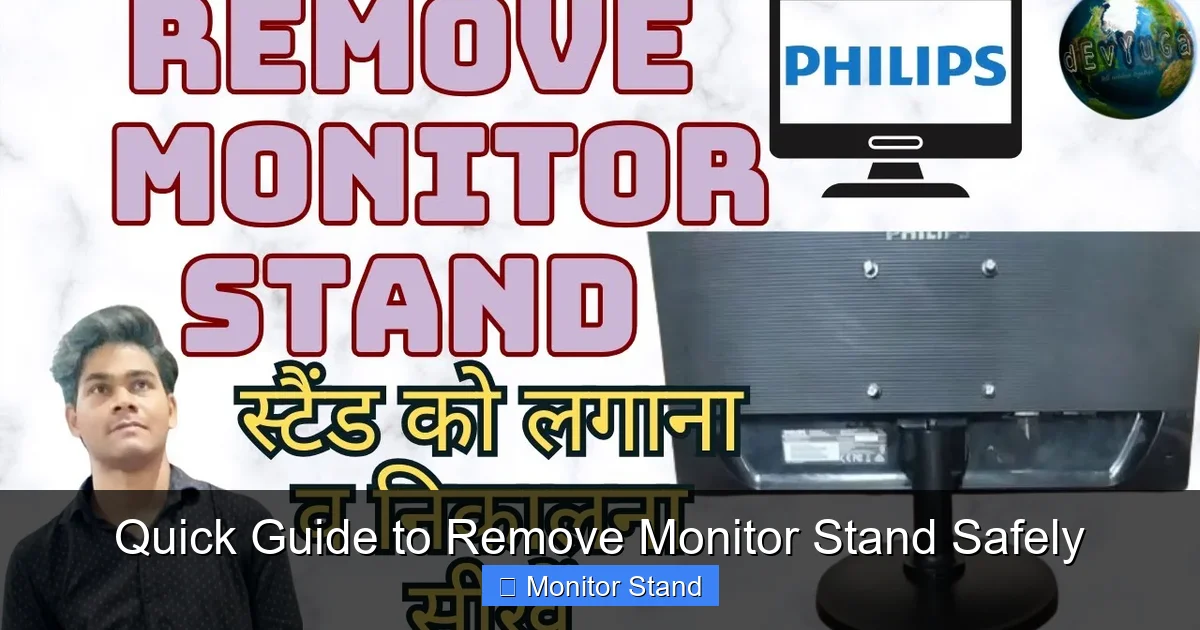
Visual guide about Quick Guide to Remove Monitor Stand Safely
Image source: i.ytimg.com
Pre-Removal Checklist: Get Ready
Do not just grab your monitor and start pulling. A few minutes of prep prevents problems. Follow this checklist every single time.

Visual guide about Quick Guide to Remove Monitor Stand Safely
Image source: theworkspacehero.com
1. Power Down and Unplug
This is non-negotiable. Turn the monitor off. Then, gently unplug every cable from the back. This includes the power cable, video cable (like HDMI or DisplayPort), and any USB cables. Why? First, it removes any risk of shock. Second, it gives you a tangle-free workspace. Cables get in the way. They can also put stress on the ports if you twist the monitor.
2. Clear a Soft, Flat Workspace
You need a good landing pad. A clean table or desk is perfect. Lay down a soft towel, a blanket, or the monitor’s original foam. You will place the screen face-down on this. The soft material protects the screen from scratches. Make sure the area is big enough for the monitor with room for your hands.
3. Gather Your Tools
Most monitor stands need just one tool: a screwdriver. A Phillips head screwdriver is the most common. Sizes #0 or #1 usually fit the small screws on monitors. Some stands use a hex key (Allen wrench). This often comes in the box with the monitor. Have a small bowl or magnetic tray ready for screws. You do not want to lose them!
4. Identify Your Stand Type
Look at where the stand connects to the monitor. There are three main types you will see:
- Quick-Release (Latch Type): This is very common on modern monitors. You will see a button, lever, or slot at the joint where the neck meets the screen.
- Screw-On Base: The stand is held by one or more screws you can see from the bottom or back.
- Integrated or Tool-Less: Less common. The stand might snap or twist into place without visible screws or a latch. The user manual is key here.
Knowing your type tells you which instructions to follow next.
Step-by-Step: How to Remove Monitor Stand (All Types)
Now for the main event. Follow the section that matches your stand type. Go slowly. If something feels stuck, stop and reassess.

Visual guide about Quick Guide to Remove Monitor Stand Safely
Image source: theworkspacehero.com
For Quick-Release Latch Stands
This is the easiest method. Most Dell, HP, LG, and Samsung monitors use this.
Step 1: Position the Monitor
Lay the monitor face-down on your soft, prepared surface. The back of the monitor and the stand’s neck should be facing up, easy for you to see and reach.
Step 2: Locate the Release Mechanism
Look at the “collar” where the stand’s neck goes into the monitor. You will see a button, a sliding latch, or a slot. It is often marked with an icon that looks like a stand with an arrow.
Step 3: Activate the Latch and Remove
Place one hand firmly on the monitor’s back (not the screen!). This stabilizes it. With your other hand, press the button or slide the latch. You will usually feel and hear a solid “click.” While holding the latch, gently lift the stand’s neck straight up and out of the socket. It should come free easily.
Pro Tip: If it does not budge, do not force it. Double-check that you have fully engaged the release mechanism. Sometimes you need to press harder than you think.
For Screw-On Base Stands
Older monitors and some budget models use direct screws.
Step 1: Position for Access
You can often do this with the monitor upright. Tilt the screen all the way back so you can see the base connection. If screws are underneath, lay the monitor face-down carefully.
Step 2: Remove the Screws
Using your correct screwdriver, turn each screw counter-clockwise to loosen it. Place each screw immediately in your bowl. There may be 2 to 4 screws. Some designs have a single large screw in the center of the base.
Step 3: Separate the Parts
Once all screws are out, the base should simply lift away. If the neck is a separate piece from a circular baseplate, the neck might now twist or pull free from the monitor’s back.
For Integrated or Tool-Less Stands
These require careful inspection. Some Acer and ASUS monitors have this style.
Step 1: Consult the Manual
If you have the manual, check it first. It will show the exact unlocking method. If not, look closely at the connection point.
Step 2: Look for a Locking Tab
These stands often have a plastic tab you must pull or push to unlock. It might be hidden. Gently feel around the connection ring.
Step 3: Twist and Release
Some models require you to twist the stand collar a quarter-turn (usually counter-clockwise) after releasing the tab. Then you can pull it straight down or away.
What About That Silver Plate? (The VESA Interface)
After you remove the stand, you might see a metal or plastic plate still attached to the monitor’s back. This is the VESA interface. It has four holes in a square pattern (like 75x75mm or 100x100mm).
- For VESA Mounting: You usually keep this plate on. Your new monitor arm will attach directly to it with its own screws.
- For Packing/Storage: If you need a perfectly flat back, this plate might also be removable. It is typically held on by four screws from the stand. Remove these screws to take the plate off. Keep these screws and the plate in a safe place! You will need them if you ever want to reattach the original stand.
Troubleshooting Common Problems
Stuck? Here are solutions to frequent issues.
The Latch Won’t Budge
Do not use excessive force. Ensure the monitor is stable. Try pressing the latch with a flat tool like a plastic spudger for better leverage. Check online for your specific monitor model number + “stand removal” – a video might show the trick.
Screws Are Stripped or Too Tight
If a screw head is stripped, try a rubber band between the screwdriver and the screw for extra grip. For a tight screw, apply firm, steady pressure straight down as you turn. Consider a better-quality screwdriver that fits perfectly.
Stand Feels “Glued” On
Sometimes plastic parts bind. Gently wiggle the stand from side to side (not back and forth) while applying upward pressure. This can break a light friction fit.
Missing the Correct Screwdriver
Using the wrong size can damage screws. Invest in a small, precision electronics screwdriver set. They are inexpensive and invaluable for tech tasks.
After Removal: What’s Next?
Great job! The stand is off. Now what?
- Attach a VESA Mount: Follow the instructions for your new arm or wall mount. Use the screws provided with the mount, not the old stand screws, as length and thread can differ.
- Pack the Monitor: Without the stand, wrap the monitor in bubble wrap or soft cloth. Place it screen-first into the box. Pack the stand separately.
- Store the Stand: Put all screws, plates, and stand parts in a ziplock bag. Tape this bag to the stand or write “Monitor Stand for [Model]” on it. Future-you will be thankful.
Conclusion: You Did It!
Removing a monitor stand is a simple DIY task. The key is patience and the right prep. Always remember to power down, create a soft workspace, and identify your stand type before you start. Whether you are unlocking a quick-release latch or unscrewing a base, gentle force is your friend. Now your monitor is free from its old base. You can mount it on an arm for a sleek battle station. You can pack it securely for a move. Or you can simply enjoy a cleaner desk. With this knowledge, you can confidently remove a monitor stand from almost any screen. Go ahead and reclaim that desk space!
