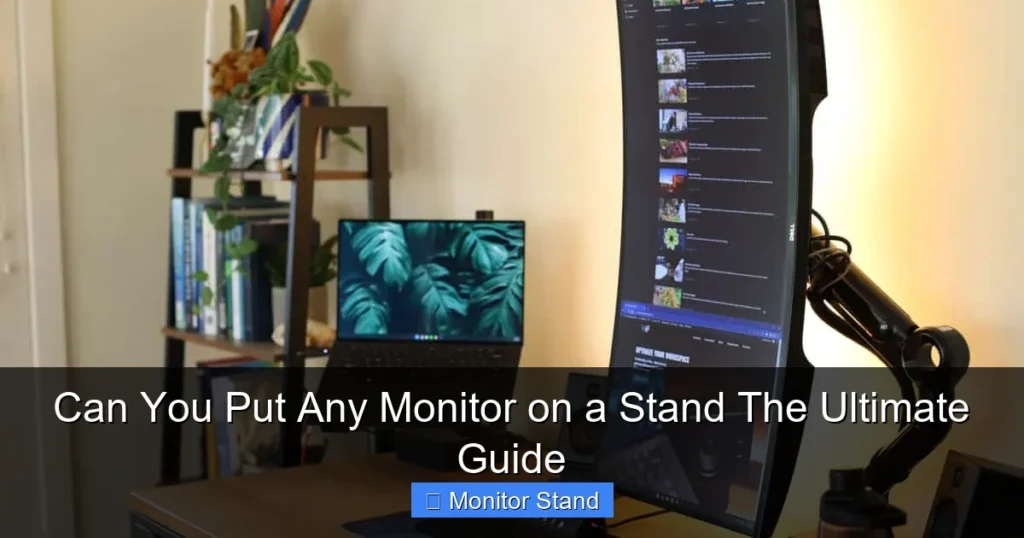
Wondering if you can put any monitor on a stand? The truth is, not all monitors are compatible, but most can be mounted with the right stand. This guide will help you check VESA standards, weight limits, and follow easy installation steps. You’ll learn how to transform your workspace safely and efficiently.
Key Takeaways
- Monitor Compatibility is Key: Not all monitors can be mounted on stands; check for VESA mounting holes and weight limits first.
- VESA Standards Matter: Most stands use VESA mounting patterns like 75×75 or 100×100 mm for universal compatibility.
- Weight and Size Limits: Always verify the stand’s weight capacity and monitor size range to ensure a secure and stable fit.
- Tools and Preparation: Gather necessary tools like screwdrivers and prepare your workspace before starting the installation process.
- Step-by-Step Installation: Follow a systematic process: attach the bracket to the monitor, secure it to the stand, adjust, and test for stability.
- Troubleshooting is Essential: Common issues like wobbling or alignment problems can be fixed with simple adjustments and checks.
Can You Put Any Monitor on a Stand? The Ultimate Guide
Hello there! Are you looking to free up desk space or improve your posture with a monitor stand? You might be asking, “Can you put any monitor on a stand?” The short answer is no, but don’t worry. Most monitors can be mounted with the right know-how. This guide will walk you through everything. You will learn about compatibility, installation, and tips for a smooth setup. Let’s dive in!
Introduction: Why Monitor Stands Matter
Monitor stands are awesome. They lift your screen to a better height. This reduces neck strain. They also save desk space. But can you put any monitor on a stand? Not exactly. It depends on a few factors. In this guide, we will cover all of them. By the end, you will be a pro at mounting monitors. You will know how to check if your monitor fits. You will learn to install it step by step. We will also share troubleshooting tips. Ready? Let’s get started!
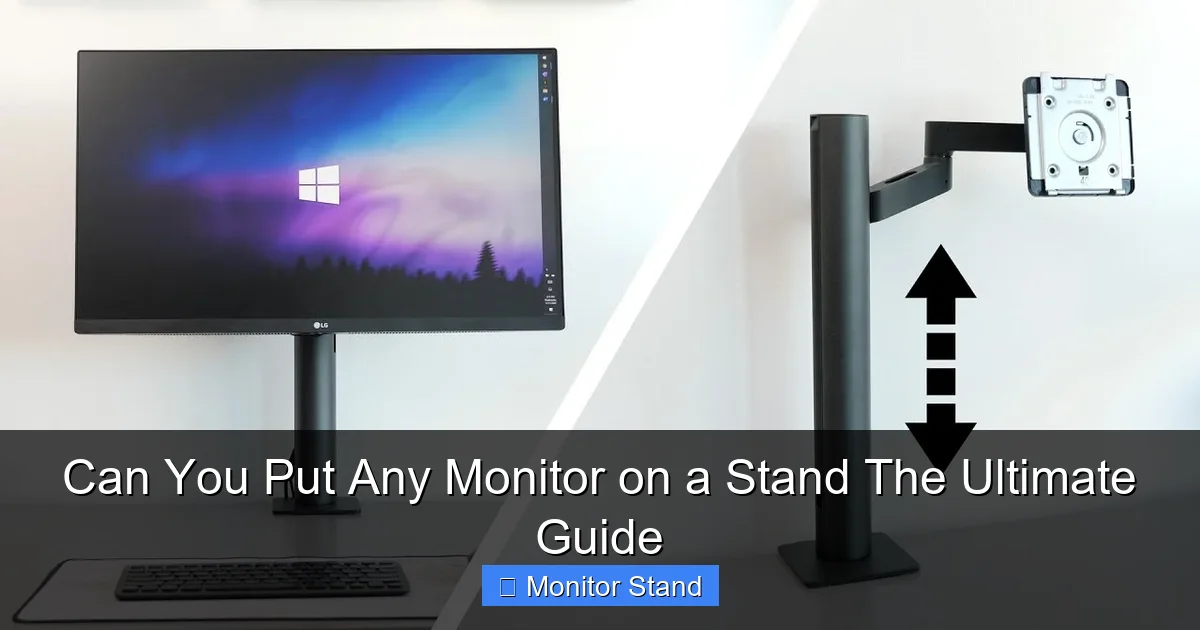
Visual guide about Can You Put Any Monitor on a Stand The Ultimate Guide
Image source: i.ytimg.com
Understanding Monitor Mounting Standards
First, let’s talk standards. Most stands use something called VESA mounts. VESA stands for Video Electronics Standards Association. They created a standard for mounting. Monitors with VESA have holes on the back. These holes are in a square pattern. Common sizes are 75×75 mm and 100×100 mm. Some are larger. But can you put any monitor on a stand without VESA? Yes, but it’s trickier. You might need adapters. We will discuss that later. For now, know that VESA is key.
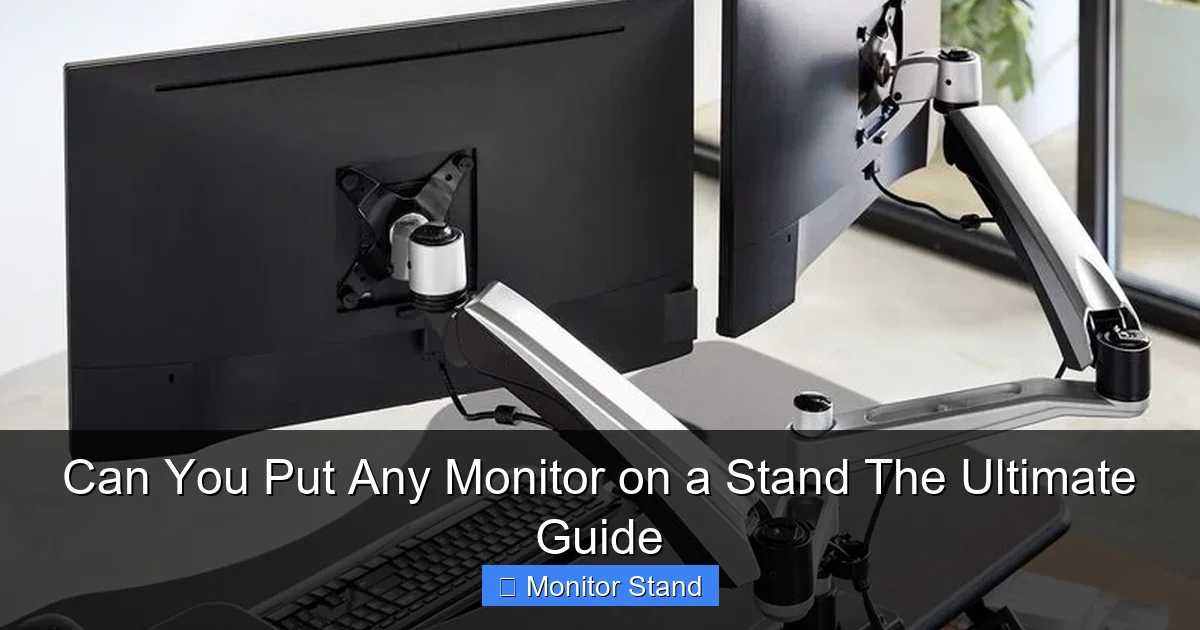
Visual guide about Can You Put Any Monitor on a Stand The Ultimate Guide
Image source: vari.com
What is VESA Compatibility?
VESA compatibility means your monitor has these holes. Check the back of your monitor. Look for four screw holes in a square. Measure the distance between them. That is your VESA pattern. Most stands support common patterns. So, when asking “can you put any monitor on a stand,” start with VESA.
Weight and Size Limits
Stands have weight limits. They also have size limits. A stand might hold monitors up to 27 inches. Or up to 20 pounds. Always check your monitor’s weight and size. Compare it to the stand’s specs. If your monitor is too heavy, the stand might fail. Safety first!
Step-by-Step Guide to Putting a Monitor on a Stand
Now, the fun part. Let’s go through the steps. Follow along carefully. This will ensure a safe installation.
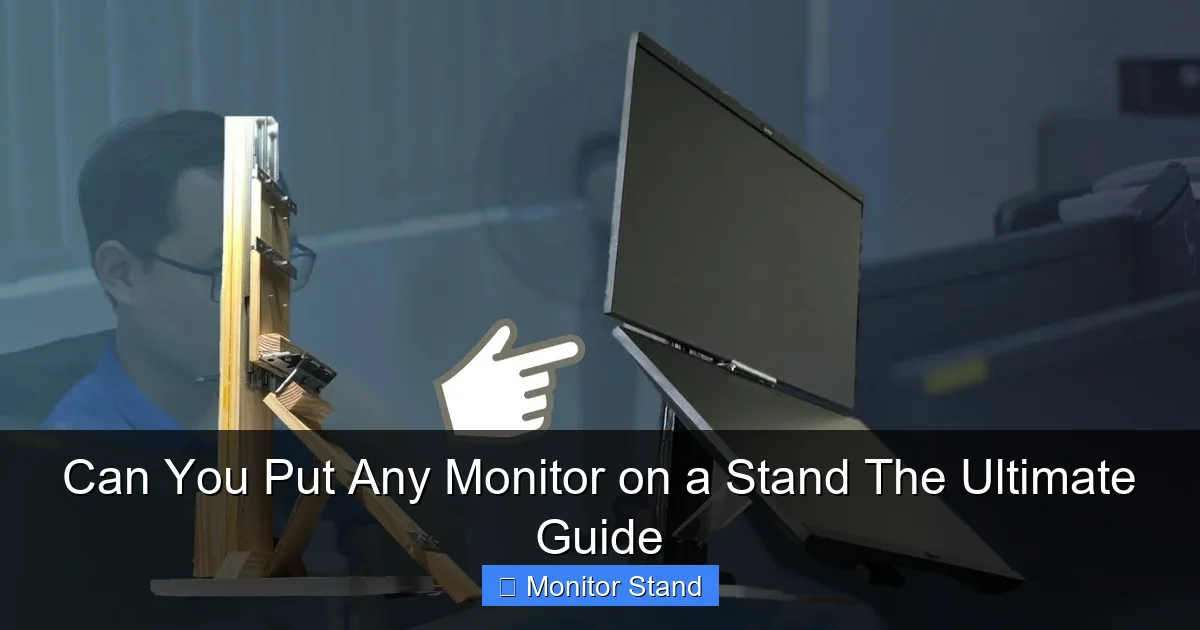
Visual guide about Can You Put Any Monitor on a Stand The Ultimate Guide
Image source: i.ytimg.com
Step 1: Check Your Monitor’s Compatibility
Before buying a stand, check your monitor. Can you put any monitor on a stand? Only if it’s compatible. Here’s how to check.
Look for VESA Mounting Holes
Turn off your monitor. Unplug it. Carefully look at the back. Do you see four screw holes in a square? If yes, you have VESA. Note the pattern. Use a ruler to measure. Is it 75×75 mm? Or 100×100 mm? Write it down. If there are no holes, your monitor might not be mountable. But don’t lose hope. Some monitors have hidden holes. Check the manual. Or search online for your model.
Check Weight and Size Limits
Find your monitor’s weight. You can check the manual or the manufacturer’s website. Also, note the screen size. Now, look at the stand you want to buy. It will list max weight and size. Make sure your monitor is within those limits. For example, if the stand holds up to 25 pounds, and your monitor is 15 pounds, you’re good. This is crucial for safety.
Step 2: Choose the Right Stand
There are many stands out there. Picking the right one matters. Can you put any monitor on a stand? Yes, if the stand matches your needs.
Types of Monitor Stands
Here are common types:
- Fixed Stands: These hold your monitor in one place. They are simple and cheap.
- Adjustable Stands: These let you tilt, swivel, or heighten the monitor. Great for ergonomics.
- Desk Clamp Stands: These attach to the edge of your desk. They save space.
- Grommet Mount Stands: These go through a hole in the desk. Very stable.
- Wall Mount Stands: These attach to the wall. Not exactly a stand, but similar idea.
Choose based on your space and needs.
Features to Consider
Think about what you want. Do you need to adjust the height? Do you want to rotate the monitor? Look for stands with those features. Also, check the VESA pattern. Make sure it matches your monitor. Read reviews. A good stand makes a big difference.
Step 3: Gather Necessary Tools and Equipment
You will need some tools. Most stands come with screws. But you might need a screwdriver. Here’s a list:
- Screwdriver (usually Phillips head)
- The screws provided with the stand
- A clean cloth to protect your monitor
- A friend to help if the monitor is heavy
- Maybe a level to ensure it’s straight
Have everything ready. This makes installation smooth.
Step 4: Prepare Your Workspace
Clear your desk. You need space to work. Lay down a soft cloth. Place your monitor face down on it. Be gentle. Ensure the area is well-lit. Keep the stand and tools nearby. Safety tip: unplug all cables from the monitor. This prevents accidents.
Step 5: Attach the Mounting Bracket to the Monitor
Now, let’s attach the bracket. The bracket is part of the stand. It connects to the monitor.
Align the Bracket
Take the bracket. Line it up with the VESA holes on the monitor. The screws should fit perfectly. If your monitor has multiple hole patterns, use the one that matches. Use the screws provided. Do not force them. Tighten them firmly but not too tight. You don’t want to strip the holes.
Secure the Screws
Insert the screws. Turn them clockwise. Use the screwdriver. Make sure all four screws are tight. Check that the bracket is secure. It should not wiggle. This step is key. A loose bracket can cause the monitor to fall.
Step 6: Secure the Monitor to the Stand
Next, attach the monitor to the stand. This varies by stand type. Follow the instructions that came with your stand.
For Desk Clamp Stands
Clamp the stand to your desk. Tighten the clamp. Then, attach the monitor with the bracket. It might click into place. Or you might need to screw it. Ensure it’s locked.
For Fixed Stands
These often have a pole. Attach the bracket to the pole. Use the provided screws. Again, tighten securely.
Adjust the Stand
Once attached, you can adjust. Tilt, swivel, or raise the monitor. Do this gently. Find a comfortable position. This is where you ask, “Can you put any monitor on a stand and adjust it?” Yes, if the stand allows.
Step 7: Adjust and Test the Setup
Now, test everything. Plug in the cables. Turn on the monitor. Check if it’s stable. Does it wobble? If yes, tighten the screws. Adjust the height for ergonomics. Your eyes should be level with the top of the screen. Sit back and enjoy your new setup!
Practical Tips and Examples
Here are some extra tips. They will help you succeed.
Tip 1: Use Adapters for Non-VESA Monitors
Can you put any monitor on a stand without VESA? Sometimes. You can use VESA adapters. These attach to your monitor’s original stand. Then, you can mount it. Search for adapters for your monitor model. They are available online.
Tip 2: Consider Ergonomics
Position the monitor about an arm’s length away. The top should be at or slightly below eye level. This reduces strain. A good stand helps with that.
Tip 3: Cable Management
Use cable ties or clips. Hide the cables behind the stand. This looks neat and prevents tangles.
Example: Mounting a Gaming Monitor
Gaming monitors are often heavy. Check the weight. Use a stand with a high weight limit. Look for stands with smooth adjustment. This enhances your gaming experience.
Example: Mounting an Ultra-Wide Monitor
Ultra-wide monitors are large. Ensure the stand supports the size. Some stands have arms that can hold wide screens. Double-check the specs.
Troubleshooting Common Issues
Sometimes, things go wrong. Here’s how to fix common problems.
Issue 1: Monitor Wobbles
If the monitor wobbles, check the screws. Tighten them. Also, ensure the stand is on a flat surface. If it’s a clamp stand, tighten the clamp more.
Issue 2: Monitor Doesn’t Fit the VESA Pattern
If the holes don’t line up, you might have the wrong pattern. Measure again. You might need a different bracket or stand. Adapters can help.
Issue 3: Stand Feels Unstable
This could be due to weight. Is your monitor too heavy? Check the stand’s weight limit. You might need a stronger stand. Never exceed the limit.
Issue 4: Adjustment Mechanisms Stick
If the stand doesn’t adjust smoothly, lubricate the joints. Use a silicone spray. Do this carefully. Avoid getting spray on the monitor.
Conclusion: You Can Do It!
So, can you put any monitor on a stand? Not every monitor, but most. With this guide, you have the knowledge. Start by checking VESA compatibility. Choose the right stand. Follow the installation steps. Use our tips and troubleshooting advice. You will create a better workspace. Enjoy the benefits of a mounted monitor. It’s worth the effort. Happy mounting!