
Specs are compiled from manufacturer listings and verified buyer reviews and can change over time — please confirm the key details on the product page before buying.
If your laptop is your office, a mouse is the weakest tool on your desk. A writing pad for laptop turns your hand into a precise pen, so you can sign digital contracts, annotate PDFs, and jot handwritten notes in OneNote without the wrist strain of a mouse. You get the natural feel of pen on paper, with the convenience of a device that slips into your bag.
I’m Maruf — the founder and writer behind HomeYarr. This guide is built by comparing the manufacturers’ published specifications and the patterns across verified customer reviews, so you get each pick’s real strengths and trade-offs instead of marketing spin.
This category’s biggest surprise is that a battery-free pen feels like a real pen; the best writing pad for laptop options here use EMR tech that never needs charging, so you can draw and sign without interruption. The top pick is the Wacom Intuos Small because its pen-on-paper feel is the most consistent, and its pressure sensitivity is the most reliable at this size.
Our Picks at a Glance


How To Choose The Best Writing Pad For Laptop
Most laptops have precise trackpads, but writing and signing with your finger or a trackpad is slow and awkward. A writing pad fixes that by giving you a flat surface where your pen strokes become digital ink. Before you pick one, focus on four things that decide how well it works for you.
Battery-Free Pen vs Charged Stylus
A battery-free pen (often called an EMR pen) is the biggest quality-of-life feature. Because it draws power from the pad itself, you never hunt for a charger, and it never dies mid-signature. Most entry-level and mid-range pads here — from Wacom, GAOMON, XP-Pen, and HUION — use this tech, and it’s a strong reason to skip any pad that still needs a cable for its pen.
Pressure Sensitivity Levels
Pressure levels are how many shades of light-to-heavy your pen can express. A 8192-level pad lets you sketch a faint pencil line and then a bold marker stroke with the same pen. Higher numbers (like 16384 or 16K) add finer control for shading. If you only sign documents and take notes, even a lower count feels natural; if you draw, aim for 8192 or above.
Active Area Size
The active area is the drawing surface that responds to your pen. A 6×4 inch pad is perfect for a laptop bag — small, light, and enough to write a signature. A 10×6 inch pad gives your hand more room and covers more of your screen, which helps if you’re doing detailed edits or drawing. The trade-off is weight and desk space.
Shortcut Keys and Scroll Wheel
Extra keys on the pad’s edge act like keyboard shortcuts. Instead of clicking a menu to erase, you press a pad key set to “undo.” Some pads add a scroll wheel for zooming. These feel like small conveniences, but they dramatically speed up repetitive tasks like photo editing or culling notes, letting you keep your pen on the drawing surface.
Quick Comparison
| Model | Best For | Active Area | Pressure Levels | Connection | Amazon |
|---|---|---|---|---|---|
| Wacom Intuos Small★ Best Overall | Pen-on-paper feel | 6″ x 3.7″ | Not stated | USB-A | Amazon |
| GAOMON S620Best Value | Portable value | 6.5″ x 4″ | 8192 | USB | Amazon |
| XP-Pen StarG640 | Chromebook users | 6″ x 4″ | Not stated | USB | Amazon |
| XP-Pen Deco mini7W | Wireless freedom | 7″ x 4.37″ | 16384 | Bluetooth 5.0 / USB | Amazon |
| HUION Inspiroy 2 Small | Scroll wheel control | 6.3″ x 3.9″ | Not stated | USB-C | Amazon |
| XP-Pen Deco 01 V3 | Large drawing space | 10″ x 6.25″ | 16384 | USB-C | Amazon |
In-Depth Reviews
1. Wacom Intuos Small, Wired Graphic Drawing Tablet with Pen + Software
Our pick — over 4.5★ from 23,500+ verified ratings; the strongest balance of quality and price.
The 8.1-ounce pen-on-paper specialist that pros actually use
Wacom dominates this list for one reason: its EMR (electro-magnetic resonance) pen tech needs no battery and is the reason the tip glides so naturally. The Intuos Small packs that feel into a 6.3″L x 7.87″W frame, so it takes up barely more desktop than a mouse pad and weighs just 8.1 ounces. For signing contracts, annotating PDFs, or sketching in Photoshop, the stroke quality is the closest thing to a physical pen.
Unlike the GAOMON S620 below, which uses a 6.5″ x 4″ active area, this Wacom’s active surface is 6″ x 3.7″, slightly smaller but still generous for a signature or note. Where it truly wins is software. Register the tablet and you get access to creative software and Wacom’s online training, plus it ships with 3 extra standard nibs and a removal tool. Buyers report it works well with Affinity Photo and note it’s a standout for notary work — using the customizable pen button as an eraser means you never lift the pen.
Why it wins people over
- Industry-leading pen precision feels like real ink
- Battery-free stylus never needs charging
- Software bundle and online training included
Honest trade-offs
- Mac users must buy a USB-A to USB-C adapter (not included)
- Pen nibs dull quickly, so buy replacements in bulk
Reach for this if: you want the trusted pen feel for signing, note-taking, and light photo editing without fiddling with settings.
Look elsewhere if: you only have USB-C ports on your Mac and don’t want to carry an adapter.
2. GAOMON S620 Graphics Drawing Tablet, 6.5×4, 8192 Pressure & 4 Hot Keys
A featherlight 0.25 kg pad with 4 hot keys that beginners set up in minutes
At 0.25 kg (about 8.8 ounces), the GAOMON S620 is built to live in your laptop bag. Its 6.5″ x 4″ active area gives you more drawing room than the Wacom Intuos above, and the 8192 pressure levels mean your soft pencil strokes and heavy marker presses both register naturally. The 4 customizable express keys sit on the side, so you can map undo or eraser and never touch your keyboard.
Setup is genuinely fast — owners on Windows 10 and a 2012 MacBook Air were drawing within 3 minutes. The watch-out is compatibility: it’s not for iPad or iPhone, and its 266 PPS report rate (how often the pad updates your pen position) keeps lines smooth for notes and Osu! gaming but isn’t built for full-time professional illustration. One owner found the scroll circle clunky and no horizontal scroll, but praised the shortcut keys as clicking better than Wacom’s.
What you get
- Left and right hand modes via 180-degree rotation in the driver
- Battery-free pen with 8192 levels of pressure
- 4 customizable express keys speed up your workflow
Keep in mind
- Not compatible with iPads or iPhones
- Pen needs a harder press after 1-2 hours of use
Best for: students, teachers, and note-takers who want a portable pad with shortcut keys on a budget.
skip it if: you do professional-grade illustration daily and need constant pressure accuracy.
3. Drawing Tablet XPPen StarG640 Digital Graphic Tablet 6×4 Inch Art Tablet

The 2 mm-thin slate that works with Chromebooks and writes in Google Keep
The StarG640 is the thinnest pad here at just 2 mm, so it disappears into a backpack and weighs only 170 g (about 6 ounces). Its a neat extra is Chromebook support: you can write notes in Google Keep, sketch on Google Canvas, or collaborate on a Google Jamboard whiteboard, which makes it a natural fit for classrooms and remote teaching. The battery-free PN01 stylus means your pen never runs out of power mid-lecture.
Compared to the GAOMON S620, this XP-Pen has no shortcut keys at all — the surface is clean but you lose the quick-undo convenience. The included pen drew mixed feedback, with some owners finding it uncomfortable and strokes slightly imprecise, though swapping in a Deco Pro pen fixed that. Sharp corners can scratch a forearm, so a wrist rest helps. What it nails is value: owners say it works great with Photoshop and Krita, and it’s a solid, reliable budget starter tablet.
Why pick this
- Ultra-slim 2 mm profile fits any laptop sleeve
- Native Chromebook support for note-taking apps
- Battery-free pen with smooth, responsive tracking
The compromise
- No tablet buttons to customize
- Sharp corners may dig into your forearm
Who it fits: Chromebook students and teachers who need a lightweight pad for digital notes and whiteboards.
Who it doesn’t: artists who rely on shortcut keys or prefer a heftier pen with more grip.
4. Drawing Tablet-XPPen Deco mini7W 7 x 4 inch Bluetooth 5.0 Graphic Tablet
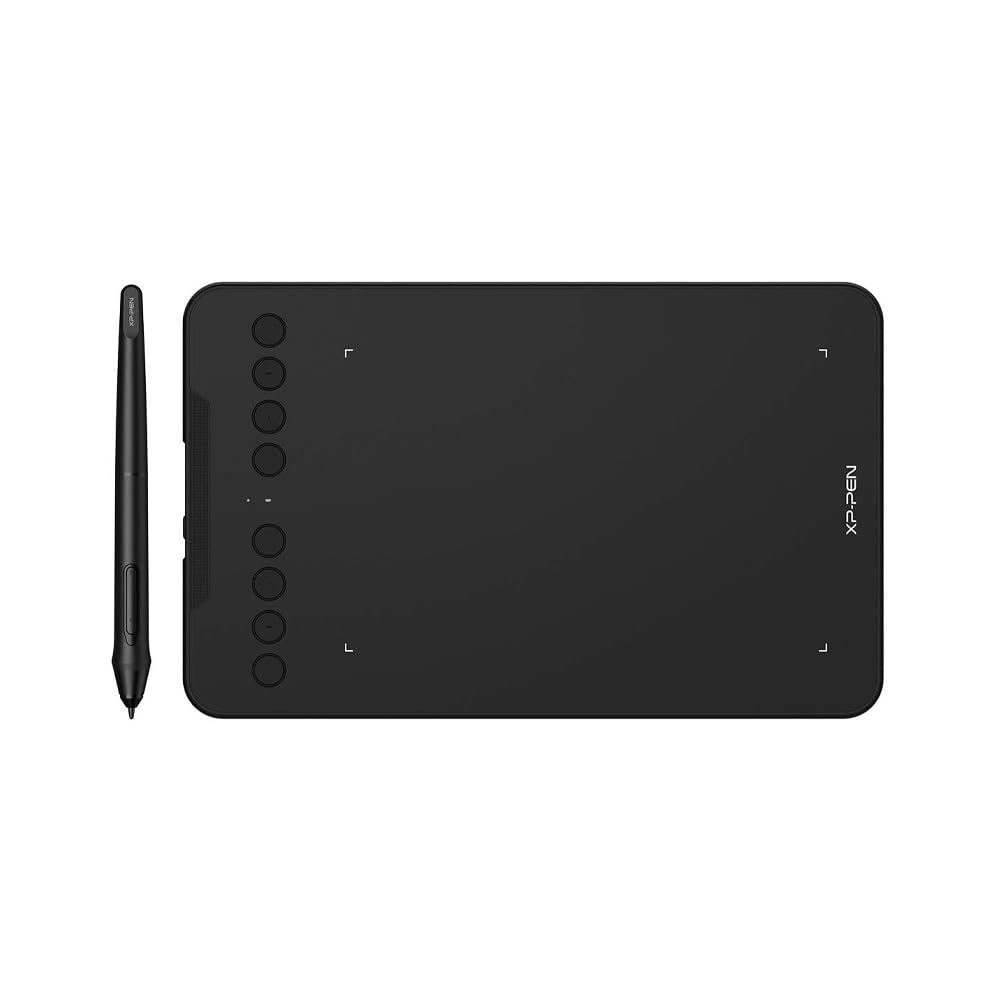
The 11.68-ounce wireless pad with 16384 pressure levels and 8 shortcut keys
If you hate cables, the Deco mini7W is the one to beat. It connects over Bluetooth 5.0 via a USB dongle or a wired USB-C connection, so you can sign documents from across the desk or keep it plugged in for zero-lag work. Its 7″ x 4″ active area is slightly larger than the GAOMON’s, and the 16384 pressure levels (double the S620’s 8192) plus 60° tilt response mean shading and angled strokes feel remarkably natural.
The 8 customizable press keys are a step up from the 4-key GAOMON, giving photo editors and 3D artists lots of room to map their workflow. Owners note it captures handwriting perfectly and a senior 3D artist with 25+ years found it great value. The catch is wireless reliability: several users report connectivity issues and slow screen response, often fixed by a driver update or switching to USB-C. The nibs also wear quickly — one owner went through 2 in 10 days, so treat the surface gently.
Standout features
- Wireless Bluetooth 5.0 with near-zero latency
- 16384 pressure levels and 60° tilt for natural shading
- 8 customizable shortcut keys for a faster workflow
Watch out for
- Bluetooth lag reported by some, fixed via USB-C
- Nibs wear fast; keep spares on hand
Ideal for: artists and developers who want a cable-free pad with pro-level pressure and lots of shortcut keys.
Not ideal for: anyone who wants a set-and-forget connection without driver tinkering.
5. HUION Inspiroy 2 Small Drawing Tablet with Scroll Wheel, 6.3 x 3.9, Pink

The 275 g pad with a scroll wheel that makes photo culling fly
The Inspiroy 2 Small stands out for its unique scroll wheel, which no other pad here has. For photo editors, that wheel is the difference between scrolling through hundreds of shots with a flick versus dragging a mouse. It sits alongside 6 customizable press keys on the left, so your Zoom, undo, and brush-size controls are always under your thumb. At 275 g (about 9.7 ounces), it’s light enough for a laptop bag but feels solid.
Its PenTech 3.0 stylus has a slimmer body and soft silicone grip, which owners praise for comfort during long editing sessions. The active area is a compact 6.3″ x 3.9″, smaller than the GAOMON S620, but the scroll wheel and button layout make it more efficient for repetitive work. The trade-offs: no Bluetooth (USB-C only), the nib wears fast, and the scroll wheel itself is hard to push. Android users on OS 6.0 or later can also use it, though the experience is hit-or-miss.
What makes it special
- Unique scroll wheel for fast zoom and scroll
- 6 customizable press keys plus 3 presets
- Comfortable PenTech 3.0 stylus with silicone grip
Be aware
- No Bluetooth, so the USB-C cable is required
- Scroll wheel takes effort to push
Grab this for: photo editors and 3D modelers who want a scroll wheel and quick shortcuts to speed up repetitive tasks.
Pass on this if: you need wireless freedom or a larger drawing area for full-arm strokes.
6. XPPen Deco 01 V3 10×6 Drawing Tablet, 16K Battery-Free Stylus, 8 Keys

A 1000 g large-format pad where 16K pressure meets a 10 x 6.25-inch canvas
When a 6-inch pad feels cramped, the Deco 01 V3 is the answer. Its generous 10″ x 6.25″ active area is the largest on this list, giving your hand room for full-arm drawing strokes and detailed 3D work. The 16384 pressure levels and 60° tilt support deliver the same smooth lines as the Deco mini7W, but with more space to use them. Despite the size, it’s just 8 mm thin, so it still slips into a backpack.
The 8 customizable shortcut keys are arranged for both left and right-hand users, and the pad lights up on the ends so you can find it in the dark. Owners praise its adjustability — the pressure sensitivity reads even faint lines, and Windows Ink works reliably. A 3D artist using it in Blender, Krita, and Affinity found it excellent on Linux, too. The honest downside: the pen tip has a slight wiggle and feels squishy, and one owner reported the USB port is prone to breaking if the cable is stressed, so handle the connection gently.
Why size matters
- 10″ x 6.25″ active area suits full-hand strokes
- 16384 pressure levels and 60° tilt for smooth shading
- 8 keys for left or right-hand users plus edge lighting
Real trade-offs
- Pen tip has a slight wiggle
- USB port can break if the cable is stressed
Pick this if: you want a laptop-bag-friendly pad with a big canvas for drawing, editing, and notes.
Think twice if: desk space is tight or you prefer a firmer, stiffer pen tip.
Understanding the Specs
Pressure Levels Explained
Pressure levels are the number of distinct stroke weights your pen can produce, from the lightest hairline to a heavy smudge. A pad with 8192 levels lets you shade a sketch with gentle hand pressure and then press hard for a bold outline. Higher numbers like 16384 double that nuance, which matters most for digital painters. For signing documents or taking notes, even 8192 feels far more natural than a mouse.
Active Area vs Portability
The active area is the responsive drawing surface under your pen. Small pads (around 6″ x 4″) match a laptop bag’s footprint and weigh as little as 170 g, making them the easy travel companion. Larger pads (10″ x 6.25″) give your wrist and arm more room to move, reducing fatigue during long sessions, but add weight — the Deco 01 V3 hits 1000 g. Choose based on whether you draw for hours or sign in bursts.
FAQ
Do these writing pads work with my MacBook Pro?
Is a battery-free pen really better than a charged stylus?
Can I use these pads for online classes and Zoom meetings?
How do pressure levels 8192 and 16384 differ in real writing?
Will a small 6×4 inch pad be too cramped for signing documents?
These pads work with Photoshop, Krita, and Affinity Photo?
Can I connect these to an Android phone or tablet?
How long do the pen nibs last and can I replace them?
What’s the difference between a writing pad and a touchscreen tablet?
Final Thoughts: The Verdict
If you want one dependable pick, the writing pad for laptop winner is the Wacom Intuos Small because its industry-leading pen tech and battery-free design feel the most like real paper, backed by a huge owner base that trusts it. If you want portability and a lower price with 8192 pressure levels, grab the GAOMON S620. And for photo editors who want the fastest workflow, the HUION Inspiroy 2 Small with its unique scroll wheel is the one to reach for.
How We Picked
We do not accept paid placement. Every pick is matched to a real buyer and a real use-case; we do not hands-on test units.
Sources & Methodology
Specifications: manufacturer listings and product documentation. Review insights: verified customer reviews, as of August 2026. Pricing: not shown on this page (it changes often); check the current price via the retailer link.