
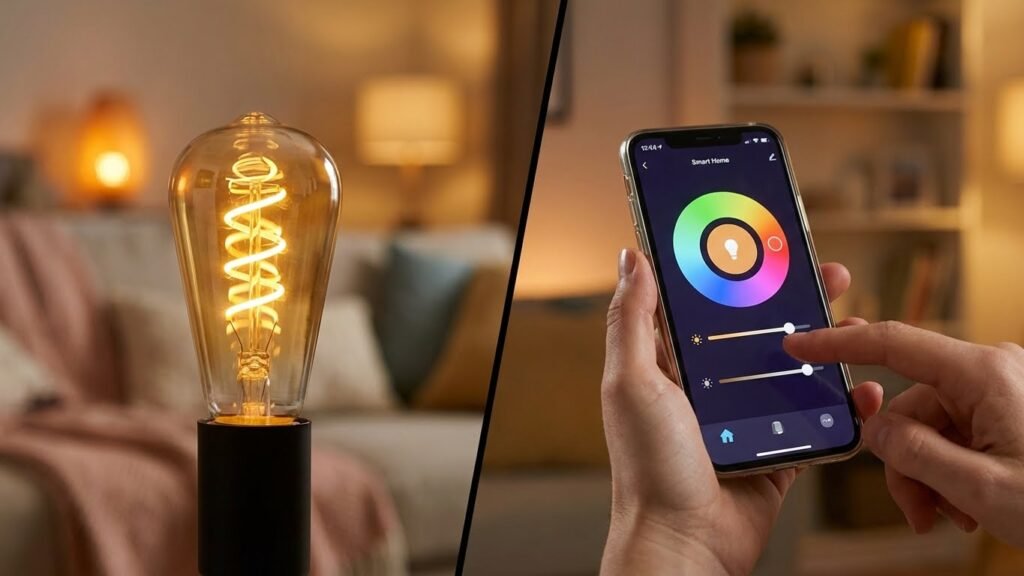
You control your lights from your phone, voice assistant, or an automation hub because a smart bulb houses small electronics that connect wirelessly and let you change brightness, color, and schedules. A smart bulb works by combining an LED light source, a tiny driver, and a wireless radio (like Wi‑Fi, Bluetooth, Zigbee, or Z‑Wave) so you can send commands and the bulb responds instantly.
You’ll see benefits fast: set routines, dim lights without a dimmer switch, sync colors with music, and cut energy use compared with old bulbs. If you want to know how they link to your devices, what setup looks like, and how to avoid common problems, the rest of the article walks through it step by step.
Key Takeaways
- Smart bulbs use built‑in electronics and wireless radios to let you control light remotely.
- They offer scheduling, dimming, color control, and can save energy compared with older bulbs.
- Setup and security matter, and simple steps can help avoid common connection problems.
What Is a Smart Bulb?
A smart bulb is an LED light with a wireless radio and software built in. You control it with an app, voice assistant, or home hub to change brightness, color, and schedules.
Key Features of Smart Bulbs
Smart bulbs connect to your phone or hub using Wi‑Fi, Bluetooth, Zigbee, or Z‑Wave. This link lets you turn lights on/off, dim them, set timers, and create scenes from anywhere.
Many models offer color control (millions of shades) and tunable white (warm to cool). You can schedule lights to follow routines, sync them with music, or trigger them with motion sensors. Some report energy use and firmware updates for new functions.
Security and privacy matter. Choose bulbs that use encryption and let you set local control if you prefer not to rely on cloud services. Check compatibility with Alexa, Google Assistant, or Apple HomeKit before buying.
Types of Smart Bulbs
You’ll find several common types: Wi‑Fi bulbs, Bluetooth bulbs, and hub‑based bulbs (Zigbee or Z‑Wave). Wi‑Fi bulbs connect directly to your router and work without an extra device. Bluetooth bulbs pair with your phone but have limited range.
Hub‑based bulbs require a separate hub or bridge but let you run many bulbs with lower power use and more reliable mesh networking. Specialty options include smart strips, smart downlights, and fixture‑integrated smart LEDs for renovations.
Pick a type based on range, number of bulbs, and whether you want a hub for broader automation. Also check base type (E26, E27, GU10) to match your fixtures.
Smart Bulbs vs. Traditional Bulbs
Smart bulbs use LEDs, so they already save energy and last longer than incandescent or CFL bulbs. Traditional bulbs only provide light; smart bulbs add connectivity and control features.
You don’t need a smart switch to use a smart bulb, but a wall switch can still cut power and make the bulb unreachable. Traditional bulbs work with any switch and are cheaper up front but lack remote control, color change, and scheduling.
Consider lifetime cost and convenience. Smart bulbs cost more initially but can reduce electricity bills and add automation that improves security and comfort.
Core Functionalities of Smart Bulbs
Smart bulbs let you control lights from anywhere, change color and brightness, and automate when lights turn on or off. These features work through wireless connections, apps, voice assistants, and built-in timers.
Remote Control Capabilities
You can turn bulbs on and off or change settings from your phone, tablet, or a home hub. Most bulbs use Wi‑Fi, Bluetooth, Zigbee, or Z‑Wave to link to an app. Wi‑Fi models connect directly to your router so you can control them from outside the home. Bluetooth models work only when you’re nearby unless paired with a bridge.
Voice control works with assistants like Alexa, Google Assistant, or Siri. That lets you use short commands such as “turn off living room light.” Remotes and physical hubs provide an extra control option if your network goes down.
Security and access matter. Use strong Wi‑Fi passwords and the bulb maker’s app updates. Give guest access sparingly so others can’t change your schedules or settings.
Customizable Lighting Options
You can pick color, color temperature, and brightness for each bulb. Color bulbs offer millions of hues; color‑temperature bulbs shift from warm (2700K) to cool (6500K). Brightness usually measured in lumens replaces old watt references.
Apps provide presets and sliders for precise control. You can save scenes like “relax” or “focus” for one‑tap changes. Some bulbs sync with music or TV, changing color and intensity in real time.
Consider compatibility. Not all smart bulbs match every dimmer or fixture. Check socket type, required hub, and whether the bulb supports true dimming without flicker.
Scheduling and Automation
You can set fixed times, sunrise/sunset triggers, and rules that react to events. Use schedules to turn lights on before you arrive or off when you sleep. Location‑based automations use your phone’s GPS to switch lights as you leave or return.
Integrations let bulbs respond to other devices. For example, a motion sensor can turn lights on in a hallway, or a smart lock can trigger entry lights when unlocked. Advanced setups use IFTTT or home hubs to combine conditions like time plus motion.
Keep routines simple for reliability. Test automations after setup and back them up with manual controls so you don’t lose light access if the network or cloud service fails.
Smart Bulb Connectivity
Smart bulbs connect to devices and services using different wireless methods, and they join larger home setups and voice assistants. You can control bulbs directly from a phone, through a home hub, or by asking a smart speaker.
Wi-Fi and Bluetooth Integration
Wi‑Fi bulbs join your home router and act like any other internet device. Once on your network, you use the bulb’s app to change brightness, color, and schedules from anywhere you have internet access. Wi‑Fi gives direct cloud access, so remote control and firmware updates work without extra hardware.
Bluetooth bulbs pair with your phone or tablet for local control. They use less power and often cost less, but range is limited to within the Bluetooth signal area. Some Bluetooth bulbs use mesh extensions or a bridge to add remote access and group control.
When choosing, check your home’s Wi‑Fi strength, the number of smart devices on the network, and whether you want control outside your house. Wi‑Fi is best for remote use and many features; Bluetooth is fine for single-room setups or simpler installs.
Smart Home Ecosystem Compatibility
Smart bulbs can join ecosystems that use Zigbee, Z‑Wave, or proprietary hubs. Zigbee bulbs talk to a hub (like Philips Hue Bridge) which handles many bulbs efficiently and reduces Wi‑Fi congestion. Hubs let you group lights, set scenes, and run local automations that keep working if the internet drops.
Some bulbs advertise “hubless” operation but still work better with a hub for large installations. Check compatibility lists before buying so bulbs work with your existing hub or gateway. Also verify whether the hub supports color temperature, RGB color, and advanced scheduling.
You should match bulbs to your ecosystem to avoid extra bridges and headaches. Mixing standards can work, but expect more setup time and possibly reduced features.
Voice Assistant Support
Voice control links bulbs to assistants like Alexa, Google Assistant, or Siri. After you enable the bulb’s skill or integration, you can use natural commands to turn lights on/off, dim, and change colors. Most popular bulbs include instructions for linking to at least one major assistant.
Functionality differs by assistant. Alexa and Google often support groups, routines, and color names. Siri via HomeKit requires HomeKit‑compatible bulbs or a bridge that exposes the bulbs to HomeKit. Check whether the bulb supports secure pairing and local control with your chosen assistant.
If voice is central to your setup, confirm the bulb’s tested commands and any limits (for example, number of bulbs per group or whether color temperature is voice‑controllable). This saves time and prevents surprises when you set up voice scenes.
How Smart Bulbs Communicate
Smart bulbs talk to your phone, hub, or voice assistant using wireless links and internet services. They use specific radio standards for local control and cloud or app platforms for remote access, scheduling, and voice commands.
Wireless Protocols Used
Most smart bulbs use one of four common radio standards: Wi‑Fi, Bluetooth, Zigbee, or Z‑Wave.
Wi‑Fi bulbs connect directly to your home network and give fast, high‑bandwidth control. They work well for video or many simultaneous commands but can use more power and add devices to your router.
Bluetooth bulbs pair with a phone for close‑range control without needing a hub. They save energy but offer limited range and fewer simultaneous device connections.
Zigbee and Z‑Wave use a mesh network. Each bulb can forward messages, extending range across rooms. They need a compatible hub or bridge but reduce Wi‑Fi congestion and scale better if you install many bulbs.
Cloud Services and Mobile Apps
Cloud services let you control bulbs from anywhere and link them to voice assistants like Alexa or Google. When you use an app, commands may go from your phone to the cloud, then back to the bulb, enabling remote on/off, schedules, and smart automations.
Apps show device lists, grouping, scenes, and energy use. Some bulbs support local control only, which keeps commands on your network for faster response and more privacy. Check whether an app requires a manufacturer account and whether it offers firmware updates; those updates fix bugs and add features.
Installation and Setup Process

You will screw the bulb into a compatible socket, power it on, and connect it to your phone or hub. Expect to use either Bluetooth, Wi‑Fi, or a Zigbee/Z‑Wave bridge depending on the bulb model.
Pairing with Smart Devices
Turn the light socket power on and off as the bulb’s quick-start guide says to enter pairing mode. Most bulbs flash or change color when ready. If the bulb uses Bluetooth, open your phone’s Bluetooth list and select the bulb name. For Wi‑Fi bulbs, the bulb may create a temporary network you join first, or the app will detect it while your phone is on the same home network.
If the bulb uses Zigbee or Z‑Wave, plug in the hub (bridge) and put the hub into add/pair mode. Then trigger pairing on the bulb. Wait up to two minutes for the hub to confirm. If pairing fails, move the bulb and phone closer to the hub, restart devices, and retry.
App Configuration Steps
Install the manufacturer app or your smart-home app (Philips Hue, Smart Life, Samsung SmartThings, etc.). Create or sign into your account and follow the app prompts to add a new device. The app will ask you to choose bulb type, room, and name; pick clear labels like “Living Room Lamp” to avoid confusion.
Set the bulb’s default scene, brightness limits, and any schedules. If you use voice control, link your account to Alexa, Google Assistant, or Siri within the app. Test basic commands: on/off, dim, color change (if supported). If something fails, check firmware updates in the app and ensure your router uses 2.4 GHz if required by the bulb.
Energy Efficiency and Power Usage
Smart bulbs mainly use LED technology and small electronics for wireless connections. They save far more energy when lit than old incandescent bulbs, but they can draw a small amount of power even when “off.”
Energy-Saving Technologies
Smart bulbs use LEDs that typically consume 7–10 watts to match a 60-watt incandescent. That cuts running energy by roughly 70–90% when the bulb is on. You can also lower energy use by dimming, scheduling, and grouping bulbs so you run fewer lights at full brightness.
Some smart bulbs include adaptive features such as:
- Dimming and scene settings to lower average wattage.
- Motion and ambient light sensors that turn lights off when not needed.
- Efficiency modes that reduce network polling or lower standby functions.
These features help you reduce both peak and total energy use. Choose bulbs with accurate lumen-per-watt ratings and good dimming performance to get the best savings.
Power Monitoring Features
Many smart bulbs report power use to your app or hub in real time. This gives you exact wattage and runtime data, so you can track energy cost per bulb or room.
Typical power data you can see:
- Current wattage (while on)
- Cumulative energy (kWh over days or months)
- Standby draw (usually under 1 watt for modern bulbs)
Use this data to identify high-use lights, adjust schedules, or switch to lower-brightness scenes. If a bulb’s standby draw looks unusually high, check firmware updates or manufacturer specs before replacing the device.
Security and Privacy Considerations
You need to know how data moves and what controls you can set. Focus on encryption types and the privacy settings in apps and routers to reduce risks.
Data Encryption Methods
Encryption keeps commands and device data unreadable if intercepted. Look for bulbs and hubs that use AES-128 or AES-256 for local traffic and TLS 1.2 or higher for cloud connections. These standards prevent casual eavesdropping and stop many remote attacks.
Check whether the bulb communicates over Bluetooth, Zigbee, Z-Wave, or Wi‑Fi. Bluetooth and Zigbee often use link-layer encryption but may rely on a hub; Wi‑Fi depends on your router’s WPA2/WPA3 and the bulb’s TLS for cloud traffic. If a bulb lacks TLS or uses obsolete ciphers, avoid sending passwords or sensitive data through its app.
Keep firmware updated. Manufacturers release patches that fix cryptographic flaws. If a device no longer receives updates, remove it from networks that carry personal data.
User Privacy Controls
You control what the bulb shares and who can access it. Start by creating a dedicated guest or IoT network on your router and put smart bulbs on that network to isolate them from PCs and phones. This limits an attacker’s reach if a bulb is compromised.
Use unique, strong passwords for device accounts and enable two‑factor authentication on manufacturer apps when available. In the app, disable features you don’t use such as location sharing, voice assistant integration, or cloud backups. Those features increase data flow to third parties.
Review app permissions on your phone. Deny access to contacts and unnecessary sensors. Finally, check the manufacturer’s privacy policy for data retention and sharing practices before you buy.
Potential Challenges and Troubleshooting
You may face issues with connectivity, app control, or outdated software. Fixes often involve checking your network, power, and the bulb’s firmware.
Common Connection Issues
If a bulb won’t connect, first confirm the bulb has power and the wall switch is ON. Check that the bulb type matches your network: Wi‑Fi bulbs need a 2.4 GHz network in many cases, while Zigbee or Z‑Wave bulbs require a hub.
Restart the bulb and your router. Power cycle the bulb by turning it off for 10 seconds, then back on. Reboot the router or move the bulb closer to the router to rule out weak signal or interference from other devices.
Use the manufacturer’s setup mode to re-pair the bulb. Reset steps vary by brand (rapid on/off cycles or a reset button), so follow the manual. If multiple bulbs drop out, inspect the router settings: limit devices, enable QoS, or change the Wi‑Fi channel to reduce interference.
Keep a checklist:
- Confirm power and switch position
- Verify network band and hub presence
- Restart bulb and router
- Reset and re-pair per manual
Firmware Updates
Firmware fixes bugs and improves stability, so check for updates before deeper troubleshooting. Open the bulb’s app or your hub’s interface and look for a firmware or device update section.
Install updates when the bulb is powered and on the network. Don’t interrupt updates—loss of power or network can leave the bulb in a nonfunctional state. If an update fails, retry after rebooting the bulb and hub.
If you manage many bulbs, update in small groups to catch problems early. Note the firmware version and release notes; some updates add new features while others only patch security or connectivity issues. Contact manufacturer support if an update bricks the device or if repeated updates fail.
Future Trends in Smart Bulb Technology
You will see Matter and similar open standards become more common. These protocols improve compatibility, so your bulbs work with more hubs and apps without extra setup.
Expect more human-centric lighting that adjusts color and brightness to support your sleep and focus. Bulbs will shift warmer in the evening and cooler during the day to match natural rhythms.
AI features will add smarter automation. Your bulbs may learn routines, respond to voice less often, and make energy-saving decisions on their own.
Energy efficiency will keep improving through better LEDs and power management. That means longer bulb life and lower electricity bills for your home.
Design will move toward sleeker bulbs and integrated fixtures. Manufacturers will embed sensors for temperature, motion, and air quality in some models.
Key features to watch:
- Matter and wider interoperability
- Adaptive, human-centric light schedules
- On-device AI for local automation
- Better energy efficiency and lifespans
- Built-in environmental sensors
You should also watch for privacy and security improvements. With more connectivity and sensors, vendors will need stronger encryption and update practices to keep your data safe.
FAQs
What does a smart bulb need to work?
A smart bulb needs power from a light socket and a way to communicate with your device. Most use Wi‑Fi, Bluetooth, Zigbee, or Z‑Wave to receive commands from an app or hub.
Can I use smart bulbs with existing switches?
You can, but the wall switch must stay on for the bulb to get power. Use smart switches or keep switches in the on position and control the bulb with your phone or voice assistant.
Are smart bulbs energy efficient?
Yes. They use LED technology which uses less electricity and lasts longer than incandescent bulbs. For details on LED efficiency, see the U.S. Department of Energy guide.
Will smart bulbs work without the internet?
Some will. Bluetooth and local Zigbee/Z‑Wave setups can work without internet, though cloud features and remote access often require an online connection.
Are smart bulbs secure and private?
Security varies by brand. Use strong, unique Wi‑Fi passwords and keep firmware updated to reduce risks. For best practices, consult guidance from reputable security resources like the Electronic Frontier Foundation.
How hard is setup?
Setup is usually simple: install the bulb, power it on, and follow the maker’s app instructions. If you use a hub, add the bulb to the hub first and then link the hub to your app.
Conclusion
Smart bulbs bring modern control to a simple fixture. You can change brightness, color, and schedules from your phone or with voice commands.
They connect using Wi‑Fi, Bluetooth, Zigbee, or Z‑Wave and contain LEDs, a driver, and a small radio and processor. These parts let the bulb respond to apps, hubs, or assistants quickly and with low energy use.
You should pick a bulb that fits your needs: choose the right base, the connectivity that matches your setup, and whether you want color or tunable white. Check compatibility with your hub or voice assistant before you buy.
Security and privacy matter. Keep firmware updated, use strong Wi‑Fi passwords, and limit which apps and devices can control your lights.
Benefits include energy savings, automation, and better convenience. Downsides can include higher upfront cost and occasional network or compatibility issues.
Quick tips:
- Match bulb base and size to your fixture.
- Decide if you need local control (Bluetooth/Zigbee) or remote access (Wi‑Fi).
- Use schedules and scenes to save energy and add convenience.
You now understand what makes smart bulbs smart and how to choose and maintain them for reliable use.