
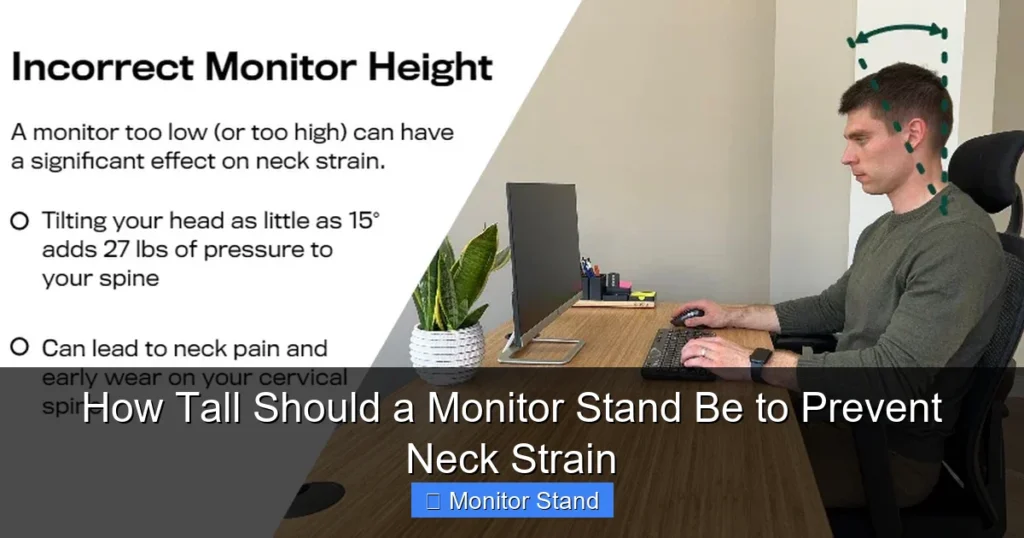
The ideal monitor stand height is when the top of the screen is at or slightly below eye level. This position helps maintain a neutral neck posture, reducing strain. Follow our step-by-step guide to measure and adjust your setup for maximum comfort and productivity.
Key Takeaways
- Eye Level Alignment: The top of your monitor should be at or slightly below eye level to keep your neck in a neutral position.
- Arm’s Length Distance: Position your monitor about an arm’s length away to prevent eye strain and maintain comfort.
- Adjustability is Key: Use a monitor stand with height adjustment features to customize for your body and desk setup.
- Consider Chair and Desk Height: Ensure your chair and desk are at proper heights to complement the monitor position.
- Use Accessories if Needed: Monitor arms, risers, or stacks of books can help achieve the ideal height if your stand is fixed.
- Regular Breaks and Movement: Even with perfect setup, take breaks to stretch and avoid static postures.
- Personalize for Your Needs: Adjust based on your height, vision, and specific tasks for optimal ergonomics.
How Tall Should a Monitor Stand Be to Prevent Neck Strain: Your Complete Guide
Do you often end your workday with a stiff neck or sore shoulders? You might be surprised to learn that your monitor stand height could be the culprit. In today’s world, where many of us spend hours in front of screens, setting up an ergonomic workspace is crucial. This guide will answer the common question: how tall should a monitor stand be? We’ll dive into the science of ergonomics, provide easy steps to find your ideal height, and share practical tips to prevent neck strain. By the end, you’ll know exactly how to adjust your monitor for a healthier, more comfortable work experience.
Why Getting the Monitor Stand Height Right Matters
Neck strain is a common issue for desk workers. It often comes from poor posture. When your monitor is too low, you tilt your head down. This strains your neck muscles. When it’s too high, you tilt your head up. This can cause pain and fatigue. The right monitor stand height keeps your spine aligned. It promotes a neutral posture. This means your ears are over your shoulders. Your eyes look slightly downward. This position reduces stress on your neck and back. It also helps prevent headaches and eye strain. Investing time in setting up your monitor correctly can boost your productivity. It can improve your long-term health. So, let’s explore how tall your monitor stand should be for optimal comfort.
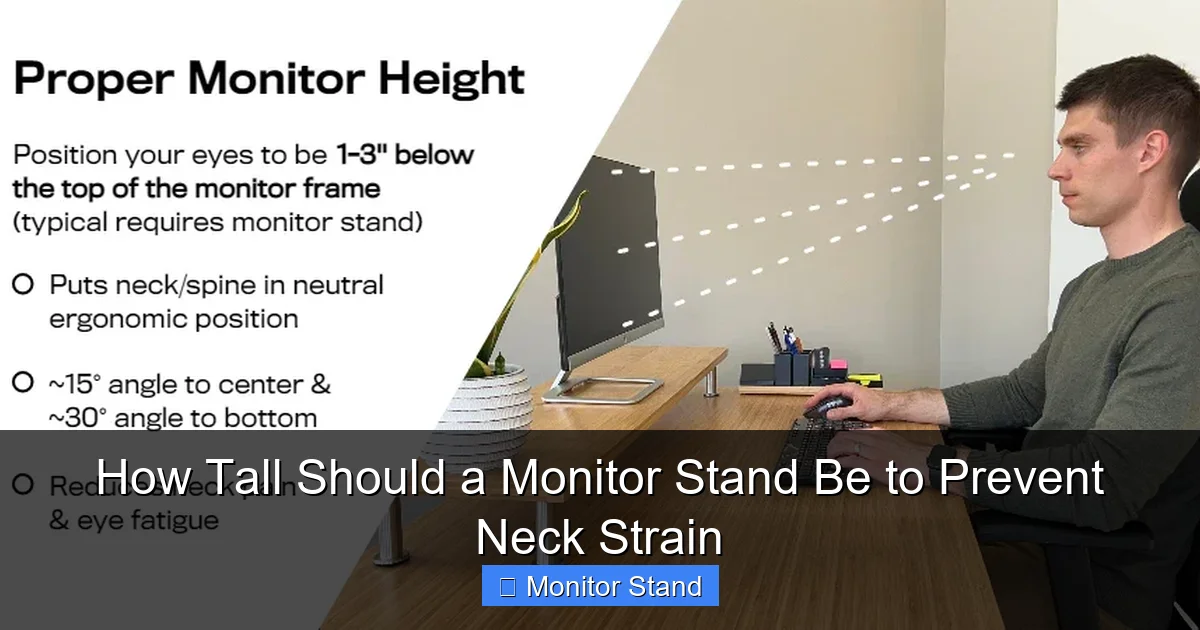
Visual guide about How Tall Should a Monitor Stand Be to Prevent Neck Strain
Image source: cdn.shopify.com
Step-by-Step Guide to Determine the Ideal Monitor Stand Height
Finding the perfect height for your monitor stand doesn’t require fancy tools. Just follow these simple steps. They will help you create an ergonomic setup tailored to your body.
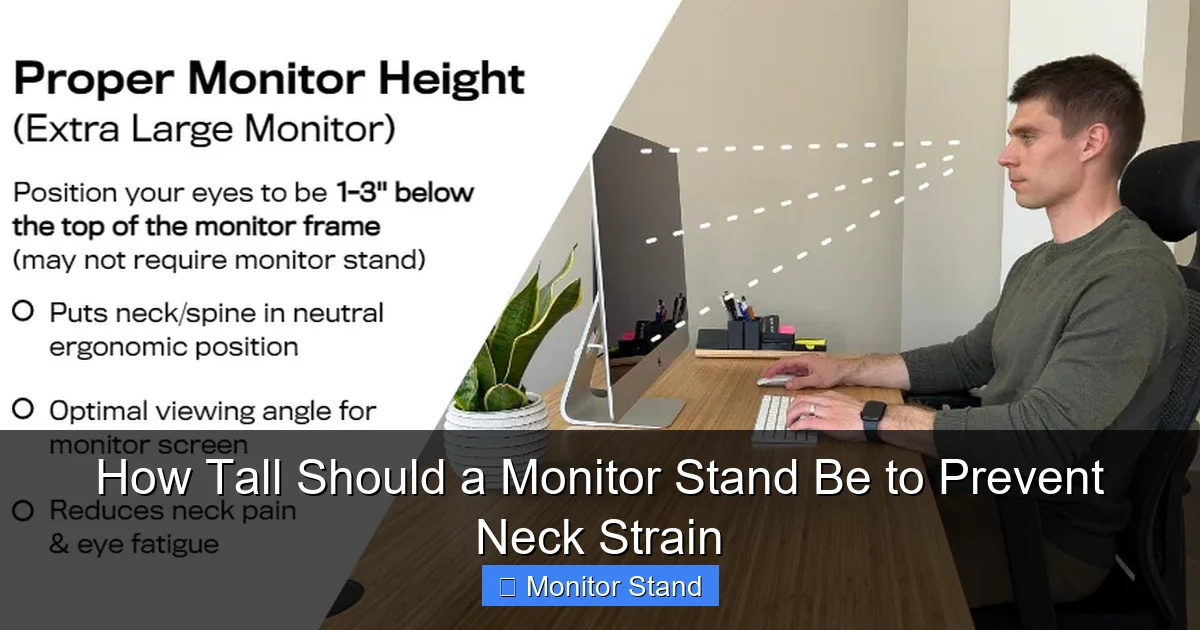
Visual guide about How Tall Should a Monitor Stand Be to Prevent Neck Strain
Image source: cdn.shopify.com
Step 1: Prepare Your Workspace
Start by sitting in your usual chair at your desk. Make sure your feet are flat on the floor. Your knees should be at a 90-degree angle. Your back should be supported by the chair. Adjust your chair height so your elbows are level with the desk. This is your baseline posture. Now, look straight ahead. Notice where your gaze naturally falls. This point is key to determining how tall your monitor stand should be.
Step 2: Measure Your Eye Level
You can use a simple trick to find your eye level. Have a friend hold a ruler horizontally at your eye line. Or, use a sticky note on the wall. Mark the spot where your eyes focus when looking straight. This mark represents the ideal top edge of your monitor screen. Remember, the goal is to have the top of the monitor at or slightly below this point. This ensures you view the screen without neck bending.
Step 3: Assess Your Current Monitor Height
Now, look at your current setup. Is the top of the monitor above, below, or at your eye level? Use a tape measure to check the distance from the desk to the top of the screen. Compare it to your eye level mark. This will tell you if you need to raise or lower your monitor. Often, people find their monitor is too low. This leads to slouching. Knowing your starting point helps you adjust correctly.
Step 4: Calculate the Needed Adjustment
If your monitor is too low, you need to increase the stand height. If it’s too high, you need to lower it. The general rule is that the monitor stand should place the screen so the top is at eye level. For example, if your eye level is 50 inches from the floor and your monitor screen is 15 inches tall, the stand should lift the bottom of the screen to about 35 inches. This calculation helps you understand how tall your monitor stand should be. Don’t worry; you don’t need to be exact. Small adjustments make a big difference.
Step 5: Adjust Your Monitor Stand
Most modern monitors come with adjustable stands. Use the built-in mechanisms to change the height. Gently lift or lower the monitor until the top aligns with your eye level. If your stand isn’t adjustable, don’t fret. We’ll cover accessories in the next section. After adjusting, sit back and check your posture. Your neck should feel relaxed. You shouldn’t be straining to see the screen. This step is crucial in answering how tall should a monitor stand be for your specific setup.
Step 6: Test and Refine
Spend a few minutes working at your desk. Pay attention to how your neck and shoulders feel. If you notice any discomfort, make small tweaks. Sometimes, lowering the monitor by an inch can help. Or, you might need to adjust the tilt. The key is to listen to your body. Ergonomics is personal. What works for one person may not work for another. Keep testing until you find the sweet spot where your monitor stand height feels just right.
Tools and Accessories to Achieve the Perfect Height
Not all monitor stands are created equal. Some are fixed, while others offer flexibility. Here are some tools to help you achieve the ideal height.
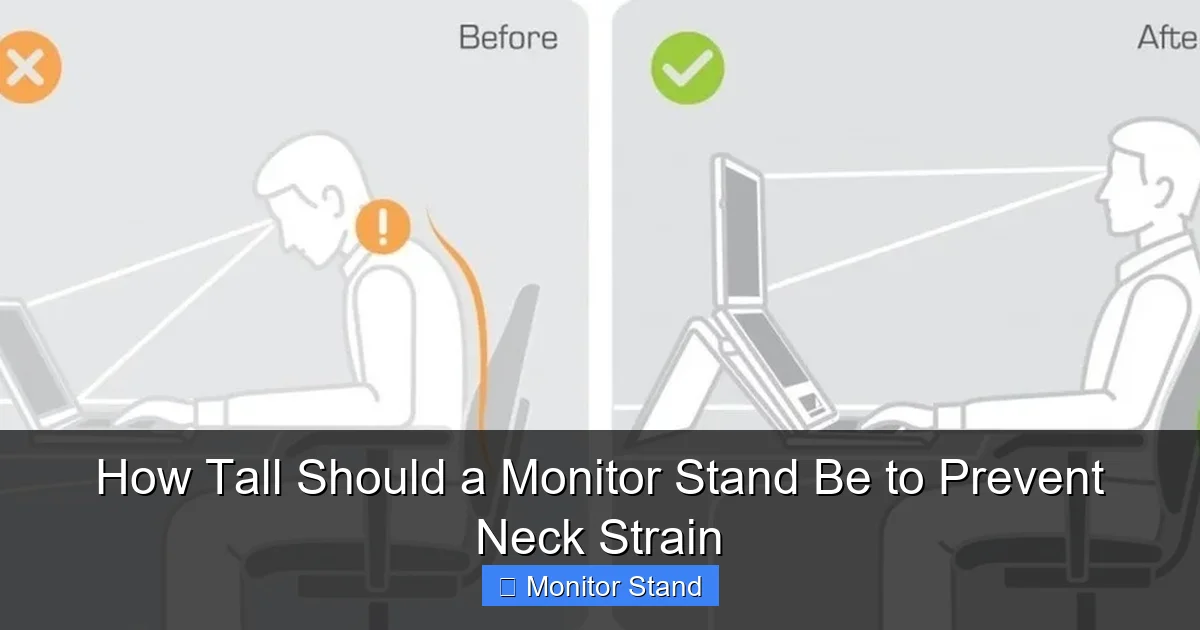
Visual guide about How Tall Should a Monitor Stand Be to Prevent Neck Strain
Image source: gvsu.edu
Monitor Arms and Mounts
Monitor arms are great for ergonomics. They attach to your desk or wall. They allow full adjustment of height, tilt, and swivel. With a monitor arm, you can easily set how tall your monitor stand should be. You can also move the monitor closer or farther away. This is perfect for shared workspaces or if you switch between sitting and standing.
Monitor Risers and Stands
Monitor risers are platforms that sit on your desk. They lift your monitor to a better height. They often come with storage space underneath. This is a simple solution if your built-in stand is too short. When choosing a riser, measure the height it adds. Ensure it aligns your monitor with your eye level.
DIY Solutions
In a pinch, you can use sturdy books or reams of paper. Stack them under your monitor until the top is at eye level. Make sure the stack is stable. You don’t want your monitor to fall. This is a cost-effective way to test how tall your monitor stand should be before buying accessories.
Adjustable Desks and Chairs
Sometimes, the issue isn’t just the monitor. Your desk or chair might be too high or low. Consider an adjustable desk that lets you change height. Or use a chair with good lumbar support and height adjustment. When your chair and desk are right, setting the monitor height becomes easier.
Practical Tips for Different Scenarios
Your ideal monitor stand height can vary based on your situation. Here are some tips for common scenarios.
For Tall or Short Users
If you’re tall, you might need a higher monitor stand. Use a riser or arm to lift the monitor. If you’re short, you might need to lower the stand. Adjust your chair first so your feet are supported. Then set the monitor height. Always prioritize a neutral neck posture.
For Dual Monitors
With two monitors, position them so their tops are at eye level. Place the primary monitor directly in front of you. The secondary monitor should be off to the side at the same height. This prevents twisting your neck. Monitor arms are especially useful for dual setups.
For Laptop Users
Laptops often have screens that are too low. Use a laptop stand to raise the screen to eye level. Then connect an external keyboard and mouse. This mimics a desktop setup and prevents neck strain.
For Glasses Wearers
If you wear bifocals or progressive lenses, you might need to lower the monitor slightly. This lets you view the screen through the correct part of your lenses. Experiment with height until you find a comfortable position without tilting your head back.
Troubleshooting Common Monitor Height Issues
Even after adjusting, you might face some challenges. Here’s how to solve them.
My Monitor Stand Doesn’t Adjust
If your stand is fixed, use accessories like risers or arms. As mentioned, DIY solutions can work temporarily. The goal is to answer how tall should a monitor stand be for you, regardless of the stand’s limitations.
I Still Have Neck Pain
Neck strain might not be solely from monitor height. Check your overall posture. Are you slouching? Is your chair supportive? Take regular breaks to stretch. Consider consulting an ergonomic specialist. Sometimes, multiple adjustments are needed.
The Screen is Too Far or Too Close
Distance matters too. Your monitor should be about an arm’s length away. If you raise the height, you might need to adjust the distance. Ensure you can read text without leaning forward. This complements the correct stand height.
Shared Workspace Concerns
If you share a desk, use a monitor arm for easy adjustment. Each user can quickly change the height. Or, consider memory settings on advanced stands that save positions for different people.
Conclusion: Embrace an Ergonomic Workspace
Setting the right monitor stand height is a simple yet powerful step toward better health. By now, you should have a clear answer to how tall should a monitor stand be. Remember, the top of your screen should be at or slightly below eye level. This prevents neck strain and promotes comfort. Use the steps in this guide to measure, adjust, and refine your setup. Don’t hesitate to invest in ergonomic accessories if needed. Your body will thank you. Start today and transform your workspace into a pain-free zone. Happy computing!