
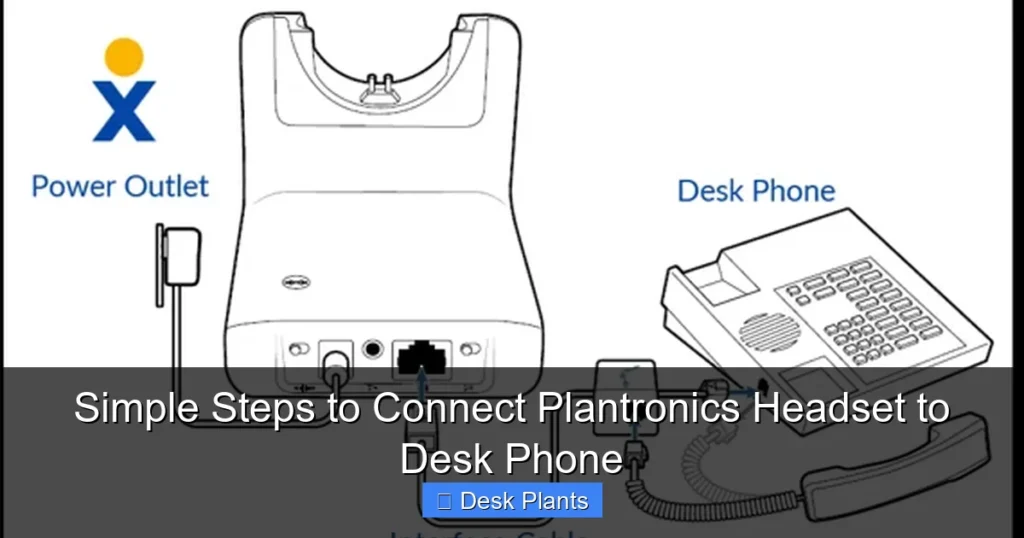
Connecting your Plantronics headset to a desk phone is a straightforward process that unlocks hands-free productivity. This guide provides the essential steps, from identifying your phone’s headset port to using the correct Plantronics EHS cable or adapter. You’ll learn how to ensure compatibility, make the physical connection, and test your setup for success.
Key Takeaways
- Compatibility is Key: Success depends on matching your specific Plantronics headset model with the correct desk phone port and adapter.
- Identify the Port: Locating the dedicated headset port (often a smaller RJ9 or RJ10 jack) on your desk phone is the critical first step.
- The Right Adapter Solves Most Problems: A Plantronics EHS (Electronic Hook Switch) cable or a simple amplifier adapter is usually required to bridge the headset and phone.
- Power Matters for Wireless: Wireless Plantronics headsets require their base to be plugged into both power and the phone’s headset port.
- Test Before You Rely on It: Always make a test call to verify audio in both directions and the functionality of the answer/end button.
- Troubleshooting is Often Simple: Most issues stem from loose connections, incorrect adapter selection, or a phone setting that needs enabling.
Simple Steps to Connect Plantronics Headset to Desk Phone
Welcome to your ultimate guide for connecting a Plantronics headset to your desk phone. If you’ve just unboxed a shiny new Plantronics headset or are finally setting up an older one, you’re in the right place. This process might seem technical, but with the right guidance, it’s as easy as plugging in a lamp. By the end of this guide, you’ll have a fully functional hands-free setup, ready to boost your productivity and call clarity. We’ll cover everything from identifying parts to troubleshooting common snags.
Before You Begin: The Essential Preparation
Rushing in can lead to frustration. Let’s gather our tools and knowledge first. A few minutes of preparation will make the actual connection smooth and simple.
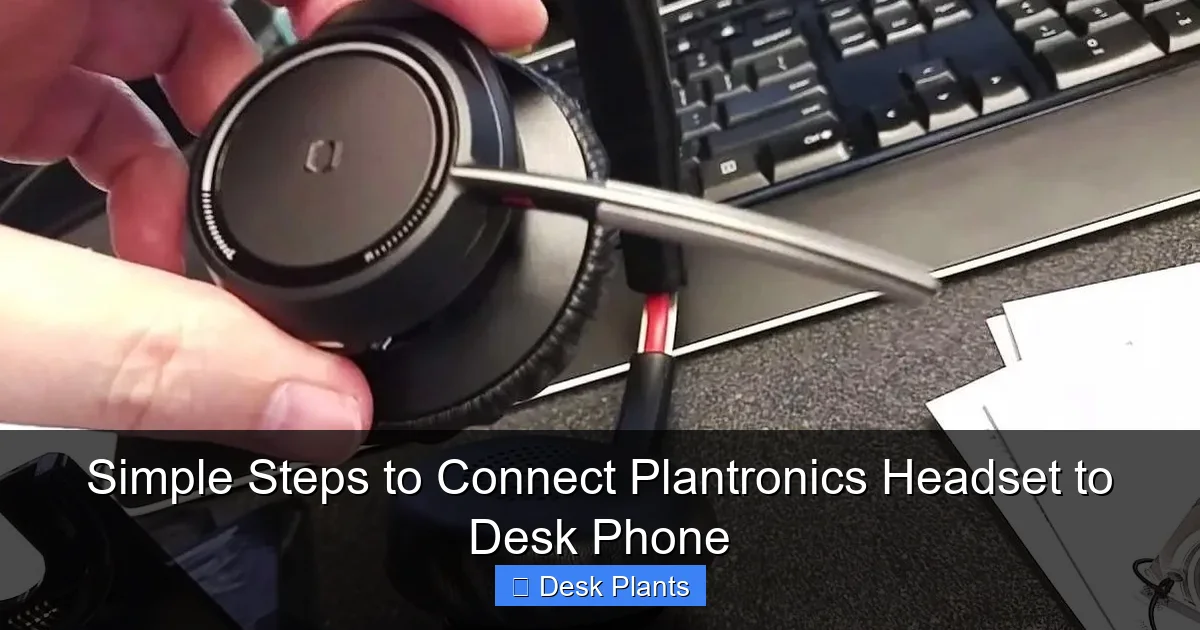
Visual guide about Simple Steps to Connect Plantronics Headset to Desk Phone
Image source: citizenside.com
1. Identify Your Plantronics Headset Model
Look on the headset itself, its cable, or the original packaging for a model number. It often starts with letters like “SA,” “CS,” or “Voyager.” Knowing this is crucial for finding the right adapter. If you can’t find it, note the connector type at the end of the headset cable—it’s often a clear plastic RJ9/RJ10 plug with four or six small metal pins.
2. Identify Your Desk Phone Model and Port
Check the brand and model of your desk phone (e.g., Cisco 7945, Avaya J179, Yealink T46S). Now, find its headset port. Most modern IP phones have a dedicated port labeled with a headset icon. It’s typically a smaller jack than the standard handset (receiver) port. This is where your adapter will plug in.
3. Gather Your Adapter or Cable
This is the most important part. Your Plantronics headset will not plug directly into the phone in most cases. You need a special cable. For most office setups, this is a Plantronics EHS (Electronic Hook Switch) cable. It allows your headset’s answer/end button to control the phone. For simpler needs, a basic Plantronics amplifier adapter (like the M12N or M22A) might suffice. The adapter model must be compatible with both your headset plug and your phone model.
Step-by-Step Connection Guide
With your parts identified, let’s get connected. Follow these steps in order.
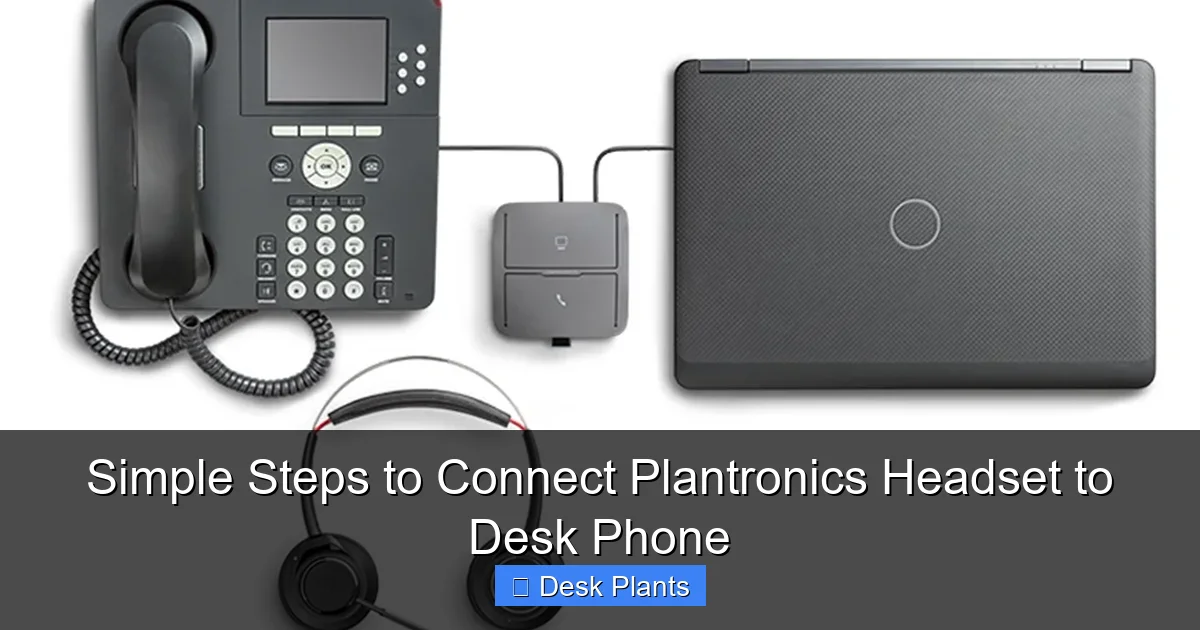
Visual guide about Simple Steps to Connect Plantronics Headset to Desk Phone
Image source: calloneinc.com
Step 1: Power Down and Unplug (For Safety)
Before connecting any cables, it’s a good practice to unplug the power from your desk phone. This prevents any potential electrical issues and allows the phone to recognize new hardware when it boots up.
Step 2: Unplug the Existing Handset
Locate the standard handset (the part you hold to your ear) and unplug its curly cord from the phone’s handset port. This port is usually marked with a phone icon. You are not discarding the handset; you are simply making room for the headset system to take over its function.
Step 3: Connect the Adapter Cable to the Phone
Take your Plantronics EHS cable or amplifier adapter. Plug the end that looks like a handset connector (the larger RJ9/RJ22 plug) into the phone’s handset port (the one you just vacated). This is a common point of confusion—the adapter often goes into the handset port, not the dedicated headset port.
Step 4: Connect the Adapter to the Headset Port
Now, take the other end of your adapter cable (a smaller RJ9/RJ10 plug) and connect it to the phone’s dedicated headset port. You have now created a bridge: your phone thinks the adapter is its handset, and the headset port is ready for control.
Step 5: Connect Your Plantronics Headset
Finally, plug your Plantronics headset’s cable directly into the port on the adapter. For wireless Plantronics headsets, you will plug the base station into the adapter instead. Ensure all connections are snug and secure.
Step 6: Reconnect Power and Test
Plug your desk phone’s power back in and allow it to boot fully. Put on your Plantronics headset and press the answer/end button. You should hear a dial tone. Make a test call to a colleague or your voicemail. Speak and listen to ensure audio is clear in both directions. Test the answer/end button to confirm it hangs up the call.
Connection Scenarios & Visual Examples
Let’s look at two common specific setups to clarify the process.
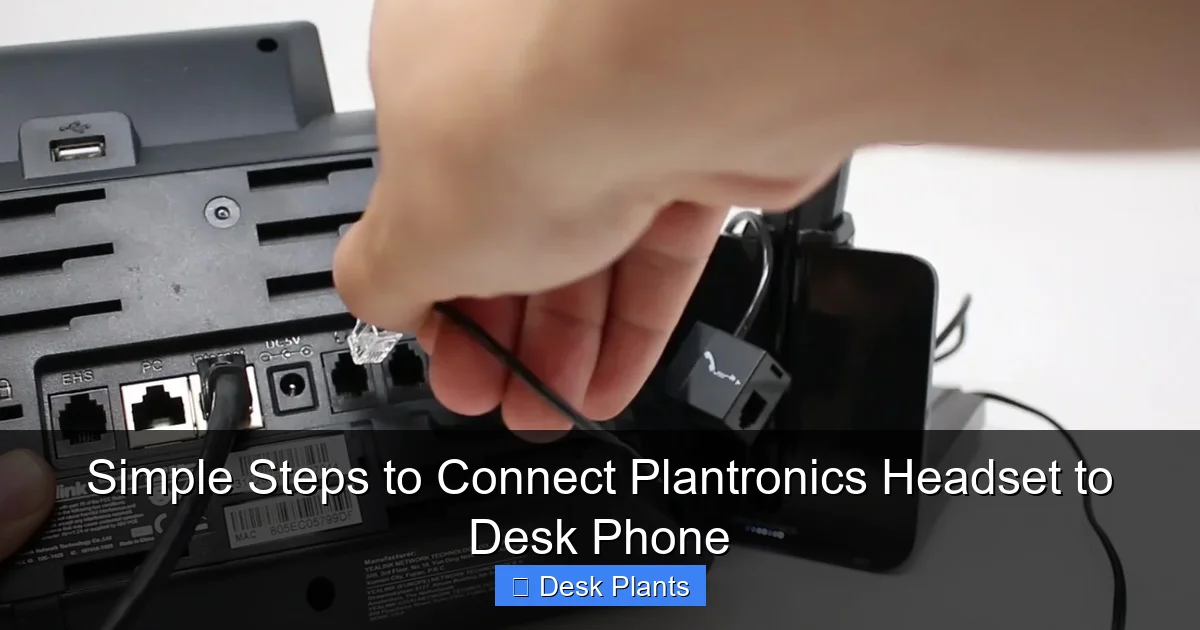
Visual guide about Simple Steps to Connect Plantronics Headset to Desk Phone
Image source: cdn.shopify.com
Scenario A: Wired Plantronics Headset with a Cisco IP Phone
You have a Plantronics Savi 740 and a Cisco 8861 phone. You will need a Plantronics EHS cable for Cisco phones (like the CS361N-DP). Unplug the handset from the Cisco phone. Plug the EHS cable’s handset end into that port. Plug the EHS cable’s headset end into the Cisco phone’s small headset port. Plug your Savi 740 base into the port on the EHS cable. Power on the base and test.
Scenario B: Basic Wired Headset with an Analog Phone
You have a simple Plantronics EncorePro 510 and an older analog desk phone. You likely need a Plantronics M12N amplifier adapter. Unplug the phone’s handset. Plug the handset cord into the port on the M12N adapter. Plug the M12N adapter into the phone’s handset port. Plug your EncorePro headset into the M12N adapter. The adapter provides power and signal conversion for the headset.
Troubleshooting Common Issues
If things don’t work perfectly on the first try, don’t worry. Most problems have simple fixes.
No Dial Tone or Audio
First, check every physical connection. Are all plugs fully seated? Second, ensure you are using the correct adapter for your phone model. A Cisco adapter will not work properly on an Avaya phone. Third, your phone may require you to enable the headset in its settings menu. Navigate to your phone’s settings (often via a “Settings” or “Setup” button) and look for an option to enable “Headset” or “Audio Path.”
Can Hear, But Cannot Be Heard (or Vice Versa)
This usually indicates an incorrect adapter or a wiring issue. Double-check your adapter’s compatibility. Try gently wiggling the connectors at the headset end—sometimes the pins can become misaligned. If using a wireless headset, ensure the base is powered and the headset is paired to the base.
Answer/End Button Doesn’t Work
This function relies on the EHS (Electronic Hook Switch) capability. Confirm you are using an EHS cable, not just a basic amplifier adapter. Verify the EHS cable is specifically designed for your phone’s brand. The phone may also have a setting to define the “off-hook” method—ensure it’s set to use the headset.
Conclusion: Enjoy Your Hands-Free Freedom
Connecting your Plantronics headset to your desk phone is a simple task that pays huge dividends in daily comfort and efficiency. By following the logical steps—identify, gather, connect, and test—you transform your desk from a tangled wire mess into a professional communication hub. Remember, the secret sauce is almost always the correct adapter cable. With your headset now connected, you can enjoy clear, hands-free conversations, reduce neck strain, and multitask like a pro. Welcome to a new level of workplace productivity!
🎥 Related Video: How to Pair Plantronics Voyager 5200 to Mobile Phone
📺 Headset Advisor
Watch to see how to pair Plantronics Voyager 5200 to mobile phone. Featured Product Plantronics Voyager 5200: …