

If your robot vacuum is not moving, the cause is usually a simple obstruction, dirty sensor, or charging issue. This guide provides a step-by-step troubleshooting process to get your robotic helper back on its cleaning path, from checking for physical blockages to resetting the software.
Key Takeaways
- Start with the Basics: The most common reason a robot vacuum is not moving is a simple physical obstruction, like a stuck wheel or clogged brush.
- Power is Paramount: A robot vacuum that appears dead or won’t move often has a battery or charging station connection issue.
- Sensors Need Cleaning: Dirt on cliff sensors, bumpers, or LIDAR windows can cause the vacuum to think it’s in danger and refuse to move.
- Software Glitches Happen: A simple reboot or factory reset can resolve many unexplained freezing or navigation issues.
- Listen for Clues: Unusual sounds from the wheels or brushes can pinpoint the exact location of a mechanical jam.
- Check the App and Remote: Ensure the vacuum isn’t paused in its app, stuck in a specific mode, or that a child lock isn’t accidentally enabled.
- Know When to Call for Help: If all troubleshooting fails, the issue may be a failed motor, internal wiring, or mainboard, requiring professional service.
Troubleshooting Why Your Robot Vacuum Is Not Moving
You press “Clean” and instead of its familiar whirr and forward motion, your robot vacuum just sits there. It beeps. It blinks. But it does not move. Don’t worry! A robot vacuum not moving is a common problem, and it’s almost always something you can fix yourself. This guide will walk you through a logical, step-by-step process to diagnose and solve the issue, from the simplest checks to more advanced solutions. Let’s get your little cleaning buddy back on the road.
Step 1: Perform a Basic Safety Check & Reboot
Always start with the simplest solutions. These steps resolve a surprising number of issues.
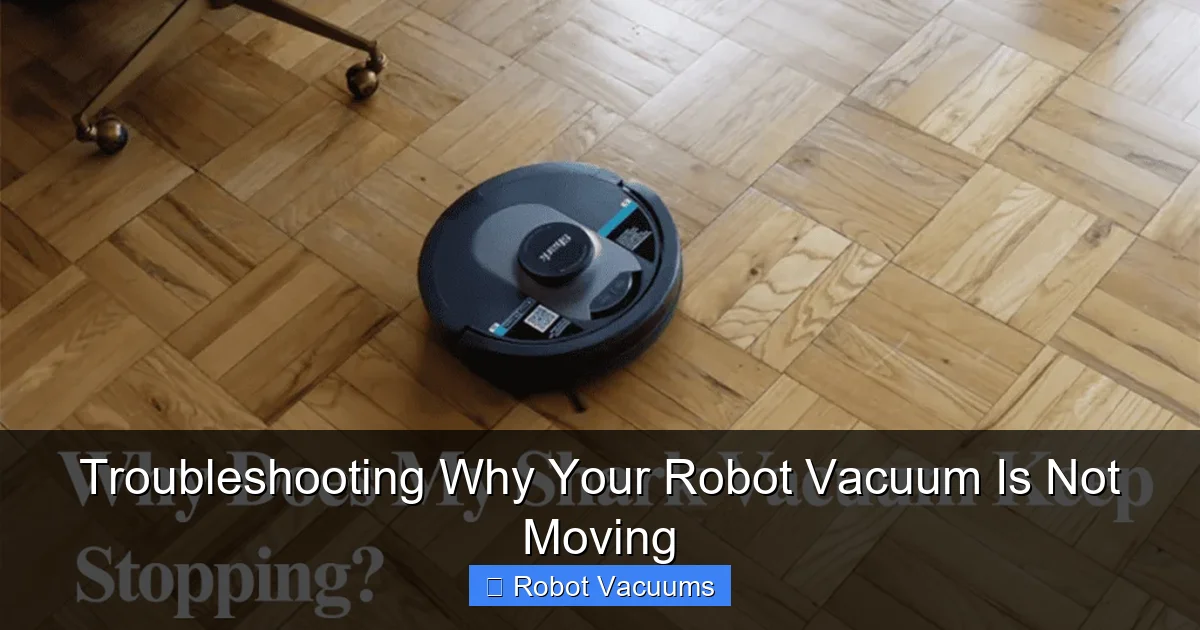
Visual guide about Troubleshooting Why Your Robot Vacuum Is Not Moving
Image source: smarthomeways.com
Power Cycle the Vacuum
Just like your computer or phone, your robot vacuum can suffer from minor software glitches. Turn the vacuum off using its power button. If there’s no button, pick it up and remove the battery for 60 seconds. Place it back in and put the vacuum on its charger. This clears its temporary memory and can fix unexplained freezes.
Check for Physical Obstructions
Gently lift and inspect the vacuum. Manually spin the main brush and side brush. Do they turn freely? Look underneath for any large debris like hair ties, cords, or toy parts that could be physically jamming the mechanism.
Verify the Charging Status
A robot vacuum with a critically low battery may not have enough power to move, even if it lights up. Place it firmly on the charging dock. Ensure the metal charging contacts on both the dock and the vacuum are clean and making contact. Let it charge for at least 2-3 hours before trying again.
Step 2: Inspect and Clean the Drive System
If the basics don’t work, the problem is likely mechanical. The drive system is what makes your robot vacuum move.
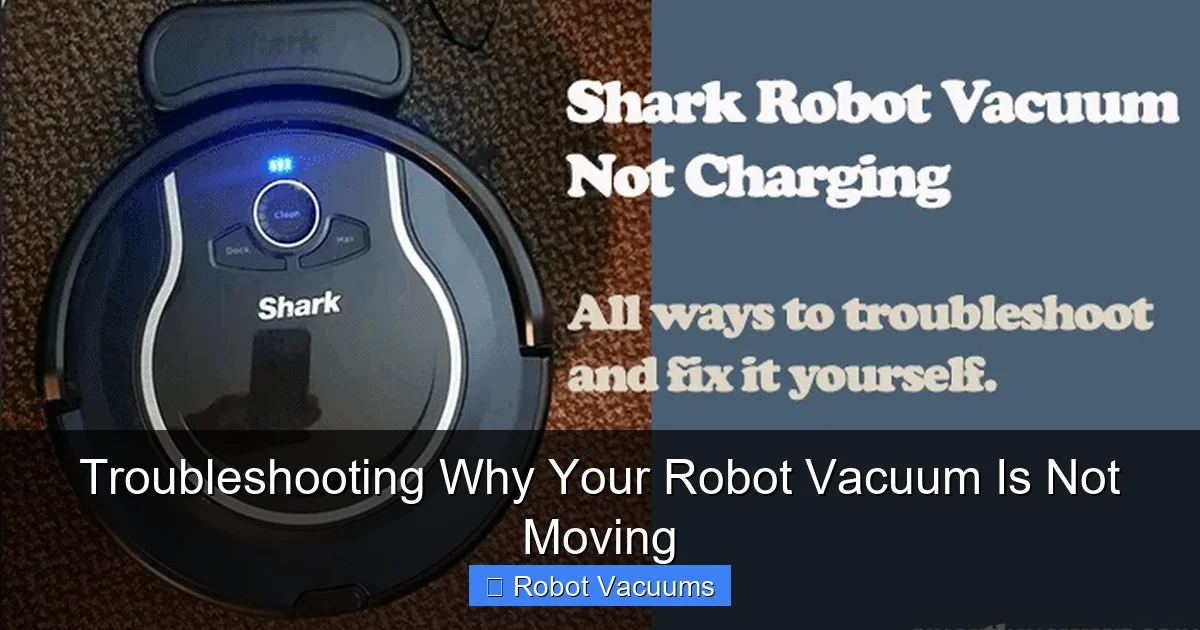
Visual guide about Troubleshooting Why Your Robot Vacuum Is Not Moving
Image source: smarthomeways.com
Examine the Wheels
Carefully turn the vacuum over. Check the main drive wheels. Can you spin them freely with your fingers? Often, hair, thread, and carpet fibers wrap tightly around the wheel axles, creating a hard “beard” that locks the wheels. Use tweezers or small scissors to carefully cut and remove all wrapped debris.
Check the Caster Wheel
The small front or rear swivel wheel can also get jammed with hair and dust. Remove it if possible (it often just pops out) and clean the wheel and its socket. A stuck caster wheel will severely hinder movement.
Listen for Motor Sounds
Turn the vacuum on and listen closely near the wheels. Do you hear a faint whirring or grinding noise? A whirring sound without movement suggests the motor is trying but the wheels are jammed. A grinding noise could mean internal gear damage.
Step 3: Clean All Sensors and Bumpers
Your robot vacuum relies on sensors to navigate. If they’re dirty, the vacuum thinks it’s trapped and won’t move.
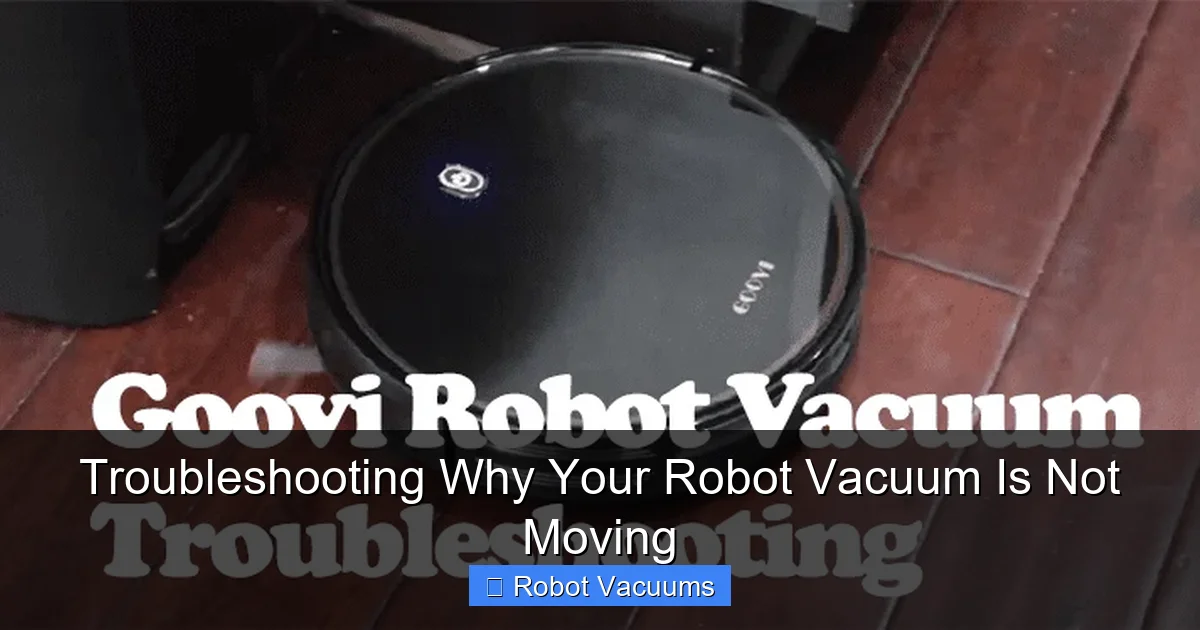
Visual guide about Troubleshooting Why Your Robot Vacuum Is Not Moving
Image source: smarthomeways.com
Clean the Cliff Sensors
These are the small, usually circular, windows on the underside near the edges. The vacuum uses them to avoid stairs. Wipe them clean with a dry, soft cloth. Dirt here can falsely signal a cliff, causing the vacuum to stop and back up repeatedly or not move at all.
Clean the Bumper and Contact Sensors
The front bumper should move in and out freely. Gently press it and listen for a soft click. Clean around its edges. Also, wipe any other sensors on the body, like wall-following sensors on the side.
Clean the LIDAR or Camera Window (If Applicable)
If your model has a rotating LIDAR tower on top or a camera on the front, this is its “eyes.” Use a microfiber cloth to gently clean the plastic dome or lens. A smudge here can blind the vacuum’s navigation.
Step 4: Investigate Charging and Battery Issues
A power problem can manifest as a robot vacuum not moving, even if the lights are on.
Test the Charging Dock
Ensure the dock is plugged in securely. Try plugging it into a different outlet. Check that the dock’s metal contacts are not bent or corroded. Clean them with a cotton swab dipped in a little rubbing alcohol.
Inspect the Battery
If your vacuum model has a removable battery, take it out. Check for any swelling, corrosion, or damage. If the battery is old (over 2-3 years), it may no longer hold a charge. The vacuum might power on but lack the voltage needed to drive the motors. Consider purchasing a manufacturer-approved replacement battery.
Observe Charging Behavior
When placed on the dock, does the vacuum give a confirming beep or light? Does it show a solid “charging” light? If the light blinks erratically or doesn’t come on, there is a connection or battery fault.
Step 5: Check for Software and Control Problems
Sometimes, the issue is a command, not a component.
Check the Mobile App and Remote
Open the companion app on your phone. Is the vacuum shown as “Paused”? Is it stuck in “Spot Clean” or “Edge Clean” mode? Try sending a new “Clean” command. Also, check if a “Child Lock” or “Lock” feature has been accidentally enabled, which would prevent manual start buttons from working.
Reset Wi-Fi Connection
For smart vacuums, a poor Wi-Fi connection can sometimes cause unresponsiveness. In the app, try restarting the vacuum’s connection to your network.
Perform a Factory Reset
If all else fails, a factory reset can clear deep software errors. The method varies by brand but usually involves holding down specific buttons for 10-20 seconds. Warning: This will erase all maps, schedules, and settings. Consult your user manual for the exact steps for your model.
Step 6: Advanced Troubleshooting and Professional Help
If you’ve completed all previous steps and your robot vacuum is still not moving, the problem may be internal.
Consider the Age and Wear
Robot vacuums have a lifespan. After years of use, internal drive motors can wear out, belts can break, or wiring can come loose from repeated impacts.
Contact Customer Support
Before giving up, contact the manufacturer’s support. They may have specific diagnostic steps or be aware of a known issue with your model that can be fixed with a firmware update or a replacement part.
Weigh Repair vs. Replacement
If the vacuum is out of warranty and needs a costly repair (like a new mainboard), it might be more economical to replace it, especially if it’s an older model.
Conclusion: Getting Back to a Clean Home
A robot vacuum not moving can be frustrating, but it’s rarely the end of the road. By following this structured guide—starting with a simple reboot and moving through mechanical, sensor, power, and software checks—you will likely find and fix the problem. Most often, a thorough cleaning of the wheels and sensors is all it takes. Remember, regular maintenance like clearing hair from brushes and wiping sensors can prevent many of these issues. With a little patience and these troubleshooting steps, you’ll have your automated helper gliding across your floors again in no time.
🎥 Related Video: Roomba Not Moving Forward/Normally | Troubleshooting
📺 David in France
If your Roomba is moving abnormally like not moving forward or not going straight, this troubleshooting guide will help you fix it.