
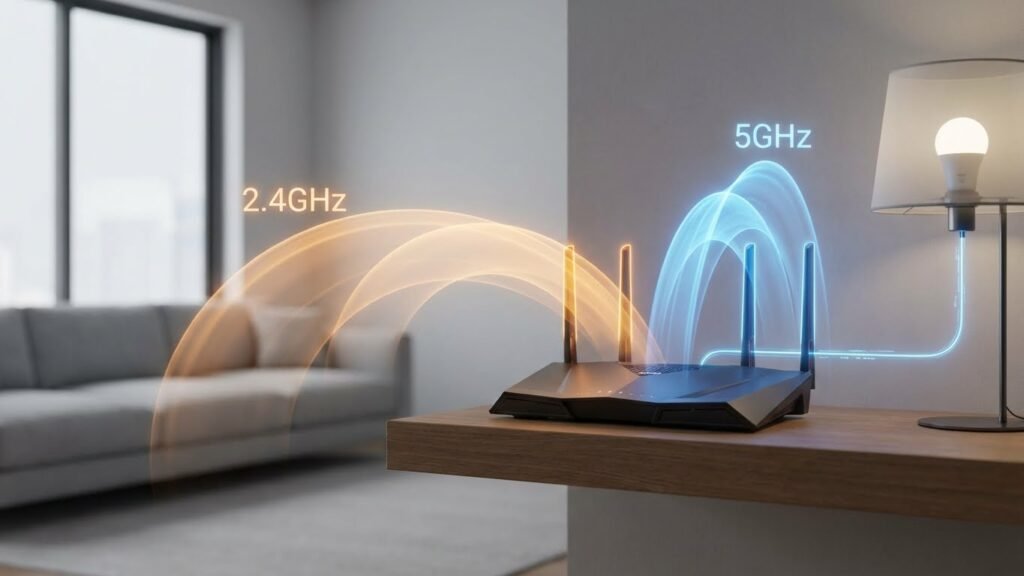
Many smart bulbs only use 2.4GHz Wi‑Fi, but a few models and brands now support 5GHz or work over dual‑band routers. If you want faster, less crowded wireless for your lights, look for bulbs from brands that list 5GHz or dual‑band Wi‑Fi compatibility—LIFX and newer Philips/GE models are common examples.
You can keep most of your setup the same, but choosing a 5GHz‑compatible bulb helps if your home network is busy or you need stronger throughput for color scenes and updates. Expect to check the bulb’s specs before buying and use your router settings if you must connect devices to a specific band.
Key Takeaways
- Check the bulb’s specs for 5GHz or dual‑band Wi‑Fi support.
- 5GHz helps with speed and less interference on busy networks.
- Use router and setup tips when pairing 5GHz bulbs to avoid connection issues.
Understanding 2.4GHz vs 5GHz WiFi Compatibility
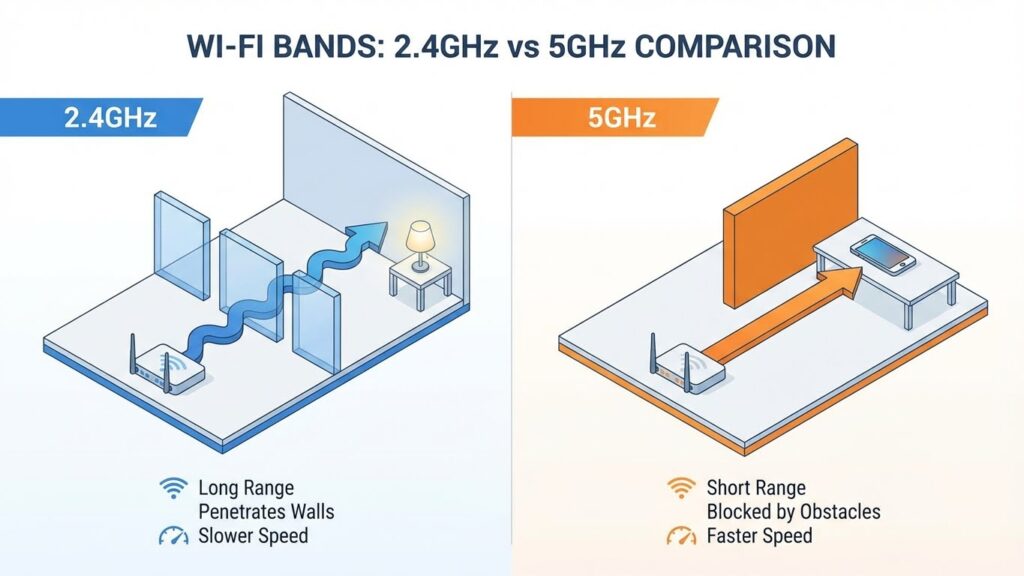
You need to know which band gives you better range, speed, and device support. The right choice affects how reliably your smart bulbs respond and how many bulbs you can run without issues.
Technical Differences Between 2.4GHz and 5GHz
2.4GHz offers longer range and better wall penetration because its radio waves travel farther and pass through obstacles more easily. That makes it useful if your bulbs sit far from the router or behind many walls.
5GHz gives higher data rates and less interference because it has wider channels and more non-overlapping frequencies. It works best when devices are near the router and you need faster, more stable links for multiple, data-hungry devices.
2.4GHz has fewer channels with more overlap, which can cause congestion in dense Wi-Fi areas. 5GHz has many channels and less overlap, but its signal drops off faster with distance. Your choice depends on whether you value range or speed.
How Frequency Bands Affect Smart Home Devices
Many smart home devices, including most smart bulbs, use 2.4GHz because it connects over longer distances and through walls. You’ll get fewer dropouts on 2.4GHz in larger homes or when bulbs sit in different rooms.
If a bulb supports 5GHz or dual-band Wi‑Fi, it may join a faster network and handle firmware updates or app commands slightly quicker. However, real-world speed gains for bulbs are small because bulbs send and receive small amounts of data.
Your router setup matters: dual-band routers let you run a dedicated 5GHz SSID for high-speed devices while keeping bulbs on 2.4GHz. That keeps your lighting stable and reserves 5GHz for phones, TVs, or cameras.
Challenges of 5GHz Support for Smart Bulbs
Manufacturers often skip 5GHz to cut cost and simplify pairing. Supporting 5GHz adds radio and firmware complexity, which raises device cost and power use. That’s why many bulbs remain 2.4GHz-only.
5GHz’s shorter range can cause unreliable connections for bulbs placed far from the router. You might need extra access points, mesh nodes, or a closer router position to keep 5GHz bulbs online.
Some bulbs claim 5GHz support but still rely on hubs or bridges that use 2.4GHz. Always check technical specs and pairing instructions so you know whether the bulb truly connects directly to a 5GHz network.
Smart Bulbs That Work With 5GHz WiFi
Many popular smart bulb makers now offer models that can join 5GHz networks or work with hubs that bridge to 5GHz. You’ll find options from major brands, specific models with 5GHz support, and common features like faster response and higher data rates.
List of Compatible 5GHz Smart Bulb Brands
- LIFX: Several LIFX bulbs connect directly to 5GHz Wi‑Fi. They use native Wi‑Fi radios and avoid a separate hub.
- Philips Hue: Hue bulbs typically use Zigbee and a Hue Bridge. The bridge connects to your router and supports routers with 5GHz backhaul, so you can control bulbs even if your phone is on 5GHz.
- TP‑Link / Kasa: Some Kasa bulbs support dual‑band Wi‑Fi or offer models that work on 5GHz. Check the product page for band support.
- GE / C by GE: A few GE models list dual‑band compatibility or pair through a hub that handles 5GHz networking.
- Other brands: Newer smart bulb makers increasingly add dual‑band chips. Always confirm “5GHz” or “dual‑band” on the spec sheet.
Look for “5GHz,” “dual‑band,” or explicit hub compatibility in the specs. If a bulb lists only 2.4GHz, it won’t join a 5GHz SSID directly.
Popular 5GHz Smart Bulb Models
- LIFX A19 and LIFX Mini: These models commonly support 5GHz and offer color, brightness control, and no hub requirement.
- Philips Hue with Hue Bridge V2: While bulbs use Zigbee, the bridge works with routers so your Hue system functions when your network uses 5GHz for device traffic.
- TP‑Link Kasa KL series (select SKUs): Some KL bulbs list dual‑band Wi‑Fi support; verify the SKU for 5GHz.
- GE Cync (select models): Certain Cync bulbs and their hubs offer dual‑band handling for mixed networks.
Before buying, check the exact model number and product manual. Retail listings sometimes lump models together; the manual will state whether the bulb itself supports 5GHz or requires a hub that does.
Features of 5GHz-Compatible Smart Bulbs
- Faster response times: 5GHz offers higher throughput, so scenes and color changes can occur with less delay.
- Shorter range but less interference: You’ll get cleaner signals in dense Wi‑Fi areas, but expect reduced wall penetration compared to 2.4GHz.
- Often dual‑band capable: Many bulbs advertise “dual‑band” so they can join either 2.4GHz or 5GHz networks depending on your setup.
- Hub vs. direct Wi‑Fi: Some brands use a hub (Hue, Zigbee ecosystems) that connects to your router. Others (LIFX) connect directly to Wi‑Fi on 5GHz.
- Power and features: 5GHz‑capable bulbs tend to be full‑feature models (color, high CRI, tunable white) rather than basic dimmable bulbs.
Check power ratings, firmware update support, and whether the bulb requires a hub. Those details determine how well the bulb will work on your 5GHz network.
Setup and Installation Tips for 5GHz Smart Bulbs
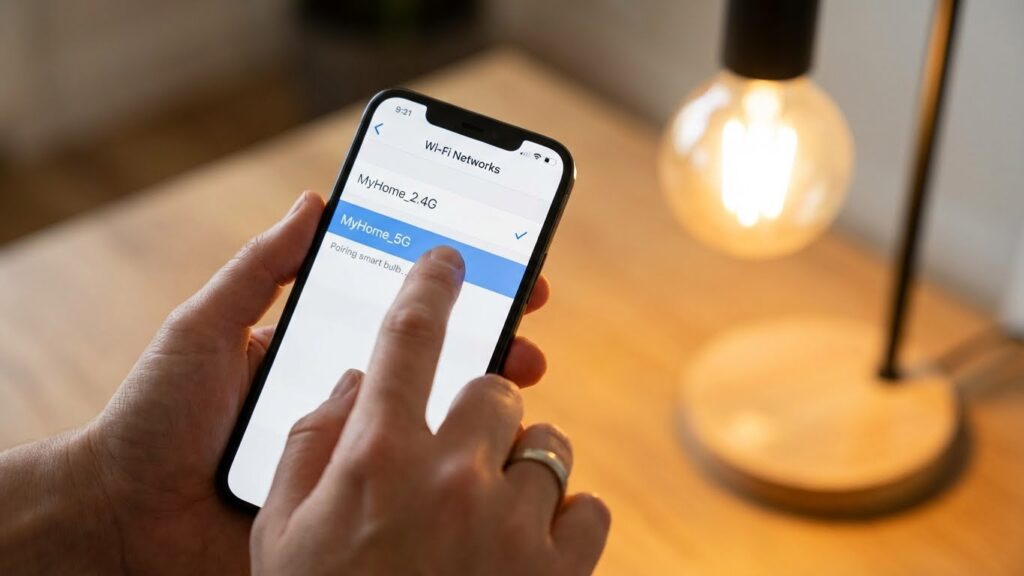
You need a compatible bulb and a router that actually broadcasts 5GHz. Check the bulb model and your router settings before you start to avoid repeated resets and failed pairings.
Connecting Smart Bulbs to 5GHz Networks
Confirm the bulb supports 5GHz by reading the product specs or the app’s setup instructions. Some brands like LIFX and newer Philips Hue models support 5GHz natively; many others only use 2.4GHz.
Turn on the bulb and open the manufacturer app. Put the bulb into pairing mode (usually power-cycle or a long tap in the app). In the app, choose the 5GHz SSID exactly as it appears in your router — case and special characters must match.
If the app fails, move your phone closer to the bulb and router. Temporarily disable mobile data on your phone to force the app to use Wi‑Fi. If pairing still fails, try creating a separate temporary 5GHz SSID with no password or a simple WPA2 password for initial setup, then rejoin the main network.
Router Settings and Network Optimization
Log into the router admin page and verify the 5GHz radio is enabled and broadcasting a unique SSID. Avoid using a single shared SSID for both 2.4GHz and 5GHz if your router or device struggles to choose the right band.
Set the 5GHz channel to an auto or a fixed non-overlapping channel (36–48 or 149–165) to reduce interference. Use WPA2-AES or WPA3 for security; avoid legacy WEP or mixed TKIP modes that can block modern smart devices.
If range is an issue, add a mesh node or Wi‑Fi extender that supports 5GHz. Keep the bulb at least a few feet from large metal objects and other electronics that cause interference. Finally, update your router firmware and the bulb’s firmware in the app to fix known connectivity bugs.
Troubleshooting Connectivity Issues
You will find the most common causes for a bulb not joining your 5GHz network and clear fixes to try. The next parts explain specific problems, quick checks, and settings to change so your bulb stays connected.
Common Connection Problems
Many smart bulbs only use 2.4GHz, so first check the bulb’s specs or packaging to confirm 5GHz support. If the bulb does support 5GHz but won’t connect, note any error lights or app messages; they often tell you the issue.
Weak signal or distance can drop connections. Move the bulb closer to the router during setup. Interference from walls, metal objects, or other electronics can also block the 5GHz band more than 2.4GHz.
Incorrect Wi‑Fi settings create failures. Ensure the router’s SSID and password are correct, and that you don’t have MAC filtering or a guest network blocking device access. Check the router’s channel — crowded channels can cause drops.
Firmware mismatches sometimes break pairing. Update both the bulb’s firmware (via its app) and the router firmware before more complex troubleshooting. If the bulb still fails, try factory resetting the bulb and repeating setup.
Tips for Reliable 5GHz Smart Bulb Performance
Use a clear SSID and temporary naming that contains no special characters or emojis. Some apps struggle with unusual characters during pairing.
Place the router where the bulb will be used most often. For multi-room setups, consider a mesh Wi‑Fi system that offers consistent 5GHz coverage. If your router supports band steering, enable it so devices can choose the best band automatically.
Set a fixed IP for the bulb in your router’s DHCP settings to avoid address changes that break automations. Also enable WPA2 or WPA3 security — avoid older WEP keys that some devices reject.
If you run many smart devices, reduce congestion by putting bandwidth-hungry devices (gaming consoles, streaming boxes) on 5GHz and leaving simple IoT on 2.4GHz if needed. Keep firmware updated and reboot the router after major changes to clear cached network states.
Alternative Solutions for Non-Compatible Smart Bulbs
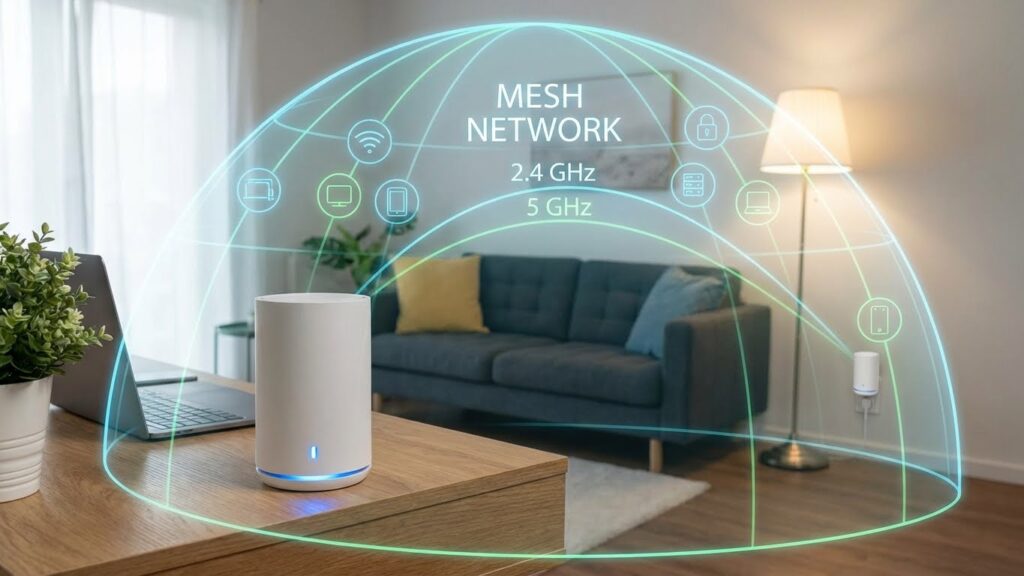
You can still use 2.4GHz-only bulbs on a modern network by adjusting router settings or using network hardware that bridges bands. These steps keep bulbs reachable without buying new lights.
Using Dual-Band Routers
If your router broadcasts both 2.4GHz and 5GHz, put your bulbs on the 2.4GHz SSID and your phones or smart home hub on either band. Many routers let you name each band separately (for example HomeWiFi_2.4 and HomeWiFi_5). Use different SSIDs so devices join the correct band automatically.
If your router uses a single SSID for both bands, enable band steering off, or create separate SSIDs in the router settings. Also check the router’s guest network — some routers limit device-to-device communication there, which can block bulb control. Finally, reserve fixed IP addresses or use DHCP reservations for your bulbs to make them easier to find in apps and automation rules.
Mesh Network Considerations
Many mesh systems use a single SSID and move devices between bands for best signal. That can kick 2.4GHz-only bulbs off the 2.4GHz network. To avoid this, check the mesh app for an option to prefer 2.4GHz for specific devices or to set up a separate SSID for legacy devices.
If the mesh node supports a dedicated backhaul or a wired connection, place bulbs near a node that has strong 2.4GHz coverage. You can also add a small, inexpensive router or access point configured as a 2.4GHz-only network and connect it to your main router via Ethernet. This gives bulbs a stable 2.4GHz network without disrupting your main 5GHz performance.
Future Trends in Smart Bulb and WiFi Technology
You will see faster, more reliable connections and wider compatibility across devices. Expect standards that cut latency, improve power use, and make setup easier on your home network.
Emerging Standards and Innovations
Matter, Thread, and Wi‑Fi 6/6E are changing how bulbs connect. Matter brings a common language so bulbs from different brands work together. Thread creates a low‑power mesh that keeps bulbs responsive without relying only on Wi‑Fi. Wi‑Fi 6 and 6E add capacity and lower latency on the 5GHz and 6GHz bands, which helps when many devices share your network.
Manufacturers are also adding local control and edge processing. That means scenes and automations can run inside your home instead of through the cloud. You’ll get faster on/off, reduced lag for voice commands, and fewer privacy concerns. Look for bulbs that list Matter, Thread, or Wi‑Fi 6/6E support on the spec sheet.
Impacts on Home Automation Ecosystems
You will notice simpler setup and fewer compatibility gaps. Matter pushes major platforms—Apple HomeKit, Google Home, Amazon Alexa—toward consistent pairing and control. As a result, you can mix brands and still use the same app or voice assistant for routines and scenes.
Expect improved reliability when many devices act together. Thread mesh keeps lights responsive even if Wi‑Fi drops, and Wi‑Fi 6/6E handles high device density in busy homes. For power-conscious setups, bulbs that support Thread or Matter often use less energy for idle tasks, which matters if you run dozens of smart lights.
FAQs
Which smart bulbs support 5GHz Wi‑Fi?
Some modern bulbs from brands like LIFX, Philips Hue (with a bridge), and certain TP‑Link models can work with 5GHz networks. Check the product specs or packaging to confirm band support before buying.
Why do most bulbs still use 2.4GHz?
2.4GHz reaches farther and passes through walls better. That makes it more reliable for devices placed around your home. Many manufacturers choose 2.4GHz for consistent coverage.
Can a 2.4GHz‑only bulb work on a 5GHz router?
Not directly. If your router broadcasts separate SSIDs for each band, you must connect the bulb to the 2.4GHz network. You can also enable a hub or bridge that links bulbs to your 5GHz network indirectly.
Will 5GHz improve bulb performance?
5GHz can offer faster data and less interference in crowded Wi‑Fi environments. The real benefit for bulbs is often small, since they use little bandwidth. You may see fewer dropouts in busy networks.
How do you check and change band settings?
Open your router’s admin page or app to view SSIDs. If bands share the same name, temporarily rename one to force connections to the correct band. Follow the bulb’s setup guide for the right network choice.
Are there other ways to connect smart bulbs?
Yes. Many bulbs use Bluetooth, Zigbee, or Z‑Wave and work through a hub. Those options can let you control bulbs without relying on your Wi‑Fi band.
Conclusion
You can use 5GHz with some smart bulbs, but most models still prefer 2.4GHz for wider range and simpler setup. Brands like LIFX and certain Philips Hue products support 5GHz or work via hubs that bridge bands, so check each bulb’s specs before buying.
If you need faster speeds and less interference in a close range, 5GHz can help. For whole-home coverage, you might favor 2.4GHz or a mesh system that offers both bands. Consider a mesh Wi‑Fi or a dedicated smart hub to avoid compatibility hassles.
Test bulbs in the rooms where you plan to use them to confirm reliable connections. Manufacturer guides and support pages give setup steps and troubleshooting; consult the Philips Hue support site or your router’s documentation for band settings and manual network configuration.