
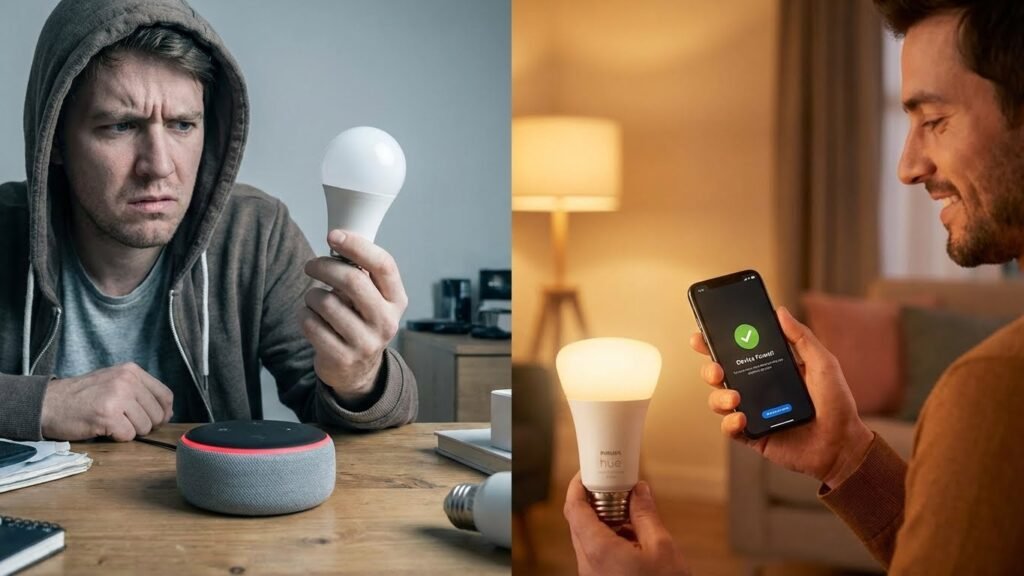
Most smart bulbs can work with Alexa, but not all do out of the box. You need bulbs that either list Alexa compatibility or can connect through a hub or a vendor skill so Alexa can find and control them. If a bulb is labeled “works with Alexa,” or can join the same Wi‑Fi or a supported hub and has an Alexa skill, you can control it with voice.
You’ll learn which bulb types plug straight into Alexa, which need a hub or skill, and which features might be limited even when control is possible. This will help you pick bulbs that match your budget, tech comfort, and the features you want like color, dimming, or schedules.
Key Takeaways
- Check for Alexa compatibility, hub needs, or an available vendor skill before buying.
- Different bulb types may offer different Alexa features and setup paths.
- Troubleshooting and alternative options can make unsupported bulbs usable with Alexa.
Understanding Smart Bulb Compatibility With Alexa
You need to know how Alexa talks to bulbs, what wireless standards the bulb uses, and which brands work directly with Alexa. These points determine whether a bulb will pair, need a hub, or offer full voice control features.
How Alexa Communicates With Smart Bulbs
Alexa connects to smart bulbs in two main ways: directly through a cloud account or locally through your home network. With cloud integration, you link the bulb maker’s skill in the Alexa app and sign into the bulb account. Alexa sends commands to that cloud service, which relays them to the bulb.
For local control, Alexa talks to bulbs on your Wi‑Fi or Zigbee mesh without leaving your network. Local control is faster and can work during internet outages. Some bulbs support both methods; others only work via the manufacturer’s cloud and require an active internet connection and the skill enabled.
Wireless Protocol Requirements
Check the bulb’s wireless protocol before you buy. Common protocols are:
- Wi‑Fi: Connects directly to your router. No hub needed but may use more bandwidth.
- Zigbee: Requires a Zigbee hub or an Echo with a built‑in Zigbee radio (like Echo Plus or some Echo models).
- Bluetooth: Works with some Echo devices but usually needs your phone as a bridge for group control.
- Thread (emerging): Uses a Thread border router like some newer Echo devices for low-power, reliable links.
If a bulb is Zigbee or Thread and your Echo lacks that radio, you must buy the vendor’s hub or a compatible Echo. Wi‑Fi bulbs often only need the Alexa skill and your home Wi‑Fi credentials.
Supported Brands and Devices
Many major brands work well with Alexa: Philips Hue, LIFX, Sengled, TP‑Link (Kasa), Wyze, and others. Each brand may offer different feature levels — basic on/off/dim works broadly, while color control, scenes, and energy reports depend on full skill support.
Philips Hue often requires a Hue Bridge for advanced features and Zigbee reliability. LIFX bulbs are Wi‑Fi based and usually need no hub. Sengled has both Wi‑Fi and Zigbee models, so check the product page. Read the bulb listing for “Works with Alexa” and whether it needs the manufacturer skill, a hub, or a specific Echo model.
Types of Smart Bulbs and Alexa Integration
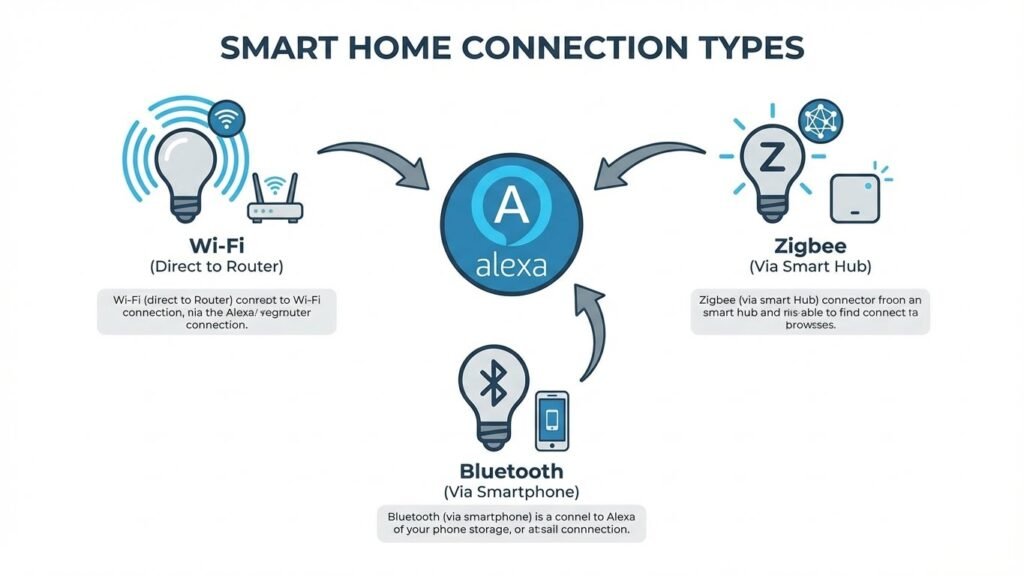
You can connect smart bulbs to Alexa in three common ways. Each method affects setup, range, and whether you need a hub.
Wi-Fi Smart Bulbs
Wi‑Fi bulbs connect directly to your home router and talk to Alexa through the cloud. You install the bulb, set it up in the maker’s app, then enable that brand’s Alexa skill. After linking accounts, Alexa can turn bulbs on/off, dim them, and change color if the bulb supports it.
Pros: no hub, simple setup, wide availability.
Cons: each bulb uses your Wi‑Fi bandwidth and may drop off if your router is busy. Performance can be slower when internet is down because many Wi‑Fi bulbs rely on cloud services.
If you want voice control in minutes and have a solid Wi‑Fi network, Wi‑Fi bulbs are the fastest choice.
Bluetooth Smart Bulbs
Bluetooth bulbs pair directly with an Echo device that has Bluetooth or with your phone. You often set them up in the bulb’s app and then discover them in Alexa. Bluetooth works well for single rooms and small spaces.
Pros: no hub, lower power use, often cheaper.
Cons: limited range (room-level), fewer advanced features, and multiple bulbs may need a compatible Echo (like Echo Pop or Echo Dot) nearby. Bluetooth also limits voice control when you’re far from the bulb or the controlling Echo device.
Choose Bluetooth if you want a low-cost option for one room and don’t mind staying within short range.
Zigbee Smart Bulbs
Zigbee bulbs use a low-power mesh network and usually require a Zigbee hub or an Echo device with a built-in Zigbee radio (for example, certain Echo models). You connect bulbs to the hub once; then the hub links to Alexa for voice control.
Pros: reliable local control, better range through mesh networking, and less Wi‑Fi congestion.
Cons: you may need a hub or a specific Echo model, and setup involves pairing devices to the hub first.
Pick Zigbee when you plan to control many bulbs across your home and want fast, local responses with less impact on your Wi‑Fi.
Setting Up a Smart Bulb With Alexa
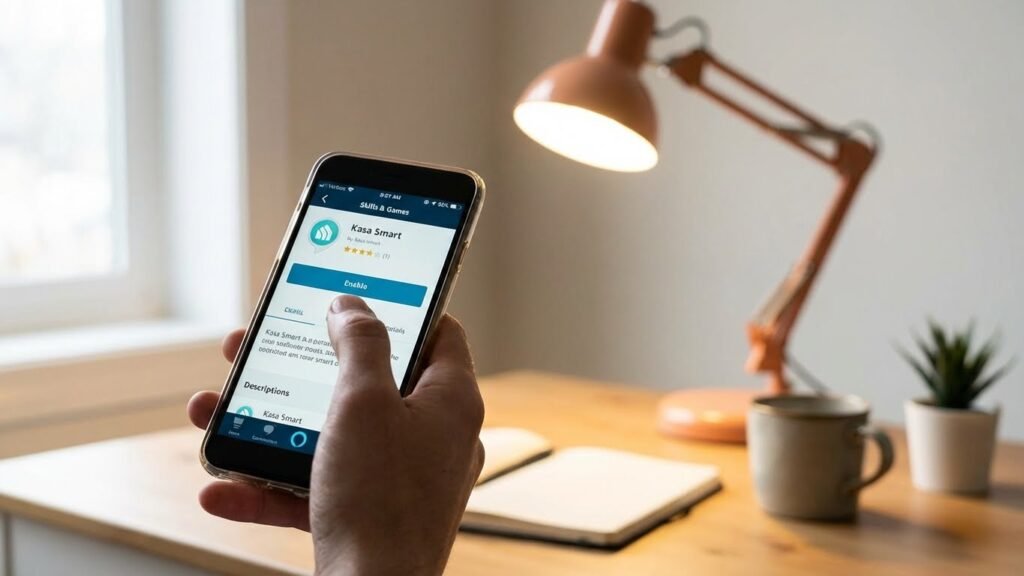
You will link the bulb to your Echo device and activate the maker’s Alexa skill or use Alexa’s built-in discovery. Have the bulb powered, on your Wi‑Fi network, and the bulb maker’s app handy before you start.
Connecting Through the Alexa App
Open the Alexa app on your phone and tap Devices. Pick the plus (+) button and choose “Add Device” then select “Light” and the brand if shown. If the bulb uses native Wi‑Fi or works with Amazon’s Frustration‑Free Setup, Alexa may find it automatically.
If the bulb needs its own hub (for example, Zigbee or a brand hub), set that hub up first using the maker’s app. Make sure your phone and Echo are on the same 2.4 GHz Wi‑Fi if the bulb requires it. After discovery, assign the bulb to a group or room so you can say commands like “Alexa, turn off Living Room lamp.”
If Alexa does not find the bulb, power‑cycle the bulb, check the maker app shows it online, and retry discovery in Alexa. Restarting your router or Echo can also help.
Enabling Smart Home Skills
In the Alexa app, open More → Skills & Games and search for the bulb maker’s skill (for example, Philips Hue, Sengled, or Govee). Tap the skill and choose Enable to Use. You will be asked to sign into the bulb account to link it to Alexa.
Linking gives Alexa permission to control the bulb and access groups, scenes, and schedules you made in the bulb app. After linking, return to Devices and tap Discover Devices or say “Alexa, discover devices.” If a bulb provides scenes or color controls, confirm those appear in the Alexa device settings.
If the skill supports voice discovery, you may need to grant location or network permissions in the maker app. Revoke and relink the skill only if commands stop working; keep the maker app updated to avoid compatibility issues.
Troubleshooting Compatibility Issues
Check your network, power, and account links first. Confirm the bulb type, the Alexa app settings, and any bridge or hub requirements before changing devices.
Common Connection Problems
If your bulb never appears in Alexa, first verify it’s the right type: Wi‑Fi, Zigbee, or Bluetooth. Wi‑Fi bulbs need a 2.4 GHz network and the bulb must join that same SSID. Zigbee bulbs require a compatible hub (Echo with built‑in Zigbee or a separate hub) and should be paired through the hub’s app first.
Power cycling fixes many faults: turn the bulb off for 10 seconds, then back on. Move the bulb closer to the router or hub while pairing. Check your phone’s Bluetooth and location permissions if the bulb uses Bluetooth for setup. Remove and re‑enable any third‑party skills in the Alexa app if devices show “not authorized.” Use the Alexa app’s “Discover Devices” after fixing network or account issues.
Firmware and App Updates
Always keep the bulb’s manufacturer app and the Alexa app up to date. Manufacturers release firmware fixes that resolve pairing bugs and compatibility gaps. Open the bulb’s app, look for firmware updates, and run them while the bulb is powered and on the same network.
Also update your Echo or Alexa device firmware by checking the Alexa app under device settings. After updates, restart both the bulb and the Alexa device. If updates fail, try reinstalling the manufacturer app and logging back into both accounts. Note any model‑specific notes in the manufacturer’s support pages about required app versions or special pairing steps.
Features Unlocked With Alexa-Compatible Smart Bulbs
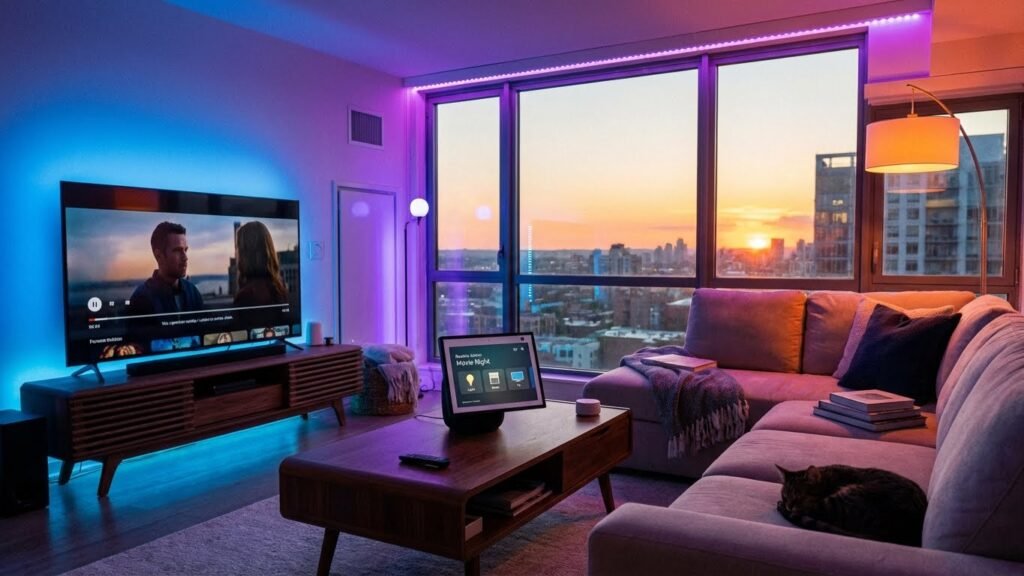
You gain hands-free control and timed behavior when you connect smart bulbs to Alexa. Expect voice commands, color and brightness control, and routines that run on schedules or triggers.
Voice Control Functions
You can turn lights on or off, dim them, or set specific brightness levels by speaking to an Echo device or the Alexa app. Say commands like “Alexa, dim the living room to 30%” or “Alexa, set the bedroom light to 2700K” for tunable-white bulbs.
Color bulbs respond to color names and hex codes. Use phrases such as “Alexa, make the kitchen lights blue” or “Alexa, set the lamp to #FF4500” if the skill supports hex input. Group control lets you address multiple bulbs at once: create a group named “Downstairs” and say “Alexa, turn off Downstairs.”
Some bulbs report state back to Alexa, so the app shows whether a light is on, its color, and brightness. This helps when you want to check or change settings remotely.
Automation and Routines
Routines let you automate lights based on time, sunrise/sunset, or other smart devices. For example, create a routine that turns on porch and hallway lights at sunset and another that fades your bedroom lights over 15 minutes at 10:30 PM.
You can trigger actions with voice, schedules, or device events. Use motion sensors to switch on lights when you enter a room, or link smart plugs and thermostats to a single “Away” routine that turns lights off and lowers heating.
Routines support multiple steps and delays. Start a “Movie Time” routine that dims living room lights to 10%, closes smart blinds, and sets color to warm amber with one command.
Considerations When Choosing a Smart Bulb for Alexa
Pick bulbs that match your home’s wiring, voice habits, and budget. Check compatibility, whether a hub is needed, and how you plan to control the lights—voice, app, or routines.
Energy Efficiency
Look for bulbs labeled with lumens per watt or ENERGY STAR certification to compare real efficiency. A typical 800-lumen LED smart bulb uses 8–12 watts; lower watts mean lower electricity bills and less heat.
Also check standby power. Some bulbs draw a small amount of power while idle to stay connected. Over many bulbs, that standby draw can add to monthly use. If you want the best savings, choose bulbs with low standby wattage and clear energy ratings.
Pay attention to lifespan ratings in hours. Higher-rated bulbs reduce replacement frequency. If you automate lights with schedules or use them many hours daily, favor bulbs with longer rated life and strong warranty terms.
Color and Brightness Options
Decide whether you need color-changing bulbs or just tunable white. Color bulbs (RGB or RGBW) give full hues and scene options but cost more. Tunable white bulbs let you shift between warm and cool white and usually cost less.
Check the maximum lumens for brightness. Living rooms often need 800–1600 lumens per fixture; offices and kitchens may need more. Also verify color temperature range (measured in Kelvin). A 2700K–6500K range covers warm to daylight white.
Confirm Alexa features supported by the bulb. Some bulbs allow color names, precise Kelvin values, or grouped controls in the Alexa app. Others limit commands to on/off and dim. Read product specs for exact voice-control features before buying.
Alternatives for Unsupported Smart Bulbs
If your smart bulb won’t link with Alexa, try a compatible smart hub first. Hubs from brands like Philips Hue or Samsung SmartThings can bridge bulbs that use Zigbee or other protocols and make them controllable through Alexa.
You can also use a smart plug to control a non-compatible bulb. The plug gives you on/off and schedule control via Alexa, though it won’t offer color or dimming features.
Consider replacing the bulb with one that lists Alexa support. Look for phrases like “Works with Alexa” or check the product specs for Alexa/voice compatibility before you buy.
A third option is a brand-specific skill or app integration. Some bulbs require you to enable the maker’s Alexa skill and link accounts to gain full voice control. This often restores dimming and color commands.
If you want multi-room or advanced scenes, a bridge or hub plus compatible bulbs is best. You’ll get smoother control, group commands, and routines that Alexa can use across many lights.
Quick checklist:
- Verify bulb protocol (Zigbee, Wi‑Fi, Bluetooth).
- Check for an official Alexa skill.
- Use a smart plug for basic control.
- Add a hub/bridge for full features.
These steps let you keep existing fixtures and still add Alexa voice control without guessing which bulbs will work.
FAQs
Will any smart bulb work with Alexa?
Not all smart bulbs work with Alexa. You need bulbs that list Alexa or Amazon Echo compatibility, or bulbs that work through a hub or a bridge Alexa supports.
Do I need a hub for Alexa to control bulbs?
Some bulbs connect directly to Alexa via Wi‑Fi or Bluetooth. Others, like Philips Hue, need a hub. Check the bulb’s product page to see if a bridge or hub is required.
How do I connect a smart bulb to Alexa?
Install the bulb and its app first. Then enable the bulb’s Alexa skill in the Alexa app, link your account, and discover devices. You can also use voice commands after discovery.
Can I control multiple bulbs at once?
Yes. Create groups or rooms in the Alexa app to control several bulbs with one voice command. You can also use routines for timed or triggered changes.
What if Alexa can’t find my bulb?
Power‑cycle the bulb, make sure it’s on the same Wi‑Fi network as your Echo, and confirm the bulb’s app shows it online. Disable and re‑enable the Alexa skill if discovery still fails.
Will I lose features if I use Alexa?
Some advanced features may only work through the bulb’s own app. Basic functions like on/off, dimming, and color change usually work via Alexa.
Conclusion
You can make most smart bulbs work with Alexa, but compatibility depends on the bulb’s connection method and the skills or apps it supports. Wi‑Fi and Zigbee bulbs that list Alexa support will usually pair directly or via a hub like the Echo with built‑in Zigbee.
Check product pages and the manufacturer’s app before you buy. Look for explicit Alexa support, or for compatibility with Alexa routines and groups. Philips Hue, for example, uses a hub and has robust Alexa integration (learn more at Philips Hue), while some Wi‑Fi brands link through their own cloud services.
If you want the simplest setup, choose bulbs that say “Works with Alexa” or pick bulbs that connect over Wi‑Fi without a separate hub. You can also use a smart home hub or an Echo device with Zigbee to add bulbs that don’t speak Wi‑Fi. For details on voice control and smart home standards, see Amazon’s developer and smart home pages.
Plan for features you care about: color, dimming, schedules, and energy tracking. Price and ease of setup vary, so compare those alongside compatibility. That lets you build lighting that fits your routines and makes voice control reliable.