
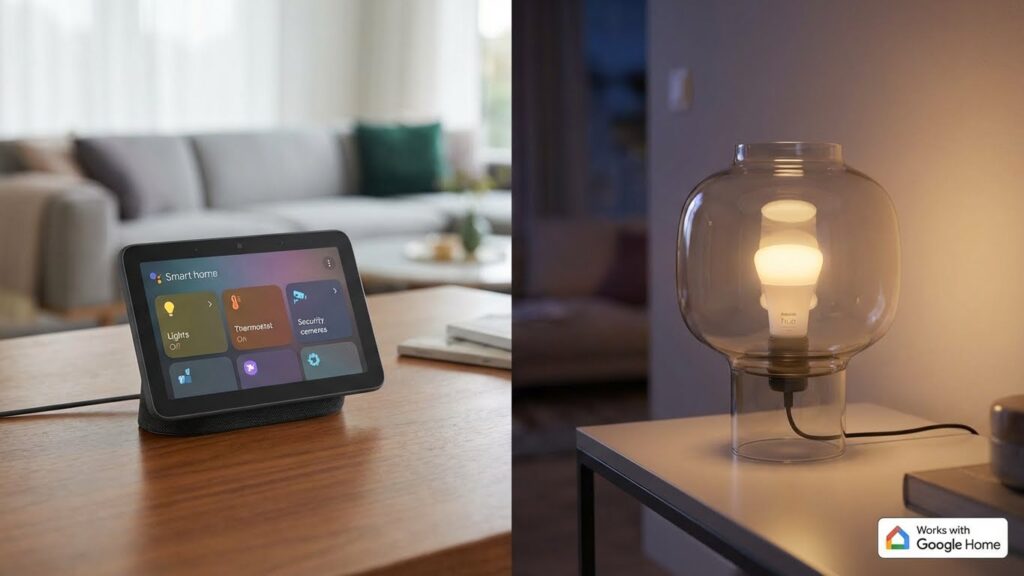
You can use many popular smart bulbs with Google Home — Philips Hue, LIFX, Sengled, TP-Link Kasa, and Cync (C by GE) all work well and offer voice control, color options, and easy integration. Choose bulbs labeled “Works with Google” or “Made for Google” for the simplest setup and the best compatibility.
If you want full features like routines, color control, and instant voice commands, pick bulbs that connect directly to Wi‑Fi or to a bridge that Google Home supports. You’ll also want to check whether a bulb needs its own hub or can be set up straight from the Google Home app.
Key Takeaways
- Pick bulbs marked for Google Home to avoid extra steps.
- Look for Wi‑Fi or “Made for Google” bulbs for best feature support.
- Check whether a hub is required before you buy.
Smart Bulb Compatibility With Google Home

Google Home works with many smart bulbs, but compatibility depends on the bulb’s connection method, app support, and whether it follows smart-home standards. Check for Wi‑Fi, Bluetooth, Zigbee, or Matter support and confirm the bulb’s vendor lists Google Assistant as a compatible platform.
Requirements for Google Home Integration
You need a Google Home or a device with the Google Home app and an active Google Account. For bulbs that connect directly over Wi‑Fi or Bluetooth, pair them using the manufacturer app, then link that app account to Google Home in Settings > Works with Google.
If a bulb uses Zigbee, you must also have a compatible hub or a Matter-capable bridge (for example, a Hue Bridge). That hub must be added to Google Home and updated to the latest firmware.
Network stability matters: use a 2.4 GHz Wi‑Fi network if the bulb does not support 5 GHz. Keep the bulb firmware and the Google Home app up to date for new features and fixes. Look for explicit “Works with Google Assistant” or Matter certification on the product page to avoid surprises.
Types of Smart Bulbs Supported by Google Home
Google Home supports these connection types:
- Wi‑Fi bulbs: Connect directly to your router. No hub needed. Good for simple setups.
- Bluetooth bulbs: Pair locally, then link through the Google Home app on the same phone. Range is limited.
- Zigbee bulbs: Require a Zigbee hub (like Philips Hue Bridge) unless your Google device supports Zigbee or Matter.
- Matter-compatible bulbs: Work across brands and usually integrate directly into Google Home once you provision them.
Popular brands include Philips Hue (hub or Matter), LIFX (Wi‑Fi), TP‑Link Kasa (Wi‑Fi), Sengled (Zigbee or hub models), and newer bulbs advertising Matter support. Check the product specs for protocol and whether the bulb supports color control, tunable white, or only on/off/brightness.
Benefits of Using Compatible Smart Bulbs
You gain voice control through Google Assistant for on/off, brightness, color, and routines. Use simple commands like “Hey Google, set living room lights to 50%” or schedule lights with Google Home routines.
Matter or direct Wi‑Fi bulbs reduce complexity because they often need no extra hub. Zigbee systems can offer more reliable mesh networking, which helps in larger homes.
Compatible bulbs also let you group lights by room for single commands and automate actions based on location or time. Choosing bulbs that explicitly list Google Assistant or Matter support cuts down on setup time and future troubleshooting.
Best Smart Bulbs That Work With Google Home

These options give reliable Google Assistant control, good app features, and clear trade-offs on hub needs, color range, and price. Pick based on whether you want the widest smart features, lower cost, or the brightest colors.
Philips Hue
Philips Hue works with Google Home through the Hue Bridge or some Bluetooth models. If you use the Hue Bridge, you get full voice control, routines, and multi-room groups. The Bridge also lets you link many bulbs and add Hue accessories like dimmer switches and motion sensors.
Hue bulbs offer wide color range and consistent color accuracy across fixtures. You can pick white-only, white-tunable, or full color bulbs, and the app supports schedules, scenes, and third-party integrations. Bulbs cost more up front, but firmware updates and long-term support are strong.
TP-Link Kasa Smart
TP-Link Kasa Smart bulbs connect directly to Wi‑Fi, so you don’t need a hub. You link Kasa to Google Home via the Kasa app and the Google Home app for voice control and routines. These bulbs are affordable and simple to set up for basic voice commands like on/off and brightness.
Kasa offers white and color models with decent brightness for everyday rooms. The app includes schedules, away mode, and energy monitoring on some models. Expect fewer advanced color-scene options than premium brands, but good value for steady, hub-free Google Assistant use.
LIFX
LIFX bulbs use Wi‑Fi and deliver very bright light and vivid colors without a hub. They rank high for color saturation and special effects like color cycling and tile-style gradients in some models. Pair LIFX with Google Home to control individual bulbs, set scenes, and use voice commands for color and brightness.
The app gives fine color control, effects, and per-bulb scheduling. LIFX bulbs tend to cost more than budget brands, but they suit rooms where color quality and brightness matter, like living rooms or media areas. They also receive frequent firmware updates.
Sengled
Sengled offers budget-friendly bulbs that work with Google Home, with options that use Wi‑Fi or Zigbee. Zigbee models require a compatible hub (like a Zigbee hub or the Hue Bridge) but often cost less per bulb. The Wi‑Fi models connect directly for simple voice control and scheduling.
Sengled focuses on essential features: reliable on/off, dimming, and decent white tones, plus some color models. They shine in multi-bulb installs where cost matters and you want Google Assistant control without premium color fidelity. Sengled also makes specialty bulbs, like integrated motion-sensor versions, for targeted use.
Other Notable Google Home-Compatible Smart Bulbs
These bulbs give you reliable voice control, simple routines, and most offer color and white-tunable options. They differ in setup method, local vs cloud control, and extra features like motion sensing or Thread support.
Wyze Bulb
Wyze bulbs connect to your Wi‑Fi and work with Google Home through the Wyze app. You’ll set them up in the Wyze app first, then link Wyze to Google Home to control lights with voice commands and include them in routines.
You get white and color models. The white bulbs are cheap and bright enough for most rooms. The color bulbs offer 16 million colors and adjustable color temperature from warm to cool.
Wyze relies mostly on cloud services for remote control, so your Google Assistant commands go through Wyze’s servers. That keeps setup simple but can add a slight delay compared with local-only solutions. Firmware updates and schedules are handled in the Wyze app.
GE Cync
GE Cync (formerly C by GE) bulbs support Google Assistant via the Cync app and a hubless Wi‑Fi connection for many models. You install bulbs, add them to the Cync app, and then link the Cync service inside Google Home for voice control.
GE Cync offers tunable white and color bulbs and often focuses on easy retrofit options—A19 shapes and BR directional bulbs are common. Bulbs typically work over 2.4 GHz Wi‑Fi, so check your router settings during setup.
Some higher-end Cync products include features like scheduling, scenes, and integration with other smart devices in the Cync ecosystem. Expect cloud-based control; local control options are limited, so continuous internet access is recommended.
Nanoleaf Essentials
Nanoleaf Essentials bulbs support Thread and Bluetooth, giving you flexible connection options and faster local responses when used with a Thread border router. You’ll pair them with the Nanoleaf app and then link Nanoleaf to Google Home for voice commands and routines.
Essentials bulbs deliver wide color gamut and smooth white tuning, and they shine at accurate color rendering. Thread support improves responsiveness and reliability if you have a compatible router or Nest Hub as a Thread border router.
You can control lighting effects, scenes, and schedules in the Nanoleaf app. If you use Bluetooth alone, expect simpler setup but limited range. For best performance with Google Home, enable Thread or use Wi‑Fi bridges when available.
Setting Up Smart Bulbs With Google Home

You will replace bulbs, connect them to power and Wi‑Fi, and then add them in the Google Home app. Some bulbs need the maker’s app or a hub; others are Made for Google and link directly.
Step-by-Step Setup Process
Start by turning off the light and removing the old bulb. Screw in the smart bulb, restore power, and wait for the bulb to show its pairing state (blinking or color change).
If the bulb requires a bridge or hub (for example, some Philips Hue models), plug the hub into your router and follow the hub maker’s app steps first. For bulbs that work directly with Google Home (Made for Google or Works with Google Assistant), skip the hub and go straight to the Google Home app.
Keep the bulb within range of your Wi‑Fi during setup. If pairing fails, power-cycle the bulb twice or reset it using the manufacturer’s reset method, then try again.
Using the Google Home App
Open the Google Home app on your phone and tap “+” to add a device. Choose “Set up device” → “New device,” pick your home, and let the app scan for nearby bulbs.
If the bulb is Made for Google, the app usually finds it automatically; follow the on‑screen prompts to name the bulb and assign it to a room. For bulbs that need the maker’s app, select “Works with Google” and link the manufacturer account under “Works with Google” in settings.
Adjust settings like brightness, color, and routines right in the Google Home app. Test voice control by saying “Hey Google, turn on [bulb name]” to confirm the setup. If problems persist, check the bulb maker’s support for firmware updates or compatibility notes.
Features Of Google Home-Compatible Smart Bulbs
You’ll want bulbs that respond quickly, fit your fixtures, and offer the control you need. Key points include how you talk to them, when they turn on or off, and the range of colors and brightness they offer.
Voice Control Capabilities
You can use Google Assistant to control bulbs with simple voice commands. Most compatible bulbs let you turn lights on or off, set percentages (for example, “set living room to 50%”), and trigger named scenes like “movie” or “reading.”
Bulbs that integrate directly over Wi‑Fi or through a hub usually give the fastest, most reliable response. Matter-compatible and native Google Home devices tend to show up in the Google Home app automatically, so you can name rooms and groups for easier voice control.
Pay attention to what each brand supports by voice. Some bulbs let you change color and color temperature by voice, while others only support white dimming. Also check whether third‑party routines and custom phrases work — some budget bulbs limit advanced voice features.
Scheduling and Automation
You can schedule bulbs to follow daily routines or react to events. Use the Google Home app to set time-based schedules, sunrise/sunset triggers, and presence-based automation that turns lights on when you arrive home.
Routines let you combine bulb actions with other smart devices, such as turning on lights and adjusting thermostat together when you say “Good morning.”
Look for bulbs that support local scheduling or Matter, since local rules work even if the internet drops. Some bulbs rely on a cloud service, which can introduce delays or outages. Also check whether the bulb supports multiple schedules per day and whether schedules can be shared with family accounts.
Color and Brightness Adjustments
You can choose bulbs that offer plain white dimming, tunable white (warm to cool), or full RGB color. Full-color bulbs typically advertise “16 million colors,” but focus on usable ranges: warm whites around 2200–3000K and cool whites up to 6500K.
Check the bulb’s lumen output to match the brightness you need. Typical living‑room bulbs range from 800–1100 lumens. Higher CRI (color rendering index) values, like CRI 90+, give more natural color in your room.
Note how the app labels color and temperature controls. Some apps use simple sliders for kelvin and brightness, while others provide color wheels and preset scenes. If you plan to sync lights to media or routines, verify that the bulb supports smooth color transitions rather than abrupt jumps.
Troubleshooting Common Issues
Start by checking your Wi‑Fi. Make sure your phone and the smart bulb are on the same 2.4 GHz network unless the bulb supports 5 GHz. Weak signal or a different network often blocks setup and control.
Confirm the bulb is powered on and paired correctly. Toggle the wall switch, reset the bulb per the maker’s instructions, and retry adding it in the Google Home app. Many connection problems clear after a reset.
Update firmware and apps. Keep the Google Home app and the bulb’s firmware current. Updates fix bugs and add compatibility.
Use simple network fixes next. Restart your router and any mesh nodes. Move the bulb closer to the router for setup then relocate it after pairing.
Check account and device links. Ensure the bulb maker’s service is linked to your Google account in the Google Home app. Relink the service if devices don’t appear or respond.
Watch for hub or bridge requirements. Some bulbs need their own bridge even if they advertise Google support. Verify whether your bulb is “Made for Google” or requires a separate hub.
If voice commands fail, confirm Google Assistant language and voice match the bulb’s supported region. Also check the device name for easy voice control.
If problems persist, consult the bulb maker’s support or Google Home help. Provide model numbers, firmware versions, and steps you already tried to speed up diagnosis.
Factors To Consider Before Purchasing
Think about compatibility first. Check that the bulb explicitly supports Google Home or Google Assistant in its product details so you can control it by voice without extra hacks.
Decide how you want to connect the bulbs. Wi‑Fi bulbs talk directly to Google Home and are easy to set up. Zigbee or Z‑Wave bulbs may need a hub (like a Philips Hue Bridge) but can be more reliable for many bulbs.
Consider the lighting features you need. Do you want dimmable white, tunable white (warm to cool), or full color? Color bulbs cost more, so match features to how you’ll use them.
Look at brightness and bulb type. Match lumens to the room size and choose the right base (A19, GU10, etc.). Brightness matters more than watts now; lumens tell the real light output.
Evaluate smart home integration. If you already use other devices from a brand, sticking with that ecosystem can simplify routines and automations.
Check app quality and firmware support. A good app makes setup and grouping easy. Brands that push updates keep bulbs secure and add features over time.
Factor in energy use and lifetime. Look for ENERGY STAR ratings and long lifespan claims, but expect real life to vary. Warranties and return policies give extra protection.
Compare price against long‑term value. Cheaper bulbs may save money up front but could lack features, updates, or reliability you’ll miss later.
Energy Efficiency and Longevity
Smart LED bulbs use much less energy than incandescent bulbs. You typically see savings of 60–80% on the same light output, which lowers your electric bill over time.
Look for bulbs with an ENERGY STAR label or stated lumens-per-watt (lm/W). Higher lm/W means more light for each watt used. Many smart bulbs also let you dim or schedule lights, which reduces energy use further.
Lifespan varies by model but smart LEDs commonly last 15,000–25,000 hours. That equals several years of typical use. Some premium bulbs, like those from well-known brands, can reach 25,000–50,000 hours.
Keep an eye on factors that shorten life: high heat, frequent power cycles, and poor-quality drivers. Installing bulbs in open fixtures or poorly ventilated enclosed fixtures can raise temperature and cut lifespan.
You can compare energy and longevity quickly with the table below.
Quick comparison
| Item | What to check |
|---|---|
| Energy use | Wattage and lumens-per-watt (lm/W) |
| Expected life | Rated hours (e.g., 15k–50k) |
| Efficiency label | ENERGY STAR or equivalent |
| Controls that save power | Dimming, schedules, motion or ambient sensors |
Choose bulbs that match your usage patterns. If you run lights many hours daily, prioritize high lm/W and long rated hours. For occasional use, a lower-cost option with decent efficiency may be fine.
Future Trends in Smart Bulb and Google Home Integration
You will see tighter integration between smart bulbs and Google Home that makes setup and control simpler. Expect smoother voice commands, faster responses, and better device discovery so bulbs appear in your app quickly.
Lighting will get smarter about scenes and routines. Bulbs will learn your habits and suggest automations, like dimming at bedtime or shifting to cooler light for work. You will be able to combine bulbs, speakers, and sensors in single routines more easily.
Color fidelity and tunable white will improve, giving truer colors and wider temperature ranges. This helps you match lighting to tasks, moods, or art. Look for bulbs that report color accuracy in their specs.
Security and privacy will gain focus. Manufacturers and Google will push stronger encryption and clearer privacy controls so you can manage what devices share with cloud services. You should check permissions during setup.
Interoperability standards like Matter will expand device compatibility. That means more bulbs from different brands will work with Google Home without special hubs. You will have more choices and fewer compatibility headaches.
Energy and health features will become standard. Expect energy reports, scheduling that lowers power use, and circadian-friendly lighting that supports sleep. These features will show up in Google Home controls and third‑party apps.
FAQs
Which smart bulbs work with Google Home? Most Wi‑Fi and many Zigbee bulbs work with Google Home. Look for “Works with Google,” “Made for Google,” or explicit Google Assistant compatibility on the box or product page. Popular brands include Philips Hue, LIFX, Sengled, TP‑Link Kasa, and Cync/C by GE.
Do I need a hub or bridge? Some bulbs need a hub (Philips Hue typically uses a Hue Bridge). Others connect directly via Wi‑Fi or Matter and do not need extra hardware. Check the product details before buying to avoid surprises.
How do I set up a smart bulb in Google Home? Screw in the bulb, power it on, and open the Google Home app. Add the device by tapping “+” > “Set up device” and follow the maker’s instructions. You may need to sign into the bulb’s account or enable a partner service.
Can I control bulbs with voice and routines? Yes. Once linked to Google Home, you can use voice commands and create routines to automate lights by time, location, or other triggers. Use clear names for bulbs to make voice control easier.
What about privacy and security? Use strong, unique passwords for smart‑bulb accounts and your Wi‑Fi network. Keep firmware and apps up to date. Consider bulbs that support Matter or local control to reduce cloud dependence.
What if a bulb won’t connect? Restart the bulb, router, and app. Make sure the bulb is in setup mode and on the same Wi‑Fi band (2.4 GHz vs 5 GHz) the bulb supports. Check the manufacturer’s troubleshooting guide if problems persist.
Conclusion
Choosing smart bulbs that work with Google Home gives you simple voice control, routines, and energy savings. You can pick bulbs that connect via Wi‑Fi or a hub, depending on your setup and how many lights you want to control.
Start by checking compatibility with Google Assistant and your Wi‑Fi or hub. Brands like Philips Hue, LIFX, and Sengled commonly support Google Home, and product pages on the manufacturers’ sites explain setup steps and feature lists. For detailed official specs, consult the Google Assistant compatibility guide at https://support.google.com/assistant.
Think about the features you need: color versus white, brightness (lumens), and app controls. Color bulbs add scene options and mood lighting, while white bulbs often cost less and use less power. If you want whole-home control, consider bulbs that work with a hub to reduce network load.
Security and updates matter. Choose brands with regular firmware updates and solid reviews. You can read tests and comparisons from trusted tech sites like CNET to compare brightness, latency, and color accuracy.
Once you buy, set aside time to group rooms and create routines in the Google Home app. That makes daily control faster, and you’ll get the most from your smart lights.